


Category filter
Configure Windows Display Settings with Hexnode UEM
TL;DR
The Display Settings policy in Hexnode UEM enables IT administrators to remotely manage screen orientation, lock screen configurations, and desktop wallpapers on managed Windows devices. It supports enforcing corporate branding, locking display layouts for kiosks/POS terminals, and displaying real-time device details on the lock screen wallpaper.
Configuring display settings across an enterprise fleet ensures visual standardization, reinforces corporate security messaging, and protects user environments from unauthorized alterations. By leveraging the Windows Display Settings policy in Hexnode UEM, administrators can enforce fixed screen orientations (including multi-monitor setups), set static or web-based desktop and lock screen wallpapers, and display diagnostic metadata, such as device name, processor, and last check-in timestamp directly on the lock screen background.
Prerequisites and Supported Platforms
Before deploying Windows Display Settings policies via Hexnode UEM, ensure your environment meets the following baseline requirements:
- Supported OS: Windows 10/11 (Pro, Enterprise, Education).
- Management Mode: Devices enrolled in Hexnode UEM
- Permissions: Administrative privileges on the Hexnode UEM console to create and assign policies.
Configure Windows Display Settings Policy in Hexnode UEM
Follow these steps to create and assign a display configuration policy to your managed Windows endpoints:
- Log in to your Hexnode UEM portal.
- Navigate to the Policies tab.
- Select an existing policy or click New Policy to create a new one.
- Go to Windows > Enterprise > Configurations > Display Settings and click Configure.
- Configure the desired parameters for Screen Orientation, Desktop Wallpaper, and Lock Screen Wallpaper settings.
- Navigate to Policy Targets, attach the policy to the target Devices, Device Groups, Users, or Domains, and click Save.
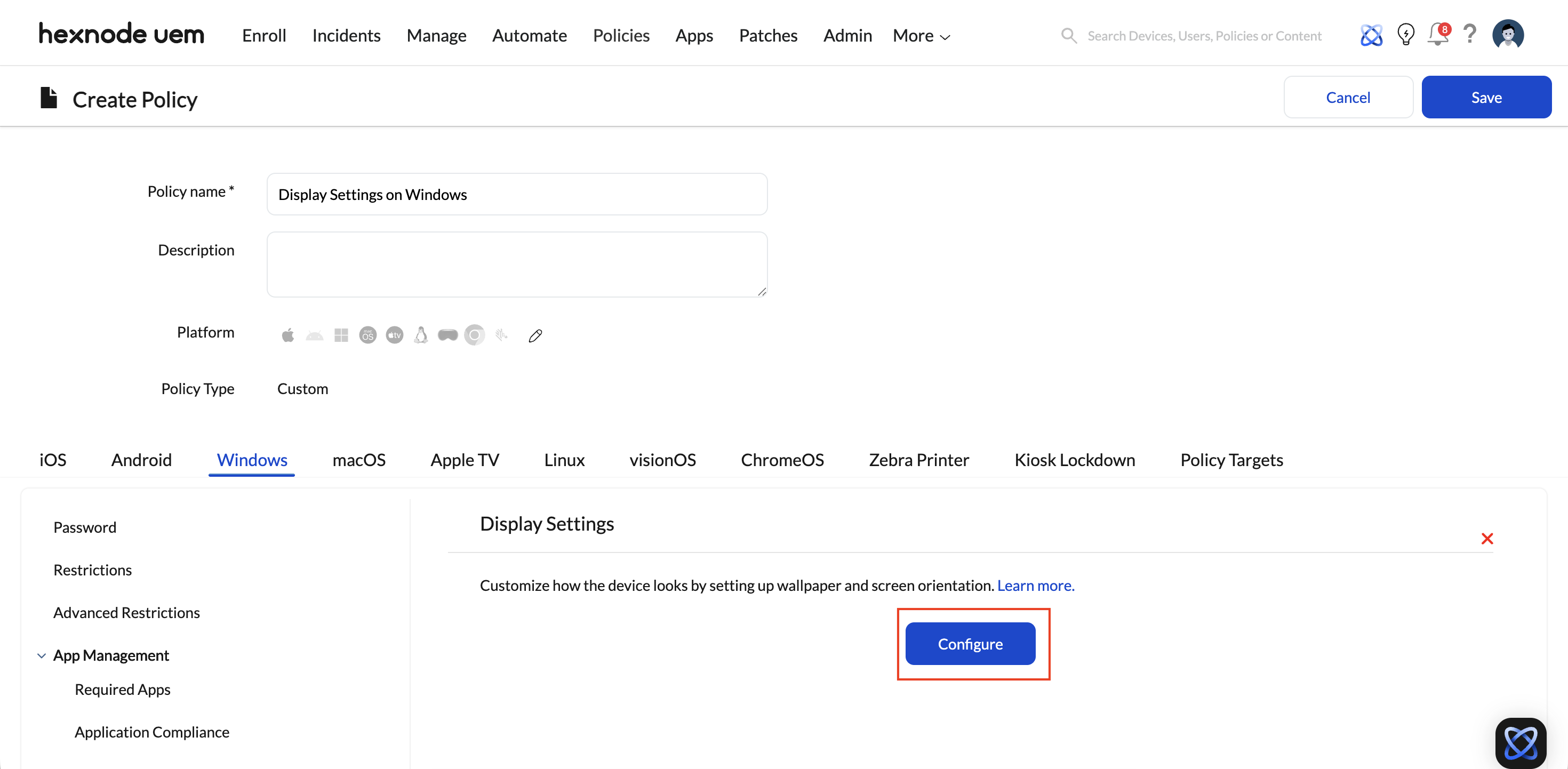
Display Policy Configuration Parameters
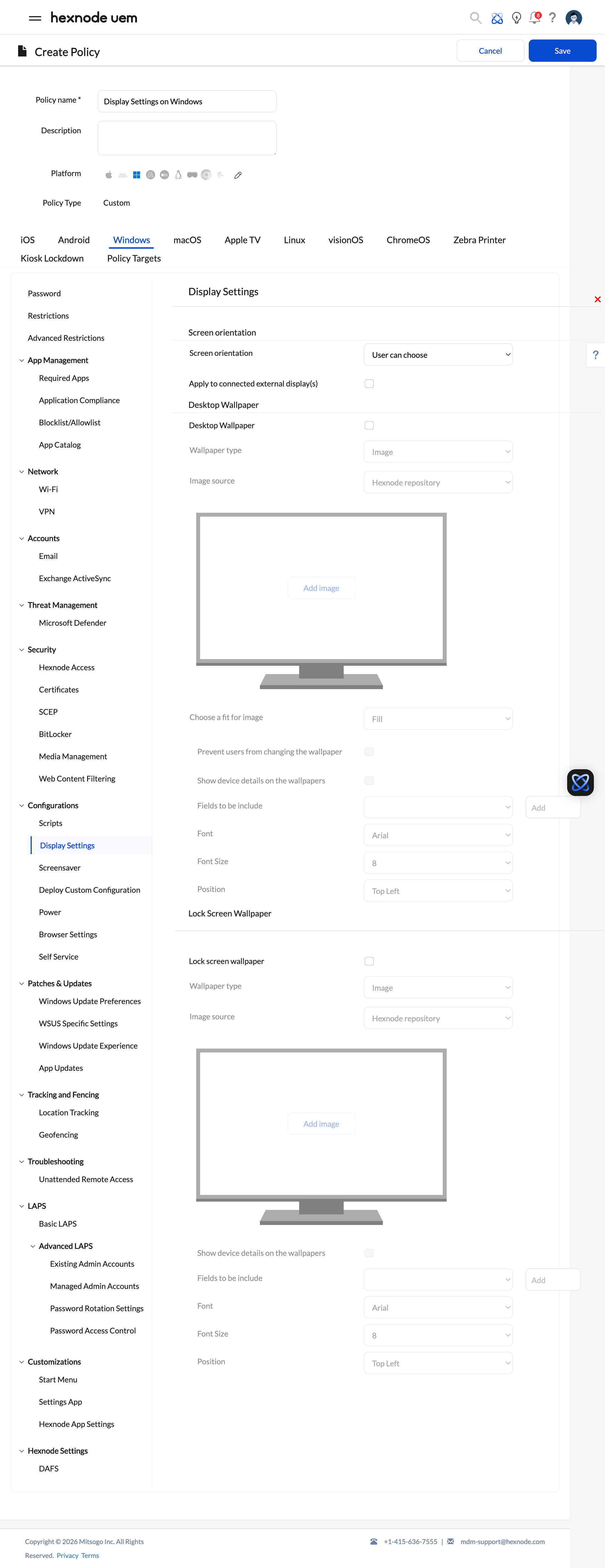
The Display Settings policy provides granular controls categorized into screen orientation layout and background wallpaper enforcement.
1. Screen Orientation Controls
Screen orientation locking prevents accidental or unauthorized screen rotation—critical for fixed-purpose deployments like digital signage, point-of-sale (POS) systems, and self-service kiosks.
- Screen Orientation: Select from User can choose, Landscape, Portrait, Inverted Landscape, or Inverted Portrait.
- Apply to connected external display(s): Enable this option to enforce the selected orientation layout onto secondary monitors connected to the device.
2. Desktop and Lock Screen Wallpaper Configurations
Enforce mandatory corporate wallpaper policies across user desktops and lock screens.
| Setting | Description & Available Parameters |
|---|---|
| Desktop wallpaper | Check this option to enable and configure desktop wallpaper enforcement on managed endpoints. |
| Lock screen wallpaper | Check this option to enforce a standardized image or solid color on the system lock/login screen. |
| Wallpaper type | Select either Image or Solid colour. If Solid colour is selected, use Choose colour to pick the color value. |
| Image source |
When Image is selected, define the source location:
|
| Choose a fit for the image | Select image rendering scale: Fill, Stretch, Tile, Centre, or Span. |
| Prevent users from changing the wallpaper | Enable this setting under Desktop wallpaper to restrict end users from modifying desktop wallpaper settings via Windows Personalization options. |
| Show device details on the wallpaper |
Available under lock screen wallpaper settings. Check this option to display customizable device details directly on the background:
|
Best Practices for Windows Display Policy Deployment
- Ensure Windows Activation: Verify that all target devices are properly licensed and activated before deploying wallpapers to avoid silent policy failures.
- Standardize Image Formats: Use JPG or PNG formats with a resolution matching the standard monitor aspect ratio of the fleet (e.g., 1920×1080) to prevent distorted images or high memory consumption.
- Reboot for Personalization: Advise users to restart the device after the policy is applied. While some changes are immediate, a reboot ensures all system UI elements (like the Lock Screen) refresh with the new configuration.
Troubleshooting Display Settings Policies
- Issue: The Wallpaper policy status remains “In Progress” indefinitely in the Action History.
Probable Cause: A synchronization gap exists between the device and the Hexnode server, or there is a conflict with a pre-existing personalization policy.
Solution: Perform a manual Sync from the Hexnode UEM app on the device. If the status does not update, modify the policy slightly (e.g., changing the Description) and save it again to force a re-application of the configuration.
Frequently Asked Questions
Does the Wallpaper policy take precedence over user-installed Windows themes?
Yes. When the admin associates a Wallpaper policy via Hexnode, the operating system gives priority to the UEM-delivered configuration over any local theme or personalization settings applied by the user.
What occurs if the image file is deleted from a provided Web URL after the Wallpaper policy is associated?
Windows typically caches the image locally once it is successfully downloaded. However, if the device attempts to re-synchronize the policy and the source URL is no longer valid, the device may revert to a default system background or a solid black screen.
Does the Wallpaper policy support the deployment of multiple images as a slideshow?
Currently, the Wallpaper policy for Windows supports only a single static image or a solid color. Organizations requiring rotating backgrounds may need to utilize a custom script to manage image folders and registry-based slideshow settings.


