


Category filter
How to update enterprise apps on iOS devices?
Enterprise (in-house) applications are proprietary tools developed for internal organizational use and are not hosted on the public App Store. Hexnode UEM provides two primary workflows to update these applications across managed iOS devices.
Updating iOS Enterprise Apps: Methods Overview
Hexnode UEM offers two distinct ways to manage iOS enterprise app updates. You can overwrite the existing inventory entry or maintain multiple versions as separate entries.
Method 1: Replacing the Existing IPA File
Administrators use this standard method to update an application globally by replacing the old .ipa file with a new version within the same app entry in the Hexnode UEM App Inventory.
Update the App in Hexnode UEM App Inventory
- Navigate to the Apps tab and search for your enterprise app (Make use of filters in Hexnode UEM for better results).
- Click on the app name to open the App details page.
- Click the Settings (gear icon) at the top and select Edit.
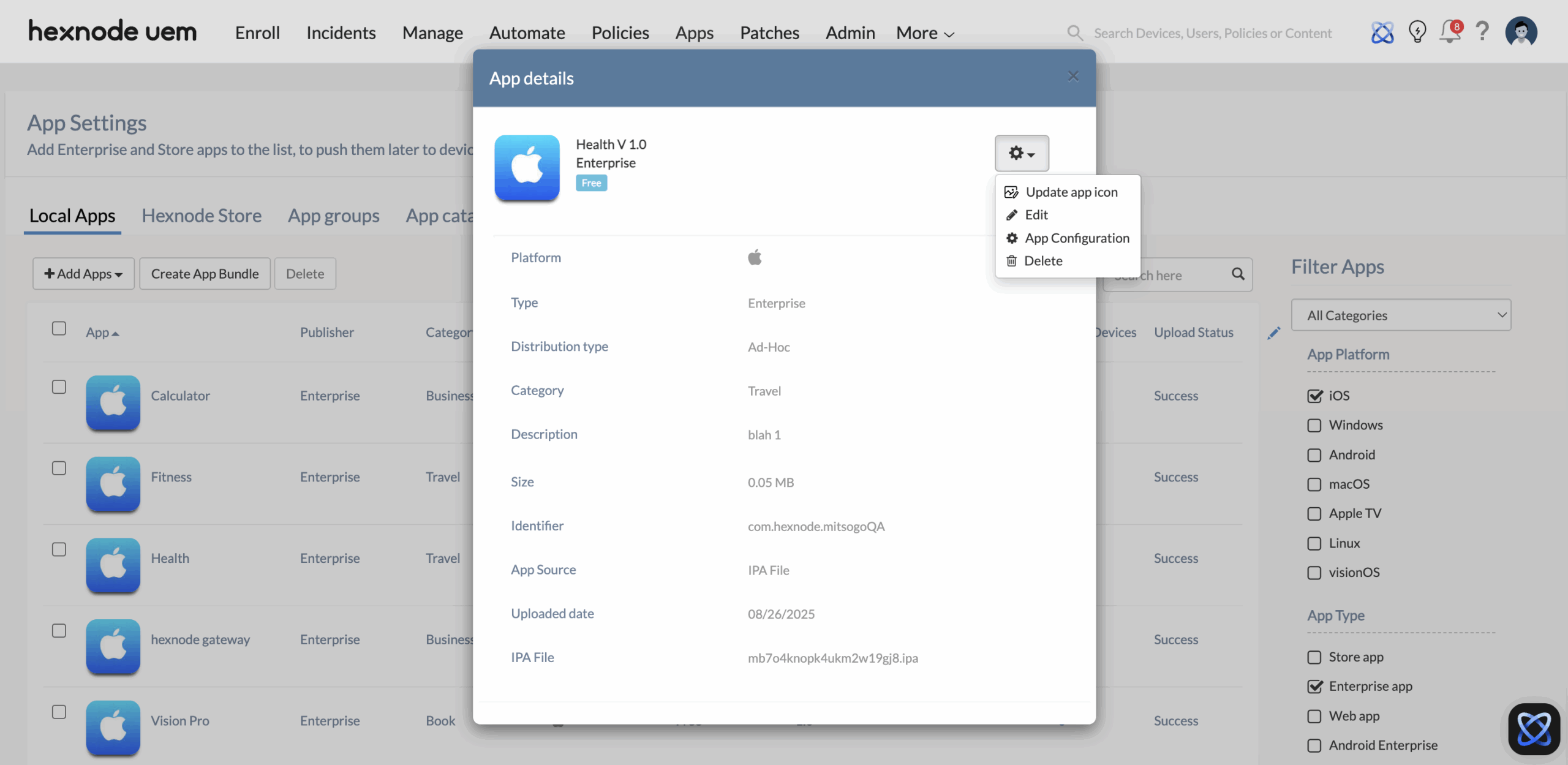
- Click Change next to Choose the IPA File field.
- Upload the new version of the enterprise app and click Save.
Deploy the Updated iOS Enterprise App
- Case A (Automated): If the enterprise app was originally deployed via a Required Apps policy, the update pushes the app automatically to all associated devices.
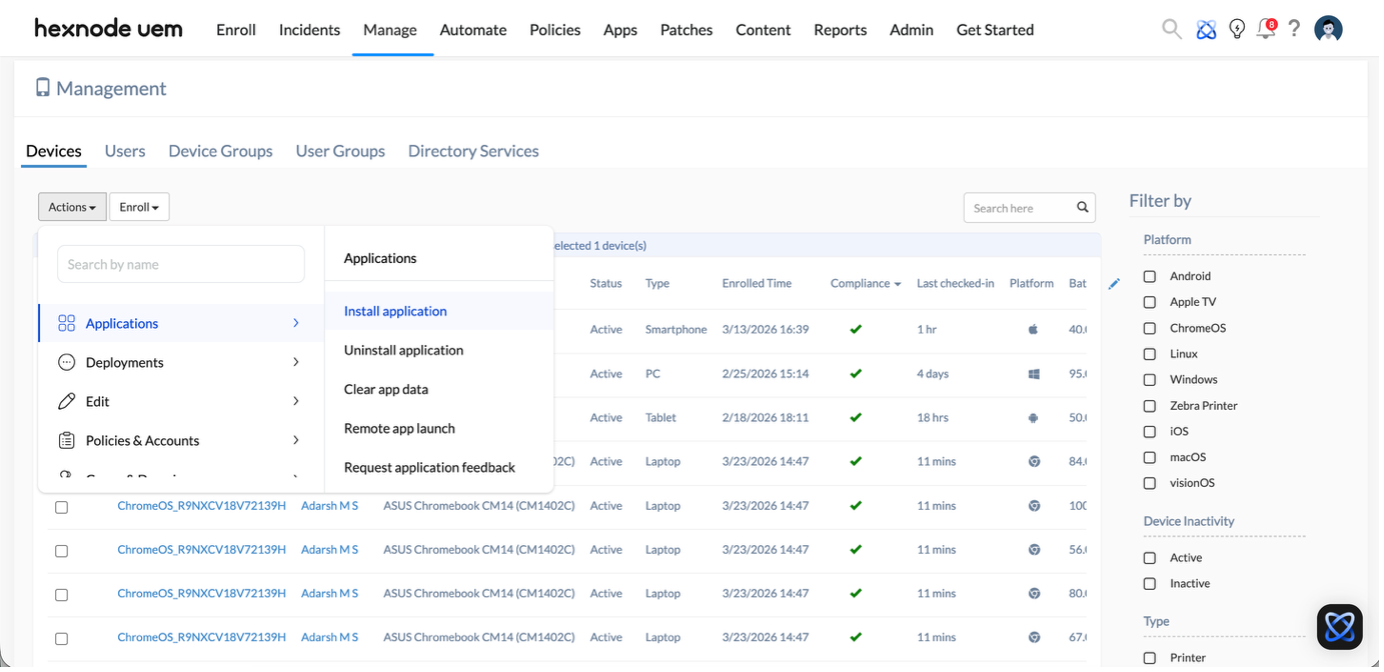
- Case B (Manual): To force an update immediately, go to Manage > [Select Device(s)] > Actions > Applications > Install application, select the app, and click Install.
Method 2: Adding the Higher Version as a New App
Use this method to keep multiple app versions available in the Hexnode UEM App Inventory or to deploy the update as a fresh app entry.
Add the New Version
- Navigate to the Apps tab, click +Add Apps > Enterprise App.
- Choose the iOS platform and fill in the App Name, Category, and Description.
- Click Choose file, upload the new IPA, and click Add.
Our comprehensive guide, Adding an iOS Enterprise App, explains this setup process in detail.
Deploy the Higher Version of iOS Enterprise App
- Via Policy: Create or edit a policy under Policies > New Policy > Create a fully custom policy > iOS > Required Apps, add the new version, and associate it with your target devices.
For a detailed guide on configuring the Required Apps via Policies, see Enforcing an App via Required Apps Policy.
- Via Manual Action: Go to Manage > [Select Device(s)] > Actions > Applications > Install application, select the newly uploaded app (higher version), and click Install.
Note: iOS identifies apps by their Bundle ID. Even if added as a “new” app in Hexnode UEM, the device will recognize the matching ID and overwrite the old version with the new one rather than creating a duplicate icon.
Key Implementation Notes
- Version Increment: The new IPA file must have a higher version number than the currently installed version.
- Silent Updates: Only Supervised Devices support silent updates without user interaction.
- Cellular Data Settings: Users must be advised to configure their devices to avoid manual prompts over cellular networks. Navigate to Settings > App Store > App Downloads and choose ‘Always Allow’. This setting ensures background updates complete reliably without Wi-Fi connection requirements.
Frequently Asked Questions
Will updating an iOS enterprise app delete user data?
No. Standard iOS app updates preserve local app data unless the app’s internal logic specifically clears it.
Why is the iOS app update failing on some devices?
An iOS app update might fail due to common issues such as insufficient storage or incompatible iOS versions on target devices.


