


Category filter
How to Transfer Files to Android Devices
Hexnode UEM’s File Management feature allows enterprises to securely distribute content (documents, apps, videos, etc.) to enrolled Android and Android TV OS devices. Files are automatically downloaded to a specified location on the device without user intervention, ensuring data remains secure even if endpoints are scattered.
Step-by-Step Distribution Process
Phase 1: Upload to Repository
Before deploying to devices, files must be uploaded to the Hexnode UEM portal.
- Navigate to Content > My Files.
- Click Add File(s).
- In the pop-up, provide a File Name and click Choose File to upload the content. Click Save. The file is now indexed in the repository for use.
Phase 2: Create and Configure Policy
- Go to Policies > New Policy (or edit an existing one).
- Select Android > File Management and click Configure.
- Policy Name & Description: Enter a mandatory name and optional description.
- Destination Path: Enter the exact location on the device where the file should be stored.
- File Selection: Enter the name of the file (from the repository) to be sent to that location.
- Click Add.
Phase 3: Association
- Navigate to the Policy Targets tab.
- Select the target Devices, Device Groups, Users, User Groups, or Domains.
- Click Save.
On-Device Experience & Tracking
The Downloads Tab
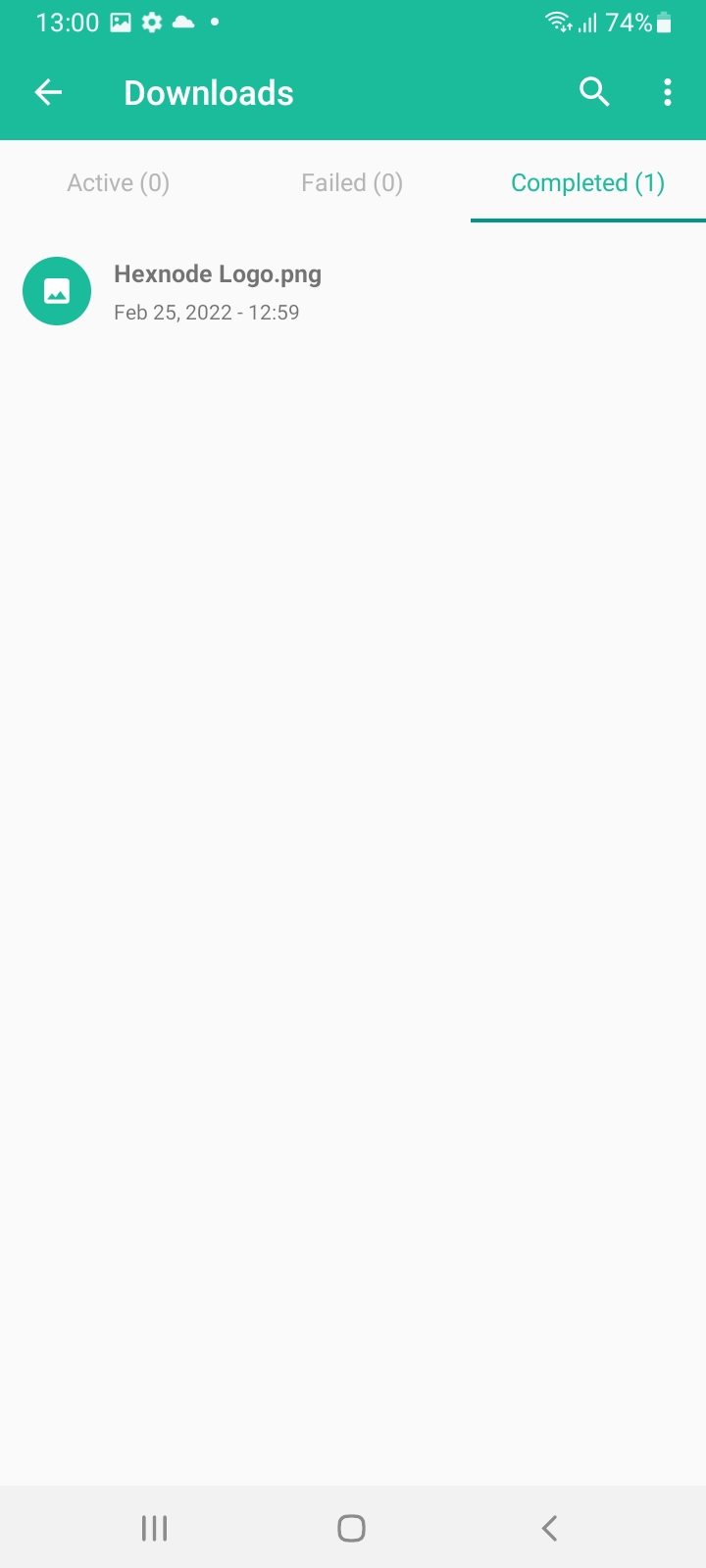
Users can track the status of deployed files within the Hexnode UEM / Hexnode for Work app under the Downloads tab.
- Active: Displays ongoing downloads.
- Failed: Displays files that encountered errors during transfer.
- Completed: Lists successfully downloaded files.
Manual Actions
- Search: Use the search icon at the top of the Downloads tab to find specific files.
- Refresh: Tap the vertical ellipsis (⋮) and select Refresh to sync download entries.
- Clear All: Removes entries from the Downloads list. Note: This does not delete the actual files from the device storage.
Frequently Asked Questions
- What happens to the files if I delete the policy from the Hexnode portal?
When a File Management policy is deleted or disassociated from the portal, the transferred files are automatically removed from the target devices. - Can I remotely delete a file without removing the entire policy?
Yes, files distributed via Hexnode can be managed and deleted remotely through the UEM portal to secure compromised devices. - Does the user need to click “Accept” to receive a file?
No. Once the policy is associated, the file is downloaded from the server to the device automatically without requiring user intervention (provided permissions are active). - Will “Clear All” in the app’s Downloads tab delete my corporate data?
No. “Clear All” only cleans up the history/logs within the Hexnode app interface. The actual files remain in the storage location specified in the policy. - Why is my file failing to download on an Android 11 device?
The most common cause is a missing “All Files Access” grant. Ensure the technician or user has enabled this permission in the device settings for the Hexnode UEM app.
Need more help?


