


Category filter
How to Configure Email on Android Devices?
Configuring enterprise email on Android devices via Hexnode UEM allows administrators to remotely deploy account settings, ensuring users can access their work emails without manual setup.
Critical Compatibility Note
Important: This specific email configuration policy is designed for Samsung Knox devices only. It is supported on devices running:
- Android versions below 9.0
- Knox versions below 3.2.1
How to Configure Email Settings in Hexnode
To set up enterprise email settings, follow these steps within your Hexnode portal:
- Login to your Hexnode UEM portal.
- Navigate to the Policies tab.
- Select an existing policy or click New Policy to create a one.
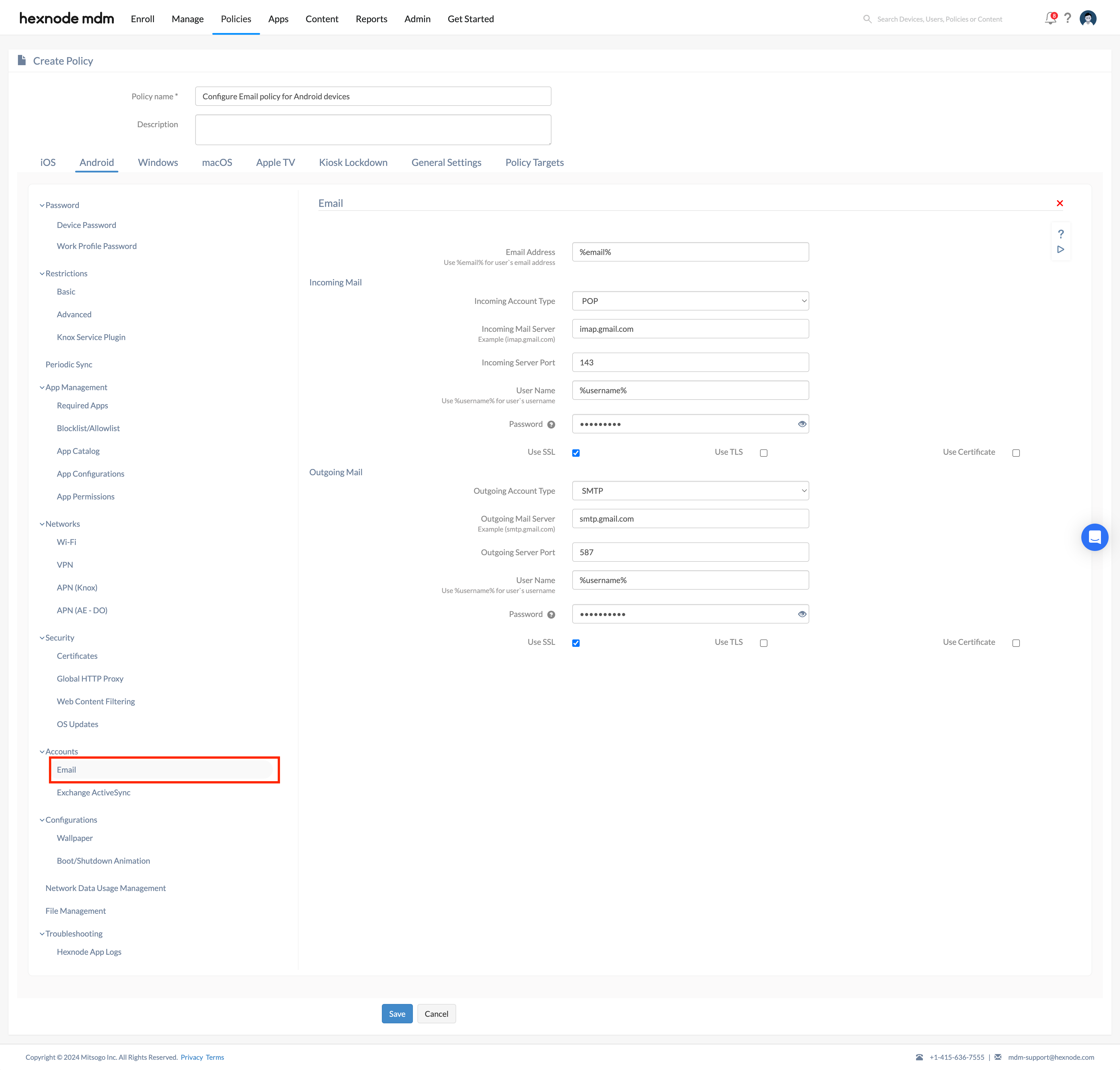
- Select Android > Accounts > Email and click Configure.
General Settings
Email Address: Enter the user’s email. You can use the %email% wildcard to automate this for multiple users.
Server Configuration Details
| Setting | Incoming Settings (POP/IMAP) | Outgoing Settings (SMTP/POP) |
|---|---|---|
| Account Type | Select POP (emails stored on the user’s device) or IMAP (emails stored on the server so the user can check them from anywhere). | Choose the outgoing protocol. Available options are SMTP (default) and POP. |
| Mail Server | The IP address or domain name of the incoming server responsible for handling emails sent to the address. | Enter the IP address or domain name of the outgoing server responsible for handling emails sent from the address. |
| Server Port | The port number of the incoming email server. 143 is the default. | The port number of the outgoing email server. 587 is the default. |
| User Name | Authentication name for the incoming server. Supports the %username% wildcard. | Authentication name for the outgoing server. Supports the %username% wildcard. |
| Password | The password associated with the incoming mail server username. | The password associated with the outgoing mail server username. |
| Use SSL | SSL (Secure Sockets Layer) establishes an encrypted connection between the device and the incoming server. Enabled by default. | SSL provides an encrypted server-to-device connection. Enabled by default. |
| Use TLS | TLS (Transport Layer Security) is a protocol that provides an encrypted connection and an integrity check to ensure messages aren’t lost during transfer. Disabled by default. | TLS provides an encrypted connection with an integrity check to ensure messages are not lost halfway. Disabled by default. |
| Use Certificate | Checking this option accepts all the certificates sent by the incoming server. Disabled by default. | Checking this option accepts all the certificates sent by the outgoing server. Disabled by default. |
Deploying Email Settings to Devices or Groups
Once you have configured the settings, you must target the specific devices or users:
Method 1: During Policy Creation
- Before saving the policy, go to the Policy Targets tab.
- From the left pane, select Devices, Device Groups, Users, or User Groups.
- Search for your targets, add them, and click Save.
Method 2: For an Existing Policy
- Go to the Policies tab and check the box next to the desired policy.
- Click the Manage dropdown and select Associate Targets.
- Choose the devices, users, or groups you wish to apply the email configuration to and confirm.
How the Policy Works on the Device
After the policy is successfully associated:
- Silent Setup: The email account is added to the default mail app by the OS without requiring any user input or intervention.
- Instant Sync: All existing emails will immediately begin synchronizing with the mail server.
Frequently Asked Questions
1. Will the email account remain on the device if the Hexnode policy is deleted?
No. Once the policy is dissociated or removed from the Hexnode portal, the email account is automatically deleted from the device’s default mail app. This ensures that enterprise access is immediately revoked when the policy is no longer active.
2. Can more than one email account be configured on a single device?
Yes. Multiple accounts can be deployed to the same device by adding multiple email configurations within a single policy or by associating several different policies with the device. Each account will appear as a separate mailbox in the default mail app.
3. Does the user need to manually enter their name or email address during setup?
No. By using wildcards like %email% and %username% in the policy configuration, Hexnode automatically populates these fields using the user’s details already stored in the portal. This allows the same policy to be deployed to a large group of users while ensuring each device receives its specific account information.
Troubleshooting
1. Email Account Fails to Sync
If the account is visible but emails are not loading, verify that the Incoming and Outgoing Mail Server addresses are entered correctly without typos. Additionally, ensure that the Server Ports (default 143/587) match your specific email provider’s requirements.
2. Constant Password Prompts on the Device
This usually indicates a credential mismatch. Ensure that the Password provided in the Hexnode portal matches the current password of the enterprise email account. If the user’s password was recently changed at the server level, the Hexnode policy must be updated and re-pushed to the device to restore the connection.
3. Policy Fails to Apply to the Device
Check the device’s Action History in the Hexnode portal. If the policy shows as “Failed” or “Pending,” confirm that the device is a Samsung Knox model running the supported versions (Android < 9.0 and Knox < 3.2.1). For devices on newer versions, this specific policy will not execute.


