


Category filter
How to Add New Font to iOS devices?
Adding custom fonts to iOS devices is a boon for organizations looking to maintain brand consistency across corporate documents and applications. Hexnode UEM allows administrators to remotely install font files, making them available for use within managed applications that support custom typography.
1. Prerequisites
- File Formats: Supports .OTF (OpenType) and .TTF (TrueType) font files.
- App Scope: Custom fonts are only accessible within managed applications that provide font selection functionality. They do not replace or modify inbuilt system fonts.
2. Configuration Workflow
To deploy custom fonts to your iOS fleet:
- Log in to the Hexnode UEM portal.
- Navigate to Policies > New Policy > Create a fully custom policy > iOS > Configurations > Fonts and click Configure.
- Click on +Add Font.
3. Technical Parameter Breakdown
| Setting | Technical Description |
| Font name | Enter a display name for the new font type as it should appear in the console and device settings. |
| Font file | Click Choose File to upload the .OTF or .TTF file from your local system. |
Management Options
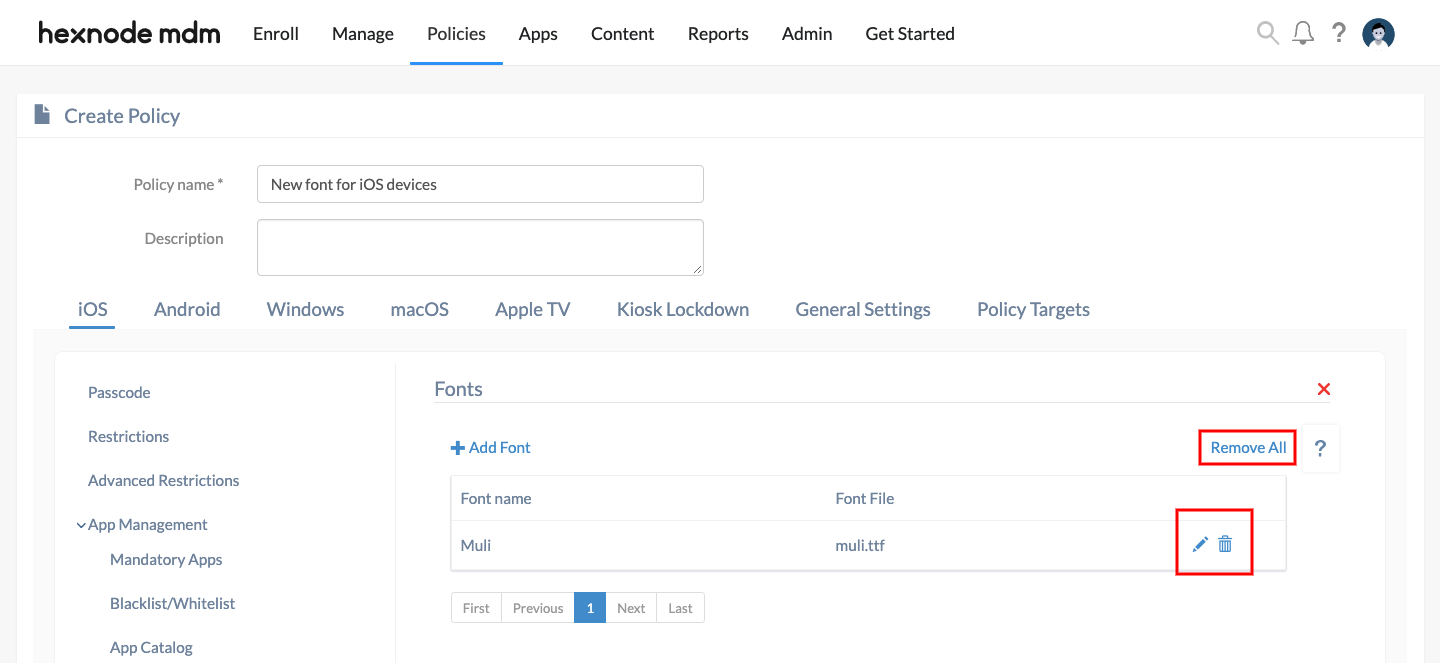
- Remove all: Clears the entire list of uploaded fonts from the policy.
- Edit: Allows you to rename a font or upload an updated font file.
- Delete: Removes a specific font entry from the list.
4. Associate Policy to iOS Devices/Groups
To deploy the configuration to the target devices:
- If the policy is being created:
- Navigate to the Policy Targets tab.
- Click +Add Devices (or choose Device Groups, Users, User Groups, or Domains/OUs).
- Select the required targets and click OK.
- Click Save.
- If the policy was already saved:
- Go to the Policies tab.
- Select the desired policy.
- Click the Manage drop-down and select Associate Targets.
- Choose the target entities and click Associate.
5. What Happens at the Device End?
Once the policy is associated and successfully deployed:
- Font Installation: The new font files are installed on the iOS device as part of the MDM profile.
- Verification: Users can verify the installed fonts by navigating to Settings > General > Device Management > Hexnode UEM > More Details > Font.
6. Troubleshooting & FAQs
Frequently Asked Questions (FAQs)
- Can the default system font of the iPhone be changed?
No. Apple does not allow MDM providers to change the primary system typeface (San Francisco). Custom fonts are only added as optional choices for compatible apps.
- What happens if a font is deleted from the policy?
Once the updated policy syncs, the font file is immediately removed from the device. Text using that font in managed apps will typically revert to a default system font.
- Is there a limit to how many fonts can be added?
While Hexnode doesn’t set a strict numerical limit, adding an excessive number of large font files can increase the size of the MDM profile and slow down deployment.
Troubleshooting
- Font Not Appearing in Apps: Ensure the app is a Managed App (installed via Hexnode). Unmanaged apps cannot access these custom profiles due to iOS sandboxing.
- Unsupported Format: If a font fails to upload, verify it is in .OTF or .TTF format. Compressed formats like .zip or .woff are not supported.
- Profile Errors: If the font installation fails, check the Action History for “Profile Installation” errors. This may occur if the device has reached a limit for installed profiles or if the font file is corrupted.


