


Category filter
How to sync Google Workspace with Hexnode?
Overview
The Sync with Google Workspace remote action is a high-velocity administrative tool designed to force an immediate handshake between Google Workspace and the Hexnode UEM portal. Unlike scheduled background syncs, this action ensures that any changes—such as new hires, renamed Organizational Units (OUs), or updated domain structures—are reflected in the UEM console instantly.
Strategic Importance
In a dynamic enterprise, waiting for a 24-hour sync cycle to recognize a new user or a critical role change can lead to security gaps or enrollment delays. Hexnode’s remote sync ensures that your access control list (ACL) is always based on live data.
Technical Workflow: Executing a Global or Targeted Sync
Hexnode allows for granular synchronization, meaning you can sync your entire organization or target a specific sub-set of your environment.
Option A: Global/Bulk Sync (Recommended for General Updates)
- Navigate to the Manage tab > Devices (or Users/User Groups/Device Groups).
- Select the desired entries (or select all).
- Click the Actions button > Groups & Domains > Sync with Google Workspace.
- Confirm the action.
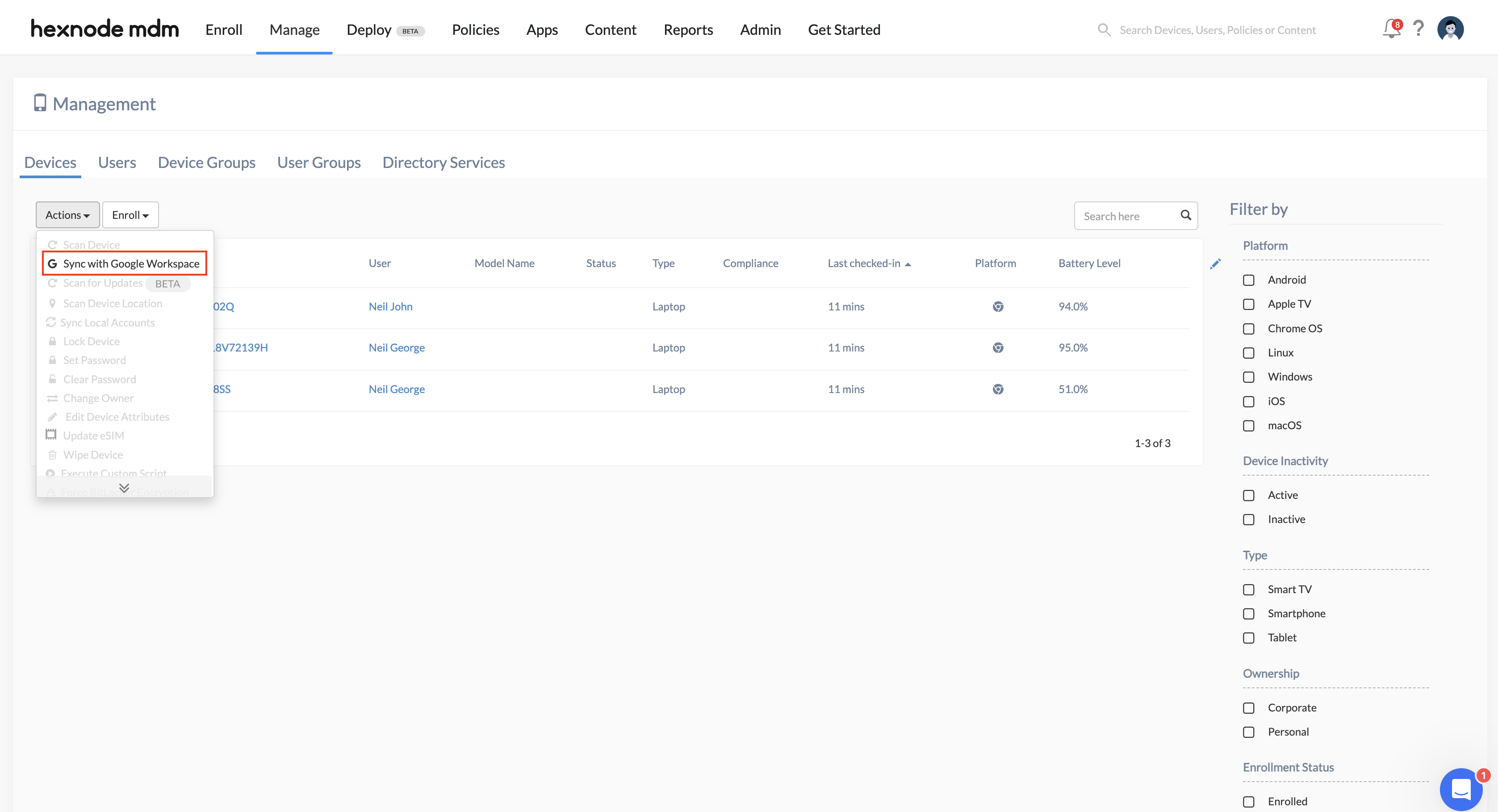
Option B: Targeted ChromeOS Sync
- Navigate to Manage > Devices and select a specific ChromeOS device.
- Under the device’s Actions menu, select Sync with Google Workspace.
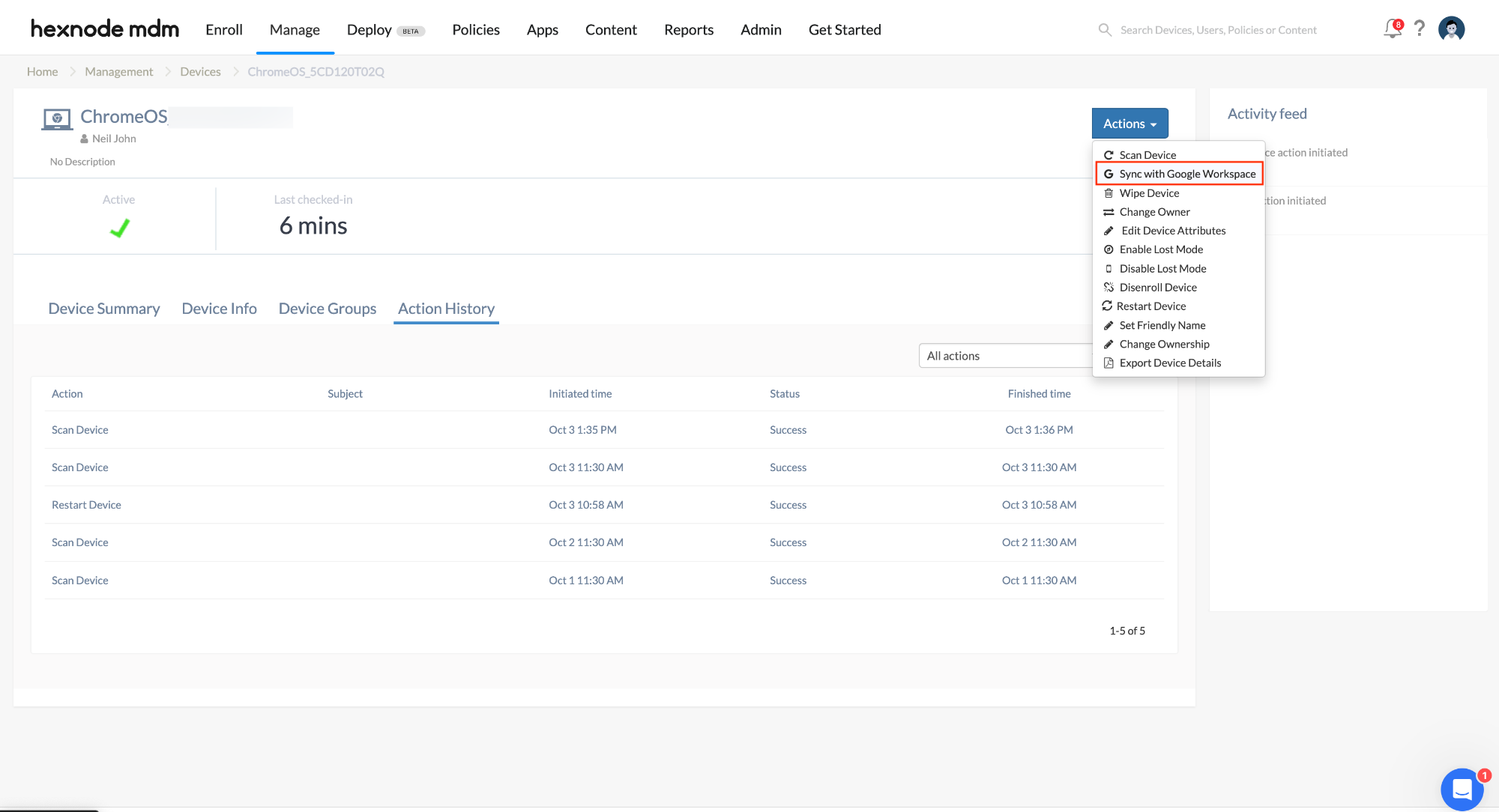
Competitive Edge: Why Hexnode’s Sync is Superior
The “Instant-Update” Advantage
Most UEMs sync with Google Workspace on a “pull” schedule (e.g., once every 24 hours). If an admin renames an OU in the morning, they cannot assign a policy to that “new” OU until the next day. Hexnode removes this friction by allowing the admin to force a sync the moment the change is made in Google.
Frequently Asked Questions
When should I use the manual “Sync with Google Workspace” action?
Use this action if you have recently:
- Added or deleted users in the Google Admin Console.
- Renamed or moved Organizational Units (OUs).
- Added a new sub-domain to your Google Workspace account.
- Modified user group memberships.
Does this action affect device performance?
No. This is a server-to-server communication between Hexnode and Google. It does not consume data or battery on the end-user’s device, making it a “silent” administrative task.
How do I verify if the sync was successful?
Navigate to Reports > Action History. Look for the “Sync with Google Workspace” action. A Success status confirms that Hexnode has successfully ingested the latest data from Google’s APIs.


