


Category filter
Automatic deployment of Patches and Updates for Mac
This document guides IT admins on automate patch deployment via Hexnode for macOS devices.
Hexnode UEM’s Patches and Updates tab allows IT administrators to monitor and manage all available updates for both the OS and applications on enrolled devices. Updates can be reviewed in detail, and admins can choose to approve or revoke specific updates directly from this tab. It serves as a one-stop solution for managing patches and updates across all enrolled devices.
With improper software management, system vulnerabilities can be exploited in both the OS and applications. Developers regularly release patches and updates to enhance security, performance, and stability.
While patches and updates can be manually deployed in cases requiring urgent attention, automating patch deployment simplifies the process and ensures timely updates. With Hexnode’s Automations feature, IT admins can define pre-configured criteria that updates must meet before they can be automatically deployed to devices. This automated approach ensures updates are effectively distributed to the required device or user groups, reducing manual effort and improving overall patch management.
Steps to automate deployment of patches and updates for Mac
Patches and updates can be automated using Hexnode’s Automations feature by following these steps:
- Login to Hexnode UEM.
- Go to Automate, click on New Automation. Alternatively, you can also choose to edit an existing automation.
- Choose macOS as the platform.
- Under Create New Automation, select Quick.
This process involves five stages.
Stage – 1: Basics
Basic details for the automation will be configured in this stage. Provide a Name (mandatory) and a suitable Description for the automation. Verify the chosen Target Platform and click Save.
Stage – 2: Triggers and Schedule
This stage allows you to specify when the automation should run. Available options include:
- Apply Now – Runs the automation immediately.
- On a Schedule – Runs the automation according to a specified schedule.
- Event – Runs the automation when a specified device event occurs.
Apply Now
Select Apply Now to run the automation immediately.
On a Schedule
Select On a Schedule to configure the automation to run at a specified time or frequency.
Under Schedule Settings, configure the following:
- Frequency – Specifies how often the automation should run. The available options are:
- Run Once – Runs the automation once at a specified date and time.
- Every Day – Runs the automation every day at a specified time.
- Weekly – Runs the automation on the selected days of the week at a specified time.
- Monthly – Runs the automation on a specified day of every month at the specified time.
- Time Settings – Configure the day, date, time, and time zone based on the selected frequency.
- Scheduled Date (for the run once option): Select the date on which the automation should run in the MM/DD/YYYY format.
- Scheduled Time: Specify the exact time for automation execution in the HH:MM format and select the time zone.
Event
Select Event to run the automation when a supported event occurs on the device. The available events vary by platform. To view the available events for each platform, see Event page.
Stage – 3: Actions
This stage provides the type of actions available to set up macOS automation, the options are,
- Patches & Updates – Auto
- Patches & Updates – Manual
- Bulk Actions
To automate the deployment of patches and updates by creating a comprehensive criterion, choose Patches & Updates – Auto.
Setup the following options by clicking on the Add button adjacent to them,
- Define criteria for automation:
This mandatory option is used to configure certain criteria the updates have to meet to be eligible for automation.
A criterion is defined using condition filters, which consist of a data column, a comparator, and a value. The data column represents a specific parameter (eg: Severity) relevant to the type of patch or update (OS or Apps). The comparator (eg: greater than) defines the relationship between the data column and the assigned value (eg: High). Use these fields in different combinations to create condition filters and nest them together to define a criterion.
Here there are two types of patches and updates presented, macOS and Apps. Based on the option chosen, the relevant condition filters will be presented. The available condition filters for each type are:
- macOS
This option filters patches and updates for the operating system. Define the criteria with the following data columns.- Product
- Release Date
- Severity
- Update Classification
- Update Name
- Apps
This option filters patches and updates for applications installed on devices. Select the required patches and updates from Available Updates > Recommended/Latest Updates. Use the search bar to quickly find the application update with its name, app identifier, or publisher. To select a patch/update, click on the plus icon adjacent to it. All the chosen patches/updates will be listed under Selected Updates. After selecting the required updates, click Next. Use the following data columns to define the criteria for the eligibility of the automation.- Release Date
- Severity
Nested filters can be added by clicking the ‘+’ icon. You can configure multiple filters at once for the selected option (macOS or Apps) by clicking the +New filter. To remove a filter, click the bin icon next to the ‘+’ icon.
A nested filter is handled using the AND operator, meaning all conditions within it must be met. Whereas multiple filters can be handled using either the AND or OR operators:
- AND requires the device to meet both the specified conditions.
- OR requires the device to meet at least one of the conditions.
By setting these filters, admins create conditions that patches and updates must meet to be automated. Tailor the conditions as needed and click Confirm to apply them.
- macOS
- Choose patching strategy (Available only for macOS updates and patches)
Select which macOS updates and patches should be deployed to devices.
The following patching strategies are available:- All Applicable Patches – Deploys the latest available updates along with any older missing updates. This ensures that devices receive the required updates to reach the latest available OS version.
- Superseded Only – Deploys superseded updates while allowing you to restrict the target OS version and define additional patching criteria.
When Superseded Only is selected, following options can be configured:- Restrict update to – Select the version up to which the update must be restricted. The available options are:
- N-1 – Restricts updates to the OS version immediately preceding the latest available version (N).
- N-2 – Restricts updates to the OS version two versions behind the latest available version (N).
- Advanced Control – Allows you to define a custom target version using a regular expression (regex) pattern.
- Set vulnerability limit – Specify the maximum number of critical severity CVEs a device can have before it is automatically updated to the latest OS version.
- Override if patch fixes an actively exploited vulnerability – Enable this option to prioritize a patch that fixes a known actively exploited vulnerability, even if it falls outside of the configured target.
- Force update to ‘N’ if ‘N’ is older than – Specify the number of days after which the device should be force-updated to version N.
Advanced Control
When Advanced Control is selected under Restrict update to, configure the following options:
- Regex match target – Select the attribute against which the regular expression should be matched.
- Regex pattern – Enter a regular expression to define the target.
- Test your regex – Enter a value to test whether the specified regular expression matches the intended Regex match target.
- If multiple updates match – If multiple updates match the target, choose whether to deploy the highest or lowest matching version.
- Specify updates to ignore (Available only for macOS updates and patches)
Using this option admins can choose to ignore a specific set of updates. These updates will not be deployed to the devices. Select the desired patches & updates from Available Updates > Recommended/Latest Updates. Use the search bar to quickly find the update with its name, GUID, or KB number. To select a patch/update, click on the plus icon adjacent to it. All the chosen patches/updates will be listed under Selected Updates. After selecting the required updates, click Confirm.
- Configure automation rules:
This option consists of a set of rules to be defined for deploying the patches & updates to macOS devices.
- Require update approval: Enabling this option mandates the updates to be approved by the administrator to be deployed to the devices.
- Install and reboot only during maintenance window: Enabling this option will install the updates and the device will undergo reboot during the device Maintenance Window. If no Maintenance Window is configured, the default Maintenance Window on the device will be considered.
- Configure Notifications: The status of the update’s installation (either running or failed) will be notified to selected technicians on the Hexnode console via email on configuring this option. Following are the options to be configured,
- Notify installation failures every {Time_Period} hour(s): An email will be sent to the chosen technicians regarding the failures of update installations for the configured time intervals. Allowed values are 1-23.
- Notify installation status every {Time_Period} hour(s): An email will be sent to the chosen technicians regarding the status of update installations for the configured time intervals. Allowed values are 1-23.
- Choose technicians to notify: Choose the technicians who have to be notified regarding the update status.
- Configure retries: Enable this option to automatically retry the automation action if it fails. Once enabled, configure the following settings:
- Number of retries: Specify the maximum number of retries the system should make if the initial execution fails. You can choose a value from 1 to 3.
- Retry delay in minutes: Specify the time delay between subsequent retries. The allowed value range is from 10 to 180 minutes.
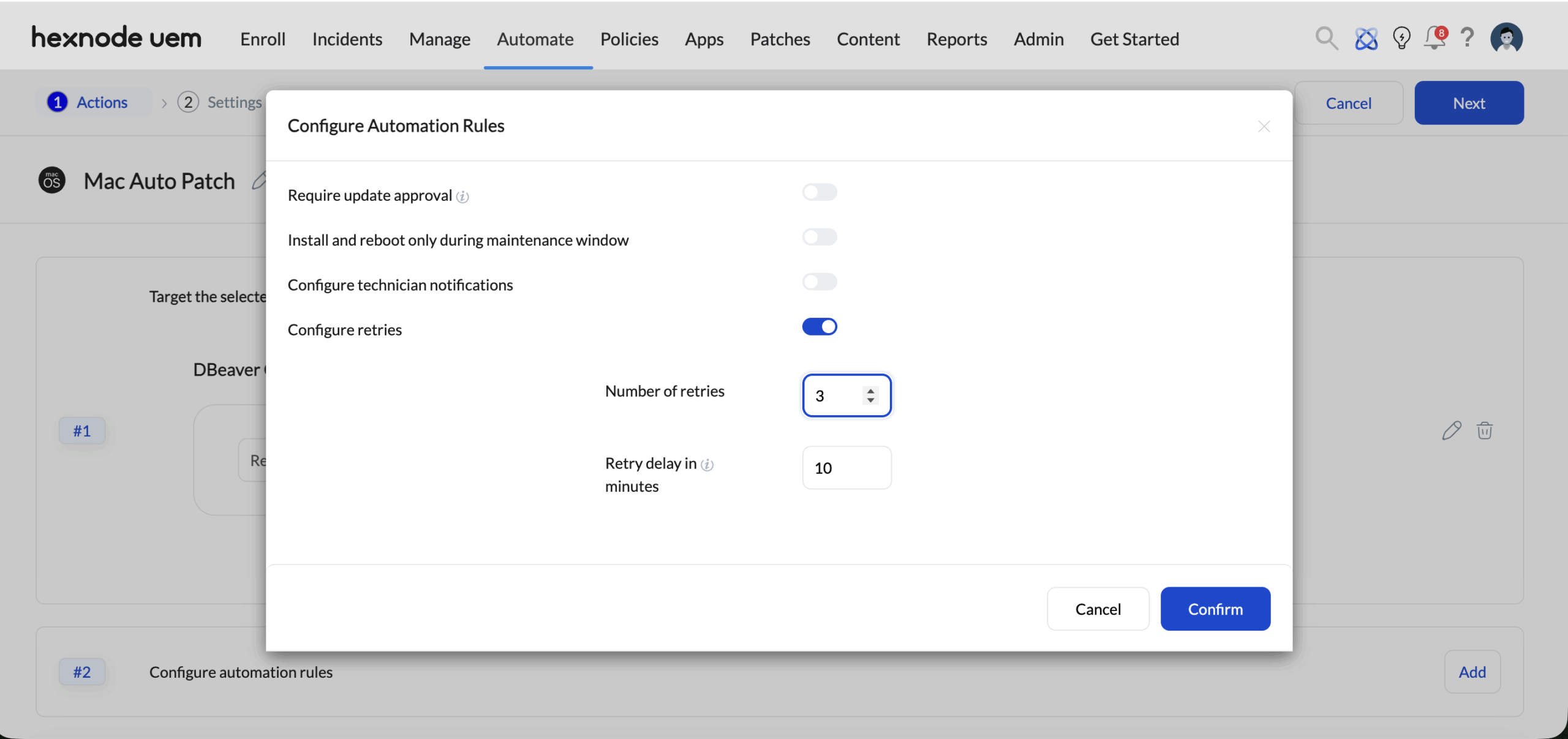
Once all the criteria are configured, click Next.
Stage – 4: Assignments
The Patch & Update automation will be assigned to a pre-existing device/user group or a new dynamic group of devices created with a set of condition filters in this stage. This stage consists of the following options,
- Included Groups: Click Add Groups and select a set of custom/dynamic groups from either device groups or user groups for the automation. The automation will be applied to the groups selected in this option. This field is mandatory.
- Excluded Groups: Click Add Groups and select a set of custom/dynamic groups from either device groups or user groups for the automation. The automation will not be applied to the groups selected in this option.
- Filters: Configure a criterion for a new dynamic group of devices for which the automation will be applied. A filter can be created by clicking on +New filter, choosing a subcategory and its respective comparator, and assigning it to a desired value. A comparator differs based on the subcategory chosen. The following table depicts the types of categories available as filters along with their corresponding subcategories.
Main category Sub- categories Device - Apple DEP
- Asset tag
- Available internal storage
- Battery level
- BitLocker Policy Compliance
- Department
- Device ID
- Device model
- Device notes
- Device type
- Encryption Status
- Enrolled time
- Enterprise Management Type
- Installed RAM
- Last checked-in time
- Manufacturer
- MEID
- OS name
- OS version
- Ownership
- Platform
- Processor name
- Serial number
- Supervision
- Total internal storage
- TPM version
- UDID
- Used internal storage
User - Alternate email
- Department (AD)
- Domain name
- Office location (AD)
- sAMAccountName
- Title (AD)
- User type
- Username
Network - Bluetooth MAC address
- Current carrier network SIM 1
- Current carrier network SIM 2
- Current MCC
- Current MNC
- Ethernet IP Address
- Ethernet MAC address
- Home carrier
- Home country
- ICCID SIM 1
- ICCID SIM 2
- IMEI SIM 1
- IMEI SIM 2
- IMSI
- International data roaming
- Last connection date
- Personal Hotspot
- Phone number SIM 1
- Phone number SIM 2
- Roaming enabled
- SIM carrier network
- Subscriber carrier network (iOS)
- Subscriber MCC
- Subscriber MNC
- Wi-Fi IP Address
- Wi-Fi MAC address
- Wi-Fi SSID
Device Status - Activity status
- Application compliance status
- Compliance status
- Enrollment status
- Geofence compliance status
- Jailbroken
- Kiosk mode
- Lost mode
- MDM profile
- Password compliance status
- Rooted
Nested filters can be added by clicking the ‘+’ icon. Multiple filters can be configured at once by clicking +New filter. To remove a filter, click the bin icon next to the ‘+’ icon. Nested and multiple filters operate the same way as mentioned in the case of automation criteria.
Stage – 5: Review
In this final stage, an overview of all the configured settings in the automation will be displayed in their respective order. Admins can cross-check and confirm all the configured settings and can choose to make any necessary changes if required by clicking on the Edit option corresponding to the respective stage. Once all the configured settings are confirmed, click Save.


