


Category filter
How to bulk import users with a CSV file?
Bulk Importing Local Users: Overview and Benefits
In Hexnode UEM, Users are the foundational entities to which devices are assigned during enrollment. Pre-registering users allows for a personalized enrollment experience and the enforcement of user-based policies, which is critical for employees managing multiple devices under a single identity. The Bulk User Import uses a CSV file to automate the creation of Local Users, allowing IT admins to map hardware details and define device ownership in one unified workflow.
Preparing and Uploading the CSV
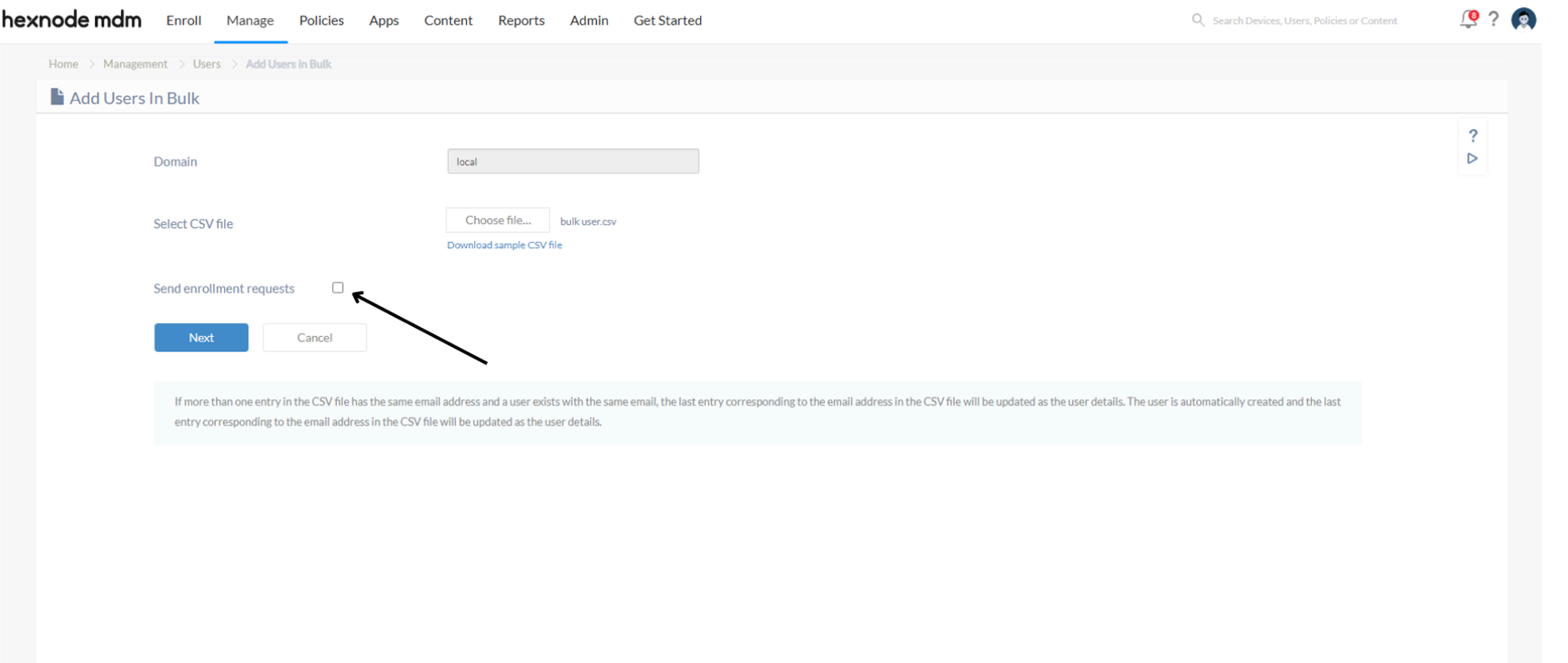
- Navigate to Manage > Users > Bulk user.
- Domain: The drop-down is locked to “local” by default and cannot be modified.
- Upload: Select your CSV file. Use the Download sample CSV file link to ensure your headers align with Hexnode’s database schema.
- Send enrollment requests:
- Enabled: An enrollment email is sent immediately to each user’s inbox upon import.
- Disabled: Users are added to the “Local” directory, but no notifications are sent.
Field Mapping & Data Requirements
If your CSV headers are non-standard, Hexnode will trigger a manual mapping prompt.
| Field Name | Description | Requirement |
|---|---|---|
| Display Name | The user’s full name as it appears in the portal. | Mandatory |
| The primary contact address for enrollment invites. | Mandatory | |
| Mobile | The user’s phone number. | Optional |
| Ownership | Defines the asset type: Personal, Corporate, or Allow User to Select. | Mandatory if “Send enrollment requests” is enabled. |
| Device Name | An administrative identifier for the device. | Optional |
| Serial Number | The unique hardware serial number. | Optional |
| Platform | Operating system: iOS, macOS, Android, Windows, or tvOS. | Optional |
Technical Note: Data integrity is maintained post-enrollment. Any manual entries for Device Name, Serial Number, or Platform provided in the CSV will be overwritten by the actual hardware specifications reported by the device once it connects to the Hexnode UEM.
Verification and Conflict Resolution
- Click Submit to preview the data.
- Select the checkboxes for the users you wish to finalize and click Add.
- Handling Duplicates: If a user already exists in the portal, a Replace Existing Users prompt will appear. Check Replace existing user(s) and click Continue to update their profile with the new CSV data.
Post-Import: Sending Enrollment Requests
If invitations were skipped during the import, use one of the following methods to trigger them:
Method 1: The “Enroll” Tab (Individual/Group)
Path: Enroll > All Enrollments > Invite > Email.
Action: Set Domain to Local, select the target User, and click Send.
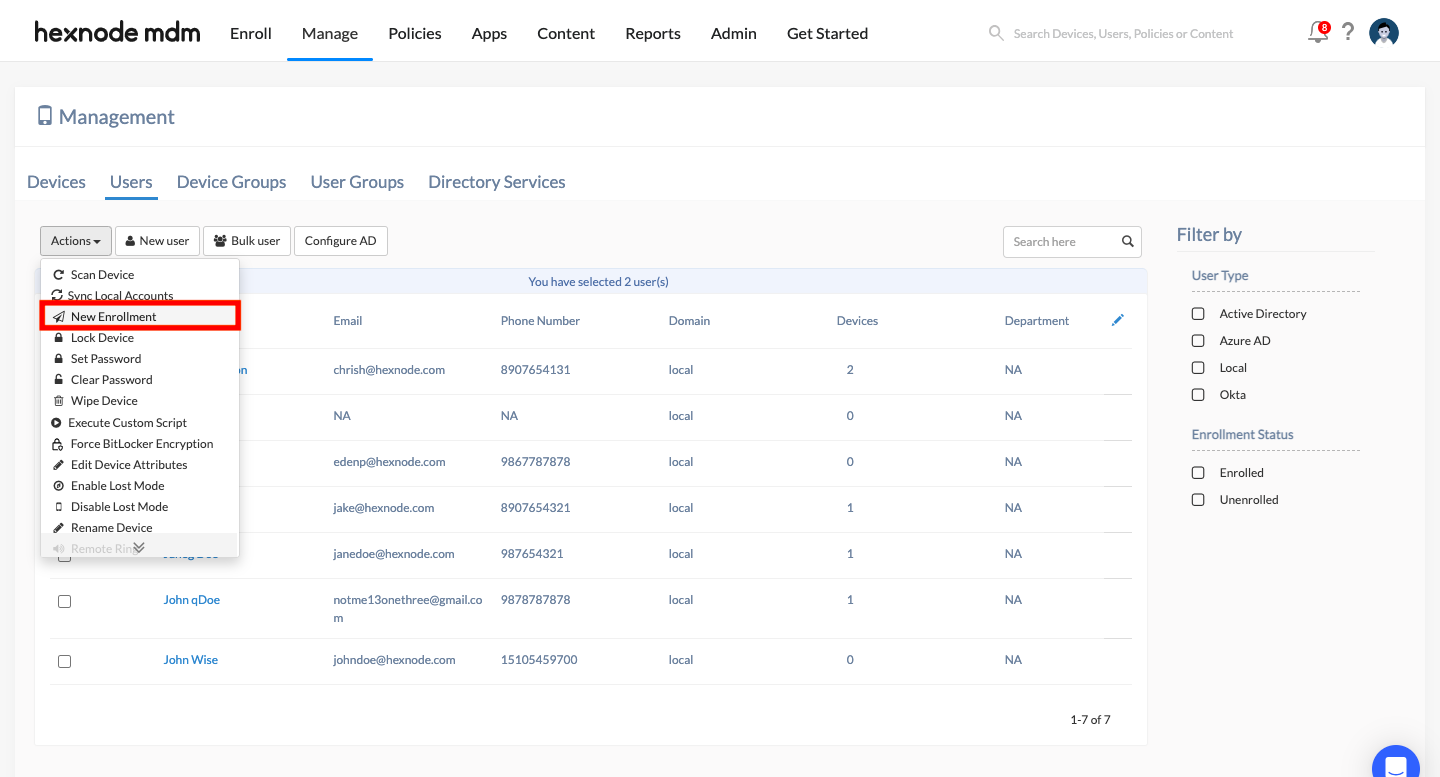
Method 2: The “Manage” Tab (Bulk Action)
Path: Manage > Users.
Action: Select multiple users, click the Actions dropdown, and select New Enrollment.
Frequently Asked Questions (FAQs)
- What happens if my CSV has 100 entries with the same email address?
The system processes this as a single user identity with multiple enrollment triggers:
User Identity: Only one user profile is created, using the details from the last entry in the CSV for that email.
Notifications: The system will send 100 enrollment requests to that single email address.
- What is the benefit of “Local” user categorization?
Local users are managed directly within the Hexnode UEM database rather than being synced from an external directory (like AD or Google). This provides full control over credentials and enrollment without dependency on third-party identity providers.
- Can I use the CSV to update an existing user’s mobile number?
Yes. Use the “Replace existing user(s)” workflow. When the portal detects a matching email, it will update the user’s fields (like mobile number or ownership type) based on the new CSV data.
- Why did my device’s Serial Number change after I imported it?
Hexnode prioritizes “Source of Truth” data. The serial number in the CSV is used for initial identification, but once the device enrolls, the actual hardware serial reported by the OS takes precedence to ensure 100% accuracy.


