


Category filter
How to migrate iOS devices from another MDM to Hexnode?
Executive Summary
Hexnode UEM (Unified Endpoint Management) enables IT administrators to enroll, supervise, secure, and manage Apple devices from a central console. This migration guide explains how to move organization-owned iPhone and iPad devices from an existing device management platform to Hexnode UEM while preserving user data where supported and maintaining compliance. The workflow uses Apple Business Manager, Apple School Manager, Automated Device Enrollment (ADE), Volume Purchase Program (VPP), APNs certificates, directory integrations, and Hexnode enrollment methods. The expected result is that eligible devices are assigned to the Hexnode UEM server, enrolled into Hexnode UEM, linked to the correct users, and ready for policy deployment.
Phase 1: Prepare for iOS Migration and Back Up Device Data
Before initiating the migration, confirm that you can recover user data and rebuild management state if a device must be erased. This preparation phase is especially important for Automated Device Enrollment because ADE enrollment typically requires the device to go through Setup Assistant after a full wipe.
- Audit and export: If the current device management platform supports export, download the device inventory, serial numbers, user details, ownership information, and enrollment status. Use this data to map devices and users during the Hexnode UEM setup.
- Back up data: Ensure required user data is stored in your preferred cloud storage service or approved enterprise backup location before migration. Devices may need to be wiped, especially when enrolling through ADE.
- Remove Apple tokens from the previous platform: Delete or unassign the ADE server token and VPP token from the current device management platform so that they can be configured for Hexnode UEM without assignment conflicts.
Phase 2: Configure Apple Ecosystem Services for Hexnode UEM
Set up the Apple services required for Apple device management. These connections allow Hexnode UEM to communicate with Apple devices, assign ADE devices to the Hexnode UEM server, and deploy apps purchased or assigned through VPP.
Enroll in Apple Business Manager or Apple School Manager
If your organization has not enrolled in Apple Business Manager, go to Apple Business Manager and complete the sign-up process. Automated Device Enrollment and Volume Purchase Program app deployment are managed through Apple Business Manager for eligible organizations.
Create and Upload the APNs Certificate for Hexnode UEM
An APNs certificate is mandatory for Apple device management. Apple Push Notification service (APNs) enables the Hexnode UEM portal to communicate with managed iOS and iPadOS devices.
- Download the self-signed certificate from Hexnode.
- Go to the Apple Push Certificates Portal, upload the certificate request, and download the APNs certificate generated by Apple.
- Upload the APNs certificate back to the Hexnode UEM portal.
Migrate ADE and VPP Tokens to Hexnode UEM
After removing the Apple tokens from the previous platform, configure new token connections in Hexnode UEM.
-
ADE server token:
- Create a new MDM server in Apple Business Manager using the public key from Hexnode.
- Upload the server token to the Hexnode UEM portal to link Apple Business Manager with Hexnode.
- Create an ADE profile in Hexnode to configure Setup Assistant behavior.
- Assign the ADE devices to the Hexnode UEM server in the Apple Business Manager portal.
-
VPP token:
- Revoke all app licenses from the previous device management platform.
- Download a new VPP token from Apple Business Manager.
- Configure VPP in Hexnode by uploading the token and saving the configuration.
- Select reclaim licenses to revoke old licenses and reuse them with Hexnode UEM.
Phase 3: Sync Users and Groups with Hexnode UEM
Sync users from your directory services to the Hexnode UEM console before device enrollment. If the same directory is bound to the previous device management platform, unbind it from the old provider where required and configure Hexnode UEM with the appropriate directory integration.
- Active Directory: Configure Active Directory settings under the Admin tab.
- Microsoft Entra ID: Configure Microsoft Entra ID settings under the Admin tab.
- Google Workspace: Configure Google Workspace settings to sync users and groups.
Phase 4: Disenroll Devices and Enroll Them in Hexnode UEM
After the Apple services, tokens, and user directory integrations are ready, move the devices from the previous device management platform to Hexnode UEM. Use remote disenrollment where possible, and select an enrollment method that matches the device ownership model, supervision requirement, and user involvement level.
Disenroll Devices from the Current Device Management Platform
- Remote disenrollment: Push a disenroll action from the previous device management platform.
- Manual disenrollment: On the device, go to Settings > General > Profile & Device Management and remove the management profile.
Choose an iOS Enrollment Method in Hexnode UEM
Choose the enrollment method that fits your deployment model.
Automated Device Enrollment for Eligible Apple Devices
Use ADE enrollment for eligible organization-owned devices assigned to Hexnode UEM in Apple Business Manager.
- Requirement: Devices must be fully erased before initiating the ADE enrollment.
- Process: Assign devices to Hexnode in Apple Business Manager. The devices automatically enroll during initial setup through Setup Assistant.
Apple Configurator Enrollment for Manual iOS Device Enrollment
Use Apple Configurator to manually enroll iOS devices.
- Benefit: Devices can be manually added to ADE regardless of purchase source.
- Warning: Make sure Activation Lock is disabled when users are allowed to wipe their own devices.
Bulk Enrollment by CSV Import
Use the device and user details exported during the preparation phase to accelerate bulk enrollment.
- User import: Send enrollment instructions to users in bulk through email by uploading user details as a CSV file.
- Pre-approved enrollment: Bulk import a list of devices based on serial numbers. Policies can be assigned proactively and take effect after enrollment.
User-Initiated iOS Enrollment Options
- Self-enrollment: Users can enroll with their AD credentials or with usernames and passwords configured in the Hexnode UEM portal.
- Open enrollment: Users can enroll devices without authentication; only the enrollment URL is required.
- Email or SMS invites: Users receive an enrollment request through email or SMS containing the required credentials.
Migrate Apple Devices Without a Device Wipe
This section describes the standard operating procedure for migrating eligible organization-owned Apple devices to a new device management server without initiating a wipe. This workflow depends on Apple-supported device management service migration and is subject to operating system, enrollment, and ownership restrictions.
Eligibility Requirements for Migration Without Wipe
To perform a migration without wipe, a device must meet the following conditions:
-
Supported operating systems:
- iOS 26/iPadOS 26
- Ownership: The device must be organization-owned.
- Enrollment type: The device must be enrolled in the current device management platform using Automated Device Enrollment (ADE).
Note:
To migrate without a factory reset, devices must be added to Apple Business or Apple School Manager (ASM) while running iOS 26 or iPadOS 26.
- Out-of-the-box devices: Devices onboarded into Apple Business/ASM on iOS 26 or iPadOS 26 (out of the box) can migrate between device management services without requiring a device reset.
- Upgraded devices: If a device was initially added to Apple Business/ASM on a lower OS version and later upgraded to iOS 26 or iPadOS 26, a one-time device reset is required to re-register it. Once this reset is complete, any future migrations will not require a wipe.
Administrator Workflow for Apple Device Management Service Migration
Administrators manage the migration from Apple Business Manager or Apple School Manager by reassigning devices to the Hexnode device management service.
- Authorized roles: Administrator, Device Enrollment Manager, and Site Manager.
-
Server reassignment workflow: To initiate the migration, administrators must reassign the devices to the new device management platform server, Hexnode, using the following steps:
- Log in to the Apple Business Manager or Apple School Manager portal.
- Go to the Devices section in the top navigation menu, and select the required device from the Inventory.
- Click Assign Device Management.
- Select the device management service, Hexnode, from the dropdown list to confirm the assignment.
- Deadline configuration: Authorized roles can set a migration deadline and monitor pending migrations directly from the device page.
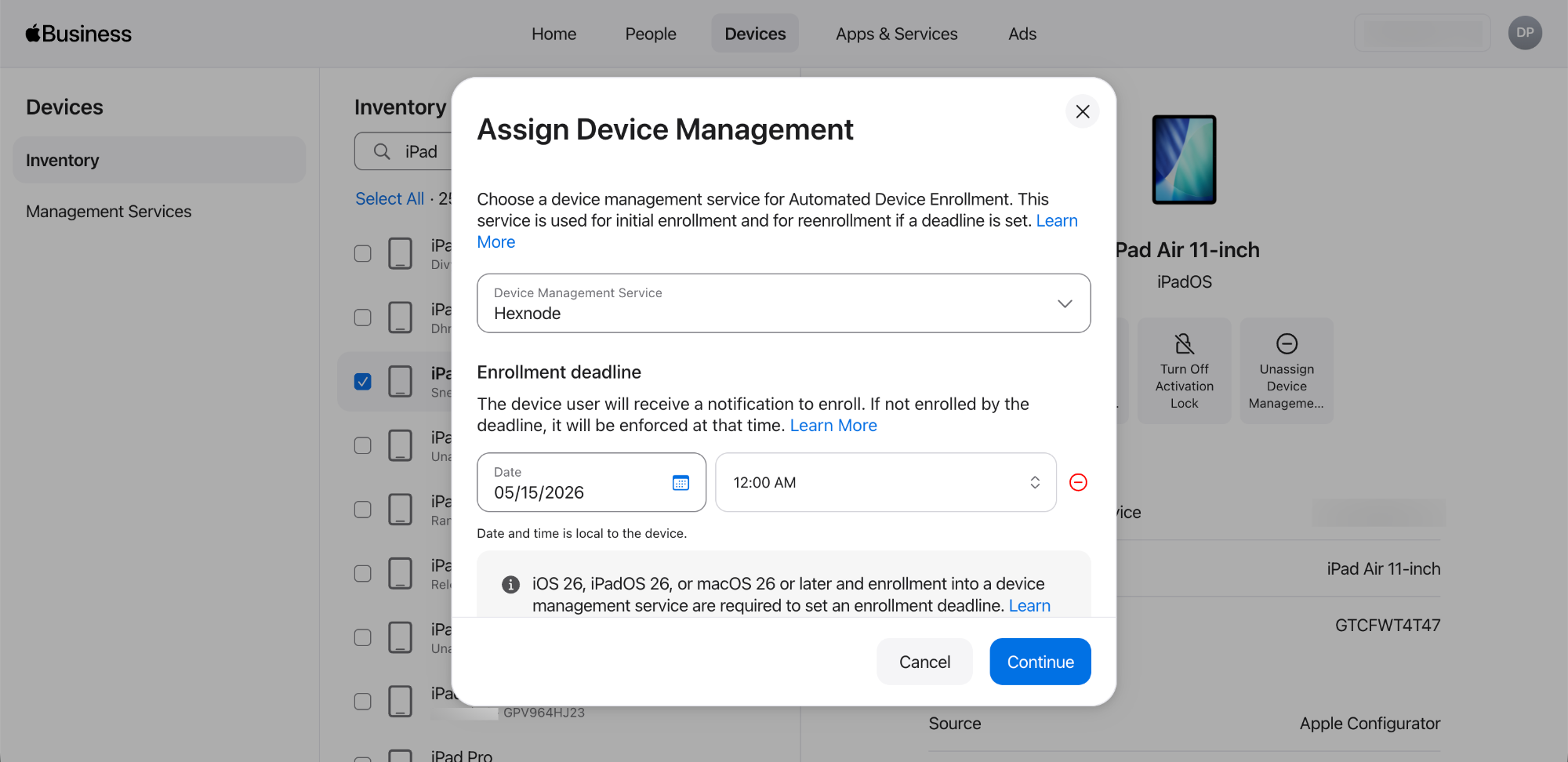
- Notification protocol: After a deadline is set, users receive on-device system notifications prompting them to begin migration. Reminder frequency increases automatically as the deadline approaches.
-
Enforcement mechanisms: If a user does not migrate before the deadline, the organization can enforce mandatory re-enrollment.
- iPhone and iPad: Enforcement triggers an automatic device restart.
System Behavior After Migration to Hexnode UEM
- Data and app preservation on iOS/iPadOS: Apps and associated data are preserved during migration if the new device management service delivers identical apps. This helps reduce disruption during the transition.
- Activation Lock management: After successful re-enrollment, the new device management server assumes control of Activation Lock. The operating system invalidates existing bypass codes and generates new ones, which are then escrowed by the new device management platform, Hexnode, to maintain administrative control.
Additional Restrictions for Migration Without Wipe
Migration without a wipe is subject to the following edge cases and restrictions:
- Apple Configurator: For devices manually enrolled through Apple Configurator, migration is supported only after the mandatory 30-day provisional enrollment period expires.
- Return to Service: Migration is strictly not supported for devices enrolled through ADE using the
is_return_to_service=trueflag. - Apple Business Essentials: Migrating to or from the Apple Business Essentials device management service is not supported.
- Shared iPad: Device management service migration is not available on Shared iPads.
End-User Steps for iOS and iPadOS Migration
- Prompt: An alert appears prompting the user to migrate the device.
- Initiate: The user taps Start Enrollment.
- Settings routing: The user is automatically navigated to the Settings app and receives a prompt to restart the device.
- Restart: The user taps Restart.
- Remote Management: After restart, the user is navigated to the Remote Management screen.
- Confirm enrollment: The user taps Enroll this iPhone or Enroll this iPad.
- Execution: The system automatically disenrolls the device from the existing device management service and enrolls it into Hexnode.
Expected Outcome After iOS Migration to Hexnode UEM
After the migration completes successfully, the device is enrolled as supervised and added to Hexnode’s device management server. Administrators can then assign users, deploy policies, distribute apps, and continue Apple device management from the Hexnode UEM console.


