


Category filter
How to Enforce App Installation on iOS Devices with Hexnode UEM
Hexnode UEM enables administrators to enforce the installation of mandatory applications on managed iOS devices through a Required Apps policy. An application becomes “Required” for a device only when it is added to Hexnode UEM’s Required Apps policy and the policy is successfully associated with that device.
As a persistent configuration, this policy establishes a compliance-based state; if a Required App is missing from a managed device, Hexnode UEM flags it as non-compliant and automatically triggers a reinstallation to restore the device to its intended compliant status.
Required Apps Policy vs. Remote “Install Application” Action
Understanding the distinction between a Policy (Desired State) and an Action (One-time event) is fundamental to automated app management.
| Feature | Install Application (Remote Action) | Required Apps (Policy) |
|---|---|---|
| Logic | Event-based: A one-time “push” command. | State-based: Continuous enforcement of a desired state. |
| Automation | Manual: If the install fails or the app is deleted, the admin must re-trigger the action. | Self-healing: Hexnode UEM automatically monitors and reinstalls missing apps without admin intervention. |
| Compliance | None: Does not affect the device compliance status. | Critical: If the app is missing from the device, it is flagged as “Non-Compliant.” |
| Best Use Case | One-time tools or urgent, ad-hoc app deployments. | Mission-critical apps, security tools, and “Day 0” setup. |
Required Apps Policy Configuration: Supported Pre-installed System Apps
While all App Store or Enterprise applications can be included in the Required Apps policy, the addition of pre-installed system apps is limited to the following list:
| Category | Included Apps |
|---|---|
| Communication | FaceTime, Mail, Contacts |
| Productivity & Notes | Notes, Reminders, Calendar, Files, Voice Memos, Calculator, Passwords, Freeform, Journal |
| Information & Utilities | Maps, Weather, Stocks, Tips, Compass, Measure, Find My Friends, Translate, Magnifier |
| Media & Entertainment | Music, TV, Videos, Podcasts, Apple Books, iTunes Store, News, Image Playground |
| Health & Lifestyle | Activity, Home, Apple Fitness |
| System & Devices | Watch, Photo Booth |
Configuring the Required Apps via Hexnode UEM Policies
To define a list of mandatory apps to be pushed to the managed devices as Required Apps through Hexnode UEM Policies:
- Navigation Path: Policies > New Policy > Create a fully custom policy.
- Policy Identity: Provide a Policy Name and an optional description.
Note: You can also configure the Required Apps on an existing policy by navigating to Policies > Click on the policy name > Manage > Modify.
- Configure Apps: iOS > App Management > Required Apps > click Configure.
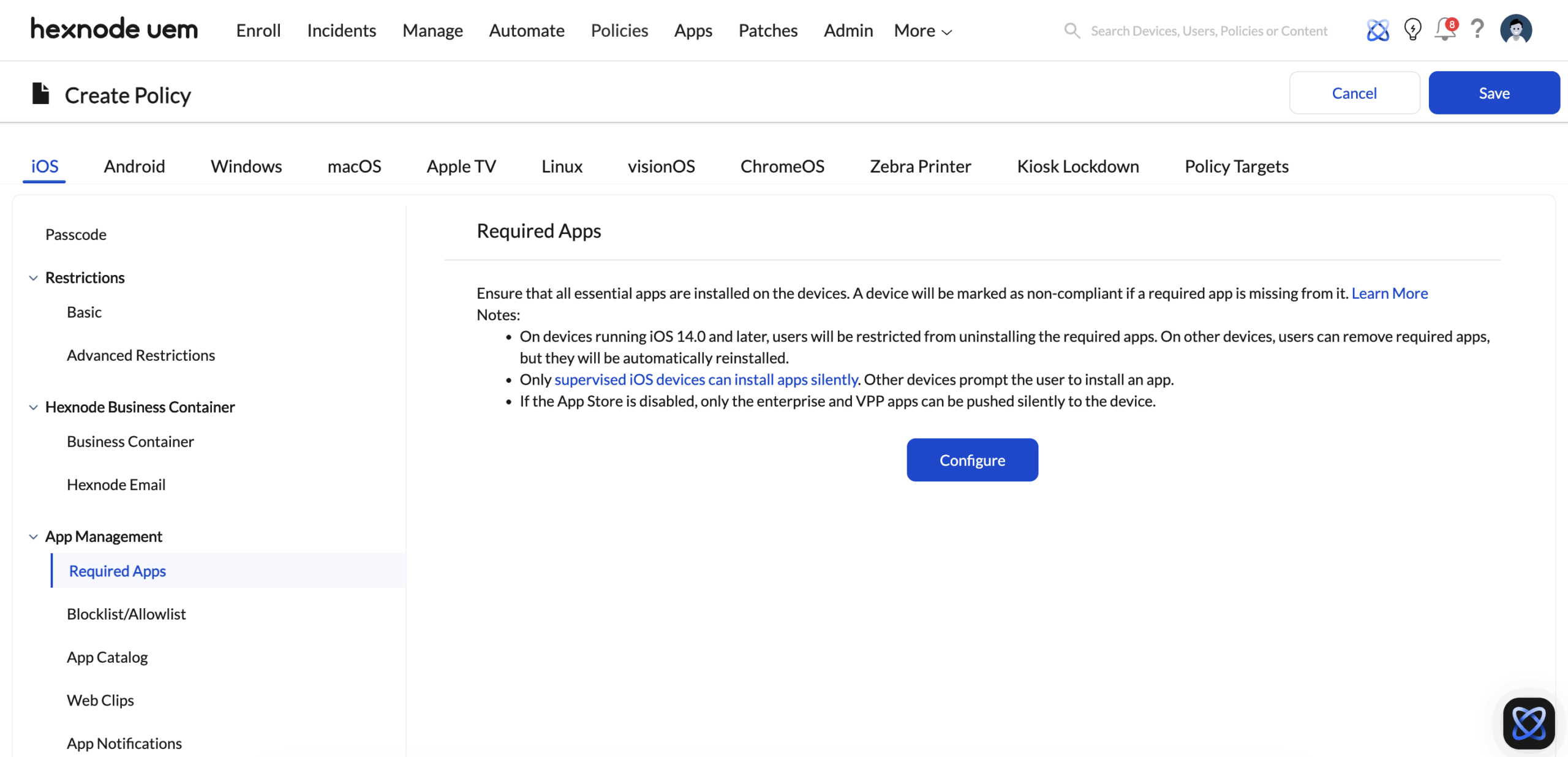
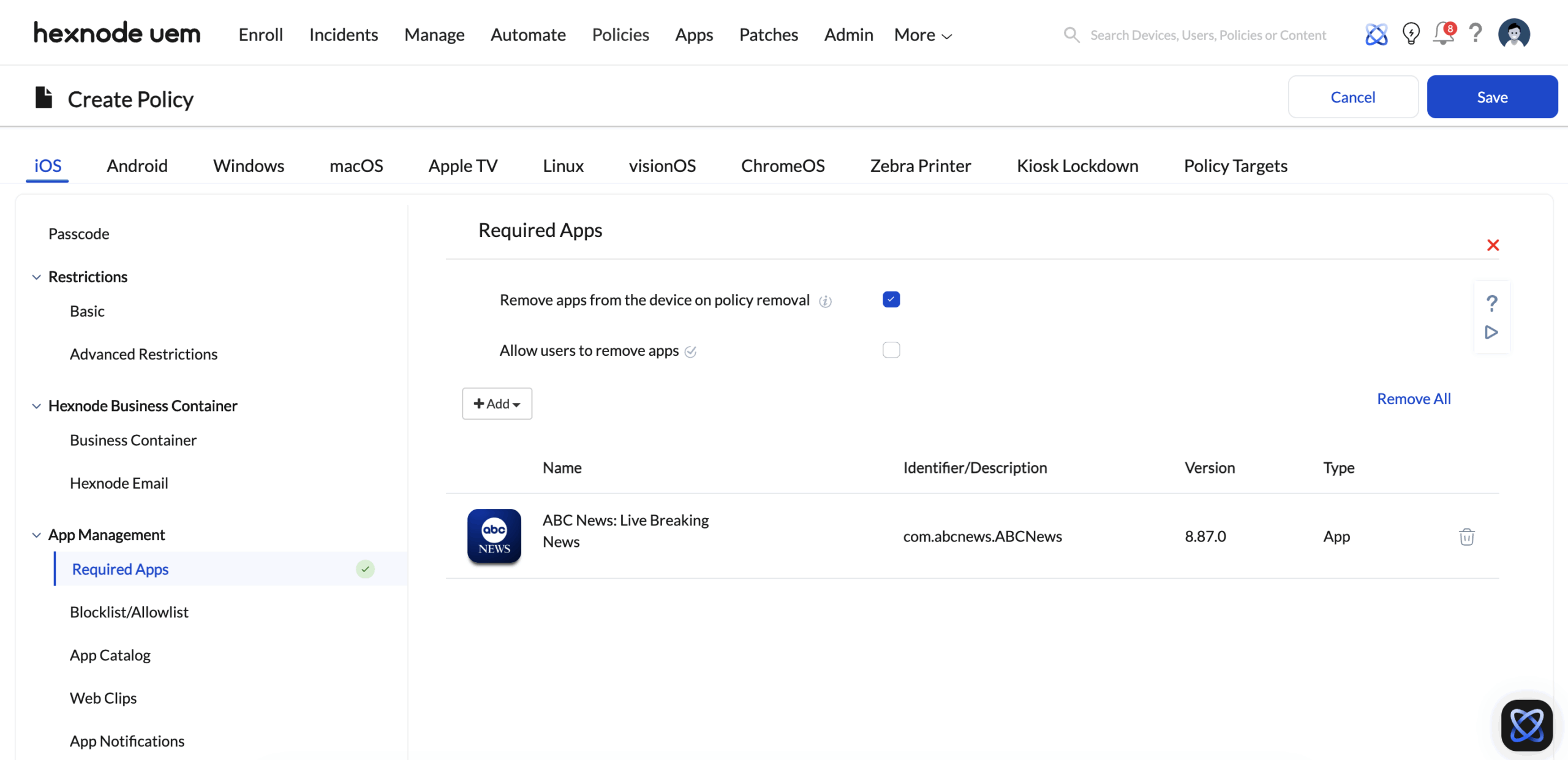
- Selection: Click +Add > Add App. Select apps from your Hexnode UEM App Inventory, including Enterprise, VPP, Store, or System apps and click Done.
- Deployment and Compliance Settings: These settings define the lifecycle of the app on the target endpoints.
- Remove apps from device on policy removal: If enabled, the Hexnode UEM server initiates an uninstallation command upon policy detachment or device disenrollment.
- Allow users to remove apps:
- Enabled: Users can delete the app from the endpoints. However, the device stays “Compliant”, and the app re-installation is not enforced by Hexnode UEM.
- Disabled: Prevents the user from deleting the app. If the app is removed locally on the device (e.g., via a device factory reset or manual data wipe), Hexnode UEM flags the device as non-compliant and initiates a reinstallation.
- Targeting: Navigate to the Policy Targets tab > +Add Devices > Select your devices > Click OK. (You can also associate the policy with Users, User Groups, Device Groups, or Domains).
- Finalise: Click Save.
App Version Conflict Resolution & Installation Priority
Hexnode UEM allows multiple versions of the same app (Store vs. Enterprise) in its inventory. If both are added to a “Required Apps” policy, the following priority logic applies:
| Scenario | Priority Order |
|---|---|
| Enterprise version = Store version |
|
| Enterprise version > Store version | Enterprise version is installed |
| Store version > Enterprise version | Store version is installed |
Note: Non-Ad-Hoc Enterprise apps are standard in-house applications designed for unlimited distribution across an entire organization. Ad-Hoc Enterprise apps are restricted versions intended for limited beta testing on a specific set of pre-registered devices.
Monitoring Installation Status
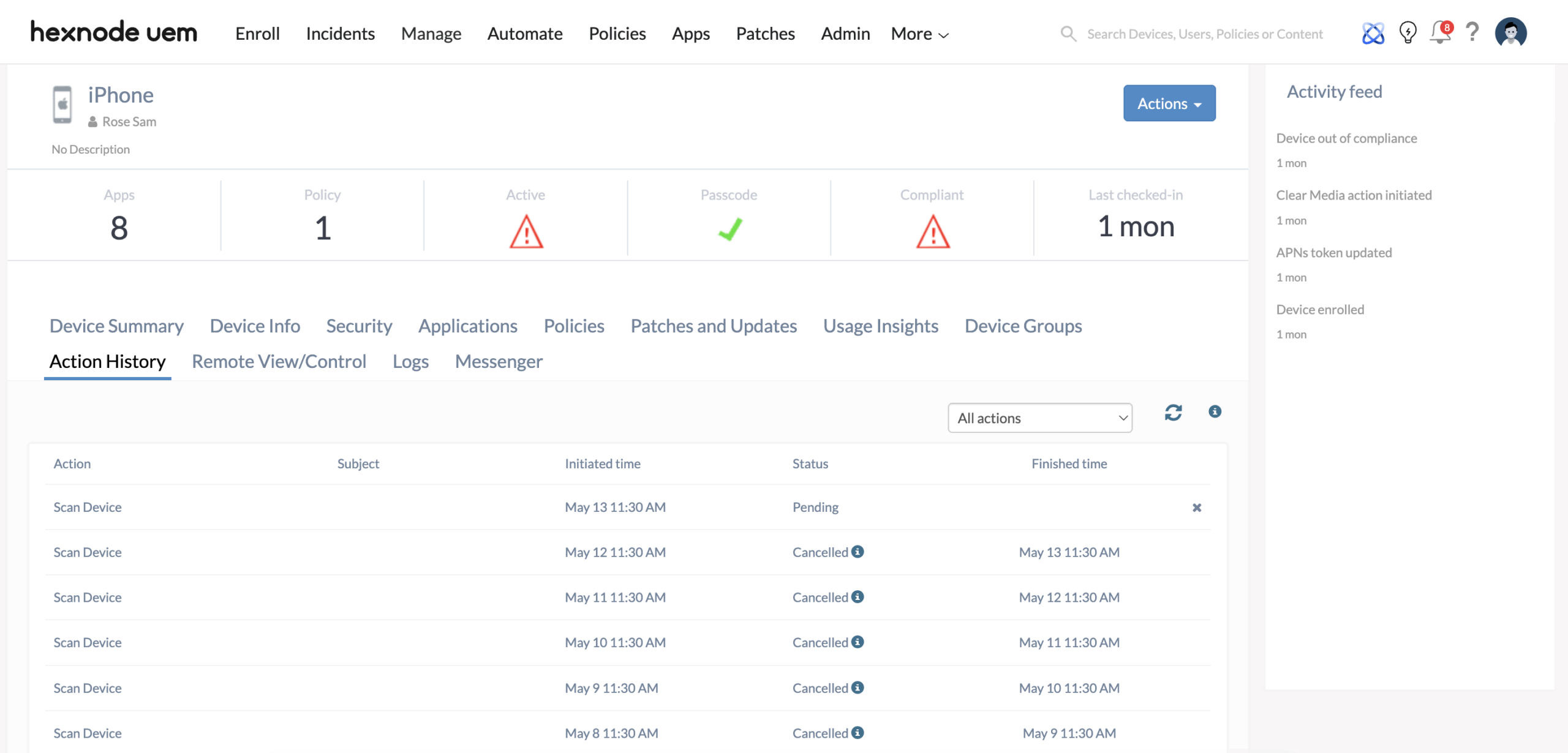
Hexnode UEM enables the admin to track the status of deployment progress via Manage > Devices > [Device Name] > Action History.
| Status | Definition |
|---|---|
| Initiated | Installation request sent from the Hexnode UEM server to the endpoint. |
| Pending | Hexnode UEM server is awaiting a response from the endpoint (common if the device is offline). Admins can terminate installation during this stage. |
| In Progress | The app is currently being downloaded or installed on the endpoint. |
| Success | The app is successfully installed on the endpoint. |
| Failed | The app installation failed. |
| Bypassed | The action was not applied because the device did not meet the necessary criteria, or a newer, superseding action was queued. |
| Prompting | The action requires user interaction on the device (e.g., to approve an installation or configuration), and the user has been prompted. |
| Queued at Device End | The device has received the command but is waiting for system resources, a stable network, or the completion of other high-priority tasks before starting the install. |
| Cancelled | The action was replaced by a newer policy or a newer version of the app before the pending command could complete. |
Key Notes for Admins: Enforcing Apps on iOS
- Enforcement Definition: An app is only classified as “Required” once it is added to a Required Apps policy and that policy is associated with a target (Device, User, or Group).
- Silent Installation: Only available for Supervised iOS devices. Unsupervised devices will prompt the user to accept the installation request.
- App Store Restrictions: Unchecking Install apps under the Restrictions Policy disables the device-end App Store (including alternative marketplaces and local installs). While administrators can still push apps from the Hexnode UEM portal, silent installation is restricted to Enterprise and Apple Business (formerly VPP) apps; standard public App Store apps will require user interaction or face installation blocks while the store is disabled.


