


Category filter
Bitdefender GravityZone MTD deployment on Android
Bitdefender GravityZone Mobile Security is an MTD (Mobile Threat Defense) solution that protects corporate-owned and BYOD Android devices from cyber threats. Using Hexnode UEM, IT admins can remotely configure and deploy the Bitdefender GravityZone MTD app to ensure real-time malware detection, phishing protection, and network security.
How to Deploy Bitdefender GravityZone MTD on Android via Hexnode UEM
1. Obtain the Bitdefender Activation Link
The Activation Link is required to enroll devices into a specific Bitdefender device group.
- Log in to the Bitdefender GravityZone portal.
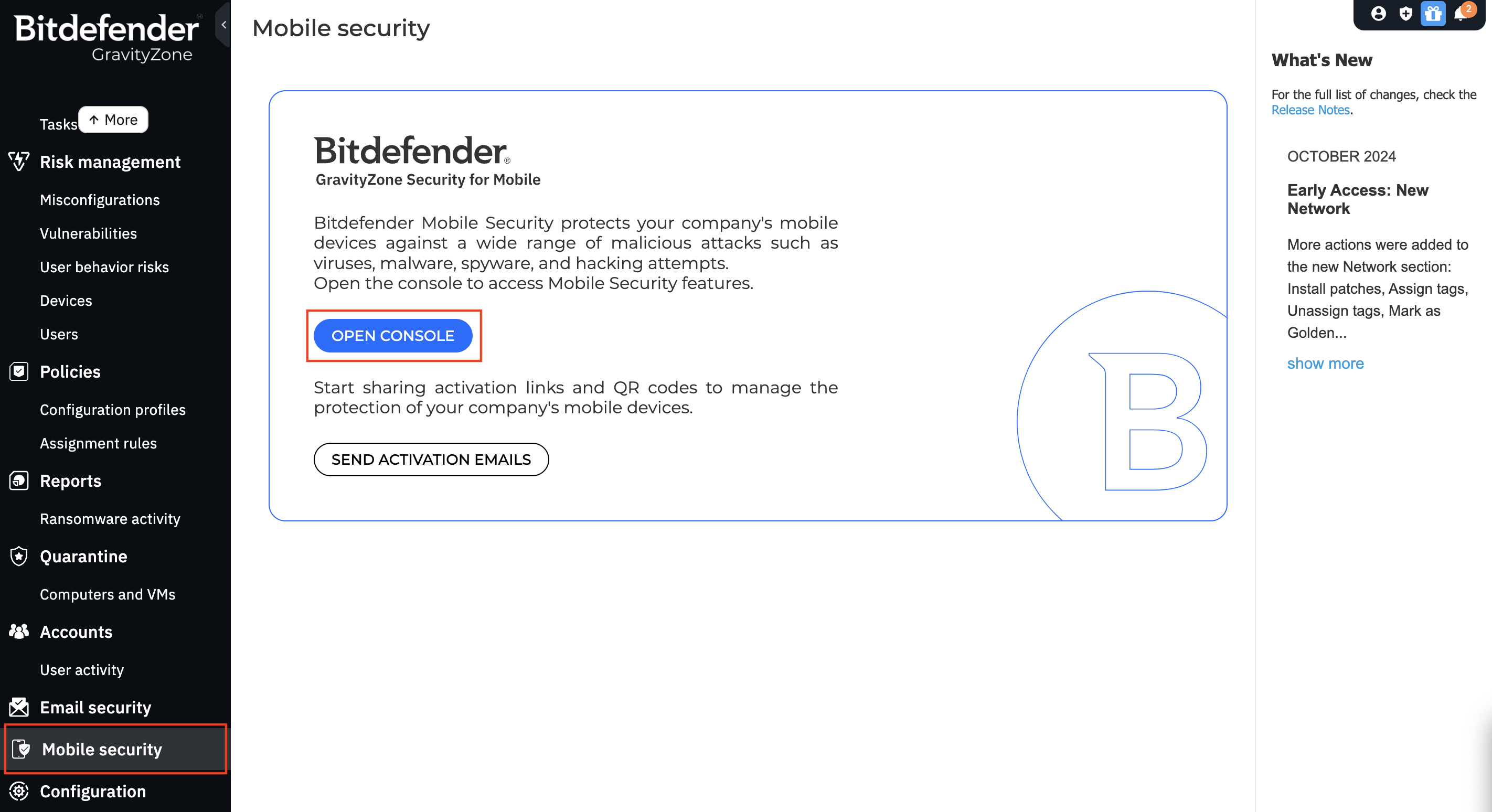
- Navigate to Mobile Security (left panel) > OPEN CONSOLE.
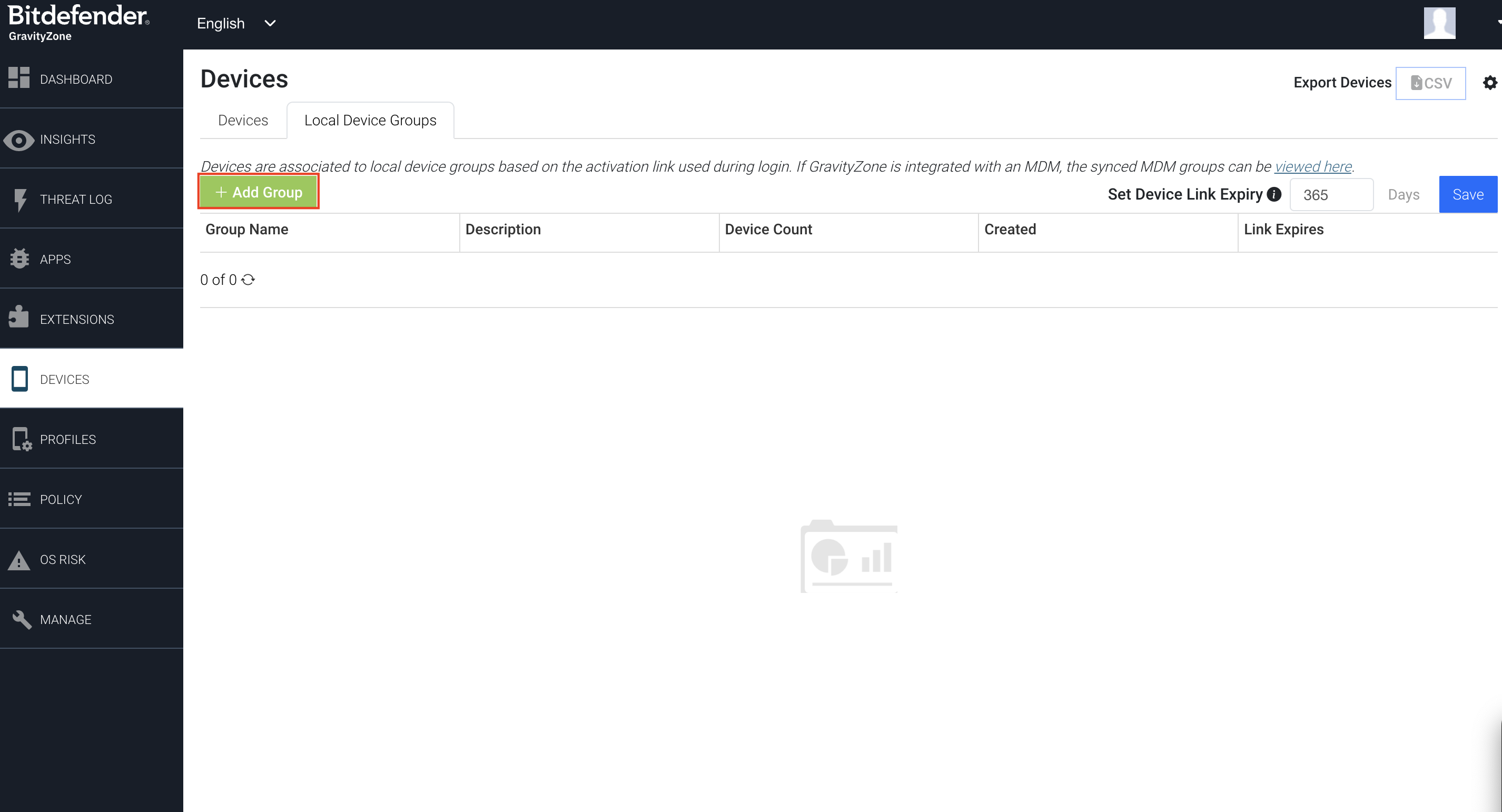
- Go to Devices > Local Device Groups > Add Group.
- Enter a name in the Device Group field and click Create Group.
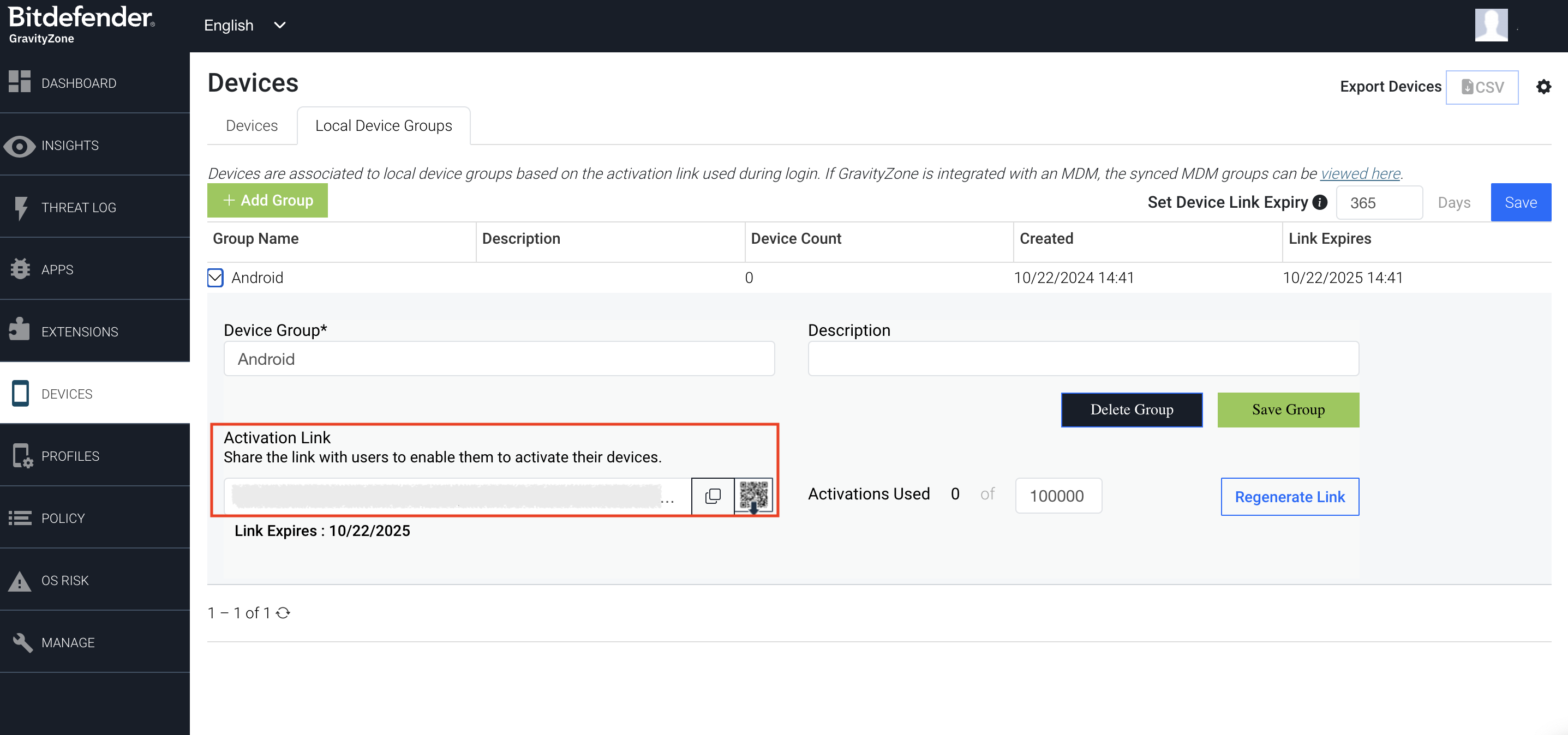
- Click the new group and copy the generated Activation Link.
2. Add the App to Hexnode Inventory
Add the application within the Hexnode repository for centralized management.
- Log in to the Hexnode UEM portal > Apps tab.
- Select +Add Apps > Store App.
- Choose Android as the platform.
- Search for Bitdefender GravityZone MTD and click Add.
3. Configure App Settings in Hexnode
Use App Configurations to automate the setup of the MTD agent on target devices.
- Navigate to Policies > New Policy (or select an existing one).
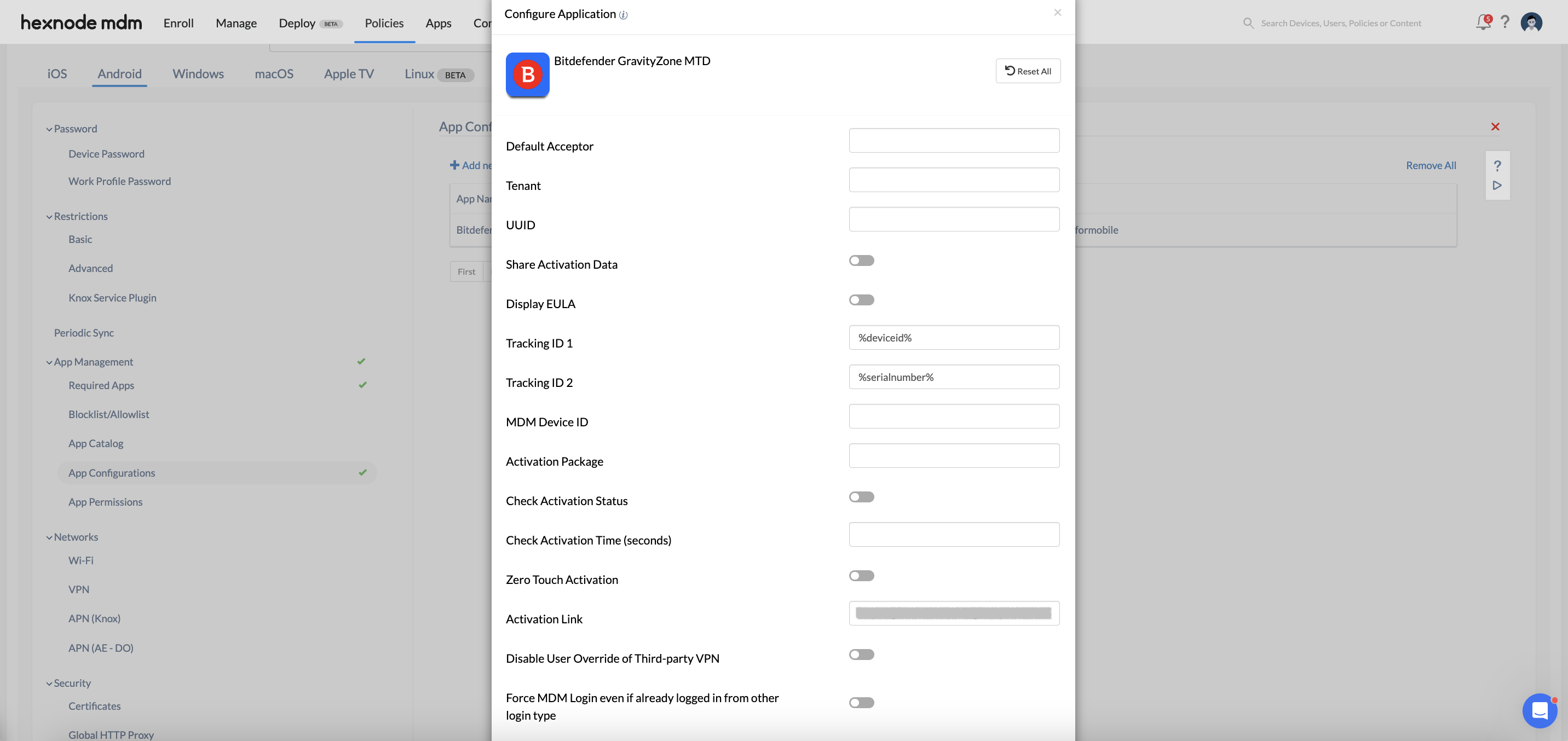
- Select Android > Enterprise > App Management > App Configurations > Configure.
- Click Add New Configuration and select the Bitdefender GravityZone MTD app.
- Activation Link: Paste the link copied from the Bitdefender portal.
- Tracking ID 1 & 2: Enter device identifier wildcards for tracking.
- Install the app using your preferred Hexnode deployment method.
4. Verify Deployment
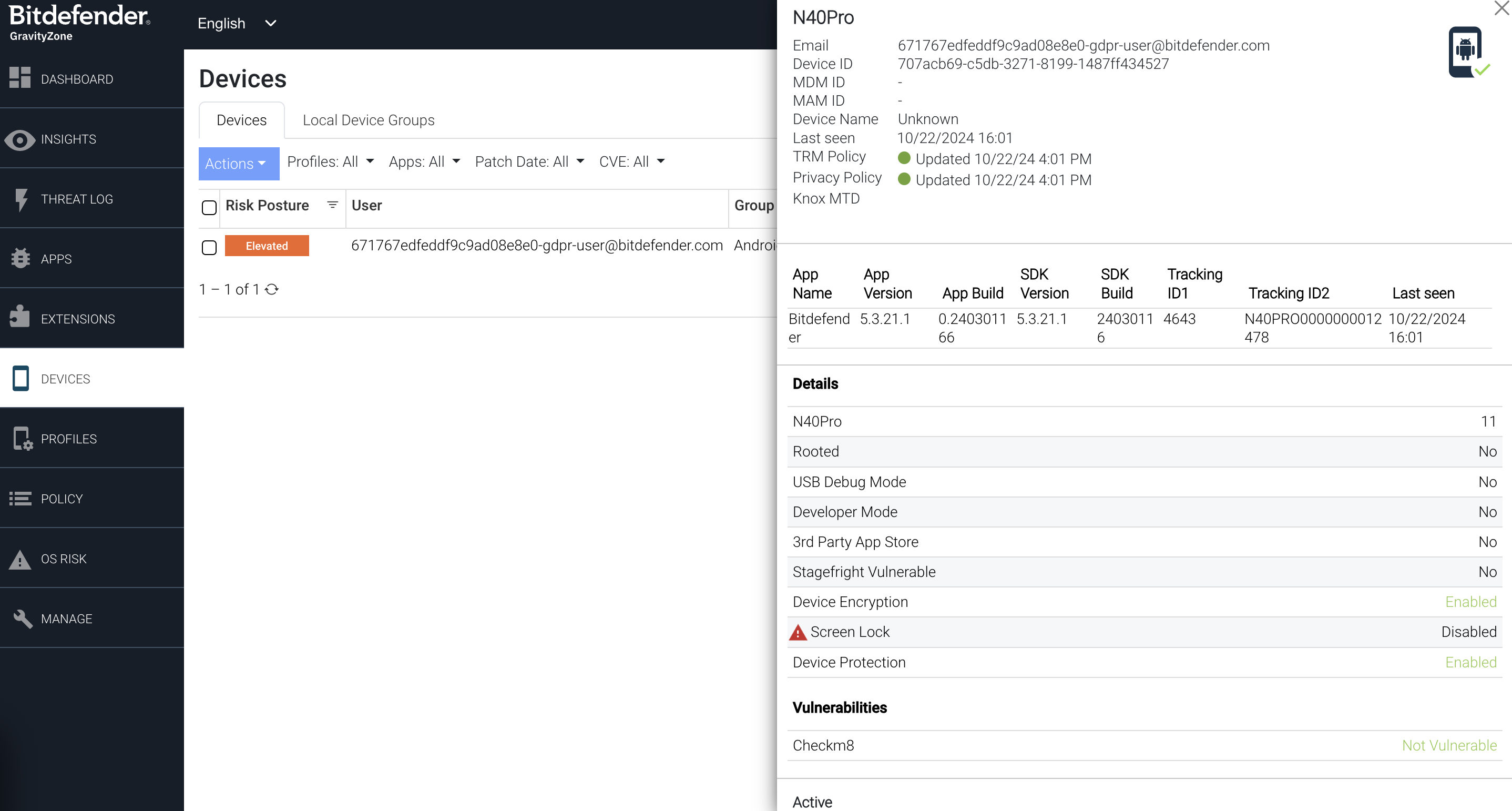
- Status: The device will appear in the Bitdefender GravityZone portal under the Devices sub-tab.
- Monitoring: Select the device to view security information and vulnerabilities.
Frequently Asked Questions
1: Can Bitdefender GravityZone MTD be installed silently without any user prompts?
Yes. Silent installation is supported if the device is enrolled in the Android Enterprise (Device Owner) program or if it is a Samsung Knox device. In the Hexnode portal, you must add the app to the Required Apps policy.
2: What happens to the Bitdefender MTD app if the device is disenrolled from Hexnode?
By default, the application remains on the device but becomes unmanaged. However, if you want the app to be removed automatically upon disenrollment, you must enable the ” Remove apps from the device on policy removal ” option within the Required Apps policy settings in the Hexnode console before deployment. Without this, the app will stay on the device in an inactive state until manually removed or deactivated from the Bitdefender portal.


