


Category filter
Configure Exchange ActiveSync on iOS Devices
Exchange ActiveSync (EAS) is the industry-standard protocol for syncing corporate email, contacts, calendars, tasks, and notes to mobile devices. Hexnode UEM enables administrators to remotely provision these accounts on iOS devices, significantly reducing manual setup time and ensuring consistent security policies across the organization.
1. Configuration Workflow
To configure Exchange ActiveSync:
- Log in to the Hexnode UEM portal.
- Navigate to Policies > New Policy > Create a fully custom policy > iOS > Accounts > Exchange ActiveSync and click Configure.
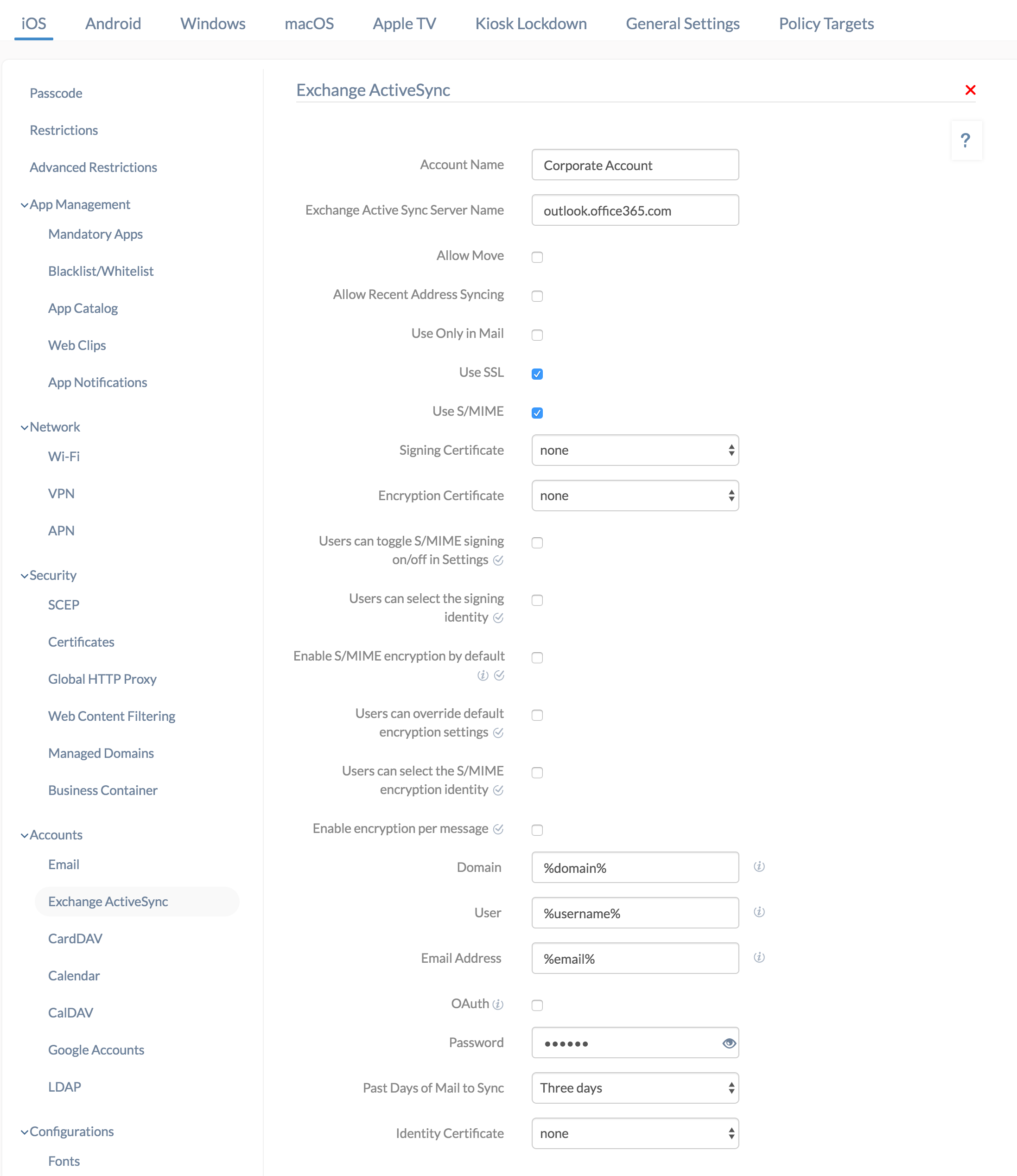
2. Technical Parameter Breakdown
| Setting | Technical Description |
| Account Name | Name used to identify an ActiveSync account in the Mail and Settings apps. |
| Exchange ActiveSync Server Name | Provide the name of the ActiveSync server. Example: outlook.office365.com. |
| Allow Move | Allows users to move/forward messages between different email accounts on the device. (Disabled by default). |
| Allow Recent Address Syncing | Saves recently used email addresses to the user’s iCloud account. (Disabled by default). |
| Use Only in Mail | Restricts users to sending and reading emails exclusively within the native Mail app. (Disabled by default). |
| Use SSL | Enables an encrypted connection between the device and the server. (Used by default). |
| Use S/MIME | S/MIME enhances email communication by enabling message signing, encryption, and decryption. It operates using asymmetric cryptography and is disabled by default. |
| Signing Certificate (Available only if use of S/MIME is enabled) | Select the signing certificate from the uploaded certificates list. |
| Encryption Certificate(Available only if use of S/MIME is enabled) | Select the encryption certificate from the uploaded certificates list. |
| Users can toggle S/MIME signing on/off (iOS 12.0+) (Available only if use of S/MIME is enabled) |
Allows users to change signing in Settings. If disabled, the admin-configured certificate is forced. (Disabled by default). |
| Users can select the signing identity (iOS 12.0+) (Available only if use of S/MIME is enabled) |
Allows users to manually choose the signing identity. (Disabled by default). |
| Enable S/MIME encryption by default (iOS 12.0+) (Available only if use of S/MIME is enabled) |
Encrypts all outgoing emails by default. This cannot be changed by the user if “enable encryption per message” is disabled. |
| Users can override default encryption (iOS 12.0+) (Available only if use of S/MIME is enabled) |
Allows the user to toggle default encryption settings. If disabled, the admin configuration is forced. |
| Users can select the encryption identity (iOS 12.0+) (Available only if use of S/MIME is enabled) |
Allows users to select the S/MIME encryption identity. (Disabled by default). |
| Enable encryption per message (iOS 12.0+) (Available only if use of S/MIME is enabled) |
Displays a toggle in the Mail Compose UI. If encryption is enabled by default, this allows an opt-out; if disabled by default, it allows an opt-in. |
| Domain | Specify the domain name of the Exchange server. Supports wildcards: %domain%, %netbiosname%. |
| User | The ActiveSync username. Supports wildcards: %username%, %userprincipalname%, %email%. |
| Email Address | Email address of the user. Supports wildcards: %userprincipalname%, %email%. |
| OAuth | Check this to allow OAuth connection for authentication. A password cannot be specified if this is enabled. |
| Password | The password associated with the ActiveSync username. |
| Past Days of Mail to Sync | The amount of email history to download. Options: Unlimited, One day, Three days (default), One week, Two weeks, One month. |
| Identity certificate | Identity certificates uploaded at Policies > [Policy Name] > iOS > Security > Certificates are displayed here for selection. |
3. Policy Association and Deployment
- In the policy window, go to Policy Targets.
- Select Devices, Device Groups, Users, User Groups, or Domains/OUs.
- Choose the specific targets and click Save.
4. What happens on the device?
Once the policy with valid configurations is successfully deployed to the device, the Microsoft Exchange account is added to the Mail app. The configured account will appear under Settings > Mail > Accounts. The account details can also be viewed under Settings > General > Device Management > Hexnode UEM > Accounts.
5. Troubleshooting & FAQs
Frequently Asked Questions (FAQs)
- Does this support syncing contacts and calendars?
Yes. Exchange ActiveSync automatically syncs Mail, Contacts, Calendars, Reminders, and Notes once the account is authenticated.
- What happens if the policy is removed?
All synced data, including emails and contacts associated with the corporate account, is immediately removed from the device.
- Can wildcards be used for the password?
No. Passwords must be static or entered by the user. Wildcards are only supported for the Domain, User, and Email fields.
Troubleshooting
- Connection Errors: Verify the Exchange ActiveSync Server Name is correct. For Microsoft 365, ensure it is set to
outlook.office365.com. - Credential Prompts: If OAuth is unchecked and no Password is provided in the policy, the user will be prompted on the device to enter their credentials.
- Certificate Issues: Ensure that the Identity Certificate or S/MIME certificates are correctly uploaded in the Certificates section of the same policy before associating it with the device.


