


Category filter
User Communication Plan for UEM Transition: Orchestrating a 5,000-User Migration
Technical Logic: Executing a 5,000-user migration in Hexnode UEM relies on Identity Orchestration. By integrating Custom SMTP servers for deliverability and Directory Services (Entra ID/Okta) for user ingestion, IT architects can automate the Enrollment Dispatch via unique URLs and QR codes. The success of large-scale rollouts is anchored in Multi-Ring Deployment Strategies, using a “Source of Truth” model to maintain cryptographic identity integrity throughout the lifecycle.
Executive Summary
This document outlines the capabilities, best-practice workflows, and user-communication templates necessary for a frictionless enterprise migration.
Migrating 5,000 users to a new Unified Endpoint Management (UEM) system requires a seamless onboarding experience to prevent helpdesk overload and operational downtime. Hexnode facilitates this workflow via highly scalable capabilities: Custom Email Server Configurations, Bulk User Management, and Automated Enrollment Dispatches.
1. Hexnode Capabilities Supporting Bulk Communication
To communicate with and onboard 5,000 users seamlessly, administrators must leverage the following core features within Hexnode:
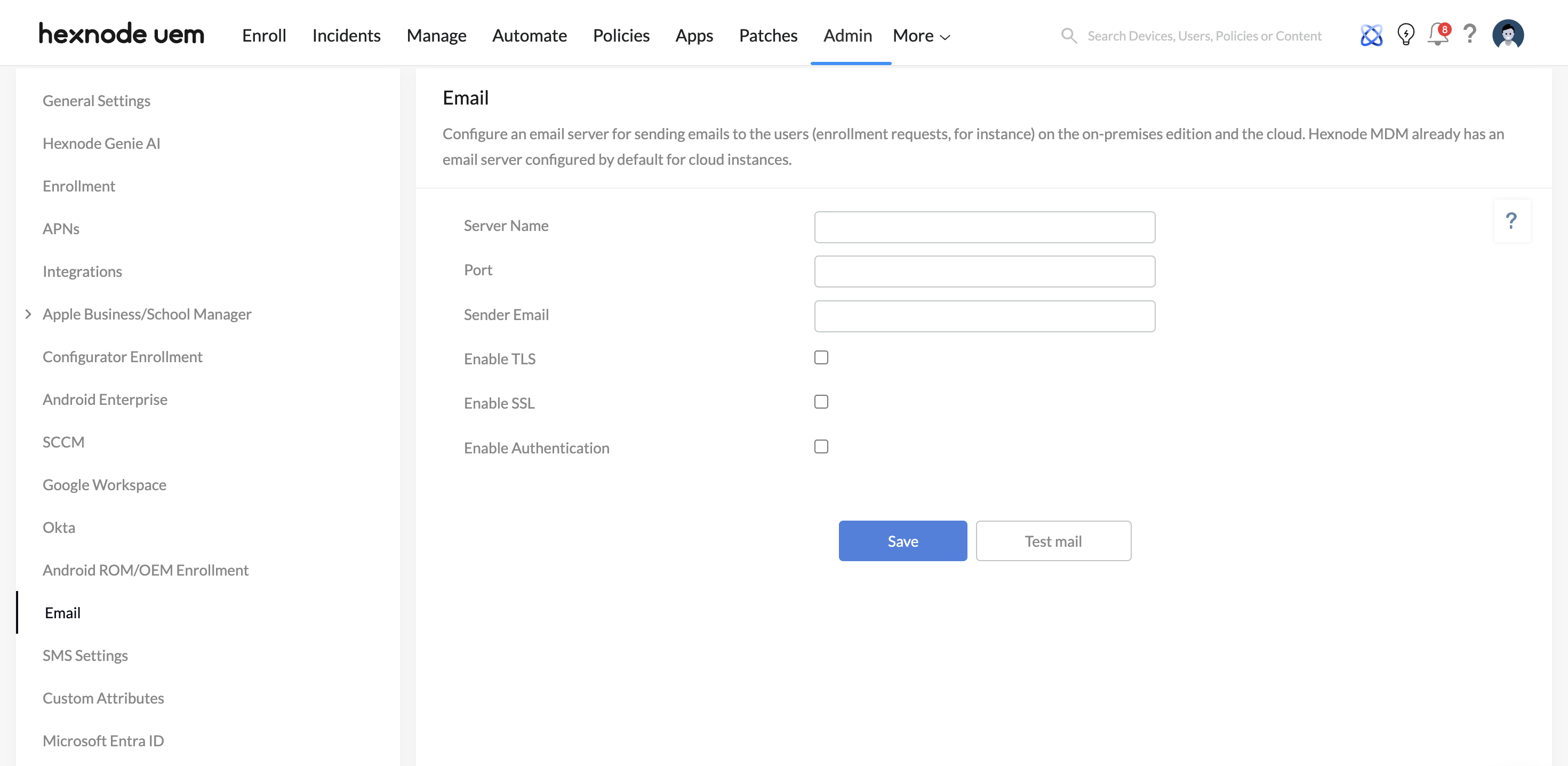
- Custom SMTP Email Server Integration: By default, Hexnode utilizes its internal mail server. However, for a high-volume blast of 5,000 emails, administrators must configure their organization’s SMTP server (via Admin > Email or dynamically during the enrollment setup at Enroll > All Enrollments > Email). You can define the Server Name, Port, Sender Email, TLS/SSL encryption, and Authentication. This ensures emails are sent from a trusted internal domain (e.g., it-support@yourcompany.com), significantly reducing the risk of being blocked by corporate spam filters.
- Bulk User Import & Directory Sync: Hexnode natively supports mass user ingestion. Organizations can upload users via a mapped CSV file or establish a direct sync with modern directory services, including Microsoft Entra ID (Azure AD), Google Workspace, Okta, and Active Directory (AD). Note: Users synced via directory services maintain the IdP as their source of truth and cannot be manually edited or deleted locally within Hexnode.
- Automated Bulk Enrollment Dispatches: Once groups are synced, Hexnode can automatically trigger enrollment payloads. Based on the selected strategy (e.g., Apple Automated Device Enrollment, Android Zero-Touch, or Self-Enrollment), Hexnode dispatches unique enrollment URLs, QR codes, and server details directly to users via Email or SMS.
2. Step-by-Step Workflow for Bulk MDM Migration
Mass migrations should never be executed as a single batch. Based on Hexnode’s official Migration Checklist, here is the structured workflow to safely transition 5,000 users.
Step 1: Audit, Backup, and Group Your Users
- Decommission & Backup: Ensure users back up device data to a corporate cloud service. Identify pending or failed enrollments in the old MDM, then wipe and unenroll the devices from the legacy system.
- Cohort Creation: Do not migrate 5,000 users simultaneously. Segment them into distinct Organizational Units (OUs) or deployment rings (e.g., by department, time zone, or risk profile) within your Directory Service or via CSV.
Step 2: Configure and Test the Outgoing Mail Server
- Navigate to Admin > Email in the Hexnode console.
- Input your custom SMTP credentials: Server Name, Port, Sender Email, and enable TLS/SSL/Authentication based on your network standards.
- Use the Test Mail function. Input a To Email, Subject, and Message to verify the SMTP connection. A successful test guarantees that your 5,000 users will receive the actual enrollment email without delivery failures.
Step 3: Sync or Import the Users
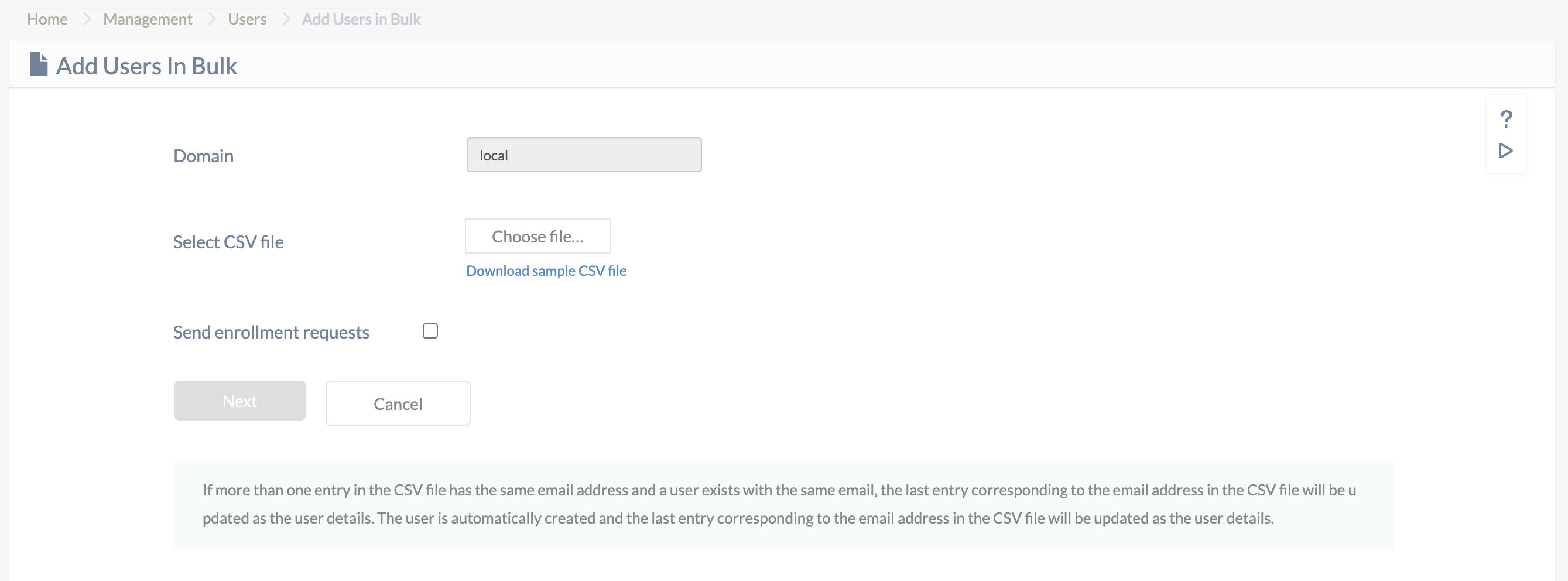
- Navigate to Manage > Users.
- For Directory Sync: Navigate to the specific integration (e.g., Admin > Microsoft Entra ID or Admin > Google Workspace) and sync your pre-configured user cohorts.
- For CSV: Select the Bulk User option, upload the formatted CSV containing mandatory fields (Name, Email, Device Ownership), and allow Hexnode to map the attributes.
Step 4: Dispatch the Pre-Migration Announcement
Three to five days before initiating the technical migration, send a “Warm-Up” announcement via internal communication channels (e.g., Slack, Teams, or standard Outlook/Gmail blast). See Section 3 for the optimized template.
Step 5: Trigger the Hexnode Enrollment Campaign and Track Progress
- When ready to initiate the onboarding, navigate to Enroll > All Enrollments > Email.
- Select your designated user group. Hexnode will process the list and mass-dispatch the authenticated setup links and QR codes.
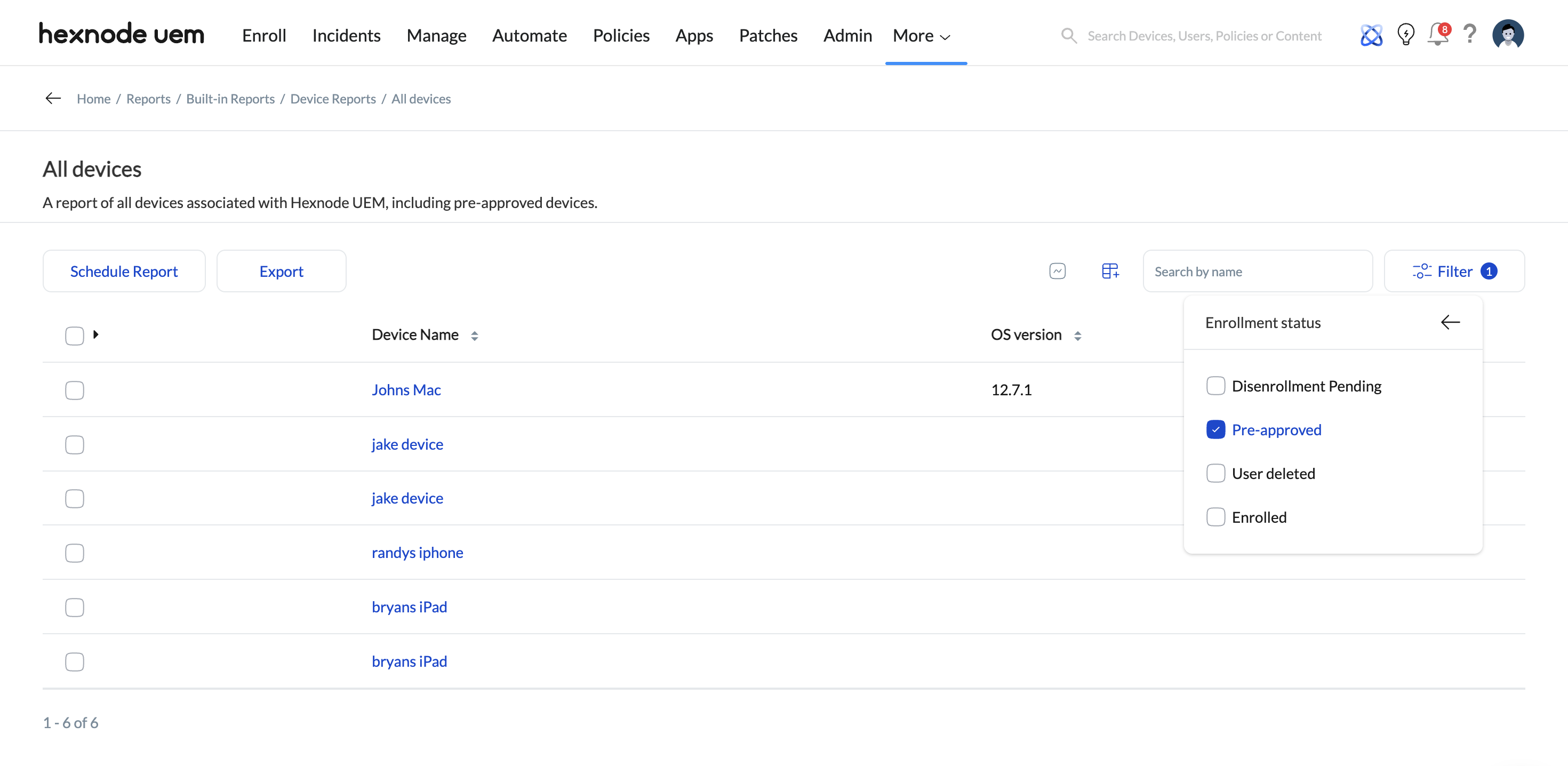
- Track Progress: Navigate to the Hexnode Dashboard to view real-time enrollment status. Utilize built-in reporting to identify users who received the invite but have not yet enrolled, and send targeted follow-ups before the cutoff deadline.
- To further enhance tracking progress, you can utilize Hexnode’s Reports (Reports > Built-in Reports > Device Reports > All Devices). Specifically, filtering by ‘Enrollment Status = Pre-approved’ allows you to filter for users who have ignored the initial email, enabling you to send a targeted “Final Reminder” blast only to that sub-group without bothering the already-enrolled users.
3. Best Practice: 5,000-User Pre-Migration Email Template
When migrating a massive device fleet, user communication must be transparent, reassuring regarding privacy, and highly actionable. Utilize the following sample template using your standard corporate communication tool prior to triggering the Hexnode automated emails.
Subject: Action Required: Upcoming Migration to Our New Device Management System (Hexnode)
Dear [User Name / Team],
To improve device security, streamline application access, and better support our remote workforce, IT is migrating our mobile devices and laptops from [Old MDM Provider] to a new unified endpoint management system called Hexnode.
What does this mean for you?
On [Date of Migration], you will receive an automated email from [Your IT Email configured in Hexnode] containing a unique enrollment link and instructions to register your device.
Will my personal data be affected?
No. Hexnode is designed strictly to manage corporate applications, secure network access, and enforce company security policies. IT cannot access your personal photos, text messages, or private browsing history.
What do you need to do?
- Back up your data (Required prior to legacy MDM unenrollment): Ensure your important files are synced to your corporate cloud storage.
- Watch your inbox: On [Date], look for an email with the subject line “Device Enrollment Request” originating from our IT support email.
- Follow the prompts: Click the link in the email and follow the brief on-screen setup assistant. The process takes less than 5 minutes.
Deadline & Support
If you do not complete this migration by [Deadline Date], your device may lose access to corporate email, VPN, and internal applications.
If you encounter any issues or have questions during the setup, please reach out to the IT Service Desk at [Link/Phone Number].
Thank you for your cooperation,
[Your IT Department / Management Team]
Frequently Asked Questions (FAQs):
Q: What is Hexnode UEM, and why is it on my device?
-
A: Hexnode is our new Unified Endpoint Management (UEM) solution. It allows the IT team to securely deploy work applications, configure Wi-Fi/VPN settings, and ensure your device meets corporate security standards (like having a passcode).
Q: Can IT see my personal photos, messages, or browser history?
-
A: No. Hexnode is designed with “Privacy-First” protocols. On personal devices (BYOD), IT can only manage “Work” applications and data. We have no visibility into your personal files, private photos, or SMS messages.
Troubleshooting Enrollment Errors
Q: I clicked the link, but I get a “Profile Installation Failed” error.
-
A: This usually happens if a profile from our old MDM system is still active on your device. Fix: Go to Settings > General > VPN & Device Management. If you see an old management profile, tap it and select Remove Management. Once removed, click the link in your Hexnode email again.
Q: The setup is asking for a “Server Name” or “Enrollment URL.” Where is this?
-
A: This information is contained in your unique enrollment email.
Server Name: [YourCompany].hexnodemdm.com
Tip: It is always easier to click the Enrollment Link or scan the QR Code provided in the email, which fills these details automatically.
Q: I see a “System Extension Blocked” message on my Mac.
-
A: This is a standard macOS security feature.
Fix: Click Open Security Preferences and then click Allow next to the message stating that Hexnode software was blocked. You may need to enter your Mac’s login password to confirm.
Post-Enrollment & Compliance
Q: Why is my device “Non-Compliant”?
-
A: A device is flagged as non-compliant if it doesn’t meet a specific security rule (e.g., your passcode is too simple or your OS version is out of date). Open the Hexnode App on your device to see the specific reason and follow the instructions to fix it.
Q: What happens if I miss the migration deadline?
-
A: To protect corporate data, devices that haven’t migrated by [Deadline Date] will automatically lose access to corporate email (Outlook), VPN, and internal tools like Slack or Teams.


