


Category filter
UEM Post-Migration Audit: A Strategic Framework for Fleet Validation
Objective: To execute a comprehensive post-migration audit verifying that a targeted fleet of devices (e.g., 1,000 endpoint assets) has successfully transitioned to Hexnode UEM, ensuring zero configuration drift, no orphaned devices, and active enforcement of corporate security baselines.
Transitioning from a legacy Unified Endpoint Management (UEM) platform; whether via Apple Automated Device Enrollment (ADE), Windows Autopilot, Android Enterprise Zero-Touch, or the Side-by-Side Migration Strategy; is only the first phase. UEM migration is incomplete without rigorous post-migration validation.
By leveraging Hexnode’s built-in reporting and analytics engine, IT and Security teams can transition from deployment to continuous assurance.
Phase 1: Establish the Baseline & Catch Stragglers
Before auditing the successful devices, organizations must identify the delta; users who were provisioned for migration but failed to transition their endpoints.
Action:
- Log in to the Hexnode UEM portal.
- Navigate to Reports > Built-in Reports > User.
- Select the Unenrolled Users report.
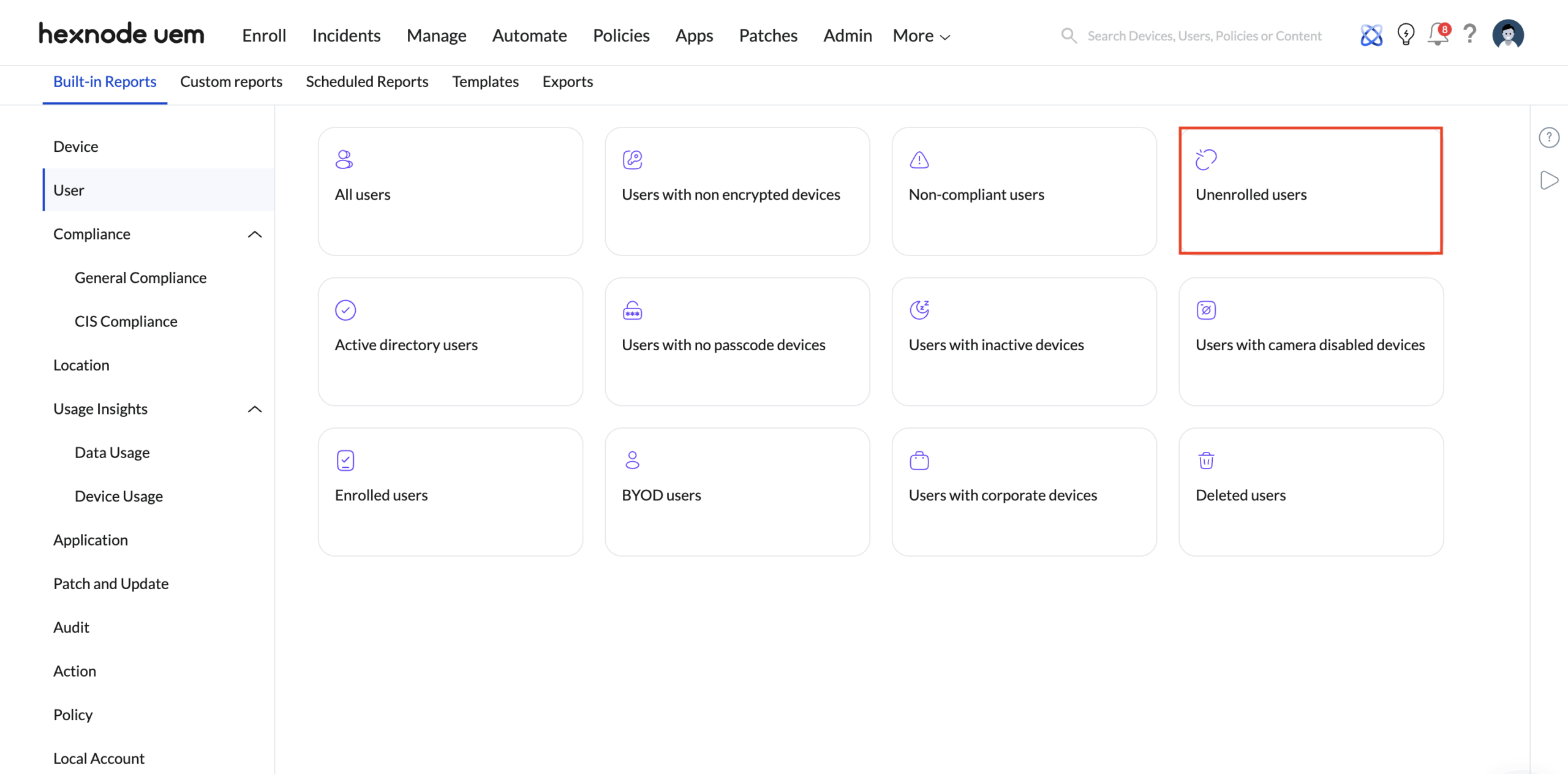
Strategic Purpose: This report dynamically lists users synced from your identity providers (such as Active Directory, Microsoft Entra ID, Google Workspace, or Okta) who have not yet enrolled any device into Hexnode. If you orchestrated a rollout for 1,000 users and this report is populated, those are your deployment stragglers. You can export this list directly to CSV/PDF to trigger targeted follow-up communications without spamming the successfully migrated users.
Phase 2: Validate the Fleet Roster
Once stragglers are accounted for, IT must verify the active management state of the newly transitioned fleet.
Run the ‘Enrolled Devices’ Inventory Audit
- Path: Reports > Built-in Reports > Device > Enrolled devices.
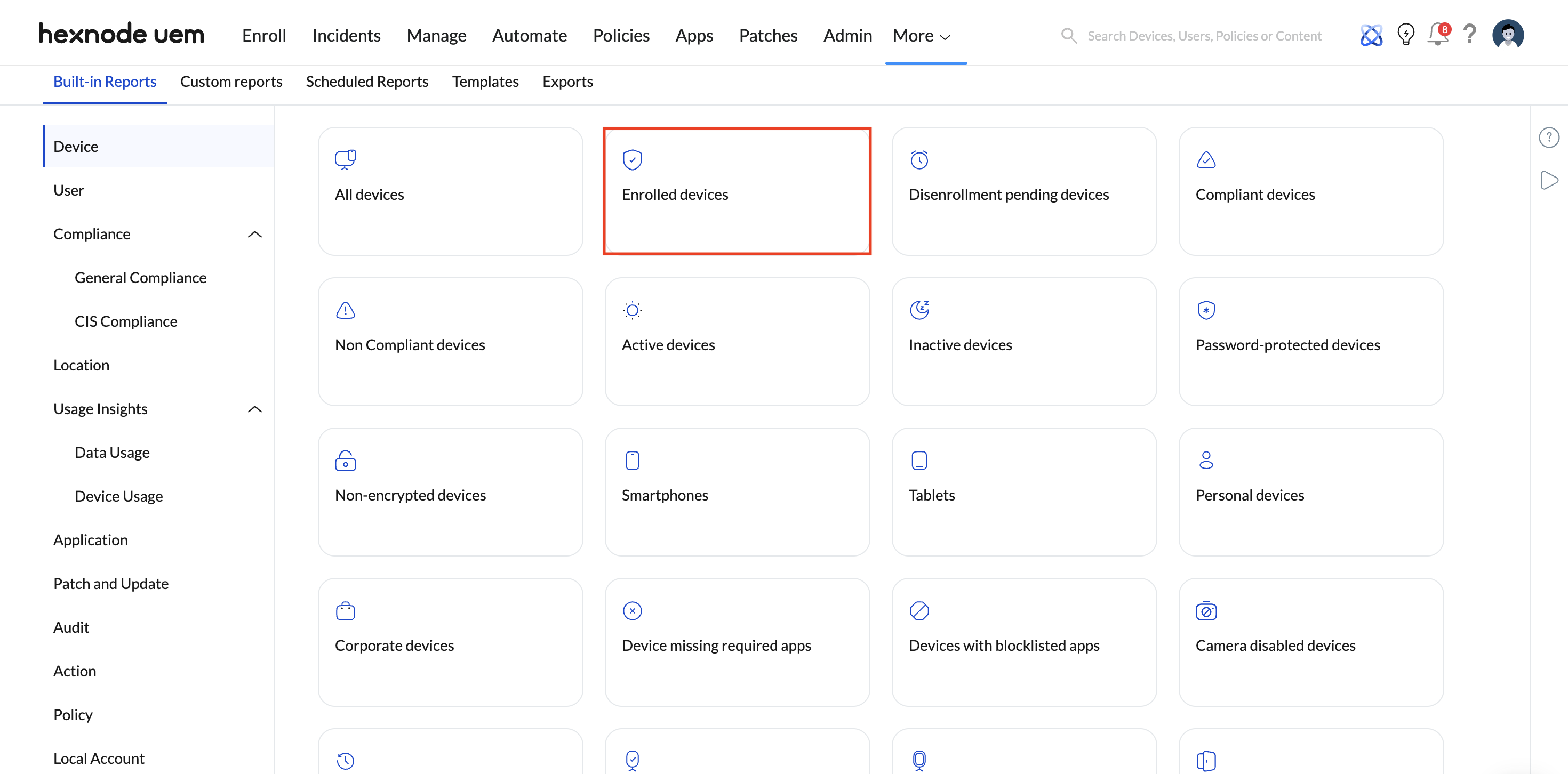
- Purpose: This provides the exact baseline of devices currently under active management. By exporting this report, administrators can run a VLOOKUP against the original legacy UEM inventory to guarantee a 1:1 match.
- Configuration: Hexnode allows IT to apply powerful contextual filters directly on this report. Filter by Platform (Android, Windows, iOS, macOS, visionOS, ChromeOS, Linux, Apple TV, Link OS), Ownership (Corporate vs. Personal/BYOD), or Group Type to ensure the specific deployment cohort matches the expected scope.
Phase 3: Security & Compliance Verification
An enrolled device is a managed device, but it is not a secure device until the baseline security profile successfully lands. During migrations, dropping a legacy UEM profile before the Hexnode profile applies can leave endpoints vulnerable.
Action: Review Risk and Compliance Reports
- Path: Navigate to Reports > Built-in Reports > User or the General Compliance.
- Key Reports to Run:
- Users with non-encrypted devices: Validates that mandatory disk and volume encryption (like Windows BitLocker or macOS FileVault) are actively enforced post-migration.
- Non-compliant Devices: Instantly flag any endpoint violating custom compliance rules (e.g., missing passcodes, outdated OS versions, or jailbroken/rooted status).
- Purpose: Ensures that 100% of the newly migrated 1,000-device fleet enforces core enterprise security baselines. Identifying non-encrypted devices on Day 1 prevents critical compliance breaches later.
Phase 4: Connectivity & Post-Migration Hypercare
A common post-migration pitfall is devices completing the initial UEM handshake and subsequently “going dark” due to networking errors, certificate drift, or revoked permissions.
Action 1: Track Active vs. Inactive Device Status
- Path: Reports > Built-in Reports > Device > Inactive devices.
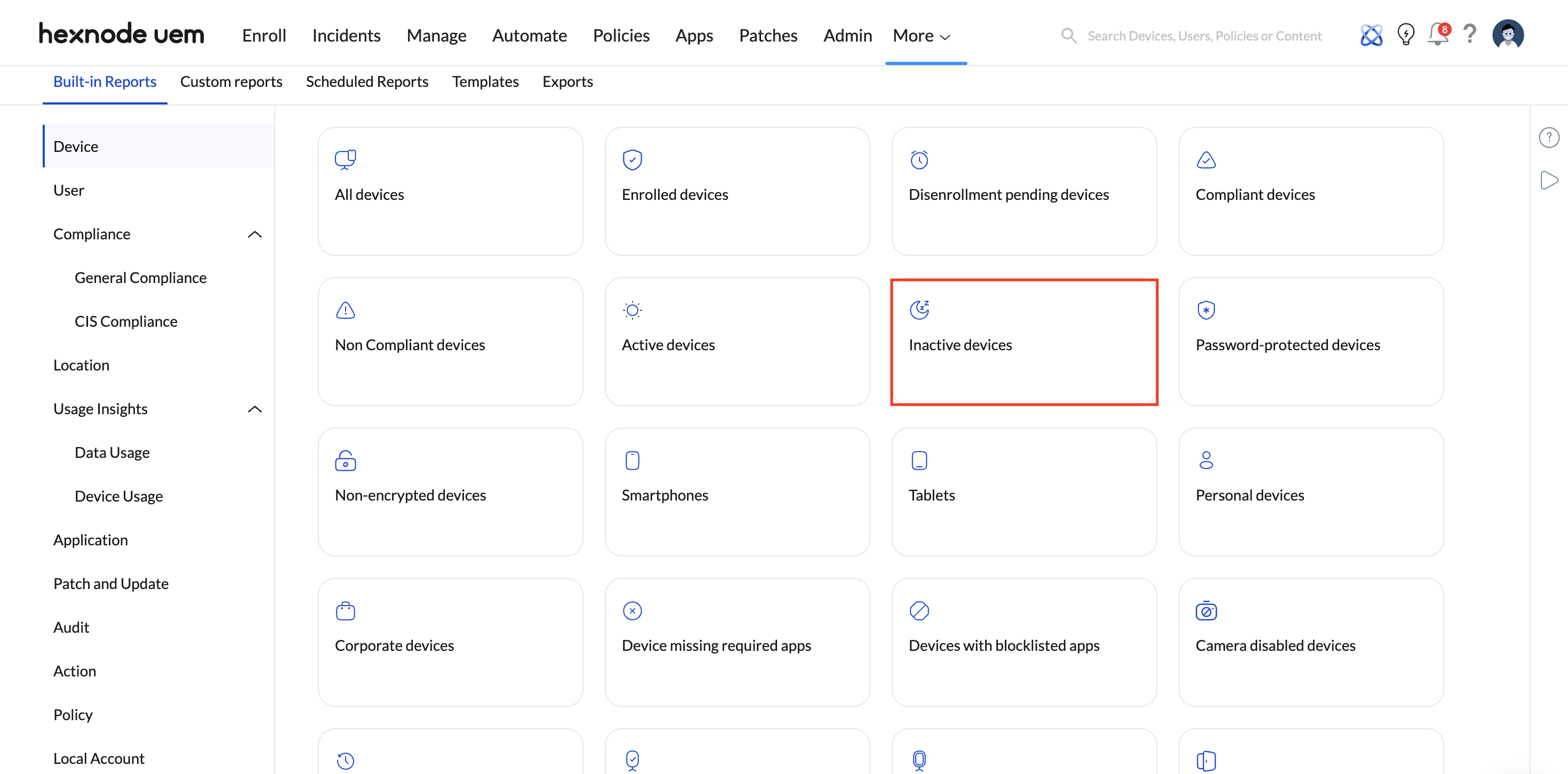
- Purpose: Hexnode defines “Inactive Devices” as endpoints that have failed to report back to the server for a specific number of days (an inactivity threshold configured by the admin). Reviewing this verifies persistent communication.
- Troubleshooting: A sudden spike in inactive devices post-migration usually indicates misconfigured network payloads, blocked ports/URLs on the corporate firewall, or time-sync discrepancies preventing certificate validation.
Action 2: Schedule Automated Delta Reports (Continuous Audit)
- Path: In any of the tailored compliance or inventory reports, click the Schedule Report button.
- Purpose: Transition your audit from a reactive, one-time task to an automated governance framework. During the 2-to-4-week hypercare phase following the cutover, IT administrators can configure Hexnode to automatically email daily PDF or CSV exports. By scheduling the delivery of “Inactive Devices” or “Non-Compliant Devices,” the IT team is proactively alerted to any endpoints dropping out of management, securing business continuity without requiring manual daily console checks.


