


Category filter
Troubleshooting Pending Commands: A Strategic Guide to Hexnode UEM Bottlenecks
Technical Summary: Troubleshooting Pending Commands in Hexnode UEM requires identifying the break in the Server-to-Endpoint Handshake. While a command may be queued, execution often stalls due to OS-level background throttling, expired APNs/VPP tokens, or network latency. This guide utilizes a structured escalation workflow—from Server-Side Scans to Foreground App Syncing—to force command execution and restore real-time fleet compliance
In a modern, real-time enterprise, speed is a critical security feature. However, IT administrators managing a Unified Endpoint Management (UEM) environment may occasionally encounter situations where remote actions (e.g., Wipe, Install Application, Lock) remain stuck in a “Pending” state.
Understanding the underlying communication architecture between the Hexnode server, the push notification services (APNs, FCM, WNS), and the endpoint is essential to resolving these bottlenecks quickly. Based on official Hexnode documentation and UEM best practices, this guide provides a structured approach to identifying, diagnosing, and unblocking pending commands.
1. Understanding the “Pending” Status
While legacy UEM solutions often rely on an “Event-Driven Pull” model (with multi-hour polling intervals), Hexnode leverages a Real-Time UEM architecture built on continuous awareness.
When you issue a command, Hexnode dispatches a notification to the device instantly. A command is flagged as Pending when it has successfully queued on the Hexnode server, but the endpoint has not yet acknowledged receipt or reported the execution status.
Step 1: Identifying the Bottleneck in the Command Queue
To investigate which commands are stalled, you can audit the command queue using Hexnode’s robust reporting structure:
- Log in to the Hexnode UEM portal.
- Navigate to the Manage tab and click on Devices.
- Select the affected device to open its Device Summary page.
- Navigate to the Action History sub-tab.
- Click the filter icon under Action Status and check the box for Pending.
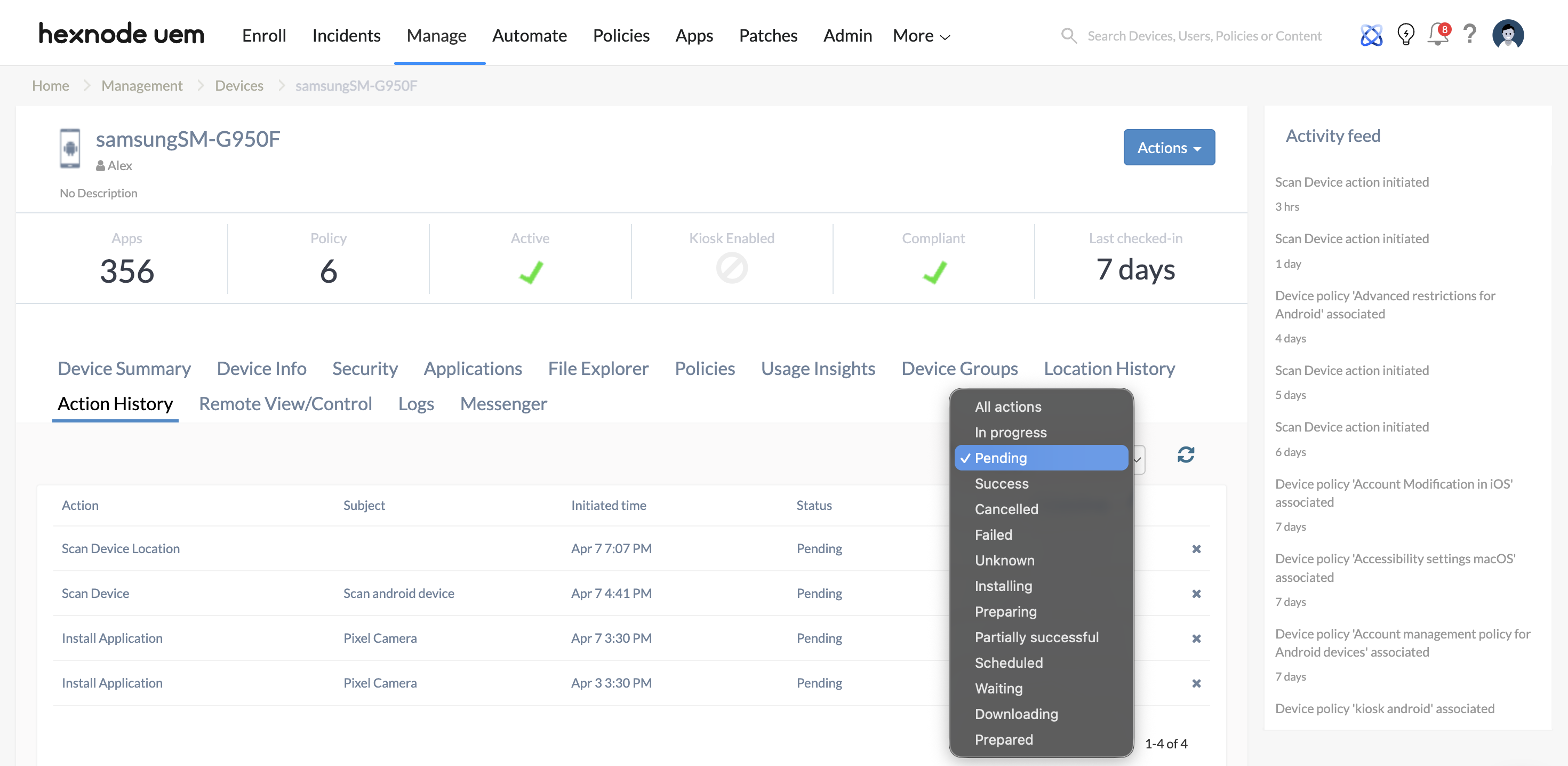
Note: You can also use the “Created Time” and “Completed Time” filters to isolate specific forensic time frames.
2. Diagnosing Common Bottlenecks
A break in the communication chain causes commands to sit in the queue. Below are the most frequent culprits behind stalled Hexnode UEM actions:
- Offline or Powered-Off Devices: The most common cause. If a device has run out of battery, has been manually powered off, or lacks internet connectivity, the UEM cannot deliver the payload.
- Aggressive OS Task Scheduling & App Throttling: Operating systems (particularly iOS and Android) heavily optimize battery life. For example, iOS is known to silently kill background apps—including the Hexnode UEM agent—if they haven’t been actively used. If the agent isn’t running, it cannot fetch background location or complex commands.
- Expired Enterprise Certificates: Communication in the Apple ecosystem relies heavily on valid Apple Push Notification service (APNs) certificates and Volume Purchase Program (VPP) tokens. If these expire, or if VPP licenses are exhausted, app installations and remote commands will remain permanently stalled.
- Unresponsive Hexnode Client: Occurs when the agent on the device crashes or is denied critical permissions (like “Location Allow All The Time” on Android), breaking the synchronization pipeline.
3. Workflow to Unblock the Command Queue
If a critical action like a Remote Wipe or App Installation is pending, execute the following escalation workflow to force the execution:
A. Verify the “Last Check-in Time”
Check the “Last Check-in” timestamp on the Device Summary page. If the device has been offline for an extended period, no server-side action can reach it. The commands are queued intentionally and will execute the moment the device powers on and regains network access.
B. Trigger a Server-Side Sync (“Scan Device”)
If the device appears online but commands are pending, wake up the communication channel manually:
- From the Hexnode portal, go to Manage > Devices.
- Select the affected device and click Actions > Scanning & Monitoring > Scan Device.
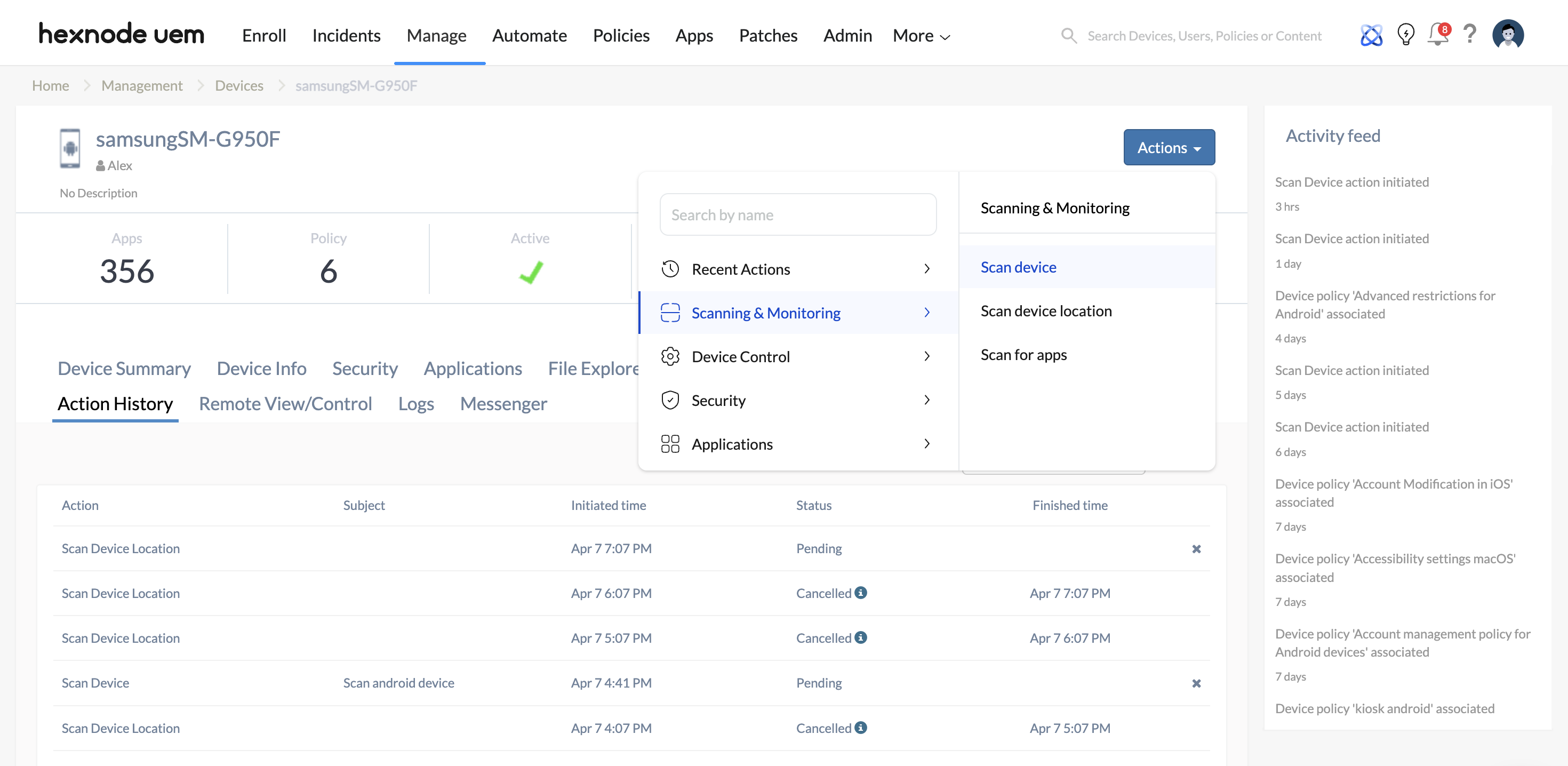
Why this works: This action forces the Hexnode server to ping the endpoint. If the device responds to this foundational scan, any queued actions are pulled down and executed, instantly updating the status from Pending to Success or Failed.
C. Force a Client-Side Sync
If the “Scan Device” action also gets queued as pending, OS background throttling is likely blocking the push notification. If the device is accessible (or if you can guide the end-user):
- Open the Hexnode UEM / Hexnode For Work app directly on the device.
- Tap the Sync icon.
Why this works: Opening the application forces it into the foreground, explicitly bypassing iOS/Android background execution limits and instantly pulling the pending commands from the server.
D. Re-initiate the Command
If the device syncs successfully, but a specific older command remains pending, it may have fallen victim to a server-side timeout. Cancel the stalled action (if applicable) and trigger the remote command again.
4. Strategic Best Practices to Prevent Queue Bottlenecks
Proactive UEM administration prevents emergency bottlenecks. To keep your fleet reporting in real-time, implement these preventative measures:
- Implement Token and Certificate Audits: Expired APNs or VPP tokens cause immediate communication blackouts. Set up calendar alerts 30 days prior to the expiration of Apple Business Manager (ABM) server tokens and APNs certificates.
- Exclude Hexnode from Battery Optimization (Android): Ensure the Hexnode agent is explicitly excluded from Android battery-saving modes. The app requires Always Allow permissions for Location and background processes, so the OS doesn’t kill the sync engine.
- Monitor Ghost Devices: Use Hexnode’s dashboard to routinely monitor devices with long gaps since their last check-in. Proactively identifying disconnected endpoints prevents situations where you are waiting on a critical, time-sensitive command to execute on an abandoned device.
Frequently Asked Questions (FAQs)
Why are the Hexnode app installations stuck on “Pending”?
App installations remain pending if the device is turned off, disconnected from the internet, or if the OS has killed the Hexnode UEM background agent. Ensure the device is connected to Wi-Fi/Cellular, open the Hexnode app manually to bring it to the foreground, and click “Scan Device” from the Hexnode admin portal.
How to fix a failed command in Hexnode UEM?
First, check the Action History report to read the specific error message. Failures often happen due to missing VPP licenses (Apple), restricted device policies, or lack of administrative credentials. Fix the underlying restriction or license shortage, then re-initiate the command.


