Category filter
How to renew Automated Device Enrollment (ADE) Token?
Automated Device Enrollment or ADE is Apple’s legacy enrollment program. ADE is a core feature of Apple Business Manager (ABM), working alongside the Volume Purchase Program (VPP).
While enrolling an Apple device via ADE, the server token obtained from the ABM portal is uploaded to Hexnode UEM. This token has a one-year validity, after which a new token is to be uploaded to continue having access to ADE from Hexnode. The ADE account, configuration profiles, ADE devices and sync options work only if the token is active. As the ADE token is about to get expired, a banner indicating the same will be is displayed in the Hexnode portal. Also, the user can always check the expiry date of the ADE account in the Hexnode portal by navigating to Admin > Apple Business/School Manager > Automated Device Enrollment > Accounts.
Renewing Apple Server token
Following are the steps by which the Apple Server token can be updated:
- Log in to Apple Business Manager.
- Click your name at the bottom left of the screen and go to Preferences.
- Under Device Management Services, select the respective server.
- Click on Download Token. A dialogue box stating “Downloading a new server token will reset your existing one” will be displayed. Click Download Token.
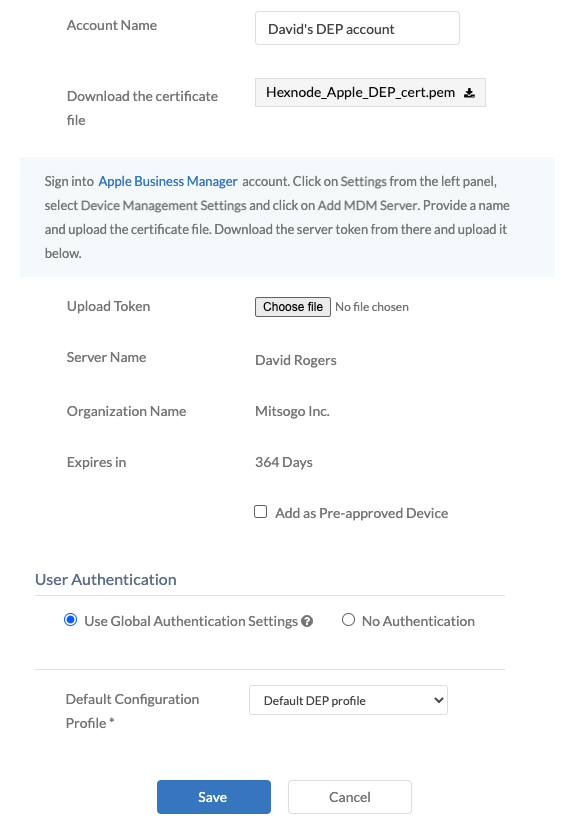
- Now, in the Hexnode portal, navigate to Admin > Apple Business/School Manager > Automated Device Enrollment > Accounts. Move the cursor to the right end of the account name, an edit button will appear. Click on it.
- The “Edit ADE Account” page will now appear. Click on the Choose file button next to Upload Token. Upload the newly downloaded token here. Click Save. This process will extend the ADE validity by a year.