


Category filter
Configure Android App Notifications settings
Managing Android app notifications settings allows IT administrators to control how alerts appear on managed Android devices, track notification count, and block unauthorized app notifications to optimize enterprise productivity and security.
This help documentation will act as a guide for configuring app notifications on managed Android devices at the workplace.
Prerequisites for managing Android App Notifications Settings
Before you can remotely modify Android app notifications settings, specific device-level permissions and enrollment types must be verified to ensure the policy deploys successfully.
| Requirement | Specification |
|---|---|
| Operating System | Android 4.4 or higher |
| Permissions | Notification Access Permission must be granted for Hexnode UEM/Hexnode For Work apps on the device. |
| Enrollment Mode | Not supported for Profile Owner (Work Profile) mode. |
Steps to configure Android App Notifications settings
Administrators can define custom Android app notifications settings by creating a policy in the Hexnode portal to either restrict all alerts or monitor specific application engagement.
- Log in to the Hexnode UEM portal.
- Navigate to Policies > New Policy.
- Go to Android > App Management > App Notifications.
- Click Configure.
- Define global policy constraints:
- Restrict all other Notifications: When enabled, only notifications from specifically selected apps appear on the lock screen and status bar. All other system and app alerts are blocked.
- Customize Individual App Settings:
- Click +Add Notification Settings to select a specific application.
- Select application: Choose the application to be managed.
- Allow notifications: Enable this to allow app notifications to be displayed on the device lock screen and status bar.
- Track total number of notifications per app: Enable this to monitor the frequency of notifications generated by the app.
- Track number of missed notifications per app: Enable this to log the app notifications that were not interacted with by the user.
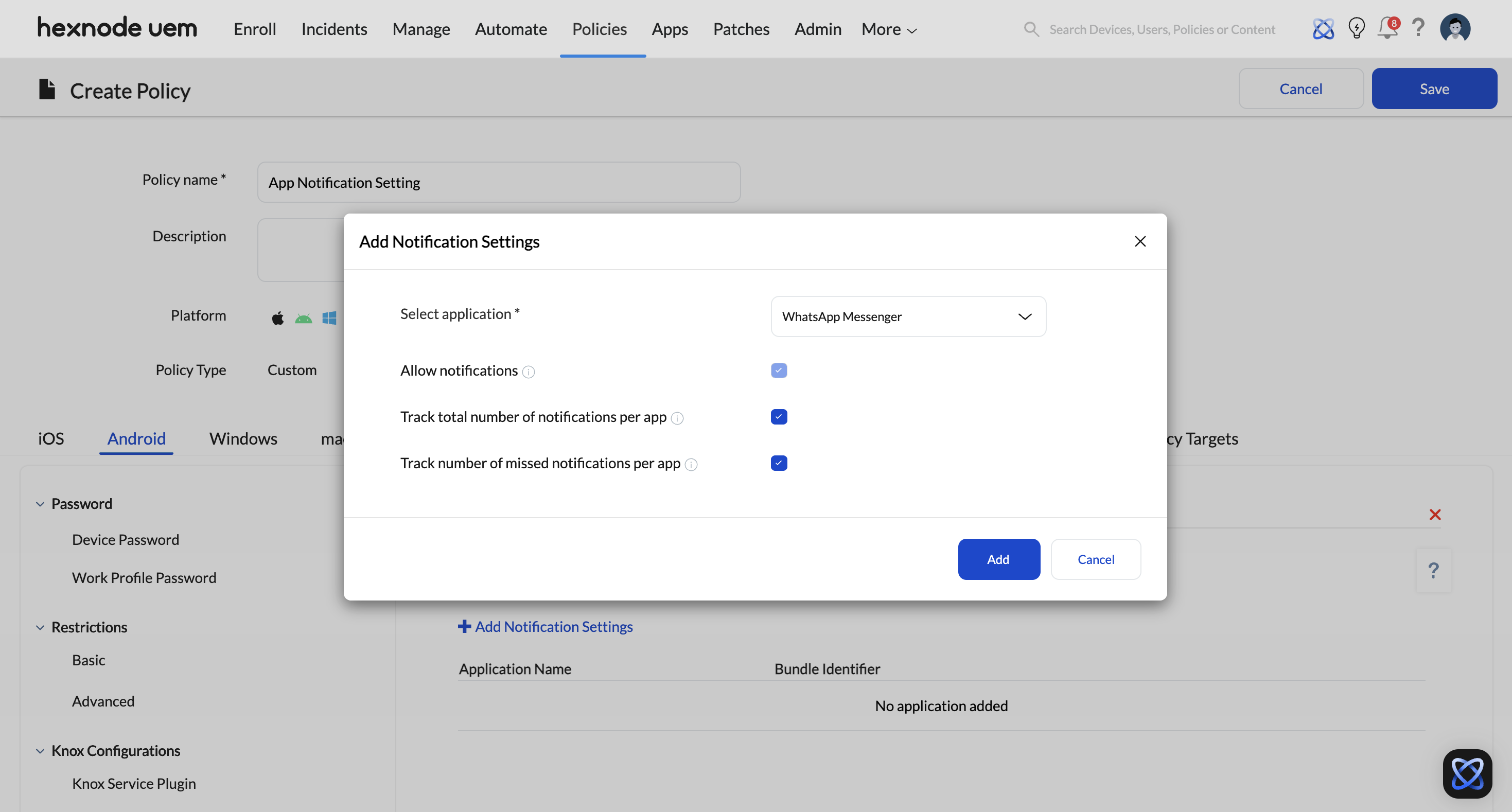
- Click Ok to save the configuration.
Viewing Data from Android App Notifications Settings
Once the Android app notifications settings policy is active, administrators can audit notification metrics through the Device Summary page or the Reports tab.
1. Device Summary Page (Individual Tracking)
To view the notification count for a specific device:
- Navigate to Manage > Devices and select the device.
- Go to Usage Insights > App Usage.
- Filter by time range (Today, Yesterday, Last 7 days, etc.) to see the number of notifications received per app.
- Use the Export button to download the data as a .pdf or .csv.
2. Built-in Reports (Fleet-wide Tracking)
To view notification data across all managed Android devices:
- Navigate to Reports > Built-in Reports.
- Go to Usage Insights > Device Usage.
- Select Missed Notification Counts.
- This report displays the Missed Notification Counts and the Total Notification Count for every device associated with the App Notifications policy.
Associating policy with devices
If the policy has not been saved,
- Go to Policy Targets > +Add Devices.
- Choose the target devices and click Ok.
- Click Save.
You can also choose to associate the policy with device groups, users, user groups, or domains from the left pane of the Policy Targets tab.
If the policy is saved,
- Choose the desired policy from the Policies tab.
- Click on Manage drop-down, select Associate Targets.
- Choose the target devices, device groups, users, user groups or domains and click Associate.
Frequently Asked Questions (FAQs)
Why are some notifications still appearing after the Android app notifications settings has been configured?
Ensure that the Restrict all other Notifications checkbox is enabled. If this is not checked, the UEM agent will only track the selected apps but will not block others.
What is meant by “missed notifications” with respect to the “Track number of missed notifications per app” setting?
Missed notifications refer to notifications that were removed from the notifications tray because the user swiped them away or selected Clear All on the device.
Can the Android app notifications settings be changed for devices in a Work Profile?
No. Android’s privacy architecture prevents UEMs from controlling notification settings for devices enrolled under Profile Owner (Work Profile) mode.
Is it possible to export the notification data for auditing?
Yes. You can export reports from both the Device Summary page and the Reports tab in .csv or .pdf formats.
Troubleshooting Guides
| Problem | Resolution |
|---|---|
| Notification counts are not updating in the portal | Ensure Notification Access Permission is granted on the device. Navigate to the device settings and manually allow Hexnode UEM to access notifications if not prompted automatically. |
| The policy is not applying to the device | Verify the device is running Android 4.4+. Check the Policy Targets tab to ensure the device or user group is correctly assigned to the policy. |
| “Restrict all other Notifications” is blocking system alerts | This is expected behavior. If you need system alerts (like battery or OS updates), you must specifically add the relevant system apps to the +Add Notification Settings list. |


