


Category filter
Triggers and conditions to automate device management tasks
Hexnode UEM allows IT admins to automate device management tasks by configuring specific Triggers and Conditions. These settings ensure that tasks such as associating policies or locking devices are executed at scheduled intervals or in response to defined device events, such as device enrollment, SIM changes, compliance status changes (device or location), or device inactivity.
This guide walks you through configuring the triggers and conditions in Hexnode UEM to streamline device management.
Steps to configure triggers and conditions
Follow the below steps to configure triggers and conditions to automate device management tasks:
- Navigate to Automate > Active Automations > New Automation.
- Choose the platform for which you want to create the automation.
- Click on the Edit icon next to the Untitled Automation, rename the automation profile, and click Save.
- Choose an action to automate and configure it.
- Next, configure the Settings and Schedule.
The two key elements in Settings and Schedule are:
- Trigger: Trigger defines what starts the automation. You can choose Time to schedule actions at a specific moment, or Activity to initiate actions based on device events such as enrollment, SIM card change, or compliance status.
- Initiate: Determines how the action is executed after the trigger occurs.
- For a Time trigger, it specifies whether the action runs immediately, once at a scheduled time, or on a recurring schedule.
- For an Activity trigger, the action is executed immediately when the specified event occurs.
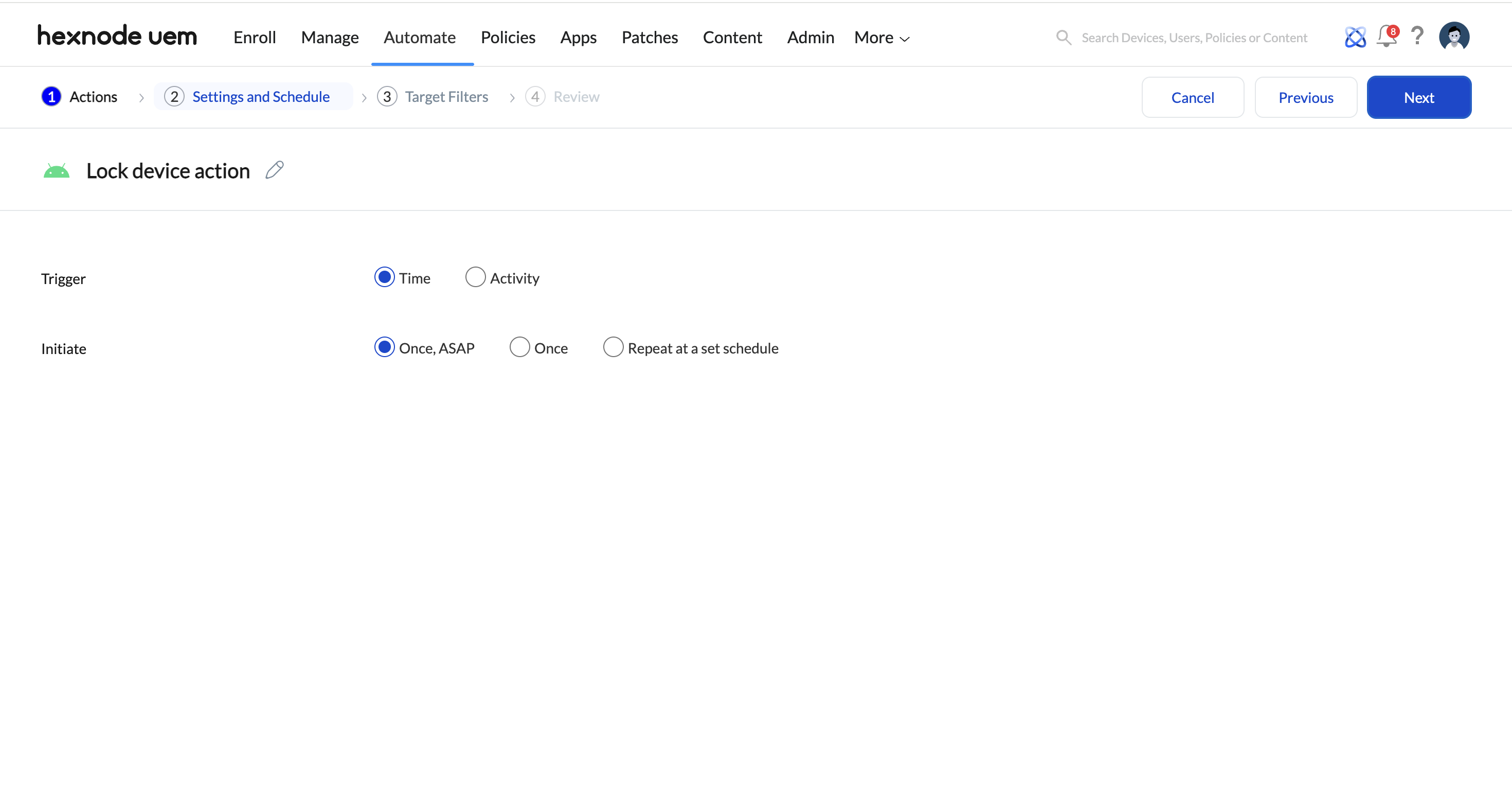
When Time is selected as trigger
When Time is selected as the trigger, you can define exactly when and how often an automation action should be initiated. This is ideal for routine tasks, like locking devices after office hours, deploying updates overnight, or performing maintenance at scheduled intervals.
Initiate options for Time trigger:
- Once, ASAP: Initiates the automation action one time immediately or as soon as possible after saving the automation.
- Once: Initiates the action one time at a specific scheduled date and time. Specify both the date (MM/DD/YY) and time to determine when the action executes.
- Repeat at a set schedule: Initiates the action multiple times based on a defined schedule:
- Scheduled Day: Specify the day for action initiation. Options include: Everyday, selected Days, Monthly.
- Scheduled Time: Set the time at which the action should initiate in HH:MM format and select the appropriate Time Zone.
When Activity is selected as trigger
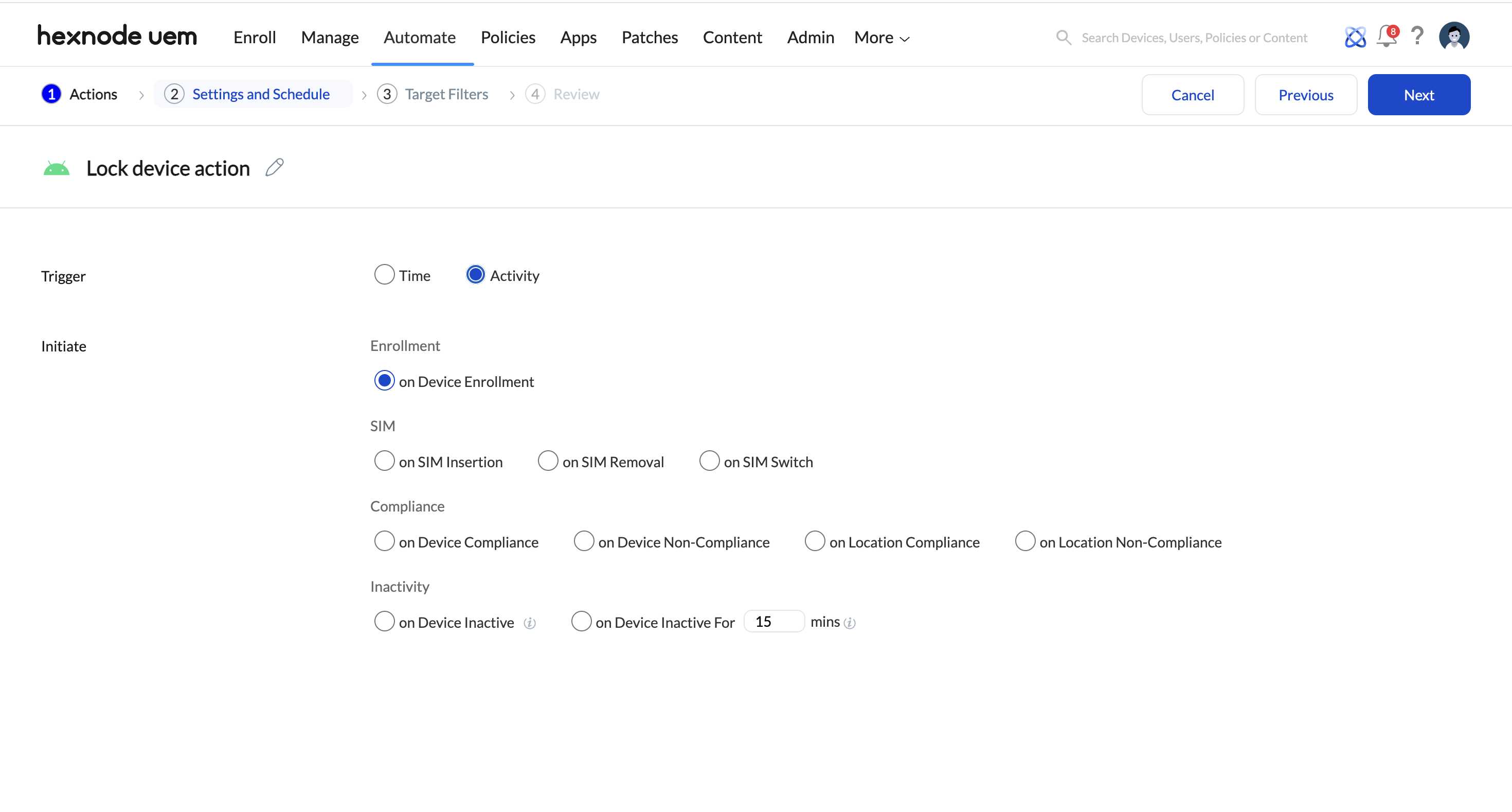
When Activity is selected as the trigger, automation is initiated by specific device events or status changes rather than a fixed schedule.
Initiate options for Activity trigger:
-
Enrollment triggers
- On Device Enrollment: The configured automation action is initiated when a device is newly enrolled to Hexnode UEM.
-
SIM-based activity triggers
- On SIM Insertion: The configured automation action is initiated when a SIM is inserted into the device.
- On SIM Removal: The configured automation action is initiated when a SIM is removed from the device.
- On SIM Switch: The configured automation action is initiated when an existing SIM is removed and replaced with a different one.
-
Compliance triggers
- On Device Compliance: The configured automation action is initiated when a device meets compliance rules.
- On Device Non-Compliance: The configured automation action is initiated immediately when a device is non-compliant.
- On Location Compliance: The configured automation action is initiated when the device is location compliant.
- On Location Non-Compliance: The configured automation action is initiated when the device is not location compliant.
-
Inactivity triggers
- On Device Inactive: The configured automation action is initiated when the device is marked as inactive based on the Inactivity settings configured in the Admin tab.
- On Device Inactive For: The configured automation action is initiated after the device has remained inactive for an additional specified duration following the inactivity threshold.
Actions supported on inactivity triggers:
- Lock Device: Lets the admin lock devices so only those with the device password can unlock them.
- Enable lost mode:Locks down the device and tracks its location, ensuring it can’t be accessed if lost or stolen, and aids in quicker recovery.
- Wipe device:Remotely erases all data from the device, ensuring that sensitive information is securely deleted if the device is lost, stolen, or compromised.
- After configuring the Settings and Schedule section, you can apply Target Filters.
Target Filters
Target Filters define the scope of your automation by determining exactly which devices, users, or groups are eligible for the configured actions. You can specify options for Included groups, Excluded groups, and create custom filters by selecting the Filters option.
- Included groups: Select the specific device or user groups to which the automation should apply. Click Add Groups to choose from your existing portal groups.
- Excluded groups: Select the device or user groups that should be expected from the automation. Click Add Groups to view and select groups for exclusion.
- Filters: Create custom conditions to further refine the target devices based on specific attributes:
Filter Categories
- Device: This category includes various attributes realted to to the device being managed.
- User: This category includes attributes related to the users who are using the devices.
- Network: This category relates to network attributes associated with the devices.
- Device Status: This category provides attributes associated with the compliance and operational status of the devices.
Configure Filters
To configure filters, set the following fields:
- Select Column: Choose the category used for filtering. Once selected, the relevant sub-categories will be displayed under this dropdown.
- Select Comparator: Define the comparison method.
- Select value: Set the specific value for filtering.
Example:
If Apple ADE is selected as the column:
- Available comparators: Is, Is not
- Available values: Enabled, Disabled
Main category Sub- categories Device - Apple ADE
- Asset tag
- Available internal storage
- Battery level
- BitLocker Policy Compliance
- Department
- Device ID
- Device model
- Device notes
- Device type
- Encryption Status
- Enrolled time
- Enterprise Management Type
- Installed RAM
- Last checked-in time
- Manufacturer
- MEID
- OS name
- OS version
- Ownership
- Platform
- Processor name
- Serial number
- Supervision
- Total internal storage
- TPM version
- UDID
- Used internal storage
User - Alternate email
- Department (AD)
- Domain name
- Office location (AD)
- sAMAccountName
- Title (AD)
- User type
- Username
Network - Bluetooth MAC address
- Current carrier network SIM 1
- Current carrier network SIM 2
- Current MCC
- Current MNC
- Ethernet IP Address
- Ethernet MAC address
- Home carrier
- Home country
- ICCID SIM 1
- ICCID SIM 2
- IMEI SIM 1
- IMEI SIM 2
- IMSI
- International data roaming
- Last connection date
- Personal Hotspot
- Phone number SIM 1
- Phone number SIM 2
- Roaming enabled
- SIM carrier network
- Subscriber carrier network (iOS)
- Subscriber MCC
- Subscriber MNC
- Wi-Fi IP Address
- Wi-Fi MAC address
- Wi-Fi SSID
Device Status - Activity status
- Application compliance status
- Compliance status
- Enrollment status
- Geofence compliance status
- Jailbroken
- Kiosk mode
- Lost mode
- MDM profile
- Password compliance status
- Rooted
After selecting the desired sub-category, a comparator must be chosen.
- After setting the filters, you can review the automation. Then click Save to save the automation.
The automation executes only on devices that satisfy both the Trigger and the Target Filters.
For example, if the trigger is set to On SIM Insertion and the target filter is All Android Devices, the automation runs only on Android devices where a SIM insertion activity occurs. Devices that match the filter (All Android Devices) but do not experience the trigger activity (On SIM Insertion) will not be affected.


