


Category filter
Tag-Based Automation for Temp Workers: Lifecycle Management & Auto-Deprovisioning
Overview: Zero-Touch Lifecycle Management for Contractors
Managing hardware for temporary, seasonal, or contract workers introduces a unique administrative burden. IT must rapidly provision hundreds of devices for immediate productivity and, crucially, ensure those devices are securely wiped or locked down the exact moment the contract expires to prevent data leakage.
Hexnode UEM empowers administrators to tackle this challenge by architecting a highly effective Zero-Touch Lifecycle Workflow. By leveraging Hexnode’s Custom Attributes (which act as your organizational “Tags”) and Dynamic Device Groups, IT can build a fully automated engine that handles a device from its first boot to its final deprovisioning.
This document outlines how to translate the concept of “Tag-Based Automation” into practical, use-case-driven strategies within Hexnode UEM.
Phase 1: The Onboarding Flow (Tagging at the Source)
The Objective: You are deploying 500 corporate-owned tablets to summer contractors. You want these devices to automatically configure themselves with the “Seasonal Worker Profile” the moment they connect to Wi-Fi, without IT touching every screen.
The Hexnode Mechanism: We achieve this by using Custom Attributes and Edit Device Attribute remote action. Because the devices haven’t been turned on or connected to the network yet, we use their unique hardware identifiers (such as the Serial Number) as an anchor. By uploading the Serial Numbers mapped to our custom tags in advance, Hexnode instantly recognizes the specific physical device the moment it boots up and enrolls, applying the tag automatically.
Execution Strategy:
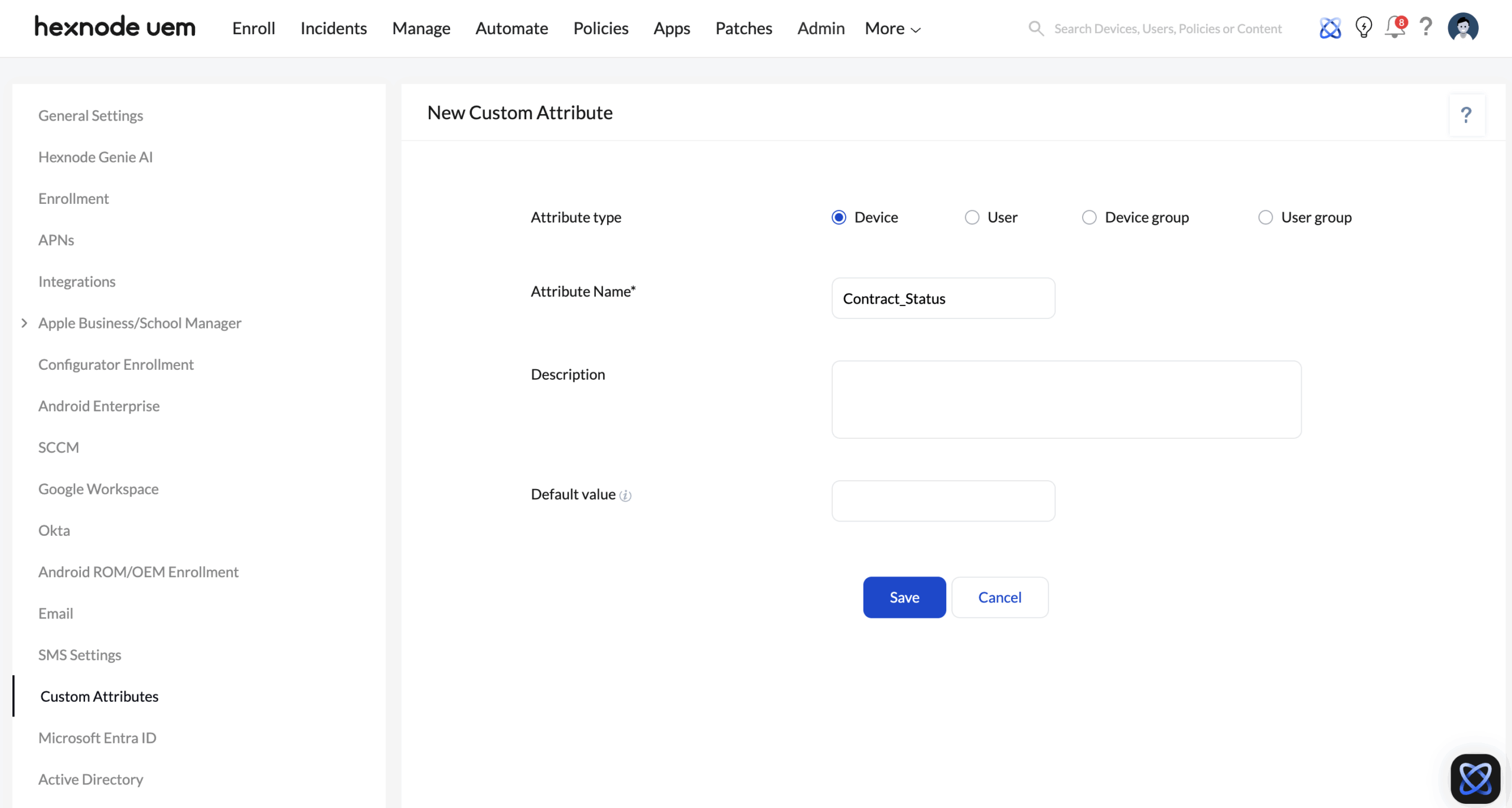
- Define the Tag: Go to Admin > Custom Attributes. Under New Attribute, set the Attribute Type to Device. Name the attribute Contract_Status and click Save.
- Bulk Group the Hardware via CSV: Instead of manually hunting for 500 individual devices in your main portal list, you can collect them instantly. Navigate to Manage > Device Groups and click the Add Bulk Device with CSV option. Upload a CSV file containing your 500 enrolled devices structured with three columns:
- groupname: The name of the device group (e.g., “Summer Batch 2026”). Hexnode will automatically create this group if it doesn’t already exist.
- members: The Serial Numbers, UDIDs, Device IDs, or IMEIs of the tablets.
- description: An optional description of the group.
- Tag the Batch: Now that all 500 devices are neatly collected under a single device group, simply check the box next to your newly created “Summer Batch 2026” group. From the top menu, click Actions > Edit > Edit Device Attributes. Check the Edit Custom Attributes box, locate your Contract_Status attribute, assign it the value Active_Temp, and click Save.
The Result: The devices are now securely tagged within the Hexnode UEM portal. The moment the Active_Temp tag is applied to the selected devices, they are ready to be automatically routed into your targeted management policies.
Phase 2: Active Management (Dynamic Policy Routing)
The Objective: Now that the devices are tagged as “Active_Temp,” they need to automatically receive the designated apps, Wi-Fi payloads, and security restrictions without manual assignment.
The Hexnode Mechanism: We use Dynamic Device Groups to act as a listener. The group constantly scans the fleet for specific tags and automatically funnels devices into the correct management policy.
Execution Strategy:
- Build the Listener: Go to Manage > Device Groups and click New Dynamic Group (e.g., “Active Seasonal Contractors”).
- Column group: Device
- Column: Contract_Status
- Comparator: Is
- Filter Value: Active_Temp
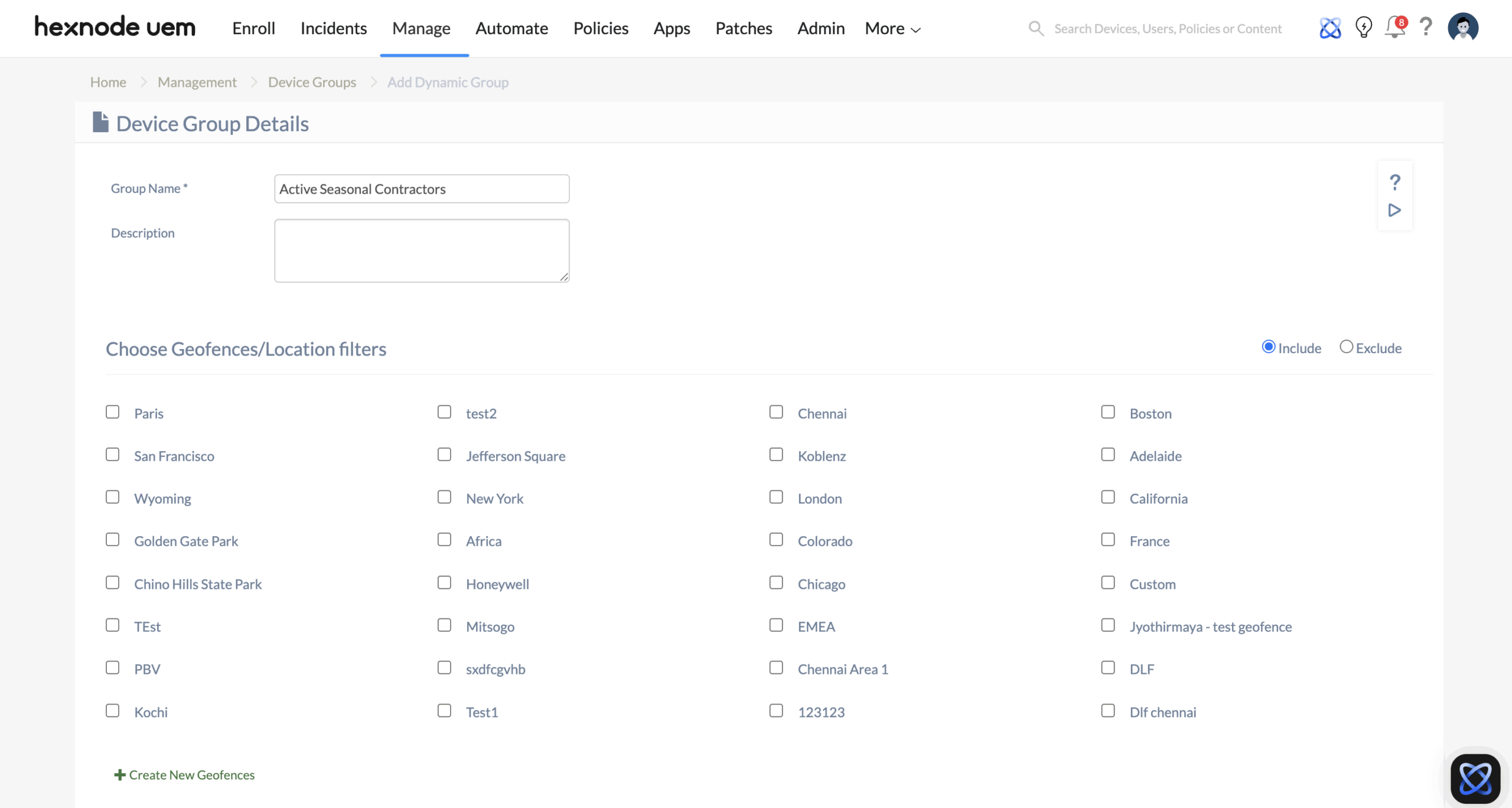
The Result: Because the devices already possess the Active_Temp tag, the Dynamic Group catches them immediately and instantly pushes the Temp Worker policy over the air.
Phase 3: The Offboarding Flow (Automated Deprovisioning)
The Objective: The summer contract ends on August 31st. IT needs a reliable way to strip corporate data or entirely sanitize these 500 devices securely and instantly.
The Hexnode Mechanisms: You can approach this using three different strategies depending on whether you want a seamless removal of corporate data, complete factory reset or a scheduled factory reset.
Strategy A: The “Corporate Wipe” via Group Exclusion (For BYOD or Light Management)
This strategy relies on modifying the device’s tag to force it out of the managed group, triggering a self-cleanup of corporate data while leaving personal data intact.
- Prerequisite (Enable Auto-Delete): In your Temp Worker policy, make sure you have enabled the Remove apps from the device on policy removal option within your Required Apps configuration. By doing this, when the policy is archived, removed, or disassociated, all the apps deployed using the required apps policy will be removed as well. For other configurations, they are removed automatically the moment the policy is disassociated.
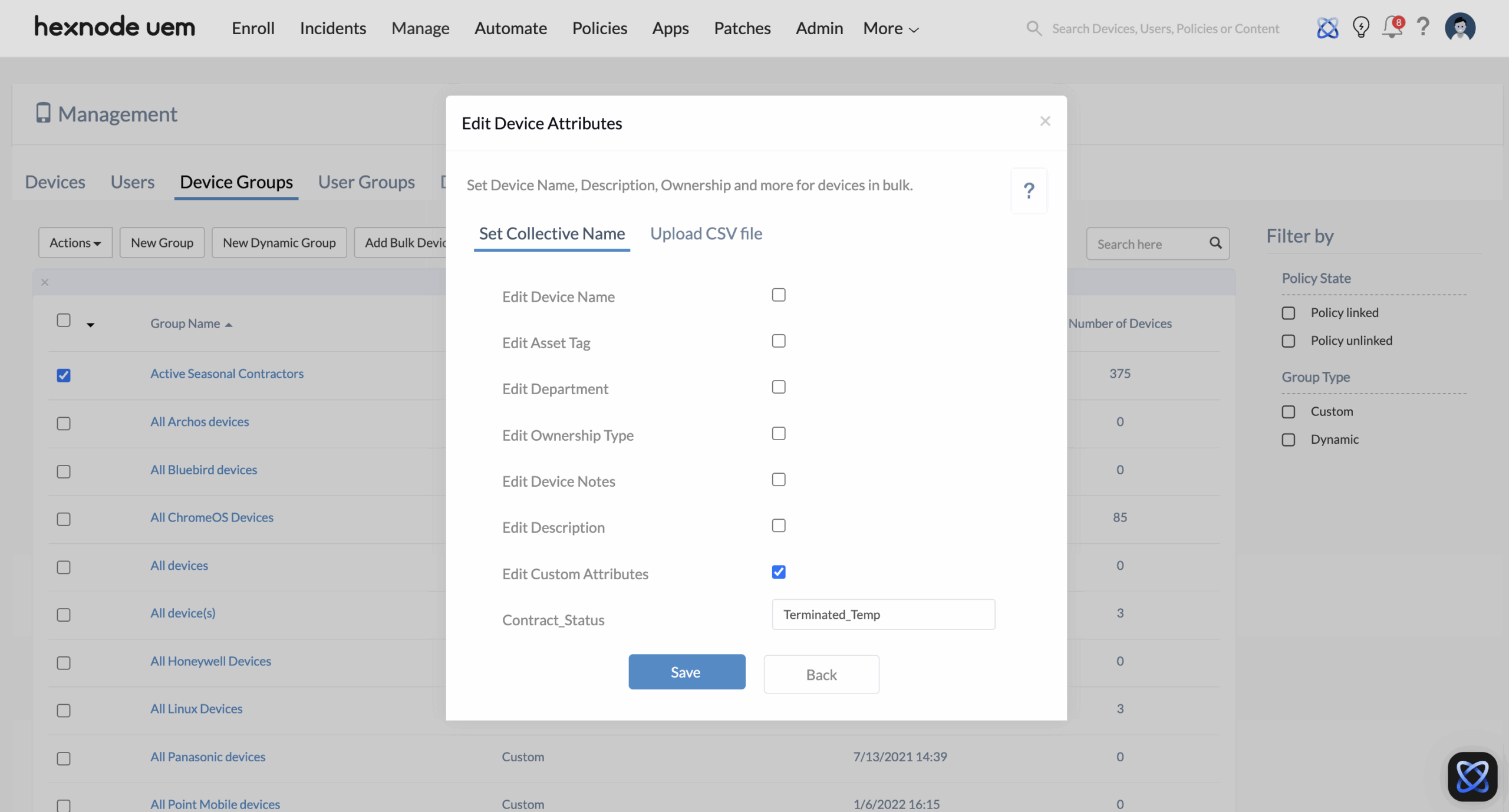
- The Trigger (Changing the Tag via Remote Action): On August 31st, an admin updates the Custom Attribute for the targeted devices, changing Contract_Status from Active_Temp to Terminated_Temp.
- Execution via Remote Action: Navigate to Manage > Device Groups and select your “Active Seasonal Contractors” dynamic group. From the top menu, click Actions > Edit > Edit Device Attributes. Check the Edit Custom Attributes box to reveal the available custom fields, change the Contract_Status value to Terminated_Temp, and click Save.
- The Automation: The Dynamic Group auto-syncs. Because the devices no longer possess the Active_Temp tag, Hexnode automatically evicts them from the “Active Seasonal Contractors” group and funnels them directly into the “Terminated Contractors” dynamic group.
- The Corporate Wipe: The eviction instantly strips the Temp Worker policy from the devices, automatically wiping all managed corporate apps, configurations, and corporate data without requiring a factory reset.
Strategy B: The “Complete Device Wipe” (Hard Factory Reset)
If the devices are strictly corporate-owned and must be thoroughly sanitized for the next batch of users, a Corporate Wipe isn’t enough—you need to wipe the entire device and restore it to factory defaults.
- The Trigger (Grouping the Terminated Devices): Similar to Strategy A, update the Contract_Status tags via CSV to Terminated_Temp.
- The Catch-All Group: Have a secondary Dynamic Group created named “Terminated Contractors” that listens for the Terminated_Temp tag.
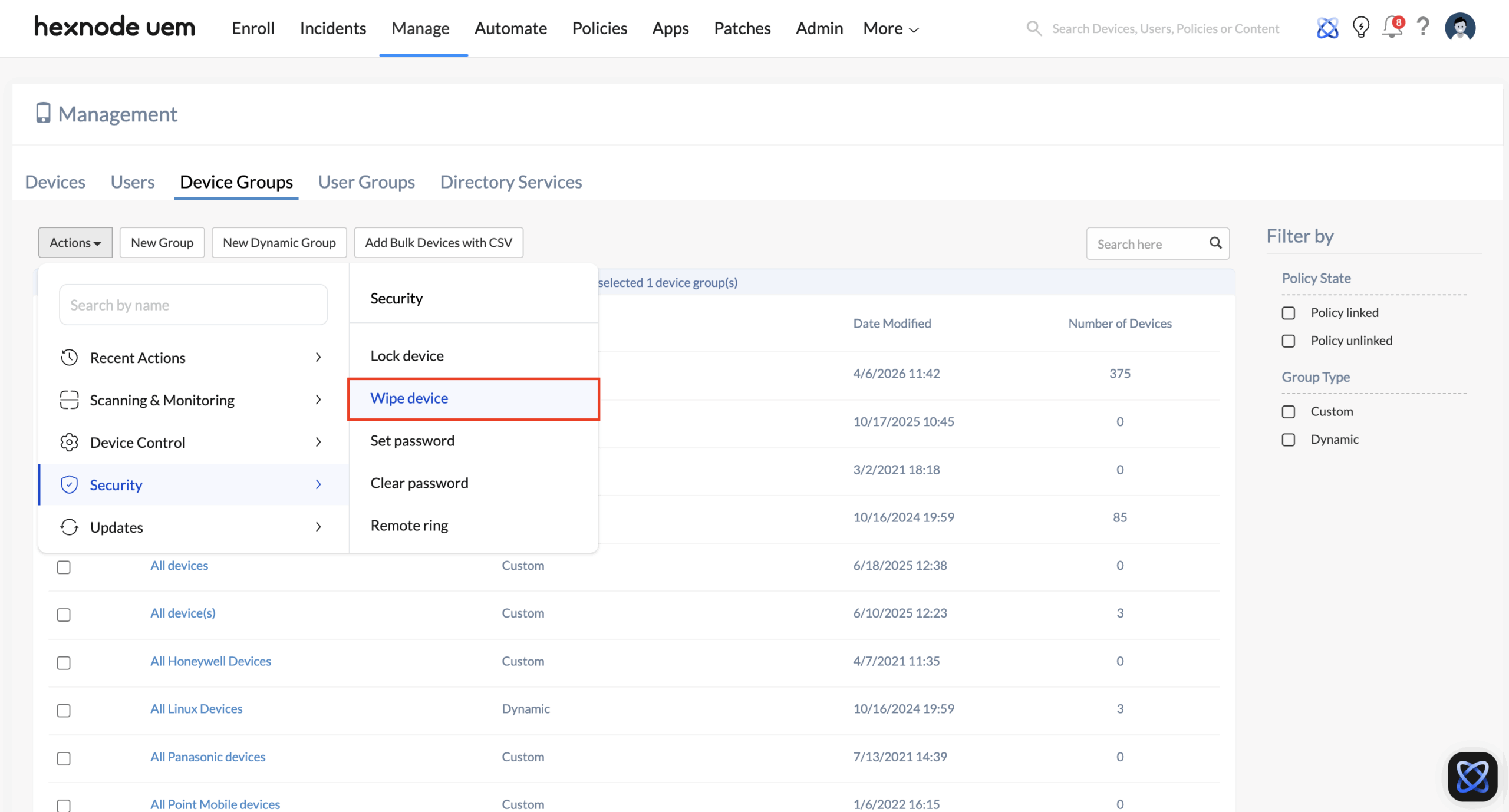
- The Bulk Wipe Action: Once the 500 devices automatically filter into the “Terminated Contractors” group, go to Manage > Device Groups, select the group, click Actions, and select Wipe Device. This sends an un-interruptible Complete Wipe command to the entire group at once, permanently erasing all data and returning the hardware to a factory state.
Strategy C: Scheduled Complete Device Wipe via Automate (Cross-Platform)
If you require a hands-off, fully automated factory reset on an exact date and time, you can leverage Hexnode’s Automate feature to schedule a native Wipe Device command. Because this uses Hexnode’s built-in remote actions, it works across all supported platforms (iOS, Android, Windows, macOS, etc.) without the need for custom scripting.
- Create the Automation: Navigate to the Automate tab in the Hexnode console and click New Automation.
- Define the Action: Under the Security actions section, select the Wipe Device remote action.
- Target and Schedule: Target this automation at your “Active Seasonal Contractors” dynamic group. In the scheduling configuration, set the exact date and time you want the contract to end (e.g., Execute on August 31st at 11:59 PM).
- The Wipe: When the clock strikes the scheduled time, Hexnode automatically fires the Complete Wipe command to the entire targeted group. Every device is instantly sanitized and restored to its factory defaults, securing all corporate data without any manual IT intervention on the day of offboarding.


