


Category filter
How to remotely scan applications on devices using Hexnode UEM?
The Scan for Apps remote action in Hexnode UEM enables IT administrators to remotely scan apps using UEM tools for inspecting all installed applications on managed devices from a centralized console, ensuring compliance and providing detailed app inventory data without a full device scan.
What is the “Scan for Apps” action?
The Scan for Apps action specifically queries managed devices to remotely scan apps using UEM, retrieving a list of all installed applications and their metadata (version, bundle size, identifier).
- Targeted Scanning: Unlike the broader Scan Device action which updates all device information, Scan for Apps focuses exclusively on the application inventory.
- Compliance Check: Upon execution, the device is evaluated against compliance policies. It is marked as compliant or non-compliant based on the presence of mandatory apps or blocklisted software.
- Security Auditing: Identify outdated app versions that may harbor vulnerabilities.
- License Management: Verify that paid or required enterprise apps are successfully installed.
Exception and Limitations on remotely scanning apps using Hexnode UEM
| Platform | Limitation |
|---|---|
| macOS | This action does not fetch information about DMG apps. |
Step-by-Step Guide: Executing an App Scan remotely from Hexnode UEM
Administrators can initiate the scan for a single device or perform bulk actions for a fleet of devices.
-
Scanning Applications on a Single Device
To inspect the app inventory of an individual device:
- Log in to your Hexnode UEM console.
- Navigate to Manage > Devices.
- Click on the identifier of the target device to open its details page.
- Navigate to Actions > Scanning & Monitoring.
- Select Scan for Apps.
- Verification: Check the Action History sub-tab to confirm the scan status (Success/Failure).
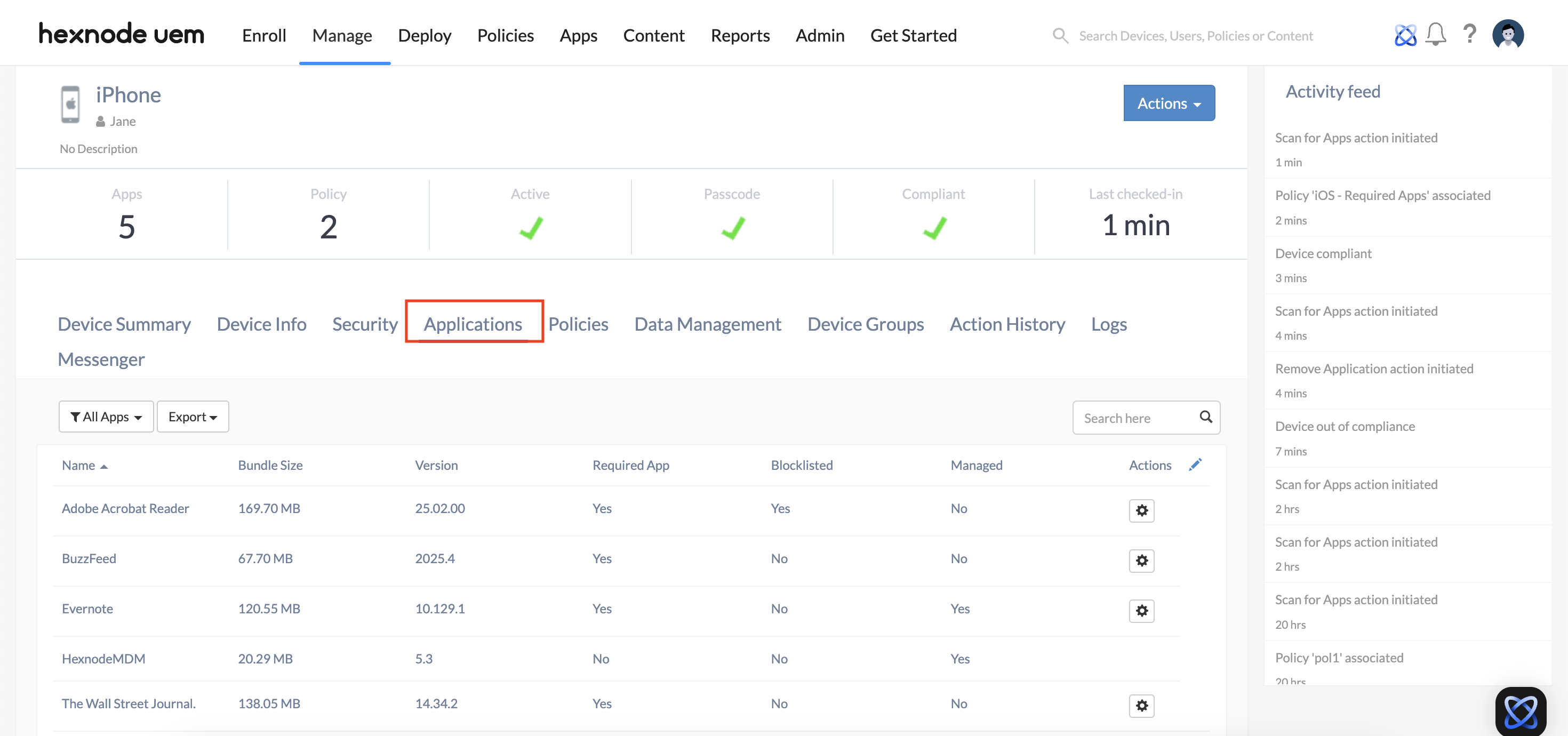
- View Results: Go to the Applications sub-tab on the device details page to view the updated list, including bundle identifiers and versions.
-
Scanning Applications in Bulk
To scan multiple devices simultaneously:
- Log in to your Hexnode UEM console.
- Navigate to Manage > Devices.
- Select the required devices using the checkboxes.
- Navigate to Actions > Scanning & Monitoring.
- Select Scan for Apps.
- The system will update the Applications sub-tab for each selected device with the latest inventory data.
Frequently Asked Questions (FAQ)
What is the difference between “Scan Device” and “Scan for Apps”?
Scan Device performs a comprehensive scan of the entire device, updating location, network info, and settings. Scan for Apps is a lightweight action that specifically updates only the list of installed applications and their details.
What happens if the scan detects a missing required app?
If a required app is found to be absent during the scan, the device is marked as non-compliant. Hexnode will then automatically attempt to reinstall the missing app to restore the device’s compliance status as long as the app is configured as a required app via policy.
Does “Scan for Apps” affect device performance?
No. The scan is a lightweight background command that queries the device’s application manager. The user will not experience any lag or see any notifications while the scan is in progress.


