


Category filter
High Density Wi-Fi Deployments: Optimizing 802.1X & Certificate Orchestration
Executive Summary
For enterprise organizations spanning multiple global offices, manually deploying Wi-Fi networks introduces severe security vulnerabilities and significant administrative bottlenecks. Utilizing Hexnode Unified Endpoint Management (UEM) for high-density Wi-Fi optimization allows administrators to use dynamic variables (such as %username%), deploy Trusted CA and Identity Certificates silently, and mandate optimized EAP (Extensible Authentication Protocol) methods. This consolidated approach guarantees smooth network roaming, eliminates password sharing, minimizes network latency by reducing RF overhead, and enables true zero-touch employee onboarding.
Based on verified Hexnode capabilities and enterprise mobility management (EMM) best practices, this document outlines the architecture required to manage an 802.1X wireless deployment at scale.
Step 1: Centralized Certificate Management (The 802.1X Foundation)
Enterprise Wi-Fi (802.1X) requires digital certificates to cryptographically authenticate the device and user without relying on static, shared passwords. These certificates must be securely distributed to the endpoint’s native keystore (e.g., macOS Keychain, Windows Certificate Store, Android Keystore).
Strategic Best Practice: Always bundle the Certificate payload and the Wi-Fi payload inside the same Hexnode policy. If they are segmented, the Wi-Fi configuration will not be able to locate and bind the identity certificate required for EAP-TLS authentication.
Workflow in Hexnode UEM:
- Log in to the Hexnode UEM administration portal.
- Navigate to Policies > New Policy (or edit an existing one) and assign a recognizable name (e.g., Global 802.1X Deployment).
- Select your target OS platform (iOS, macOS, Android, or Windows) from the left pane.
- Navigate to Security > Certificates and click Configure.
- Click Add Certificate to import your Root CA, Intermediate CAs, and Identity certificates (supported formats include .p12, .pem, .cer, .crt, and .pfx).
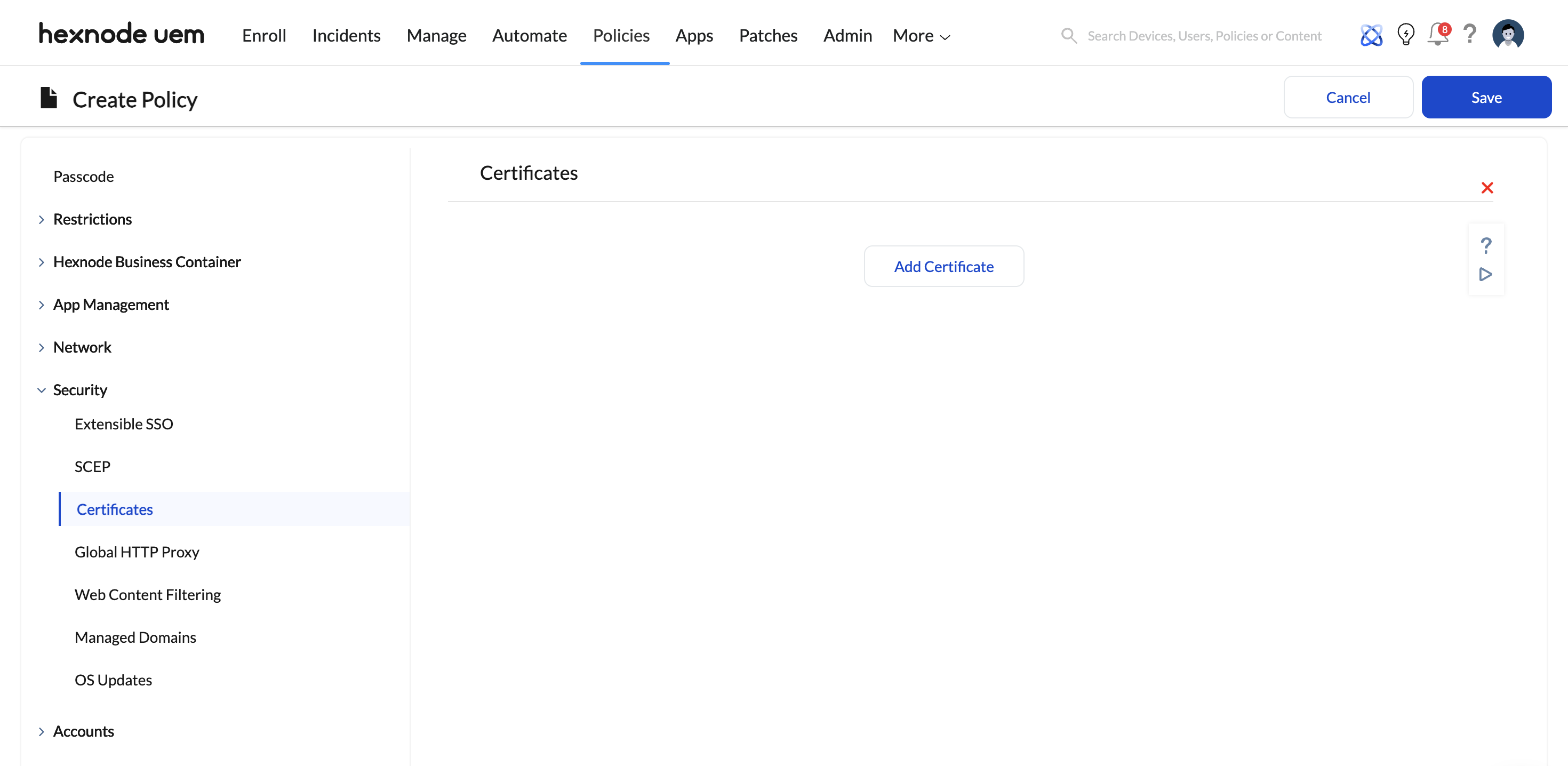
- Mandatory Step for Silent Installs: When uploading .p12 identity certificates, you must provide the certificate extraction password in the Hexnode portal. Supplying this password natively in the UEM guarantees that Hexnode can silently install the credentials on the endpoint without prompting the end-user.
Step 2: High-Density Wi-Fi Payload Optimization
In environments with hundreds of devices per office, the Wi-Fi payload must be strictly optimized to reduce authentication overhead, prevent “conflict loops,” and mitigate network congestion.
Workflow in Hexnode UEM:
Within the same policy created in Step 1, navigate to Network > Wi-Fi and click Configure.
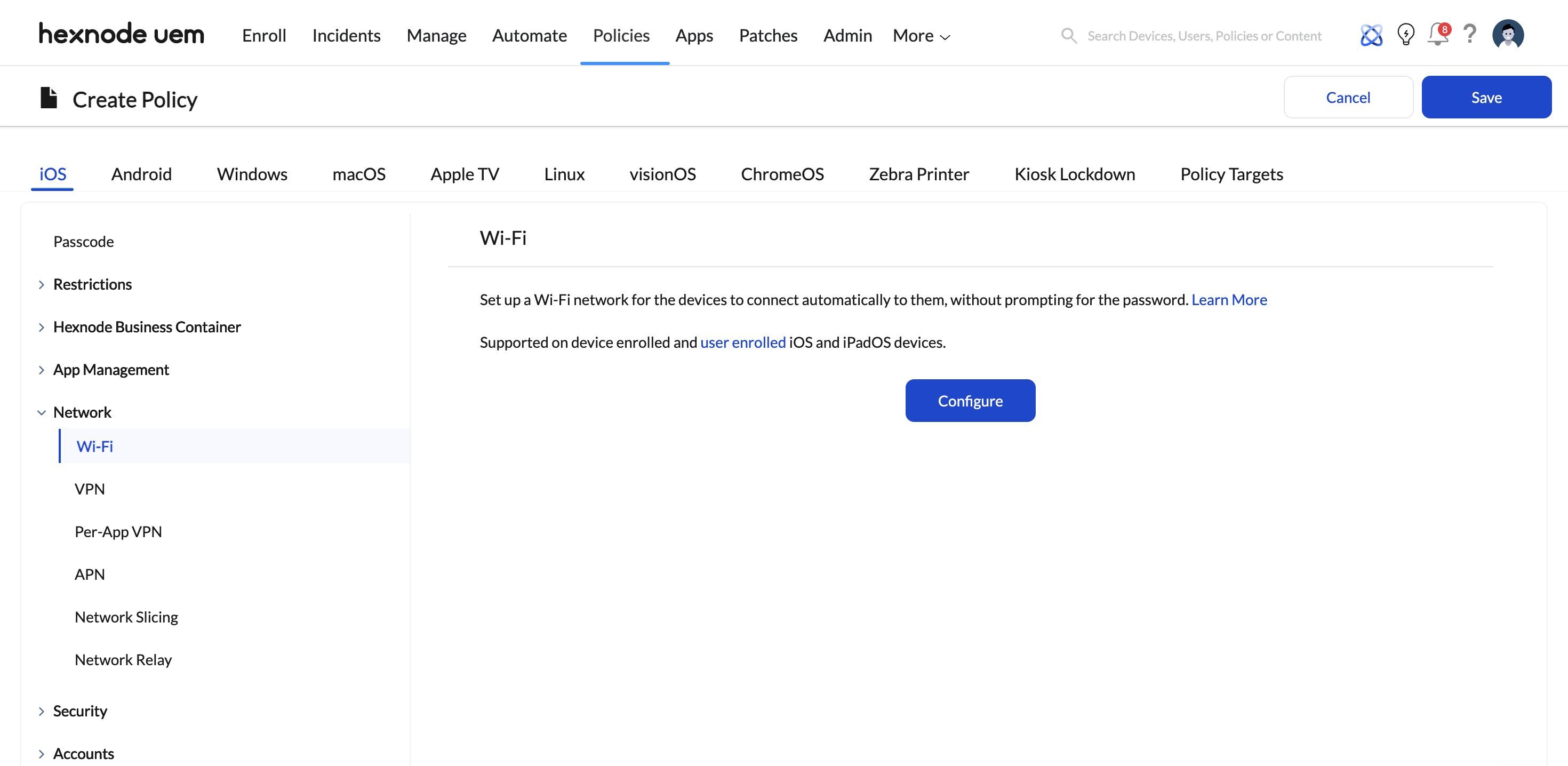
- Service Set Identifier (SSID): Enter your corporate SSID. Scalability Tip: If your global offices broadcast different SSIDs, click + Add more to deploy multiple network payloads seamlessly within this single Hexnode policy.
- Auto-join: Set to Enabled. This allows devices to connect automatically and roam between corporate access points seamlessly.
- Hidden Network: Ensure this is set to Disabled unless functionally mandatory. Devices actively probing for hidden networks generate massive Radio Frequency (RF) overhead, significantly degrading high-density Wi-Fi performance.
- Security Type: Select WPA/WPA2 Enterprise, WPA3 Enterprise, or 802.1x EAP (depending on the OS).
- Accepted EAP Methods: Select EAP-TLS if using strict certificate-based authentication (highest security standard). Select PEAP, TTLS, or EAP-FAST for tunneled credentials.
- Identity & Authentication Variables: To avoid creating 100 distinct regional profiles, use the %username% wildcard in the Identity/Username field. Hexnode dynamically pulls the logged-in user’s Active Directory or local username, allowing this single global payload to scale universally.
- Certificate Binding: Under the Identity Certificate and CA Certificate dropdowns, bind the certificates you uploaded in Step 1.
(Note for iOS 14+ / Windows Devices: In dense environments utilizing strict Network Access Control (NAC), utilizing the Disable MAC address randomization parameter within Hexnode ensures consistent RADIUS recognition and prevents IP exhaustion).
Step 3: Global Deployment & Association
Once the security and payload architectures are verified, push the configurations to the global fleet using targeted grouping to mitigate risk.
Workflow in Hexnode UEM:
- Navigate to the Policy Targets tab within your active policy configuration.
- Select + Add Devices, Device Groups, Users, User Groups, or Domains (e.g., integrated Active Directory or Microsoft Entra ID groups).
- Best Practice – Phased Rollout: Roll this out regionally. Select Device Groups specific to pilot branches first (e.g., “EMEA-Offices” or “APAC-Offices“) to validate RADIUS server load, certificate trust chains, and payload execution.
- Click Save to push the policy.
Step 4: Device-End Behavior & Troubleshooting
Expected Outcome
The UEM pushes the configuration profile silently. Devices will automatically receive the trusted certificates into their secure keystores. Once within range of the office network, the device will invisibly authenticate to the corporate Wi-Fi. Users are completely removed from the connection process, eliminating password fatigue and credential sharing.
Troubleshooting Common Connection Failures
| Issue | Probable Cause & Resolution via Hexnode |
|---|---|
| Certificate Installation Blocked | Cause: The device lacks a secure lock screen.
Resolution: Android and iOS often reject enterprise certificate installations if a device passcode is not enforced. Ensure a strict Password Policy is pushed prior to the Wi-Fi payload. |
| Unable to Join Network | Cause: The Security Type in the payload does not strictly match the router’s configuration, or the certificate trust chain is broken.
Resolution: Verify that the Root CA was distributed alongside the Identity Certificate, and confirm the EAP method (e.g., EAP-TLS) matches the network hardware. |
| SSID Conflicts | Cause: The network name changed, or users previously added the network manually.
Resolution: Android and iOS identify networks strictly by SSID. If an SSID changes, a new payload must be pushed. On Windows, duplicate manual profiles cause conflict loops; instruct users to “Forget” manual corporate network entries so the MDM profile takes priority. |


