


Category filter
How to completely Wipe a Device?
The Wipe Device remote action is a critical security measure that performs a factory reset on managed devices, permanently deleting all data to prevent corporate leaks if an asset is lost or stolen.
Why perform a Complete Device Wipe?
Wiping a device is the final line of defense for data protection. While locking a device prevents immediate access, a complete wipe ensures that even if encryption is bypassed, sensitive corporate and personal information remains inaccessible.
- Data Protection: Erases files, contacts, calendars, apps, and certificates.
- Asset Disposal: Prepares a corporate-owned device for retirement or reassignment.
- Security Compliance: Safeguards against unauthorized access on compromised endpoints.
Platform Support and Compatibility
The Wipe Device action is supported across multiple operating systems, with specific behavior variations based on version and management state.
| Platform | Supported Versions / Conditions |
|---|---|
| Android | Version 5.0 or later. |
| iOS / tvOS | iOS 4.0+, tvOS 10.2+. |
| macOS | 10.7+. macOS 12.0.1+ uses Erase All Content and Settings (EACS). |
| Windows | All managed Windows devices. |
| ChromeOS | All managed ChromeOS devices. |
| Linux | Fedora 36+, Ubuntu 18.04+, Debian 10+. (User credentials required for Linux Mint). |
| Other | Fire OS 6.0+, visionOS. |
Critical Warnings
- Irreversibility: The wipe process cannot be stopped or paused once initiated.
- Total Data Loss: All data (corporate and personal) is permanently deleted.
- Management Loss: Standard Android, unsupervised iOS, Windows, and Mac devices are removed from Hexnode management and require manual re-enrollment.
- Linux Impact: The device is rendered unusable and requires a complete OS re-installation.
Step-by-Step Guide: Executing a Remote Wipe
Follow these steps to initiate a factory reset from the Hexnode UEM console:
- Log in to the Hexnode UEM portal.
- Navigate to the Manage tab.
- Select the target device(s) you wish to wipe.
- Click Actions > Security > Wipe Device.
- Configure platform-specific options in the prompt:
- macOS 10.8+: Enter the Find My Mac PIN.
- Activation Lock: Enable Clear Factory Reset Protection/Activation Lock to remove lock screens on supervised iOS/macOS or Android Enterprise devices.
- macOS 12.0+ Fallback: Choose between Complete Wipe (manual OS install needed) or Do not wipe if EACS fails.
- ChromeOS Methods: Select Remove User Profiles (retains policies) or Factory Reset (erases everything).
- iOS 11+: Enable Retain eSIM Configuration to preserve mobile data plans.
- Click Wipe.
- Enter your Hexnode UEM portal password and click Confirm to authorize the action.
Post-Wipe Re-enrollment Behavior
| Device Enrollment Type | Automatic Re-enrollment? |
|---|---|
| Android (Knox, Zero-touch, ROM/OEM) | Yes (Requires internet connection). |
| iOS (DEP / ADE) | Yes (Unless within the 30-day provisional period). |
| iOS (Apple Configurator) | No (Manual enrollment required). |
| Standard Windows / Mac | No (Manual enrollment required). |
Automatic device wipe using Hexnode UEM
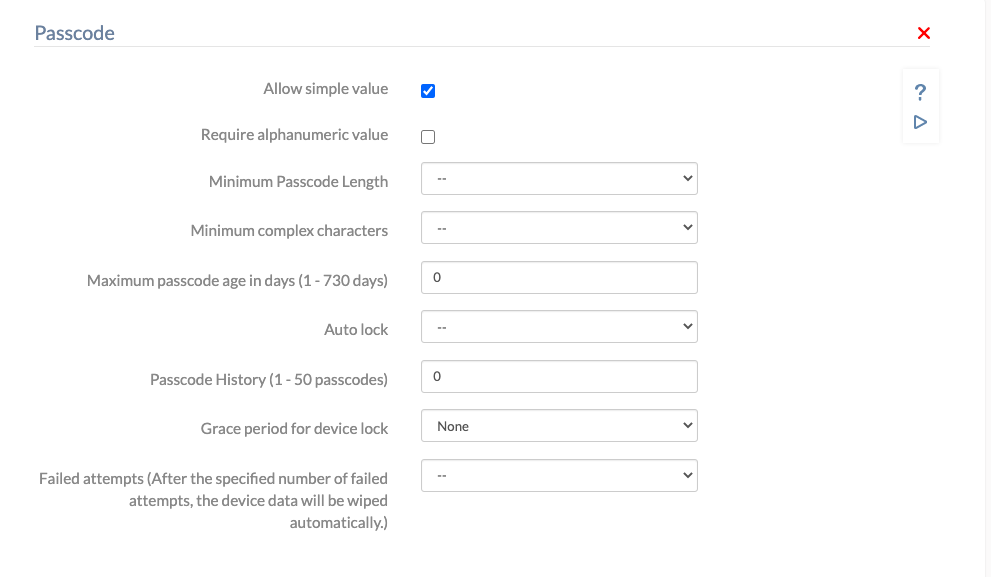
A device can be set up to get completely wiped automatically if the user enters an incorrect password for a specific number of times. This feature is available only on iOS, Android and Windows devices. To set up,
- Go to Policies and create a new policy or continue with an existing one.
- Go to iOS > Passcode/ Android > Device Password/ Android > Work Profile Password/ Windows > Password.
- Set a value for Failed Attempts/Failed attempts before wipe.
To associate this policy with targets before saving,
- Go to the Policy Targets tab from the policy set-up screen.
- Add devices, users, device groups, user groups or domains.
- Now, save the policy.
To associate the policy after saving the policy,
- Go to Policies and select the required policy.
- Click on Manage > Associate Targets.
- Click on Device/User/Device Group/User Group/Domain.
- Select the required targets and click on Associate.
Troubleshooting Guide
-
OS cannot be reinstalled on erased macOS devices
Problem: OS cannot be installed back on macOS devices after a device wipe. You may have to install or reinstall the same OS version from scratch to resolve this issue.
Resolution:
- Boot to the Recovery HD: Restart the Mac, and after the chime, long-press the command + R keys until the menu screen appears. Else, long-press the option key until the boot manager screen appears. Then, choose Recovery HD and click on the corresponding arrow button.
- Erase the Hard Drive:
- Select Disk Utility in the macOS Utilities window and click Continue.
- Select the startup volume (generally Macintosh HD) from the Disk Utility left panel. Then click on Erase in the main window.
- Input a partition name and set the partition format as Mac OS Extended (Journaled).
- Click on Erase in the pop-up window.
- Close the Disk Utility window and go back to the macOS Utilities menu.
- Reinstall macOS: Close the Disk Utility window and go back to the macOS Utilities menu. Choose Reinstall macOS and proceed with the installation.
-
Wipe action remains in “Pending” status
Problem: The Wipe Device action does not execute and remains pending in the portal.
Possible Causes:
- The device is powered off.
- The device is not connected to the internet.
- The device is no longer actively communicating with the management server.
Resolution:
- Ensure the device is powered on.
- Confirm it has an active internet connection (Wi-Fi or cellular).
- Verify the device is checking in with the server.
- Retry the action once connectivity is restored.
-
Device did not re-enroll after wipe
Problem: The device does not automatically re-enroll in management after the wipe completes.
Possible Causes:
- The device was not enrolled using an automated enrollment program (e.g., Knox, Zero-touch, ADE/DEP).
- The DEP/ADE policy does not have “Enroll devices in MDM” enabled.
- The device was within the 30-day provisional period (Apple Configurator–added iOS devices).
Resolution:
- Verify the enrollment method used before wipe.
- Ensure automated enrollment settings are correctly configured in the respective enrollment program.
- Manually re-enroll the device if automatic re-enrollment is not supported.
Frequently Asked Questions (FAQ)
What is the difference between EACS and a Complete Wipe on macOS?
On macOS 12.0.1+, Erase All Content and Settings (EACS) quickly removes user data and settings without deleting the operating system. A Complete Wipe (used as a fallback) erases the entire disk, requiring a manual reinstall of macOS.
Does wiping a device remove it from the Hexnode Portal?
No. While the device is factory reset and may no longer be managed, the device details and historical data remain in the Hexnode UEM portal until manually deleted by an admin.
Can a user bypass remote management after a wipe on iOS?
Only if the device was added to DEP via Apple Configurator and is within the 30-day provisional period. During this window, users can select “Leave Remote Management” after a wipe. After 30 days, this option is disabled.
Is the eSIM configuration deleted during an iOS wipe?
By default, yes. However, administrators can select the Retain eSIM Configuration option in the Hexnode portal to preserve existing cellular data plans on iOS 11+ devices.


