


Category filter
How to Configure Unattended Mac Remote Access via Hexnode?
Remote management on macOS devices is significantly more agile when the traditional requirement for manual end-user approval can be bypassed. While a remote session request remains the default to ensure user awareness, it is often impractical for managing unattended hardware or devices. The Remote Access policy provides a secure administrative override, enabling unattended remote access, so devices can be maintained and supported even when no user is present to grant permission.
Core Functionality
- Zero-Touch Connection: Initiate remote sessions without the “Waiting for user’s permission” status appearing in the Hexnode UEM portal.
- Real-time Troubleshooting: Diagnose incidents and resolve technical issues on remote endpoints in real time.
1. Prerequisites
- Enrollment: Devices must be enrolled in the Hexnode UEM portal.
- Supported OS: Devices must be running macOS 11.5 and above.
- Hexnode Remote Assist app: The Hexnode Remote Assist app version 9.0.0 and above must be installed on the device.
2. Configuration Steps
To set up the Remote Access policy:
- Log in to the Hexnode UEM portal.
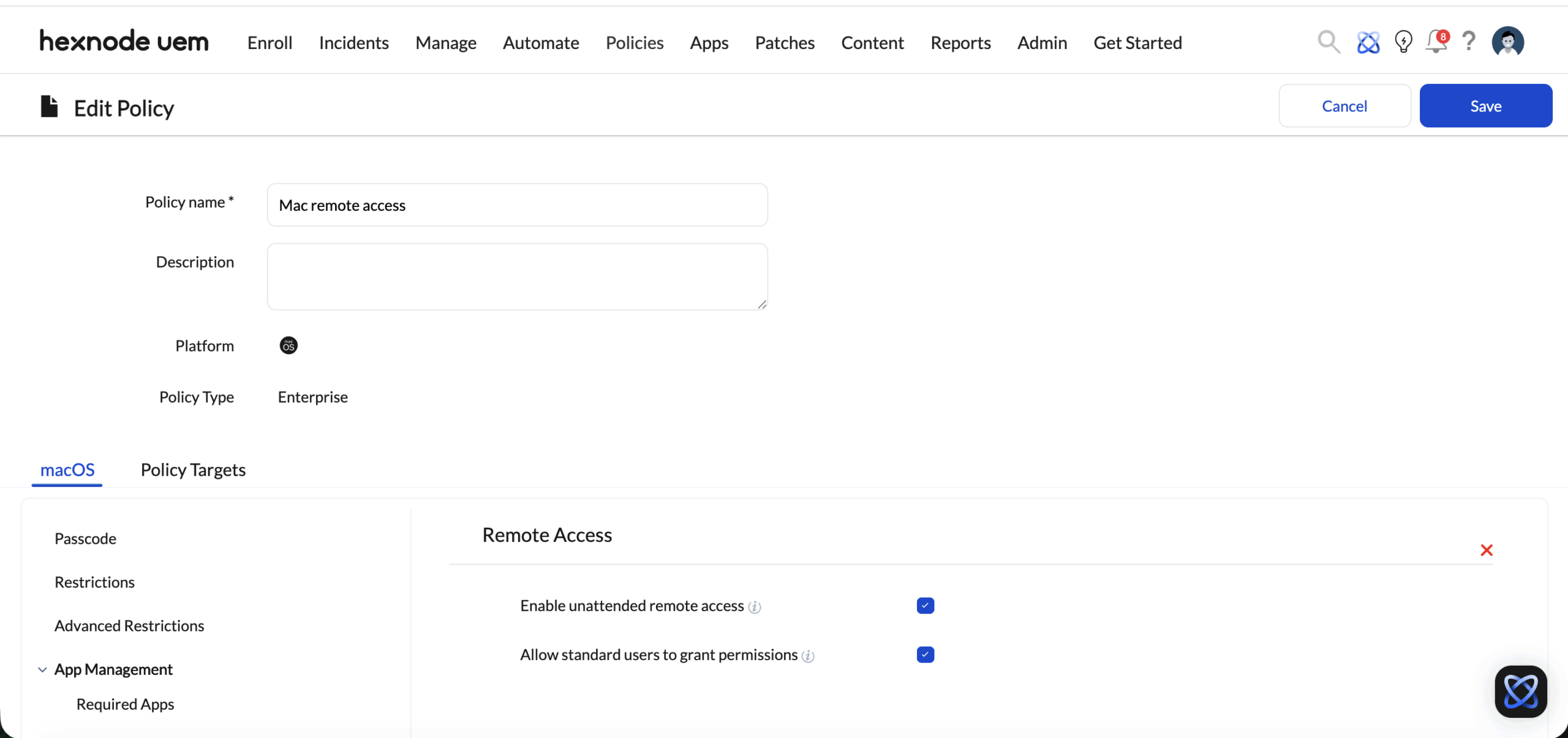
- Navigate to Policies > New Policy > Create a fully custom policy > macOS > Troubleshooting > Remote Access.
- Provide a suitable Name and Description.
- Click Configure.
Remote Access Settings
| Setting | Description |
| Enable unattended remote access | Allows the administrator to initiate remote sessions without a confirmation prompt appearing on the device end. |
| Allow standard users to grant permissions | Enables non-admin (Standard) users to toggle on Screen Recording and Accessibility permissions for the Hexnode Remote Assist app within System Settings. This allows the user to grant these permissions when requested for initiating a remote session, without requiring a local administrator’s password. |
3. Policy Association
To deploy the configuration:
- For New Policies: Navigate to Policy Targets, select the target (Devices, Groups, Users, or Domains), and click Save.
- For Existing Policies: Select the policy from the Policies tab, click Manage > Associate Targets, select the targets, and click Associate.
4. Initiating the Session
Once the Remote Access policy is associated with the device, follow these steps to initiate an unattended session:
- Navigate to the Manage tab and select the target device.
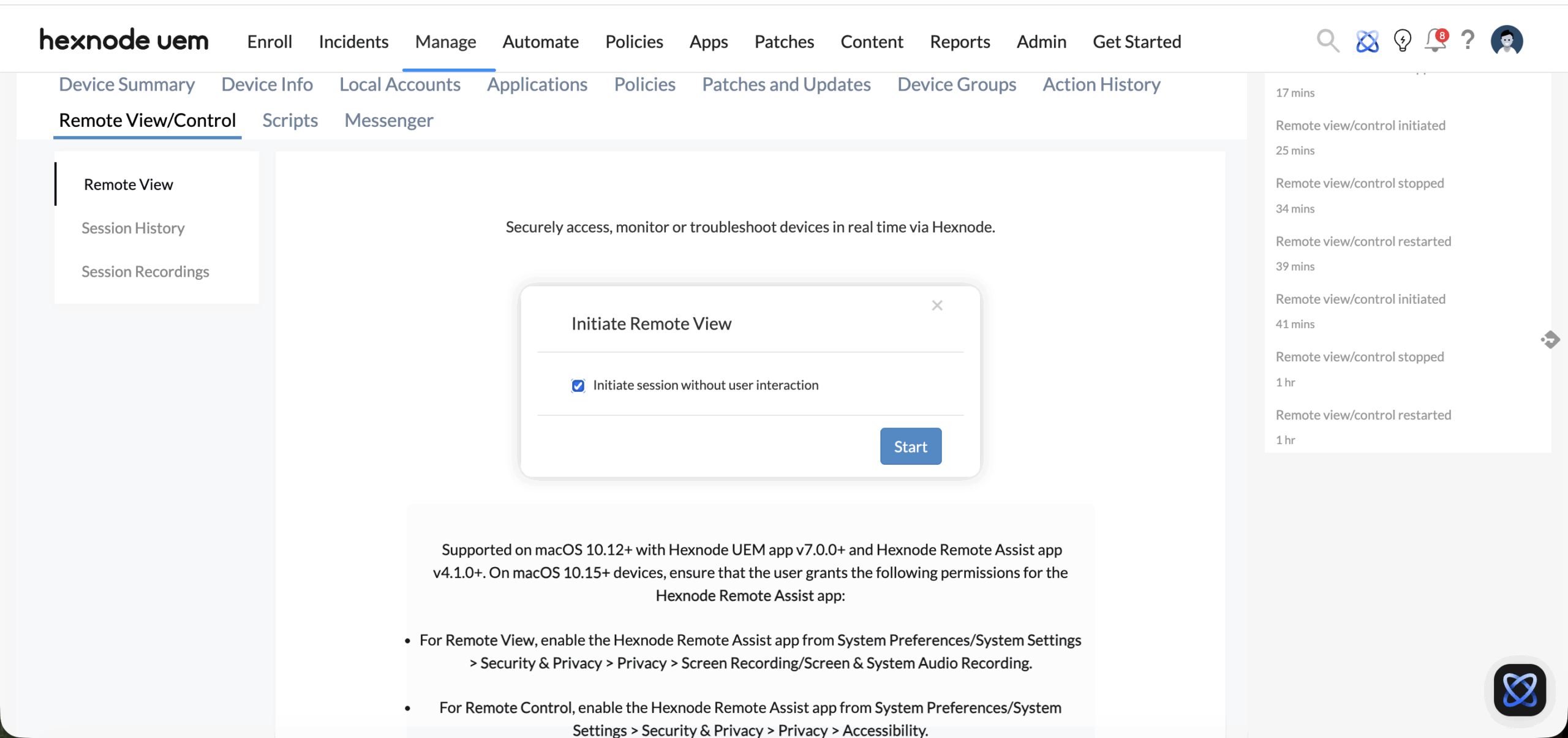
- Go to the Remote View/Control sub-tab.
- Click Start Session under Remote View.
- Enable the option Initiate session without user interaction.
- Click Start to begin the session.
- Once the view is active, click Request Control to gain remote control access.
5. Troubleshooting & FAQs
Frequently Asked Questions (FAQs)
1. Can an administrator perform unattended remote control if the Mac is at the Login screen?
Yes. If the Remote Access policy is active and the Initiate session without user interaction option is selected during initiation, the administrator can view and control the login screen. This allows for entering credentials for the admin account directly to access the device and performing system maintenance even when no user is logged in.
2. Does the user receive a notification when a remote session is initiated?
Yes. To ensure transparency, once a remote session is initiated from the Hexnode UEM console, the Hexnode Remote Assist app icon will automatically appear in the system menu bar. The user will also receive an on-screen notification stating: “Your administrator has initiated the remote session.”
3. Where does the “Initiate session without user interaction” option appear and what happens if it is not selected?
The Initiate session without user interaction option appears for the administrator within the Hexnode UEM portal. It is located inside the Initiate Remote View window that opens after clicking Start Session under the Remote View/Control tab of the specific device. This option is only visible if the Enable unattended remote access setting is toggled on in the Remote Access policy associated with the device. If this option is not selected during session initiation, the remote session will only begin if the user manually clicks Accept on the device end.
Troubleshooting
1. Issue: The “Start Session” button is greyed out or unclickable.
Probable Cause:
Remote View and Control may be disabled globally in the portal.
Solution:
Navigate to Admin > General Settings > Remote View & Control Settings and ensure that both the Enable Remote View and Enable Remote Control options are selected. Additionally, verify that the Hexnode Remote Assist app is installed on the device.
2. Issue: The session window displays “Waiting for user’s permission” indefinitely.
Probable Cause:
macOS privacy frameworks require the Screen Recording permission to be enabled manually at least once.
Solution:
Ensure that the Hexnode Remote Assist app has been granted permission on the device. Navigate to System Settings > Privacy & Security > Screen & System Audio Recording and toggle the switch ON for the app.
Best Practices
- Use “View” Before “Control”: To avoid disrupting a user’s workflow, use Remote View first to check for active work before requesting or initiating Remote Control.
- Post-Session Transparency: Since unattended access occurs without a prompt, it is best practice to send a Broadcast Message to the device after the session to inform the user of the tasks performed.


