


Category filter
Set Firmware/Recovery lock password on macOS devices
The Set Firmware/Recovery Lock Password remote action allows IT administrators to secure macOS devices at the hardware level, preventing unauthorized users from booting from external media, reinstalling the OS, or accessing recovery tools.
What are Firmware and Recovery Locks?
These passwords serve as the primary line of defense against physical tampering. By locking the boot process, organizations ensure that corporate data remains protected even if the device is physically stolen.
- Firmware Password (Intel): Protects Intel-based Macs by restricting startup key combinations and non-default startup disks.
- Recovery Lock (Apple Silicon): Replacing the firmware password on M1, M2, and later chips, this restricts access to recoveryOS and is exclusively manageable via UEM.
- Data Integrity: Prevents intruders from erasing the device or bypassing security mechanisms via external bootable drives.
Prerequisites and Compatibility
Before deploying these locks, ensure the target hardware meets the following version and processor requirements:
| Feature | Supported OS | Processor Type |
|---|---|---|
| Firmware Password | macOS 10.13 or later | Intel-based Mac |
| Recovery Lock | macOS 11.5 or later | Apple silicon (M-series) |
| Management | Enrolled in Hexnode UEM | All supported models |
Step-by-Step Guide: Configuring Hardware Locks
Administrators can apply a uniform password across multiple devices or set unique credentials for individual units.
- Log in to the Hexnode UEM portal.
- Navigate to Manage > Devices.
- Select the target device(s) or click a specific device name.
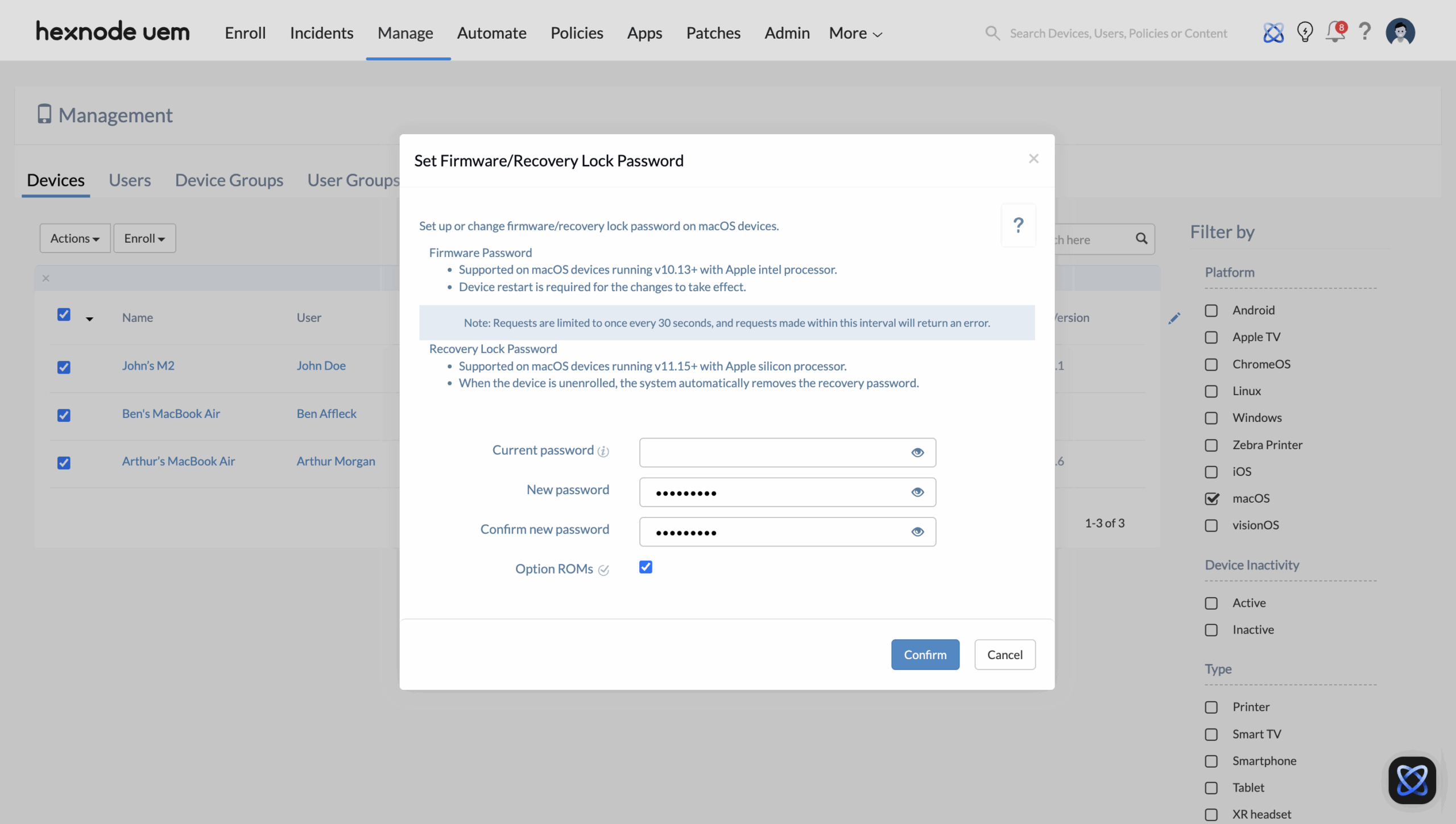
- Navigate to Actions > Security > Set Firmware/Recovery Lock Password.
- Configure the setup options:
- Current password: Enter the existing password if one is set; otherwise, leave blank.
- New password: Specify the new hardware-level password.
- Confirm new password: Re-enter to ensure accuracy.
- Option ROMs (Intel Only): Check to allow or uncheck to block external hardware firmware from running at startup.
- Click Confirm.
How to View and Verify Escrowed Passwords
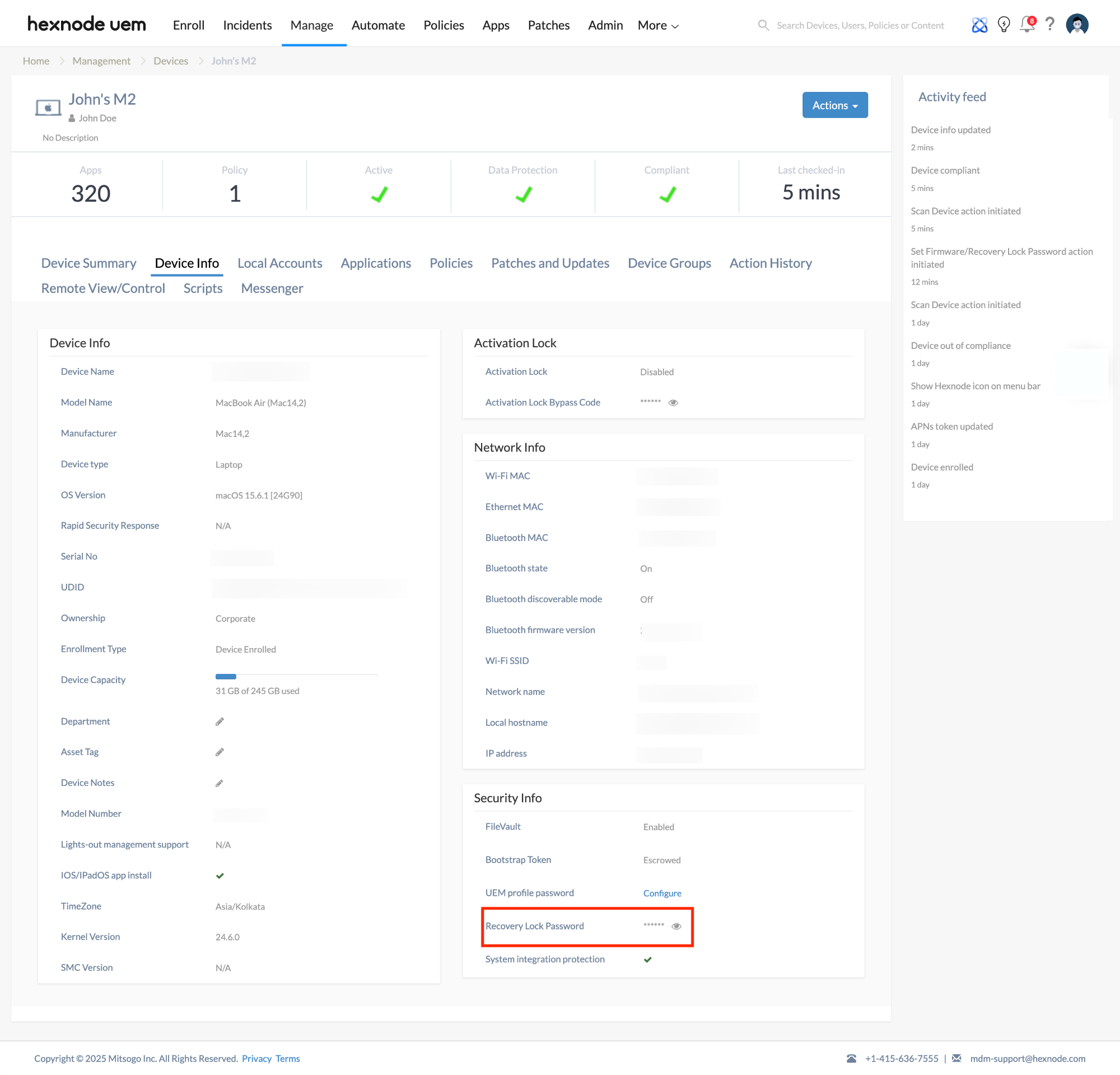
Hexnode automatically escrows (safely stores) these passwords in the portal for emergency recovery.
- To View: Navigate to Manage > Devices > [Device Name] > Device Info > Security Info. Look for the Firmware/Recovery password field.
- To Verify (Intel): If the password was changed locally on the device, use the Verify Firmware Password remote action to check for a match with the portal’s records.
Troubleshooting Guides
| Problem | Potential Cause | Resolution |
|---|---|---|
| Action returns an error | Rapid-fire requests. | Requests can only be made once every 30 seconds. Wait for the interval to pass before retrying. |
| Password not taking effect | Device requires a reboot (Intel). | For Intel-based Macs, a device restart is mandatory for the new firmware password to initialize. |
| Recovery Lock missing after unenrollment | Automatic system behavior. | On Apple silicon devices, the system automatically removes the recovery password when the device is disenrolled. |
| Action greyed out | Unsupported OS version. | Verify the device is running at least macOS 10.13 (Intel) or 11.5 (Apple silicon). |
Frequently Asked Questions (FAQs)
What is the difference between Firmware Password and Recovery Lock?
A Firmware Password (Intel) can be set manually or via UEM and restricts boot-key combinations. A Recovery Lock (Apple silicon) can only be configured via a UEM like Hexnode and specifically protects recoveryOS.
What are Option ROMs?
Option ROMs are firmware programs on external peripherals (like network adapters or GPUs). On Intel Macs, disabling them improves security by blocking potentially malicious external firmware from loading during the boot sequence.
How to reset a forgotten password
Yes, provided the action was executed via Hexnode. The password is encrypted and stored in the Security Info section of the device in the portal.
Does setting this password affect the user’s login password?
No. This is a hardware-level lock. It only appears when someone tries to enter Recovery Mode or boot from an external drive; it does not replace the standard macOS user login.


