


Category filter
How to remotely scan devices?
The Scan Device remote action allows IT administrators to fetch real-time device details —including battery percentage, installed applications, and system configurations—to ensure the Hexnode UEM portal reflects accurate data and compliance status.
Why is Device Scanning Essential?
Regular scanning is the primary method for synchronizing physical device states with the management console. It updates critical metadata used for reporting and policy enforcement.
- Data Synchronization: Refreshes information like battery levels, storage capacity, and app inventory.
- Compliance Verification: Marks a device as compliant or non-compliant based on the gathered information.
- Instant Visibility: Verifies if a device is currently reachable and active on the network.
Scanning Devices Manually
Manual scans are used to obtain updated device details instantaneously or to confirm a device is responding to remote commands.
-
Scan an Individual Device
- Log in to the Hexnode UEM portal.
- Navigate to Manage > Devices.
- Click on the target device name to open the summary page.
- Navigate to Actions > Scanning & Monitoring and select Scan Device.
- Check the Action History sub-tab to verify success.
- Reload the page to view updated device parameters.
-
Scan Devices in Bulk
- Go to the Manage tab.
- Check the boxes for all required devices.
- Navigate to Actions > Scanning & Monitoring and select Scan Device.
Scheduling Automatic Device Scans
Hexnode UEM automatically performs an initial scan upon enrollment. Administrators can further schedule recurring scans to maintain data integrity.
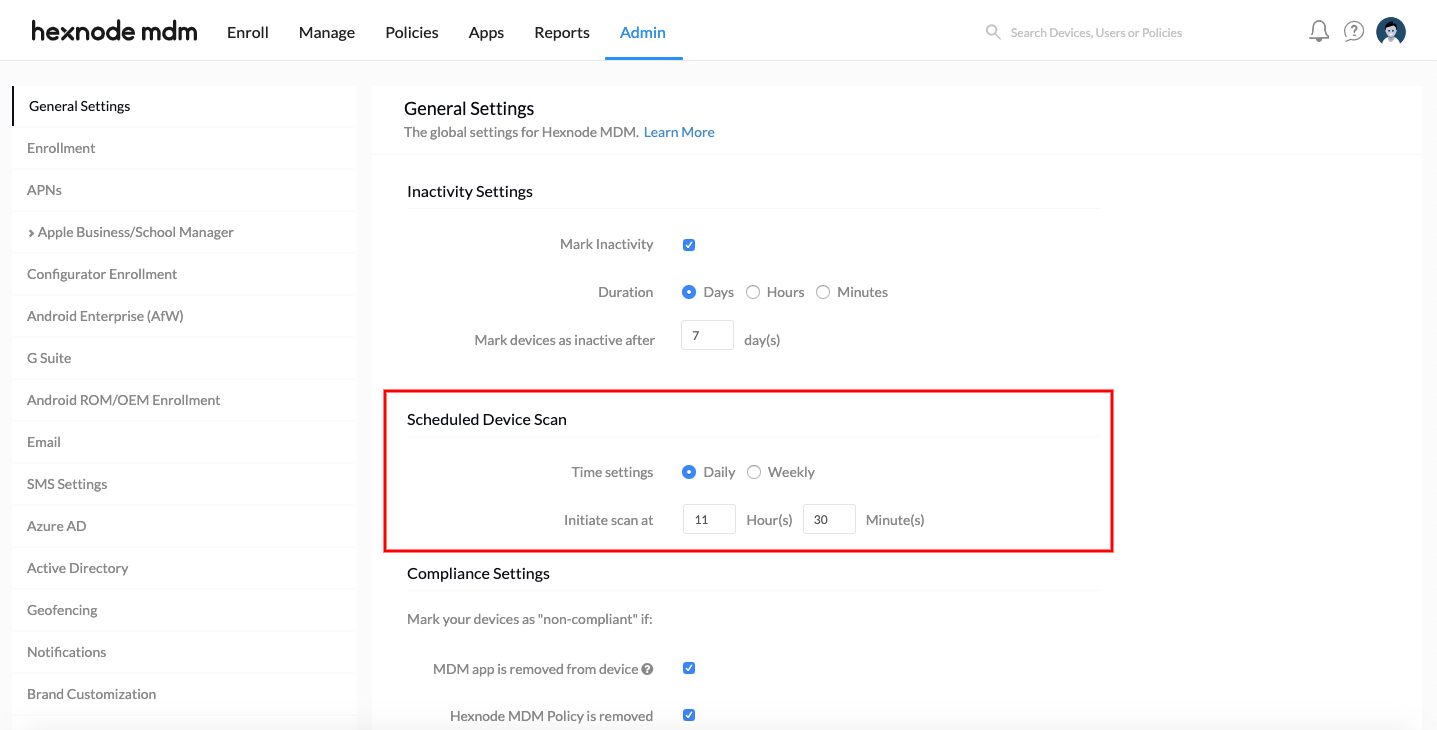
- Navigate to Admin > General Settings.
- Locate the Scheduled device scan section.
- Configure the Time settings:
- Daily: Specify the exact scan initiation time for a daily refresh.
- Weekly: Select specific days of the week and the initiation time.
- Click Save.
Troubleshooting Guide
Initiating Scan from the Device End (Force Sync)
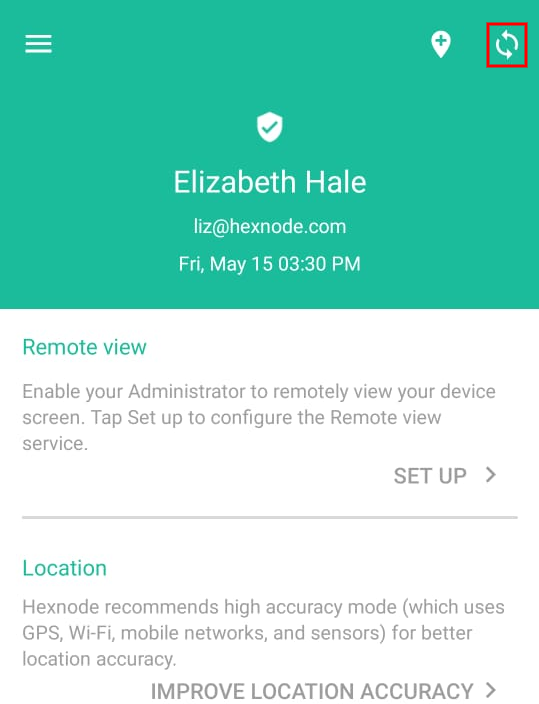
If a remote scan fails due to communication issues between the Hexnode UEM app and the portal, a Force Sync can be initiated locally by the user.
- Process: Click the Sync button within the Hexnode UEM app on the device.
- Function: Re-establishes the connection to the management portal and pushes all pending actions.
- Supported Platforms:
- iOS
- Android / Android TV OS
- Windows
- macOS
Frequently Asked Questions (FAQ)
What information is retrieved during a device scan?
A device scan fetches comprehensive metadata, including battery percentage, a list of all installed applications, hardware specifications, and current security settings.
Why does a remote scan action fail?
Scans typically fail if the Hexnode UEM app cannot communicate with the portal due to network restrictions or background app limitations. Initiating a manual Force Sync from the device end usually resolves this.
Can scans be scheduled for specific days of the week?
Yes. By selecting the Weekly option under Scheduled device scan, administrators can choose specific days (e.g., Monday and Friday) and a set time to initiate the command.


