


Category filter
PowerShell Exit Codes: A Guide to Accurate Script Reporting in Hexnode UEM
Overview
Hexnode UEM utilizes Windows process exit codes to report the execution status of deployed scripts. When a script is initiated, the Hexnode agent monitors the powershell.exe process. Upon termination, the agent captures the final numeric return code to update the Action History tab within the Hexnode UEM console.
Explicitly defining exit codes within scripts ensures the Hexnode UEM console accurately reflects the operational state of endpoints, facilitating rapid troubleshooting of deployment failures.
Understanding Script Status Reporting
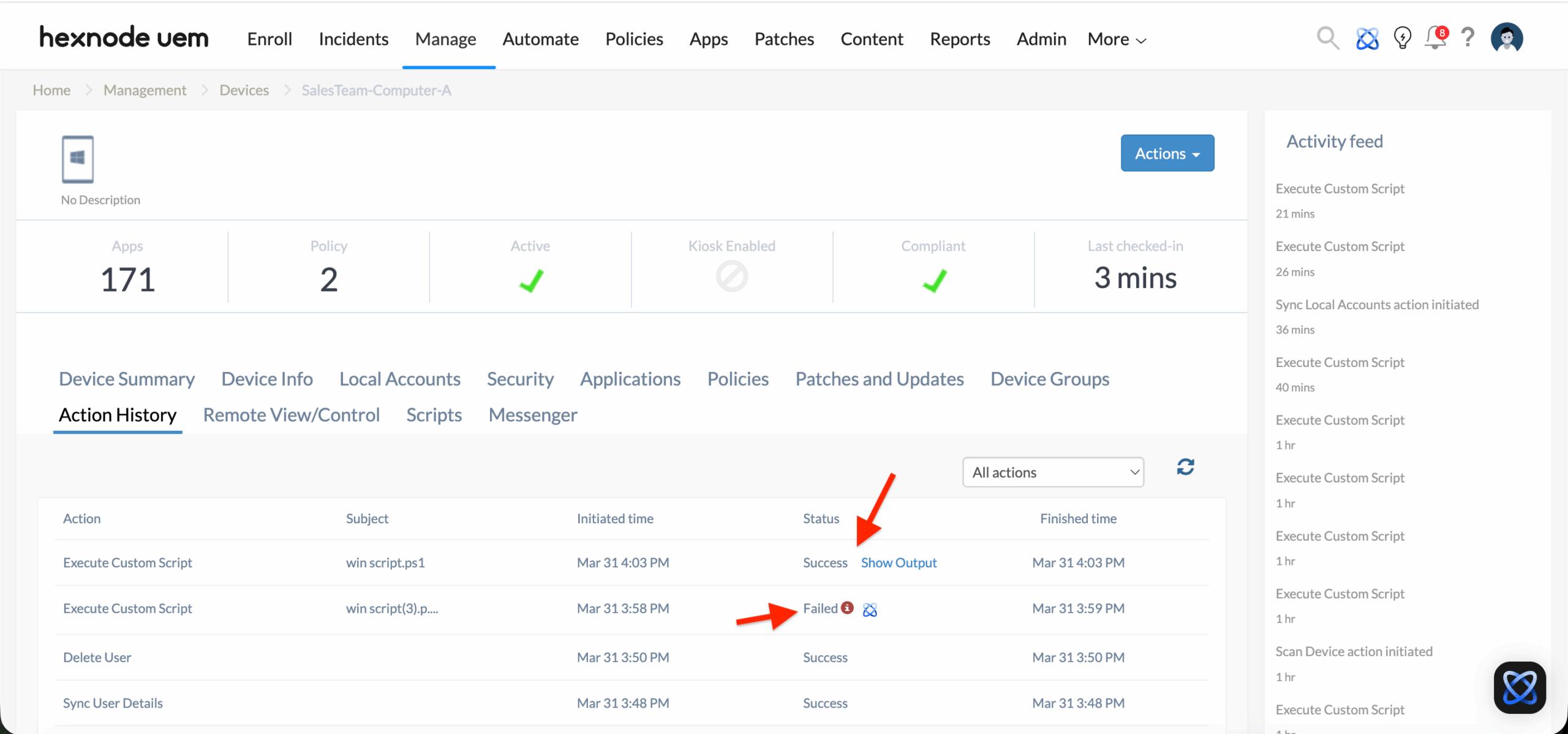
The Status column in the Action History tab is determined by the numeric exit code returned by the Windows OS to the Hexnode agent:
- Success (Exit Code 0): Indicates the PowerShell process completed its execution cycle. While this confirms the script was delivered and initiated, it does not guarantee functional success (e.g., a file path may be missing) unless the script is configured to catch and report internal cmdlet errors.
- Failed (Non-zero Exit Code): Indicates the process encountered a fatal error or was explicitly terminated. Hexnode marks these actions as Failed.
Validating Execution Results
To verify if a deployed script successfully performed its intended configuration, administrators should review the execution output.
Verification Workflow:
- Navigate to Manage > Devices within the Hexnode UEM portal.
- Select the target Windows device.
- Access the Action History tab.
- Locate the specific Execute Custom Script entry.
- Click the Show Output button to view the execution output and the numeric exit code returned by the agent.
Best Practices for Accurate Reporting
To ensure the Hexnode UEM portal accurately reflects the true state of a device, robust error-handling logic must be integrated directly into your PowerShell scripts.
1. Enforce Explicit Exit Codes
Prevent scripts from failing silently. Utilize structured error handling (Try-Catch blocks) to force the script to report a non-zero exit code to the Hexnode Agent when a command fails.
2. Implement Post-Execution Validation
Certain installers (like .exe files) may return a 0 exit code to the shell even if they fail to apply the intended changes. Implement a validation step at the conclusion of your script to verify the outcome.
- Validation Logic: Have the script check if a specific file, directory, or registry key exists after the command runs.
- Conditional Exit: If the expected condition is met, exit 0. If the condition is missing (indicating a silent failure), trigger a custom non-zero exit code (e.g., exit 2).
Scripting Standards: Execution Outcome Enforcement
PowerShell scripts must explicitly define termination states to ensure accurate reporting within the Hexnode UEM console. In the absence of defined exit points, scripts failing at the endpoint level may return a default Success status if the PowerShell engine completes its run.
Exit Code Implementation Matrix
Integrating the following logic within deployment scripts ensures that environmental and functional failures trigger the appropriate Action History status.
| Scenario | Termination Command | Action History Status |
|---|---|---|
| Confirmed Execution: Task completion verified (e.g., file existence, registry modification). | exit 0 | Success |
| Operational Failure:Cmdlet error, missing dependency, or invalid file path. | exit 1 | Failed |
| Installation Conflict:Active MSI process detected (Standard Conflict 1618). | exit 1618 | Failed |
| Environmental Constraint:Access Denied, Network Timeout, or vendor-specific error. | exit [Custom] (1-16000) | Failed |
Troubleshooting Script Execution
If your scripts are not behaving as expected or reporting inaccurately in the Hexnode console, check for these common deployment pitfalls:
- Status shows “Success” but the task failed on the device: Ensure you didn’t leave $ErrorActionPreference = “SilentlyContinue” at the top of your script. This variable hides all errors from the console, causing PowerShell to finish its run cleanly and return a 0 to the Hexnode agent, even if every command within the script fails.
- Status stays “In Progress” indefinitely: This usually means the script is stuck waiting for user input in a “hidden window” running in the background. Because the Hexnode agent executes scripts in the system context without a visible UI, prompts (like an installer wizard or a confirmation prompt) cannot be clicked by the user. Always use -Quiet, -Silent, /S, or -NoNewWindow flags for any executables triggered by your script.


