


Category filter
Managing Shadow IT: A 5-Phase Framework for Data Containerization
To mitigate the risks of Shadow IT and data exfiltration, organizations must implement a multi-layered security strategy. Using Hexnode Unified Endpoint Management (UEM), IT administrators can establish strict boundaries between corporate and personal data.
This strategic guide provides a step-by-step workflow for blocking unauthorized cloud storage, configuring managed applications, deploying OS-native containerization, and enforcing Data Loss Prevention (DLP) protocols across iOS, Android, and Windows ecosystems.
Phase 1: Block Unauthorized Cloud Storage Apps (App Blocklisting)
The foundational layer of endpoint defense involves explicitly banning unapproved cloud storage applications (e.g., personal versions of Dropbox, Box, Google Drive, or BitTorrent clients) from executing on corporate-managed devices.
Implementation Steps:
- Log in to your Hexnode UEM portal.
- Navigate to Policies > New Policy (or edit an existing baseline security policy).
- Under the target OS, go to App Management > Blocklist / Allowlist.
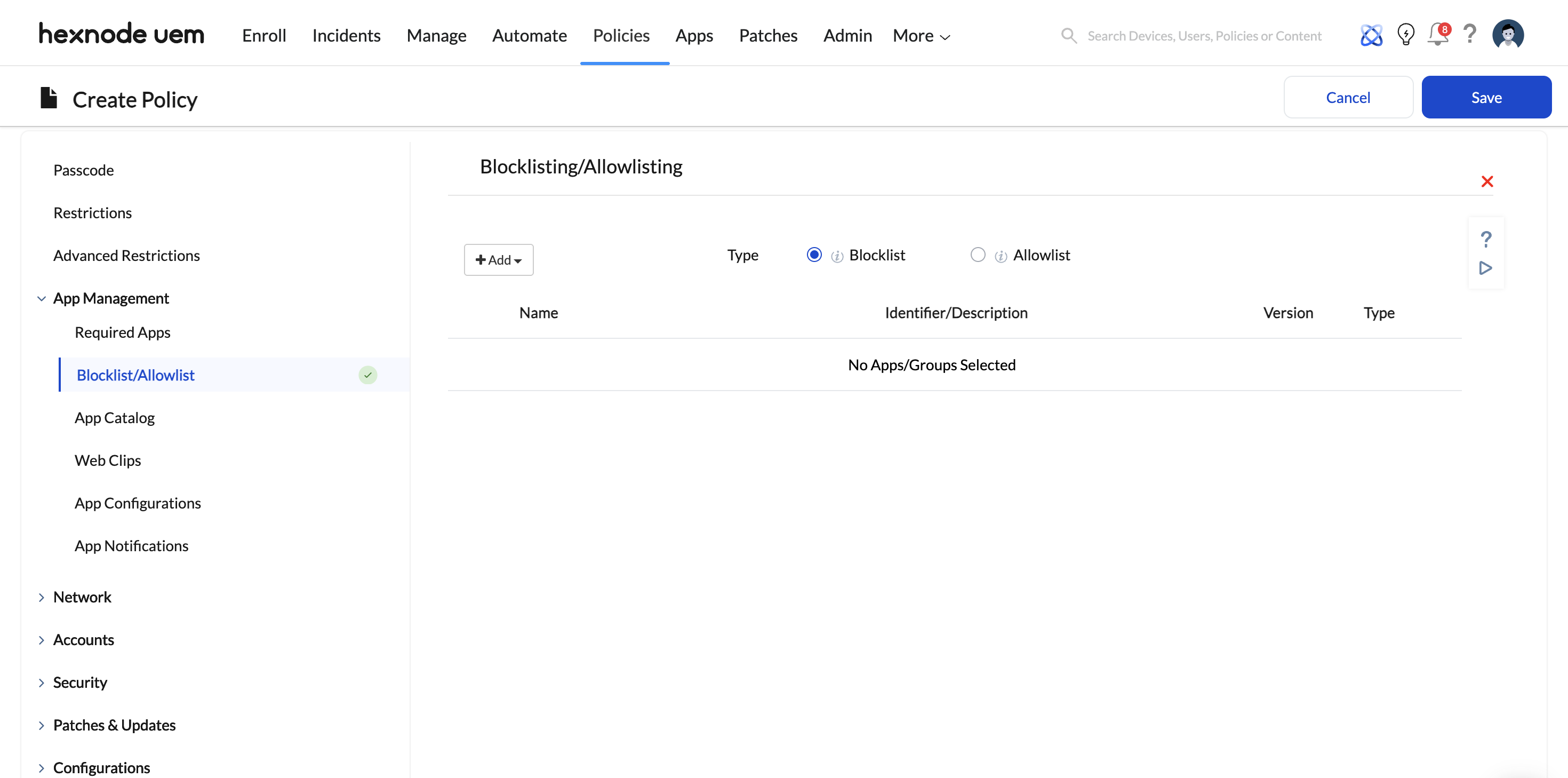
- Select Blocklist and add the applications you wish to prohibit. You can select apps directly from the Hexnode app inventory or specify app bundle IDs/Package Names.
- Save the policy and associate it with the target devices, users, or groups.
Hexnode Enforcement Action: Depending on the OS, Hexnode uses native MDM protocols to restrict these apps. For iOS (Supervised) and Android Enterprise, the blocked apps are immediately hidden, disabled, or prevented from executing. If an app is already installed, it will be rendered unusable or the device will be flagged as non-compliant.
Phase 2: Deploy and Restrict Authorized Corporate Apps (AppConfig)
Once rogue applications are blocked, the next step is securely deploying approved enterprise storage solutions (e.g., Microsoft OneDrive, Managed Google Drive). To prevent data leakage, these applications must be restricted using Managed App Configuration (AppConfig) to ensure users can only log in using corporate credentials.
Implementation Steps:
- Ensure the authorized app is added to your Hexnode app inventory (via Apple VPP or Managed Google Play).
- Navigate to Policies > [Android / iOS] > App Management > App Configurations.
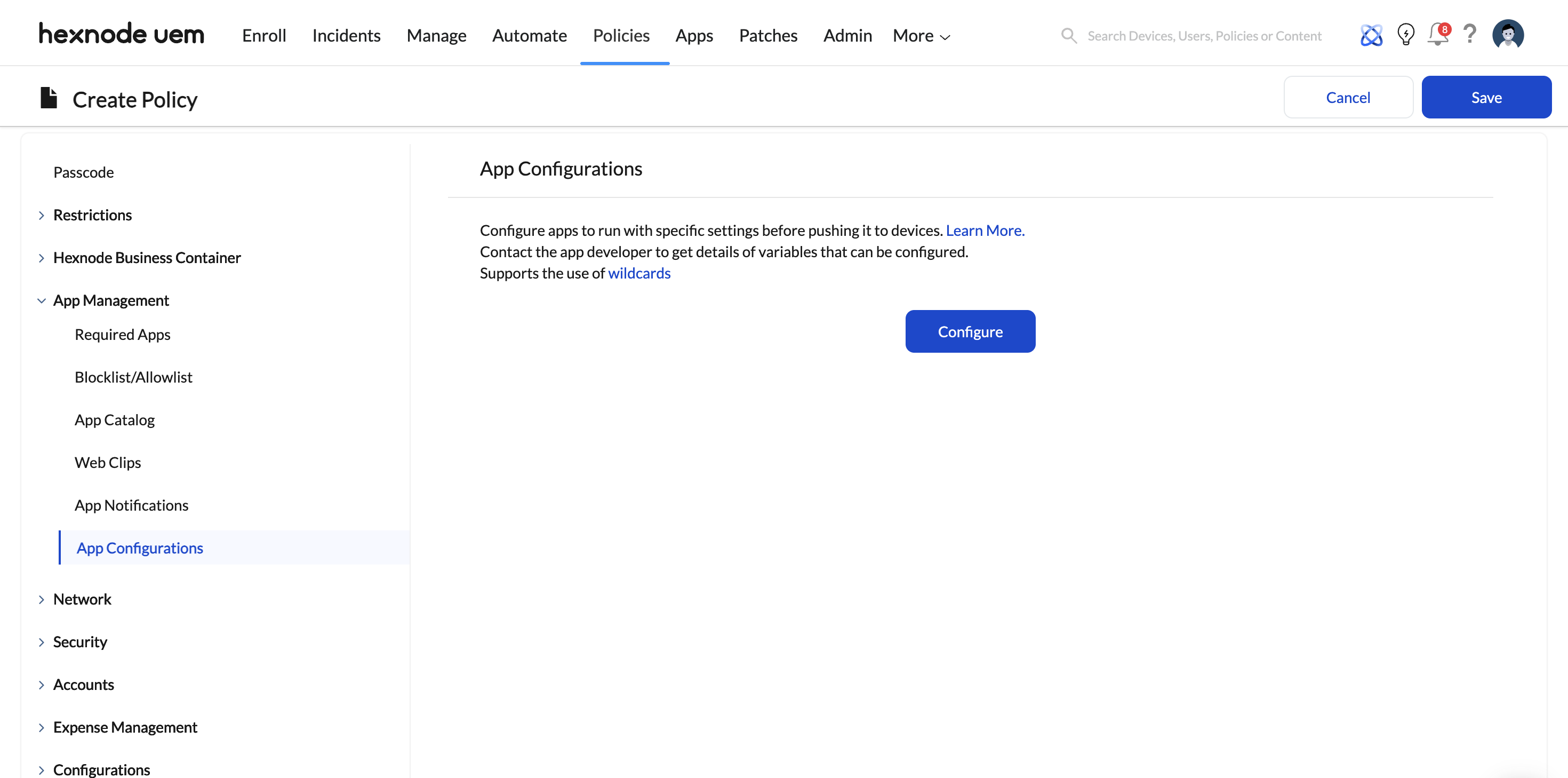
- Click Configure and select + Add new configuration. Choose your approved enterprise app.
- Input the managed configuration keys provided by the app’s developer.
- Example: Many enterprise apps support an AllowedAccounts or RestrictAccountsTo key.
- Set the key value to your corporate domain format (e.g., *@yourcompany.com).
- For iOS devices, if the app does not natively support UI-based AppConfig in Hexnode, you can push configurations using a custom XML file via Policies > iOS > App Management > App Configurations.
- Save and push the policy.
Strategic Benefit: Even if a user launches the authorized corporate storage app on their managed device, the AppConfig parameters strictly prohibit them from authenticating with or adding a personal email account, establishing a secure perimeter within the app itself.
Phase 3: Enforce Data Containerization (The Sandbox Layer)
App-level restrictions are insufficient if a user can download a sensitive file from a managed app and open it in a personal, unmanaged application. You must isolate corporate data using OS-native containerization.
Steps for iOS & Android devices
- For iOS (Business Container):
- Navigate to Policies > iOS > Hexnode Business Container and click Configure.
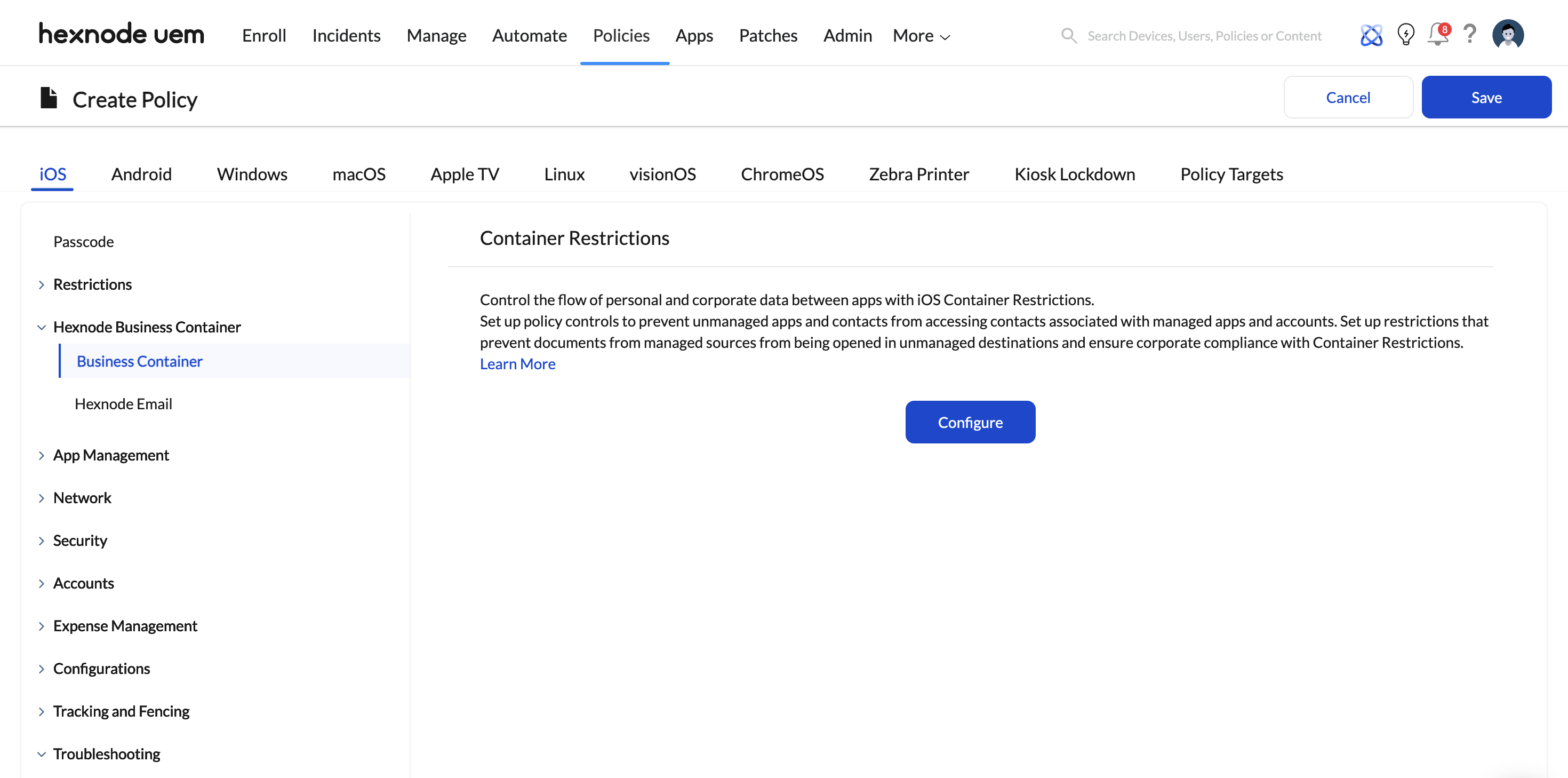
- Uncheck the Open documents from managed apps in unmanaged apps setting.
- Validation Note: This establishes a cryptographic boundary. Documents downloaded via corporate (managed) apps cannot be opened in, shared with, or attached to personal (unmanaged) apps like a personal iMessage or unmanaged WhatsApp account.
- Navigate to Policies > iOS > Hexnode Business Container and click Configure.
- For Android (Android Enterprise):
- Enroll devices using Android Enterprise (Profile Owner / Work Profile).
- This natively silos corporate apps and files into a mathematically encrypted, briefcase-badged work container.
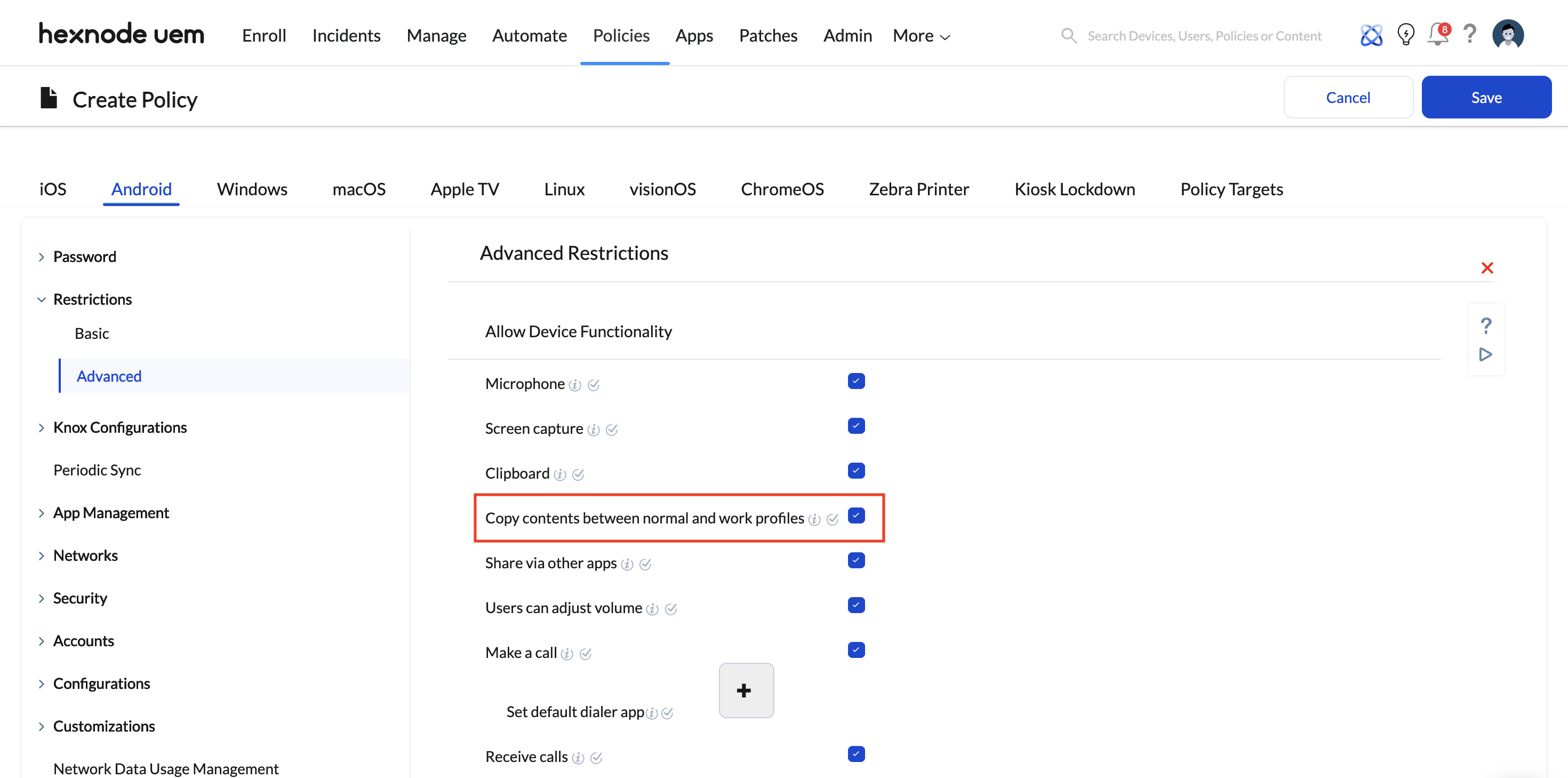
- Under Policies > Android > Restrictions > Advanced, ensure that cross-profile sharing restrictions are active. Personal apps outside the Work Profile are entirely blind to the data inside the work partition.
Steps for Windows devices
Windows requires a specialized approach utilizing Advanced Restrictions to control file access and cloud syncing.
- Navigate to Policies > Windows > Advanced Restrictions > File Explorer Settings.

- Limit the Allowed storage locations (supported on Windows 11). By restricting this, admins can prevent users from saving corporate files to unmanaged directories or external drives.
- To prevent OS-level exfiltration to personal clouds, navigate to Policies > Windows > Restrictions > Basic. Under Account Settings, locate and uncheck the OneDrive file sync option. This disables background synchronization of device files to personal OneDrive accounts.
Phase 4: Neutralize Web-Based Shadow IT (Web Content Filtering)
Blocking unapproved cloud storage apps solves only half the problem; administrators must also block access to the web-based interfaces of those cloud services. Hexnode allows you to push network-level filtering configurations directly to the devices.
Hexnode Capabilities & Implementation:
- The Strategy (Blocklist vs. Allowlist): Depending on how restrictive your environment needs to be, you can either explicitly Blocklist known personal cloud storage URLs (e.g., https://www.dropbox.com, https://drive.google.com) or enforce an Allowlist, which blocks the entire internet by default and only permits access to specific, approved corporate portals.
- Cross-Platform Enforcement:
- Windows: Hexnode enforces strictly URL-based filtering on specified browsers (Edge, Chrome, Firefox). It denies access to the blocklisted URL and displays an organizational warning prompt.
- iOS (Supervised) & macOS: Beyond just blocking the URLs, applying Hexnode’s Web Content Filtering payload automatically disables Private Browsing and prevents users from clearing their browser history, ensuring full auditability of their web traffic.
- Android: Supported on Samsung Knox and Android Enterprise devices, routing browser traffic to prevent access to unauthorized cloud drives.
- The Synergy with App Blocklisting: Blocking a URL does not automatically block the corresponding native app, and vice versa. Therefore, App Blocklisting (Phase 1) and Web Content Filtering (Phase 4) must be deployed simultaneously to close the loop on Shadow IT.
Phase 5: Configure the DLP Enforcement Matrix
To prevent data exfiltration through secondary channels—such as the clipboard, screenshots, or localized file-sharing protocols—administrators must restrict endpoint data movement functionalities.
Implementation Steps:
- Open your overarching security policy in Hexnode.
- Disable Clipboard Functionality:
- iOS: Managed under the Hexnode Business Container settings (preventing copy/paste between managed and unmanaged environments).
- Android: Navigate to Policies > Android > Restrictions and disable clipboard sharing across the Work Profile boundary.
- Restrict Screen Capture:
- Navigate to the Restrictions tab for your respective OS (iOS/Android/Windows) and uncheck the Allow Screen Capture (or equivalent screenshot) option. For Android Enterprise, this prevents screenshots strictly within the Work Profile, leaving personal side functionality intact.
- Disable Unauthorized Sharing Protocols:
- iOS: Under Policies > iOS > Restrictions, disable features like AirDrop to prevent over-the-air file exfiltration.
- Android/Windows: Disable Bluetooth sharing or restrict USB debugging and mass storage modes.
- Navigate to Policy Targets, select the appropriate Devices, Users, or Groups, and click Save & Associate.


