


Category filter
Hexnode UEM: Managing Reports and Analytics
Reporting Overview and Purpose
Reports help in monitoring and analyzing corporate asset information while ensuring data confidentiality within organizations. Hexnode lets you generate a wide range of reports on the go, incorporating complete device reports and granular reports based on specific actions. Hexnode also allows you to create customized reports from scratch. Based on your organization’s requirements, choose a report type or template and create a unique report tailored to your needs. With Hexnode, you can generate reports at any time or at a scheduled time. Moreover, you can easily export built-in or custom reports in either PDF or CSV format.
Initiating Report Generation
To generate or manage any report in Hexnode UEM, administrators should follow these basic steps:
- Login: Log in to the Hexnode UEM portal.
- Navigate: Navigate to the Reports tab in the main console.
- Choose: Choose the preferred report category to begin the generation process.
Report Categories: Features and Classification
Hexnode UEM classifies the Reports tab into 5 primary sections:
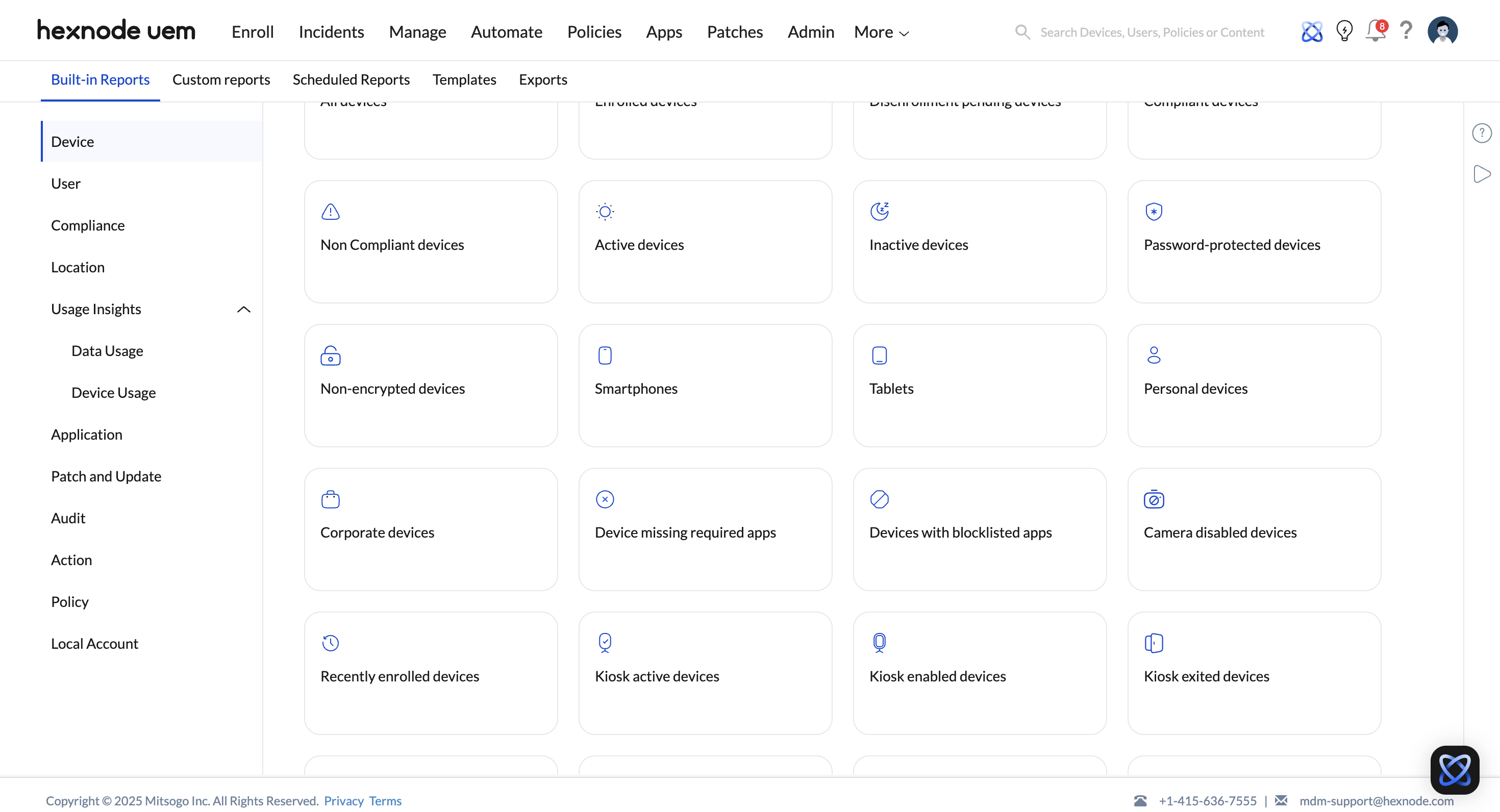
1. Built-in Reports
| Classification | Description | Management Action |
|---|---|---|
| Definition | A wide range of pre-configured reports covering essential device management aspects. | Scheduling: Select a report type and click Schedule Report for automated, periodic delivery. |
| Report Focus | Devices, Users, Compliance, Location, Data Management, Applications, Patches, Updates, Audits, Actions, Policies, and Local Accounts. |
2. Custom Reports
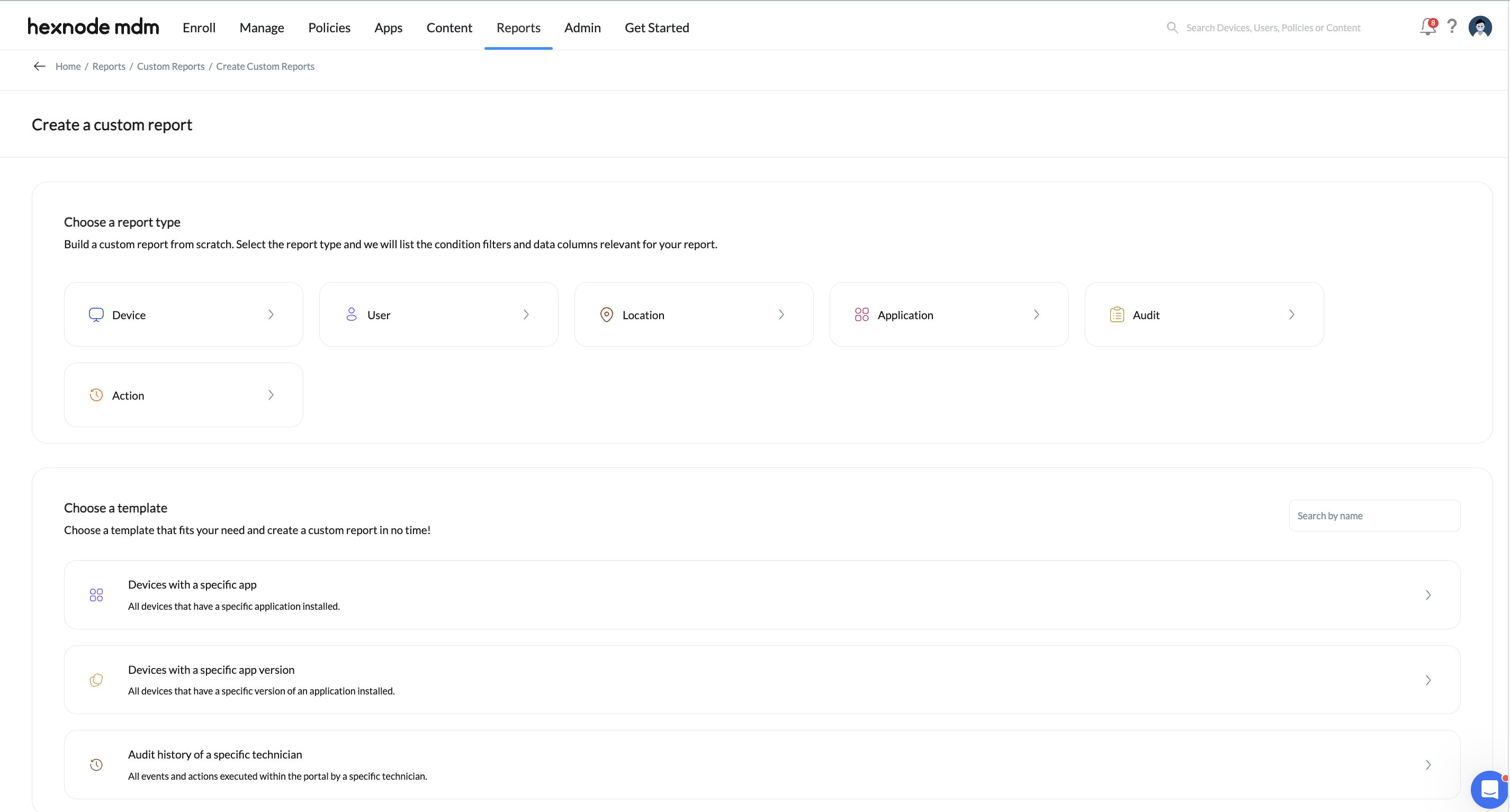
| Classification | Description | Management Action |
|---|---|---|
| Definition | Personalized reports created by administrators from scratch based on organizational needs. | Customization: Uses available report types/templates with relevant condition filters and data columns. |
| Management | Custom reports can be edited or scheduled directly from the Custom Reports tab. |
3. Scheduled Reports
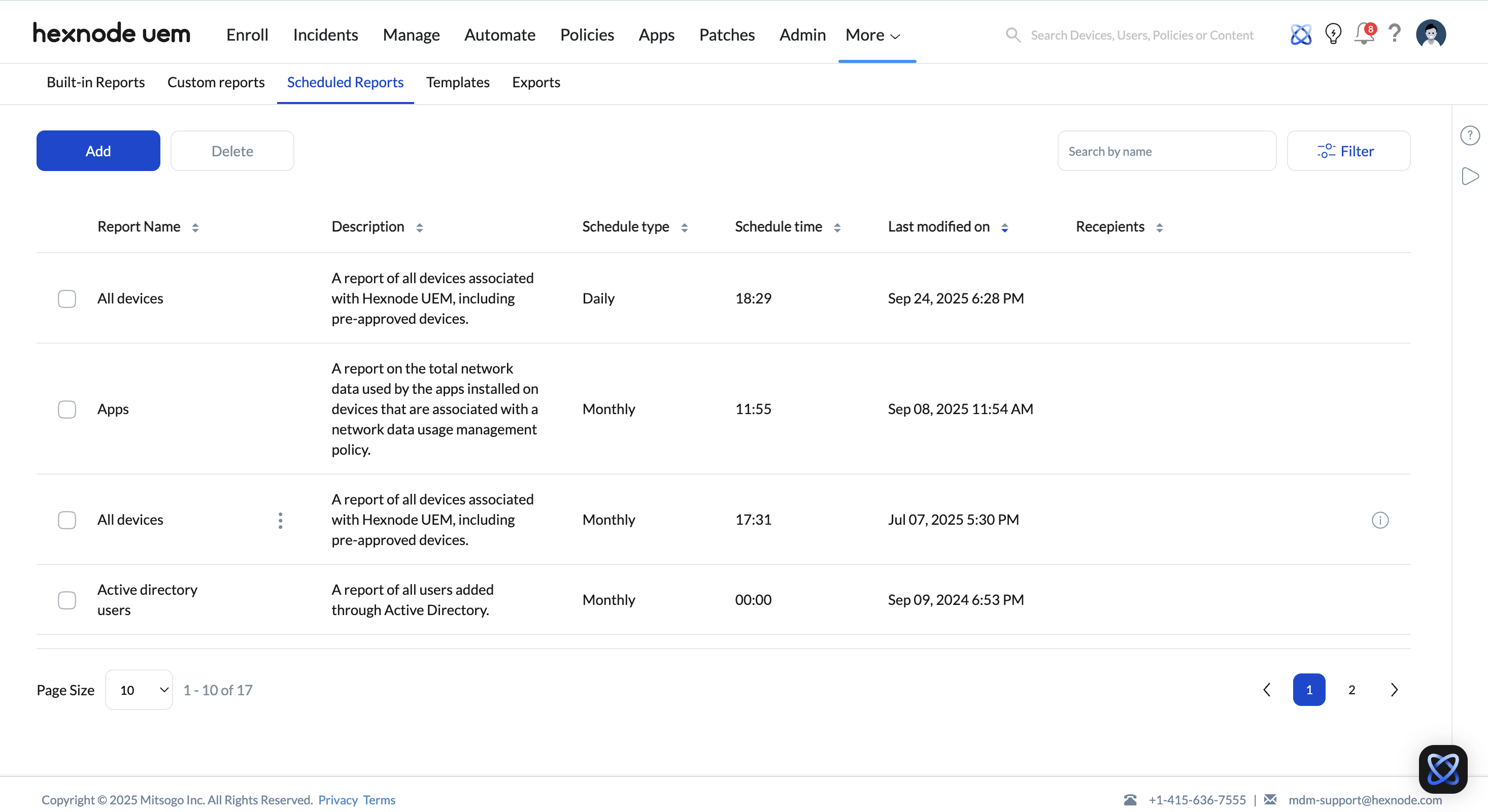
| Classification | Description | Delivery Method |
|---|---|---|
| Definition | Automatically delivered reports providing timely updates on device status and events. | Reports are sent to IT admins via email at specified, periodic intervals. |
| Content | Includes details such as the date, time, event name, and description. | All reports scheduled from both Built-in and Custom categories are listed here. |
4. Templates
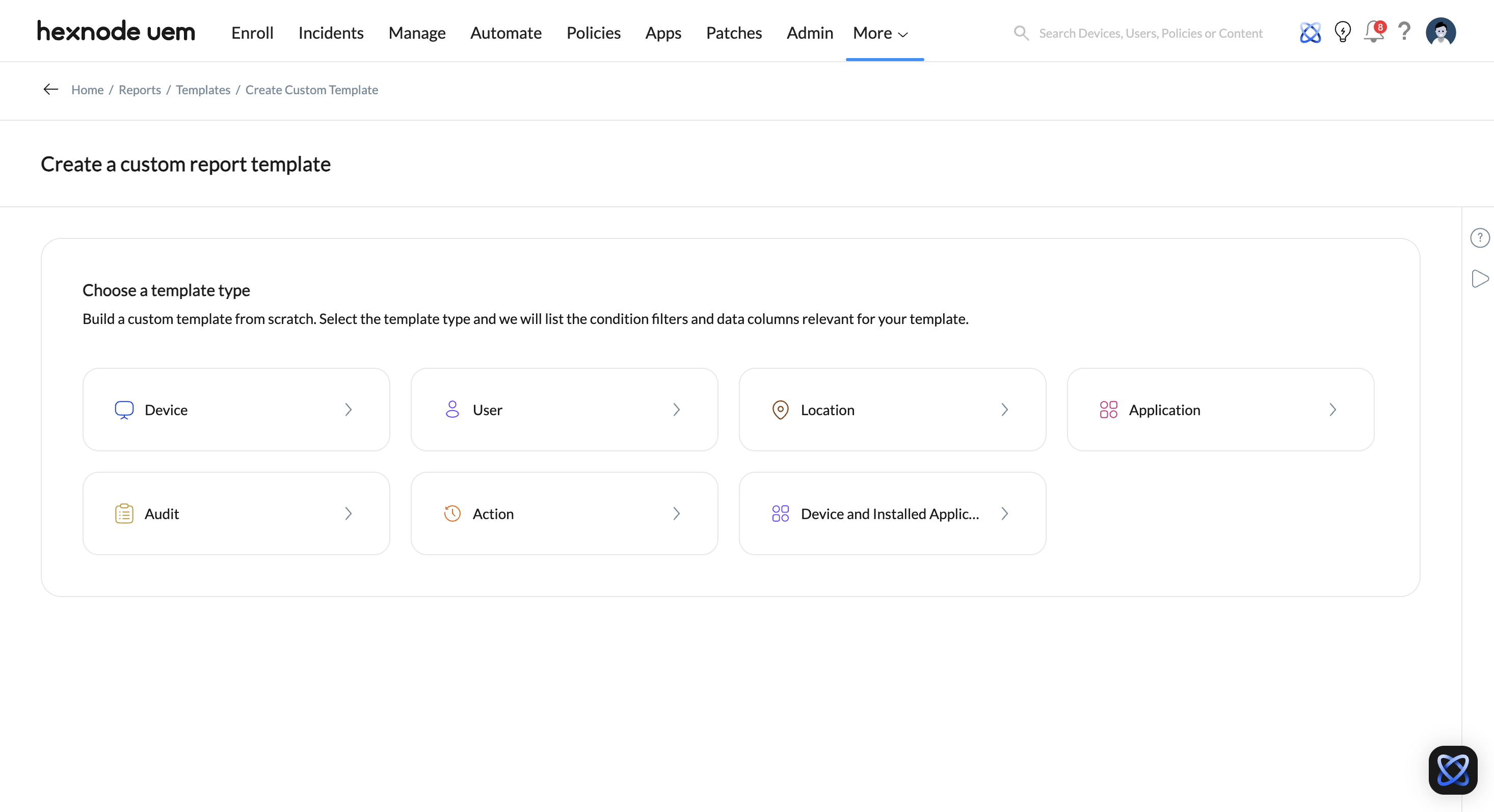
| Classification | Description | Management Action |
|---|---|---|
| Definition | Custom report templates that allow IT admins to create and define their own report formats from scratch. | Reuse: Templates can be saved and reused to quickly generate reports that match specific needs. |
| Content Setup | Admins can select the data columns, set filters, and organize the structure of the |
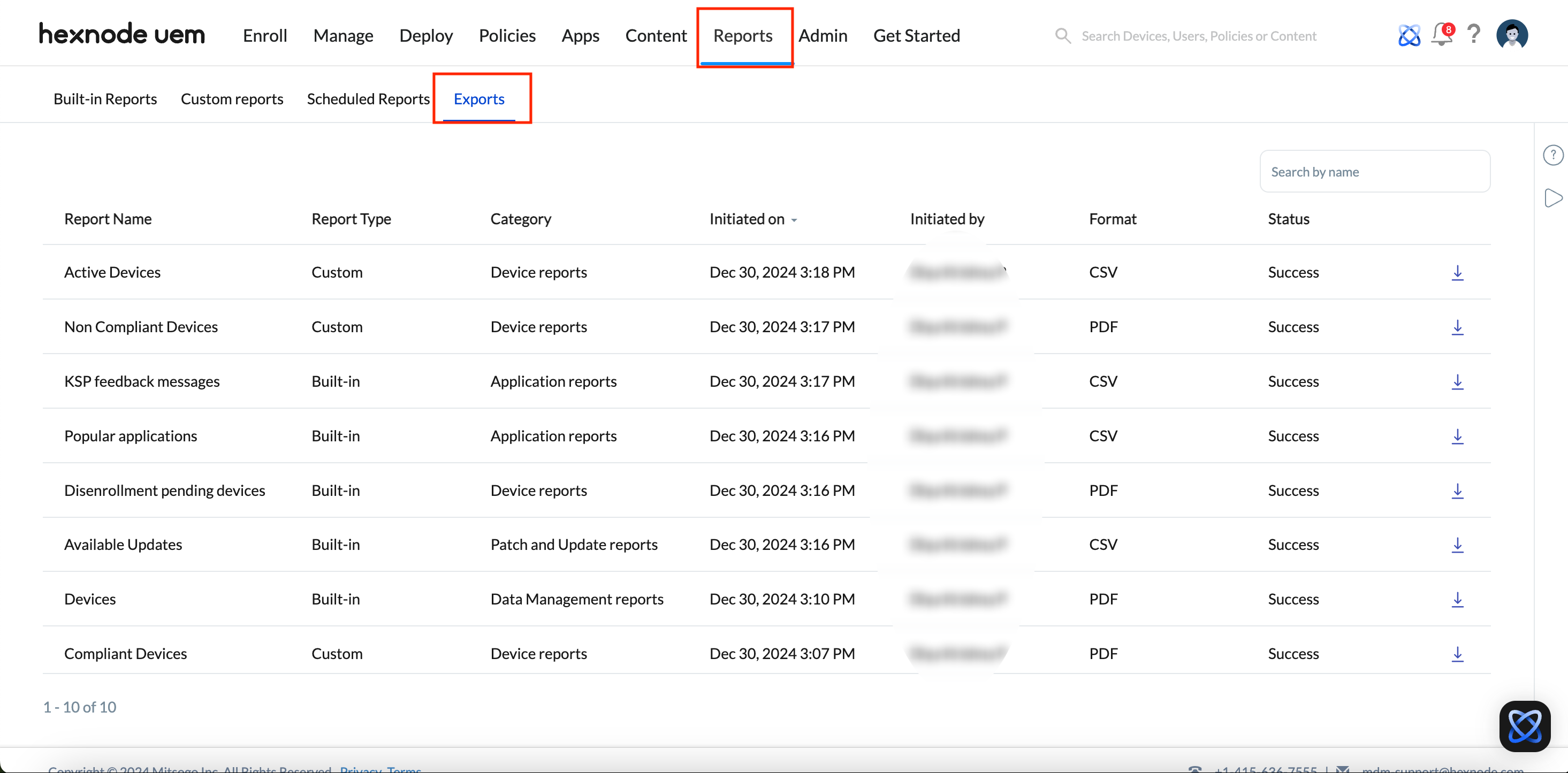
5. Exports
| Classification | Description | Status & Action |
|---|---|---|
| Definition | Displays the record of all report export requests initiated within the last 24 hours. | Status: Tracks exports as In Progress, Success, or Failed. |
| Data Tracked | Report Name, Type, Category, Initiation Time, Technician, and Export Format (PDF/CSV). | Success Action: Download icon is provided to download the successfully exported file. |
| Failure Action | Re-initiate icon is provided for reports that have failed to export, allowing a retry of the process. |
Frequently Asked Questions
| Concept | Definition | Core Purpose |
|---|---|---|
| Hexnode Reports | Tools within the UEM console for monitoring and analyzing corporate asset information. | Monitors corporate asset data and ensures data confidentiality. |
| Customization | Supports report creation from scratch using customizable templates, condition filters, and data columns. | Enables organizations to tailor unique reports to specific business requirements. |
| Export Formats | Both built-in and custom reports can be exported. | Supports export in PDF and CSV formats. |
| Generation Type | Reports can be generated instantly (on the go) or scheduled for automated delivery. | Supports both real-time audits and periodic tracking. |


