


Category filter
How to remotely Lock a Device
The Lock Device remote action is a critical security feature in Hexnode UEM that immediately secures lost or stolen endpoints by triggering a screen lock, preventing unauthorized access to sensitive organizational data.
What is a Remote Device Lock?
Remote locking allows IT administrators to safeguard managed devices by forcing them into a locked state. This ensures that only authorized users with the correct credentials can regain access to the operating system and stored files.
- Supported Platforms: Android, iOS, macOS, Windows, and Linux.
- Core Function: Triggers an instantaneous session lock or device restart (macOS) to block unauthorized usage.
- Recovery Assistance: On Android and iOS, administrators can display a custom recovery message and phone number on the lock screen to assist finders in returning the device.
Prerequisites and Critical Constraints
Before executing a remote lock, administrators must be aware of platform-specific requirements and potential risks, particularly regarding macOS Silicon.
| Platform | Prerequisite / Constraint |
|---|---|
| Windows | The device must have a password set; otherwise, the lock action will fail with an error. |
| iOS | A passcode should be pre-configured on the device to display custom lock screen messages. |
| macOS (Intel) | Requires a 6-digit System Lock PIN configured in the portal during the action. |
| macOS (Silicon) | Critical: If a password policy with “Change password at next login” is active, the admin password will not unlock the device. It may require a wipe or disenrollment. |
Method 1: Initiating a Remote Lock
Administrators can initiate a lock for single or multiple devices directly from the device inventory list.
- Log in to the Hexnode UEM portal.
- Navigate to the Manage tab.
- Select the checkbox for the target device(s).
- Navigate to Actions > Security and select Lock Device.
- (Optional) For iOS/Android: Provide a custom message and phone number.
- (Required) For macOS: Specify a 6-digit System Lock PIN.
- Click Continue.
Method 2: Enforcing Password Policies and Auto-Lock
To ensure devices lock automatically during inactivity or maintain high-security standards, administrators should deploy a Passcode/Password policy.
A. Creating a Password Policy
- Navigate to Policies > New Policy.
- Select the relevant platform (iOS/Android/Windows/Linux/macOS).
- Select Passcode or Password and configure the requirements (complexity, length).
- Navigate to Policy Targets and click +Add Devices to associate the policy.
- Click Save.
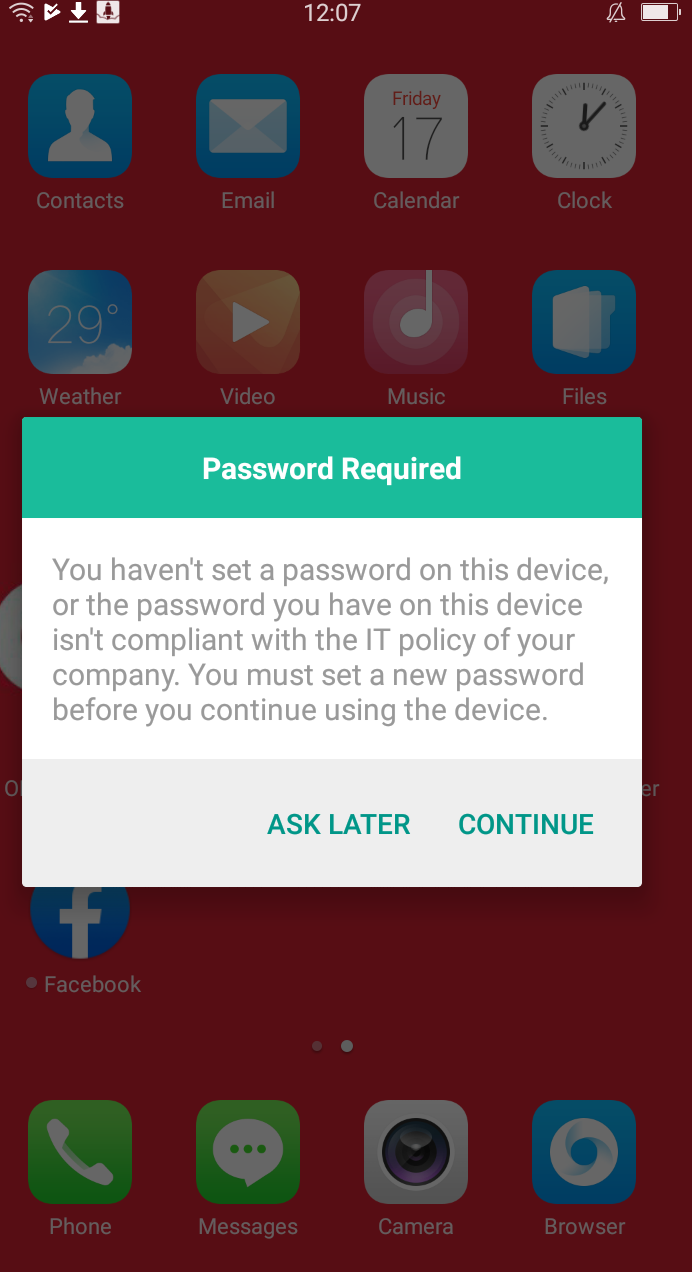
B. Configuring Auto-Lock Intervals
The device will automatically lock after being idle for the specified duration.
| Platform | Navigation Path | Available Intervals |
|---|---|---|
| iOS | Passcode > Auto lock | 1, 2, 3, 4, 5, 10, or 15 mins (or Never). |
| Android | Device Password > Auto lock after | 1, 2, 3, 4, 5, 10, or 15 mins (or Never). |
| Windows | Password > Auto lock | 0-99 minutes. |
| macOS | Passcode > Auto lock | 1, 2, 3, 4, 5, 10, or 15 mins (or Never). |
What Happens at the Device End?
| Platform | Behavior Upon Remote Lock |
|---|---|
| iOS / Android | The screen locks immediately. Correct passcode/password is required to unlock. |
| Windows / Linux | The session locks immediately. The user must provide the correct password to resume. |
| macOS | The device restarts and prompts for the System Lock PIN (not the Mac passcode) before allowing login. |
Troubleshooting
The Remote Lock Action Fails on a Windows Device
- The Problem: An administrator attempts to lock a Windows PC via the Manage tab, but the action fails and displays an error message in the portal.
- The Solution: Ensure the Windows device has a set password. Hexnode cannot remotely lock a Windows device that does not currently have a password configured.
Admin Credentials Fail to Unlock a Silicon Mac
- The Problem: On a Mac with an Apple Silicon chip (M1/M2/M3), the administrator password is rejected after a remote lock.
- The Solution: This occurs if a password policy with the “Change password at next login” option was enabled when the lock was initiated. In this specific scenario, the device must be wiped or disenrolled to allow a user to log back in.
Frequently Asked Questions (FAQ)
What is a System Lock PIN for macOS?
The System Lock PIN is a 6-digit code configured by the administrator in the Hexnode portal during the lock action. It is separate from the user’s Mac passcode and is required to unlock the device after the mandatory restart.
Can custom messages be displayed on Windows or Linux?
No. The ability to display a custom recovery message and phone number on the lock screen is strictly supported on Android and iOS devices.
What happens if the wrong System Lock PIN is entered on a Mac?
Repeatedly entering the wrong PIN on a macOS device will trigger an indefinite lock state, a security measure implemented by Apple to prevent data theft.


