


Category filter
How to setup Hexnode Email app for iOS devices?
The Hexnode Email app is a secure, containerized email client for iOS that allows organizations to manage corporate communications safely. This guide provides a comprehensive walkthrough for administrators to configure account settings, incoming/outgoing mail servers, and security policies via the Hexnode UEM console.
Overview of Hexnode Email for iOS
Hexnode Email provides a dedicated workspace for corporate emails, separating them from personal data on iOS devices. It supports standard protocols including IMAP, POP, and SMTP, ensuring compatibility with most email service providers.
1. Prerequisites
To deploy and configure the Hexnode Email app, ensure the following:
- App Availability: The Hexnode Email app must be installed on your device prior to configuring the policy.
- Target Devices: Devices must be enrolled in Hexnode UEM.
- Supervision: While not strictly required for app installation, Supervision is recommended for advanced policy enforcement.
2. Configuration Workflow
The setup is performed via Policies in the Hexnode portal.
Step 1: Create or Edit a Policy
- Log in to your Hexnode UEM portal.
- Navigate to the Policies tab.
- Select an existing policy or click New Policy.
Step 2: Configure the Hexnode Email App
- Go to iOS > Enterprise > Hexnode Business Container > Hexnode Email.
- Click Configure.
- Under App settings, you can check or uncheck the option, Allow users to add and manage accounts to allow or deny access for the users to add or manage email accounts manually on the device end.
- Click on +Add more to configure a Hexnode Email account.
Step 2.1: Configuring Email Accounts
To begin, navigate to the Hexnode Email policy section and click +Add more to configure a Hexnode Email account.
Add Account Settings
| Setting | Description |
|---|---|
| Account name | The name to be displayed for a user. |
| Account Description | Provide a display name for the email account. This is used for distinguishing between different email accounts within the portal. |
| Email Address | Enter the email address for the account. This field supports the %email% wildcard for automated deployment. |
Incoming Mail Settings
| Setting | Description |
|---|---|
| Incoming Account Type | IMAP (default): Stores emails on the server; the device syncs with the server to display them. |
| Incoming Mail Server | Specify the server address of the incoming email server. |
| Incoming Server Port | Enter the port number for the incoming server. The default port is 143. |
Outgoing Mail Settings
| Setting | Description |
|---|---|
| Outgoing Account Type | SMTP (default): Protocol used to send emails to servers or between servers. |
| Outgoing Mail Server | Specify the server address of the outgoing email server. |
| Outgoing Server Port | Enter the port number for the outgoing server. The default port is 587. |
| Authentication type | Select how to authenticate with the outgoing server:
|
Account Settings & Permissions
These settings control the functional capabilities of the user and the security of the data within the app.
| Account Setting | Description | Default State |
|---|---|---|
| Enable Screen capture | Allows users to take screenshots while using the app. | Disabled |
| Display images in emails | Allows users to view images within incoming emails. | Disabled |
| Allow users to forward emails | Permits users to forward emails to other recipients. | Disabled |
| Allow users to reply to emails | Permits users to reply to incoming emails. | Disabled |
| Allow users to delete emails | Permits users to delete emails from their inbox. | Disabled |
| Allow users to archive emails | Permits users to archive emails. | Disabled |
| Allow users to compose emails | Permits users to compose and send new emails. | Disabled |
| Enable sharing of documents | Allows users to share documents and email attachments. | Disabled |
| Enable text selection | Allows users to select and copy text within emails. | Disabled |
| Include original message in replies | Displays previous messages in the thread during a reply. | Enabled |
| Enable adding signatures | Allows a customized signature to be added to all emails. | Disabled |
| Email signature | Field to specify the text for the email signature. | N/A |
| Email auto-sync frequency | Sets how often the app syncs with the server. Values: Never, 15 mins, 30 mins, Every hour (default), 2, 3, 6, 12, or 24 hours. | Every hour |
| Show contact names in list | Displays the contact list when entering a recipient’s name. | Disabled |
| Open web links in Hexnode app | Forces web links in emails to open within the Hexnode Email app. | Disabled |
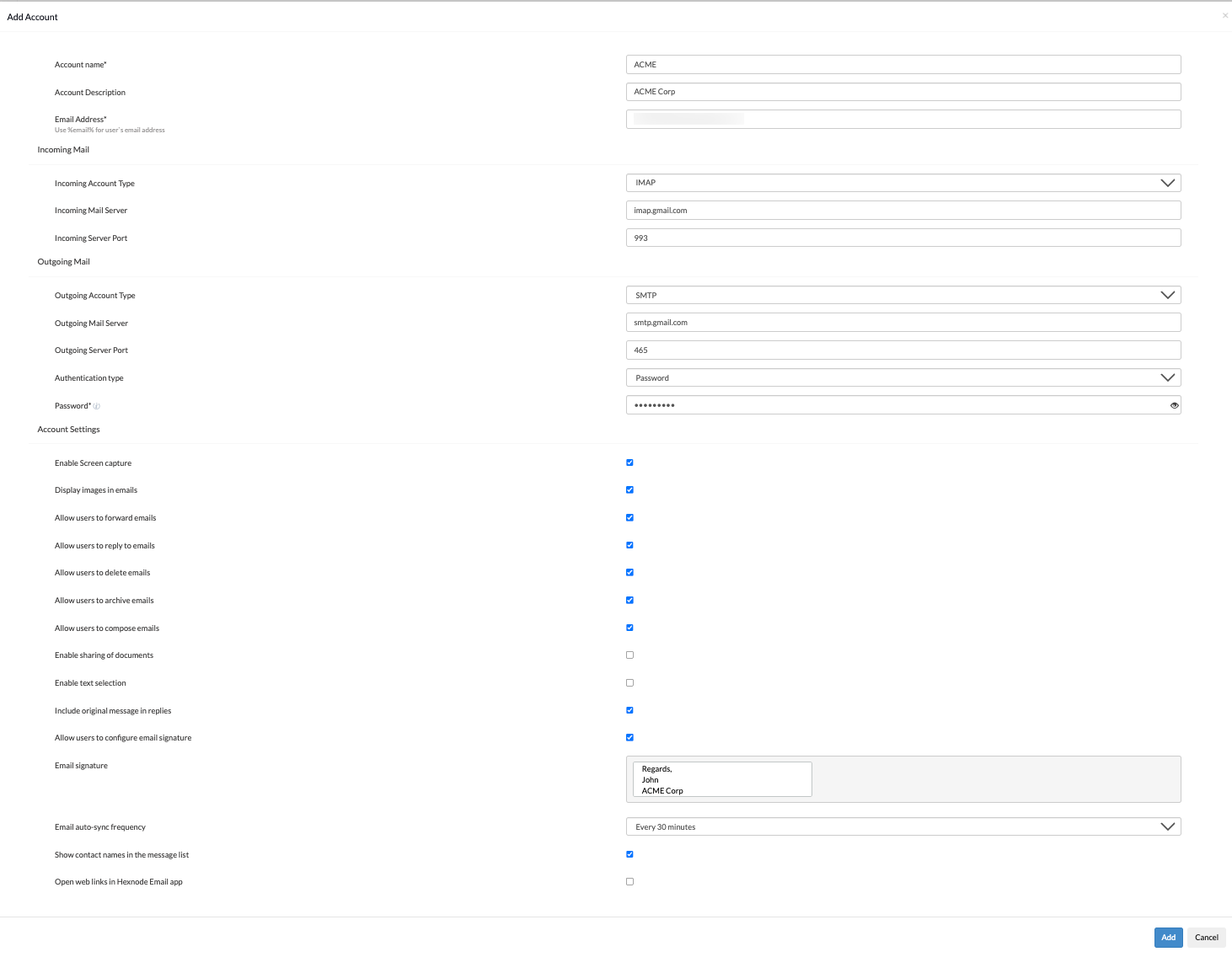
3. Policy Implementation
To apply these configurations:
- Save the policy.
- Navigate to Policy Targets to associate the configuration with the required devices, users, or groups.
- Ensure the Hexnode Email app is deployed to the device for these settings to take effect.
4. Frequently Asked Questions (FAQs)
- Is it possible to prevent users from copying email content to personal applications?
Yes. Leave the Enable text selection option unchecked in the policy to disable the clipboard for email content.
- Can attachments be restricted?
Yes. Use the Enable sharing of documents toggle to permit or deny the sharing of email attachments with other apps.
- What is the effect of deleting the policy?
The email account configuration is automatically removed from the Hexnode Email app on all targeted devices.
5. Troubleshooting
- Sync Failures:
Solution:
Verify that the Incoming Server Port and SSL settings match the email provider’s specific requirements. Ensure the network allows traffic through mail server ports (143/993 or 587/465). - Authentication Errors:
Solution:
Check if the %email% or %username% wildcards are correctly populated in the user’s profile under the Enrollment tab. If MFA is active, confirm the use of an App Password. - Configuration Latency:
Solution:
To force an immediate update of policy settings, navigate to Manage > Select Device > Actions > Scan Device.


