


Category filter
How to Import Contacts to Devices?
The Import Contacts remote action enables IT administrators to push contact information to Android devices using vCard (.vcf) files. This ensures unified communication directories across corporate-managed devices without manual user entry.
Technical Overview of VCF Files
A VCF (Virtual Contact File) is a standard file format for storing contact information. Hexnode UEM utilizes these files to remotely populate device address books.
Supported Data Fields
- Full names and job titles.
- Multiple telephone numbers and email addresses.
- Physical addresses and URLs.
- Logos and photographs.
Prerequisites
- Target OS: Android.
- Source File: A valid .vcf file generated via Google Contacts, Microsoft Outlook, Excel, or Mac Contacts.
- Portal Access: Hexnode UEM Administrator credentials.
Phase 1: Generating a VCF File
Before importing, you must create a source file. While multiple tools exist, exporting via Google Contacts is a standard method.
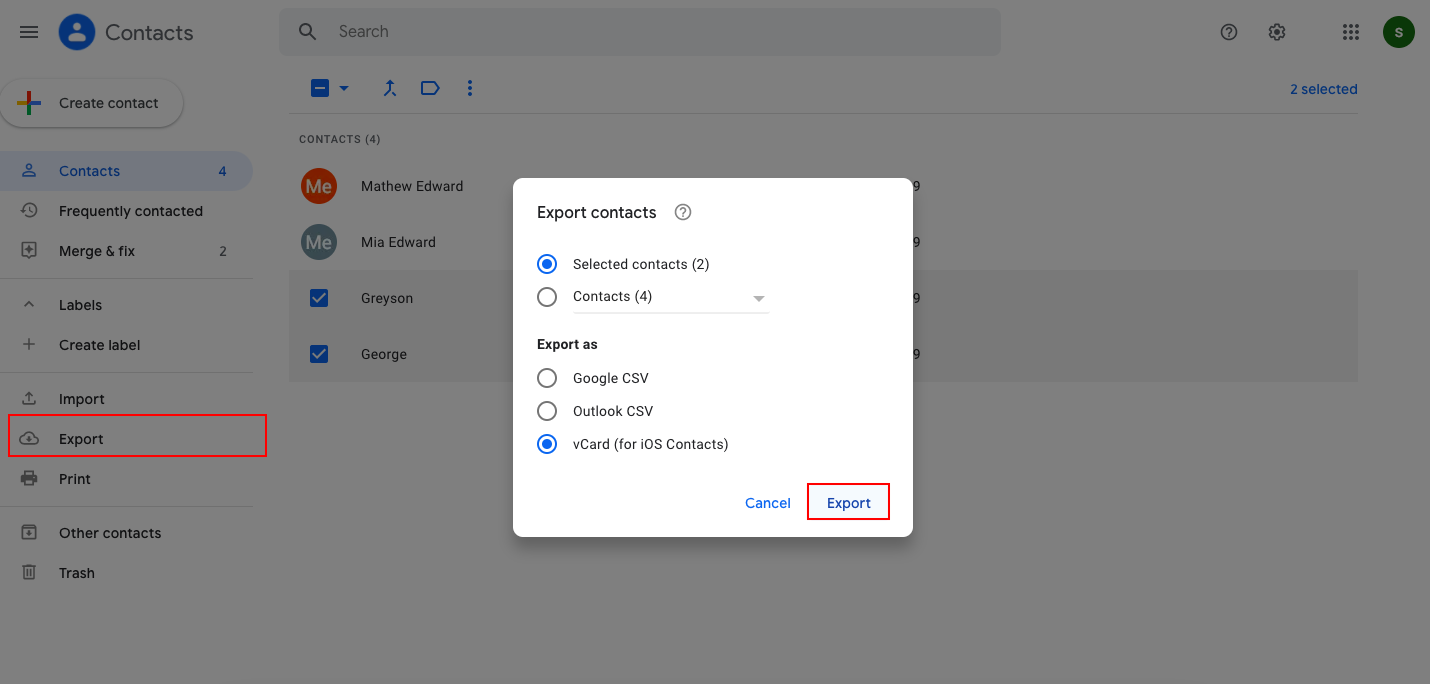
Steps to Export from Google Contacts
- Sign in to Google Contacts on a computer.
- Select the specific contacts intended for export.
- Click Export on the left-hand menu.
- Choose the format Export as vCard.
- Click the Export button to save the file locally.
Phase 2: Importing Contacts via Hexnode UEM
Follow these steps to deploy the contact list to target Android devices.
Execution Steps
- Log in to the Hexnode UEM portal.
- Navigate to Manage > Devices.
- Select the target device(s) from the list.
- Click Actions > Others > Import contacts to device.
- Upload the generated VCF file.
- (Optional) Enable Delete existing contacts if you wish to wipe the current device contacts before the import.
- Click Import.
Phase 3: Updating and Managing Contacts
Administrators can modify contact lists by re-triggering the action with updated parameters.
Management Scenarios
| Scenario | Action Method | Configuration Detail |
|---|---|---|
| Add New Contacts | Import contacts to device | Upload VCF; do not check “Delete existing contacts”. |
| Replace All Contacts | Import contacts to device | Upload VCF; enable “Delete existing contacts”. |
| Edit Details | Import contacts to device | Upload updated VCF; duplicates are handled by the OS. |
Troubleshooting Guides
| Problem | Resolution |
|---|---|
| Contacts not appearing on the device. | Verify the device has an active internet connection. Ensure the file is a valid .vcf format and not a generic .csv or .xlsx. |
| Duplicate contacts appearing. | If “Delete existing contacts” was not selected during a re-import, the device may show duplicates. Re-run the action with the Delete existing contacts option enabled. |
| File upload fails in portal. | Ensure the VCF file size is within acceptable limits and that the file is not corrupted. Try re-exporting the file from the source. |
Frequently Asked Questions (FAQs)
Can the contacts be imported to iOS devices using this method?
No. Based on current capabilities, the Import Contacts via VCF upload feature is supported exclusively for Android devices.
What happens to existing contacts if “Delete” is not selected?
The new contacts will be merged with the existing ones. If a contact with identical details exists, behavior depends on the device’s native contact app (usually resulting in a merge or a duplicate).
Does this action require the Hexnode app to be open?
No. The action is executed in the background by the Hexnode MDM agent, provided the device is online.


