


Category filter
How to force BitLocker encryption on Windows with Hexnode UEM?
Force BitLocker Encryption is a remote security action in Hexnode UEM that allows administrators to instantaneously trigger drive encryption on Windows devices using a TPM Startup PIN or a Fallback Password, bypassing the need for user-initiated setup.
Why Force BitLocker Encryption?
While a standard BitLocker policy defines the requirements for encryption, it often relies on the user to begin the process. The Force BitLocker action ensures immediate compliance by remotely encrypting system, fixed, and removable drives to protect sensitive data from unauthorized access or theft.
- Immediate Protection: Encrypts drives “over-the-air” without waiting for user action.
- Security for Stolen Devices: Renders data unreadable to intruders who lack the Startup PIN or Recovery Key.
- Customizable Scope: Allows administrators to target specific drives or only used disk space for efficiency.
Prerequisites and Critical Configuration
To ensure the remote action executes successfully, the following conditions must be met:
| Category | Requirement |
|---|---|
| OS Support | Windows 10/11 Pro, Enterprise, or Education editions. |
| Policy Setup | It is highly recommended to deploy a BitLocker Encryption Policy before forcing encryption to define preferred recovery and cipher settings. |
| Startup PIN | Must be allowed/required in the BitLocker policy under OS Drive Settings > Configure additional startup authentication settings. |
| Constraints | The Startup Key and Recovery Key must not be set as “Required Options” in the associated policy. |
Step-by-Step Guide: Forcing BitLocker Encryption
Follow these steps to remotely encrypt Windows drives via the Hexnode portal:
- Log in to the Hexnode UEM portal.
- Navigate to the Manage tab and select the target device.
- Click on Actions > Security > Force BitLocker Encryption.
- Configure the Encryption Parameters:
- Disk Space and Drive Selection
- Encrypt used disk space: Recommended for new PCs; encrypts only current data. New data is encrypted automatically thereafter.
- Encrypt entire drive: Recommended for existing PCs; protects all data, including previously deleted files that could be retrieved by third-party tools.
- Drive Scope: Choose Encrypt all drives or specify Fixed, Removable, or Specific Drives (separated by commas).
- Authentication and Recovery
- Enable auto unlock: Automatically unlocks fixed/removable drives when the OS drive is unlocked.
- TPM Startup PIN: Provide a 6-20 digit PIN. This is required every time the system reboots.
- Fallback Password: A minimum 8-character password for devices without a supported TPM.
- Mandate and escrow a recovery password: (Recommended) Ensures a recovery password is generated and stored in the Hexnode portal.
- Click Proceed.
What Happens at the Device End?
Once the action is initiated:
- BitLocker is enabled based on the configurations in the associated policy (or default Windows settings if no policy exists).
- The drive begins the encryption process in the background.
- The user can verify status by navigating to Control Panel > System and Security > BitLocker Drive Encryption.
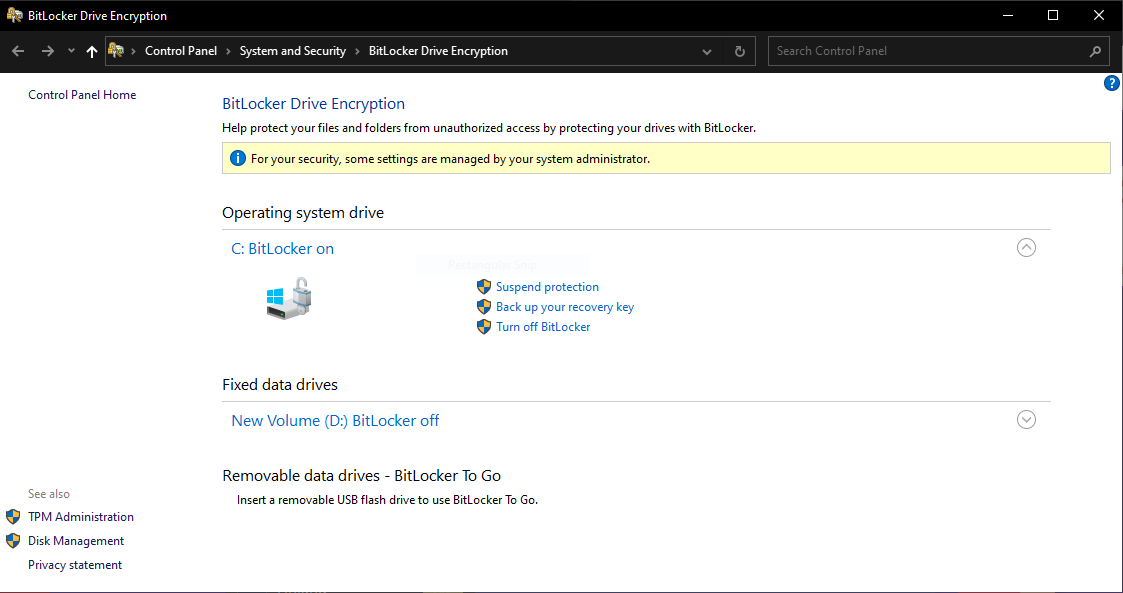
Troubleshooting Guides
| Problem | Potential Root Cause | Resolution |
|---|---|---|
| Action fails: PIN not allowed | Group Policy or Hexnode Policy restricts Startup PINs. | Ensure the policy allows TPM Startup PIN. If no policy exists, use gpedit.msc to set “Require additional authentication at startup” to Enabled. |
| Encryption doesn’t start | Startup Key is set as a “Required Option.” | Check your BitLocker policy; if a physical Startup Key (USB) is required, the remote Force PIN action will fail. |
| Recovery Password missing | “Mandate and escrow” option was unchecked. | If unchecked, the device may not generate a key. You must manually retrieve it from the device or re-encrypt with the option enabled. |
| TPM Errors | Device lacks a TPM or TPM is not initialized. | Use the Fallback Password (min 8 characters) to encrypt devices without hardware-based TPM modules. |
Frequently Asked Questions
Where can the recovery password be found if a user forgets their PIN?
The escrowed recovery password can be viewed in the Hexnode portal under Device Summary > Hardware Info for the specific device.
Can Hexnode retrieve the Startup PIN or Fallback Password?
No. Hexnode cannot retrieve the Startup PIN or Fallback Password once set. Administrators must record these securely at the time of execution. Only the Recovery Password is stored in the portal.
What happens if a drive that is already in use is encrypted?
It is recommended to select Encrypt entire drive for devices already in use to ensure that even deleted data fragments are protected from recovery tools.
Does the user need to be logged in for encryption to start?
The command is sent to the Hexnode Agent. While the encryption can begin in the background, the user will be required to enter the Startup PIN or Fallback Password upon the next system reboot.


