


Category filter
How to enforce software updates on Apple TV?
The Update OS remote action in Hexnode UEM allows IT administrators to remotely deploy tvOS updates to managed Apple TVs, ensuring devices remain secure, stable, and compatible with enterprise applications.
Why Enforce tvOS Updates?
Maintaining the latest version of tvOS is critical for organizational security and device performance. Older software versions may harbor vulnerabilities or lack the management capabilities necessary for high-density deployments.
- Enhanced Security: Patches known security flaws and vulnerabilities.
- App Compatibility: Ensures enterprise apps function correctly on supported software versions.
- Centralized Management: Allows admins to trigger updates for individual devices or entire fleets from a single console.
- Operational Stability: Improves overall device performance and system reliability.
Prerequisites for Apple TV Updates
Before initiating an OS update, ensure the target devices meet the following hardware and management criteria:
| Requirement | Specification |
|---|---|
| Management State | Devices must be Supervised. |
| OS Version | Supports Apple TV devices running tvOS 12 or later. |
| Connectivity | Maintain a stable connection; do not disconnect the Apple TV during the process. |
Step-by-Step Guide: Enforcing Apple TV OS Updates
Administrators can initiate updates for single devices or perform bulk operations across multiple endpoints.
1. Update a Single Apple TV
- Log in to the Hexnode UEM portal.
- Navigate to the Manage tab > Devices.
- Use the Search box or the Filter column (Platform: Apple TV) to locate the target device.
- Click on the device name to open the Device Summary.
- Navigate to Actions > Updates > Update OS.
2. Update Multiple Apple TVs (Bulk Action)
- Navigate to Manage > Devices.
- Select the checkboxes for all Apple TV devices requiring the update.
- From the Actions drop-down menu, select Updates > Update OS.
Deployment Options
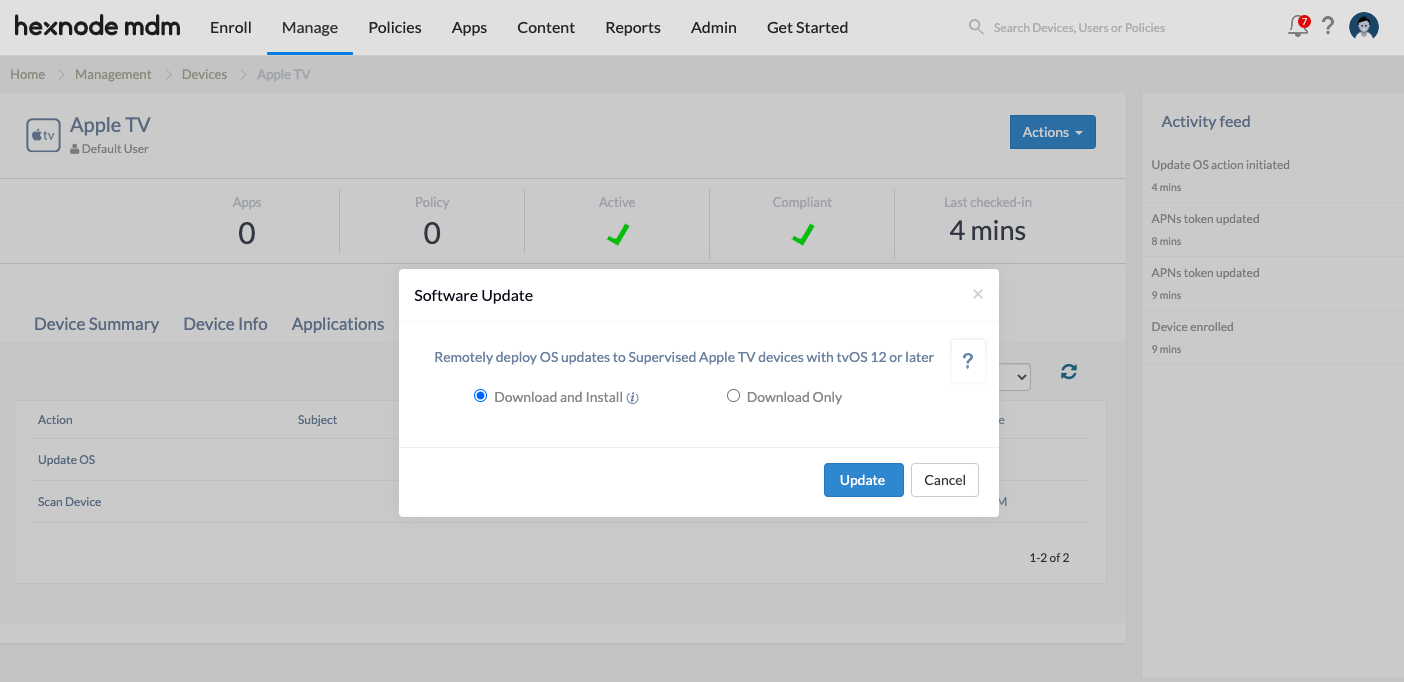
When triggering the update, choose between the following two installation methods:
| Option | Functional Behavior |
|---|---|
| Download Only | Downloads the update to the Apple TV. The user must manually install it via Settings > System > Software Updates. |
| Download and Install | Downloads the system update over-the-air and installs it immediately upon completion. If previously downloaded, installation starts instantly. |
Monitoring Update Progress
To verify the status of the remote command:
- Click on the specific device in the Manage tab.
- Navigate to the Action History tab.
- Review the status of the Update OS action to confirm success or identify errors.
Troubleshooting Guides
| Problem | Resolution |
|---|---|
| Update action is missing from the menu | Verify the device is in Supervised mode. Unsupervised Apple TVs do not support remote OS enforcement. |
| Update fails or hangs indefinitely | Ensure the device has a stable network connection. Confirm that the Apple TV was not disconnected or powered down during the update process. |
| Device is not picking up the update | Check if the device is running at least tvOS 12. Also, check Action History to ensure the command reached the device. |
| Download and Install fails due to bandwidth | If updating many devices simultaneously, ensure your network bandwidth can support multiple large concurrent downloads. |
Frequently Asked Questions (FAQs)
Can unsupervised Apple TV devices be updated?
No. The Update OS remote action is strictly limited to supervised Apple TV devices.
What happens if the power is disconnected during an update?
Disconnecting the device during a firmware update can lead to system corruption or “bricking.” Always ensure the device remains powered on until the process is complete.
Does the user get a notification before an update?
If Download and Install is selected, the update is enforced over-the-air. If Download Only is selected, the update resides on the device until the user manually triggers the installation from the local settings menu.
How can the current tvOS version be viewed in the portal?
The current OS version is listed in the Device Summary page under the Manage tab once the device has completed a successful scan.


