


Category filter
How to create and execute custom scripts on Linux?
Execute Custom Script is a remote management action that allows IT administrators to deploy shell scripts (primarily Bash) to Linux endpoints. This enables the automation of administrative tasks such as user management, system monitoring, and software updates from a centralized console.
Why Use Custom Scripting for Linux?
Linux administration often requires repetitive command-line operations. Scripting automates these processes, reducing manual intervention and ensuring consistency across a fleet of devices.
- Process Automation: Handle routine tasks like log rotation or service restarts automatically.
- Scaled Management: Deploy the same configuration or fix to hundreds of devices simultaneously.
- Custom Functionality: Execute unique operations not natively built into the UEM interface.
Prerequisites and Compatibility
Before deploying scripts, ensure the following technical requirements are met:
| Requirement | Specification |
|---|---|
| Supported OS | Debian, Fedora, and Ubuntu distributions. |
| Script Format | Bash (.sh) files. |
| Agent App | The Hexnode Agent must be installed on the device. |
| File Naming | Names must not contain: `/ : ? \ * |
Manual Script Creation (Local Validation)
To ensure your script works before uploading it to Hexnode, follow these steps to create a sample user-creation script on a local Linux machine.
- Open the Terminal app.
- Create a new file using a text editor (e.g., nano):
1nano create_user.sh
- Type the following script into the editor:
123456#!/bin/bashusername=”SET_USERNAME”password=”SET_PASSWORD”useradd –m $usernameecho “$username:$password” | chpasswdecho “User created: $username”
- Save and exit (Ctrl+O, Enter, then Ctrl+X).
- Make the file executable:
1chmod +x create_user.sh
- Test the script locally:
1./create_user.sh
Executing Scripts via Hexnode UEM
Once validated, use the Hexnode portal to push the script to your managed Linux devices.
- Navigate to Manage > Devices and select the target Linux device(s).
- Click Actions > Deployments > Execute Custom Script.
- Choose the Script File Source:
- Upload file: Select a script directly from your computer.
- Hexnode repository: Select a script previously uploaded to the Content tab.
- Verify the Binary Path: For Bash scripts, ensure the path is set to /bin/bash.
- Enter Arguments: Provide inputs required by the script.
- Separate multiple arguments with spaces.
- Enclose arguments in single quotes.
- Wildcards are supported but vary by shell.
- Click Execute.
Troubleshooting Guides
| Problem | Potential Cause | Resolution |
|---|---|---|
| “Permission Denied” | Script lacked executable bit. | While Hexnode handles execution, ensure the script contains the #!/bin/bash shebang at the top. |
| Script fails to run | Incorrect Binary Path. | Ensure the Binary Path field is precisely /bin/bash. |
| Unexpected output | Argument syntax error. | Use single quotes for arguments and ensure spaces are used as separators. |
| Action remains Pending | Agent app disconnected. | Verify the Hexnode Agent is running and the device has an active internet connection. |
Viewing Logs
To verify the results of your script, navigate to the Action History sub-tab of the device. Click Show Output to see the logs and return messages from the script execution.
Frequently Asked Questions (FAQs)
What is the “Binary Path”?
The binary path tells the Linux system which interpreter to use to run the script. For modern Linux scripting, /bin/bash is the standard path for the Bourne Again Shell.
Can scripts be run that require a user to type something?
No. Hexnode executes scripts in the background. Any script requiring real-time user input will hang or fail. Ensure your scripts are fully automated.
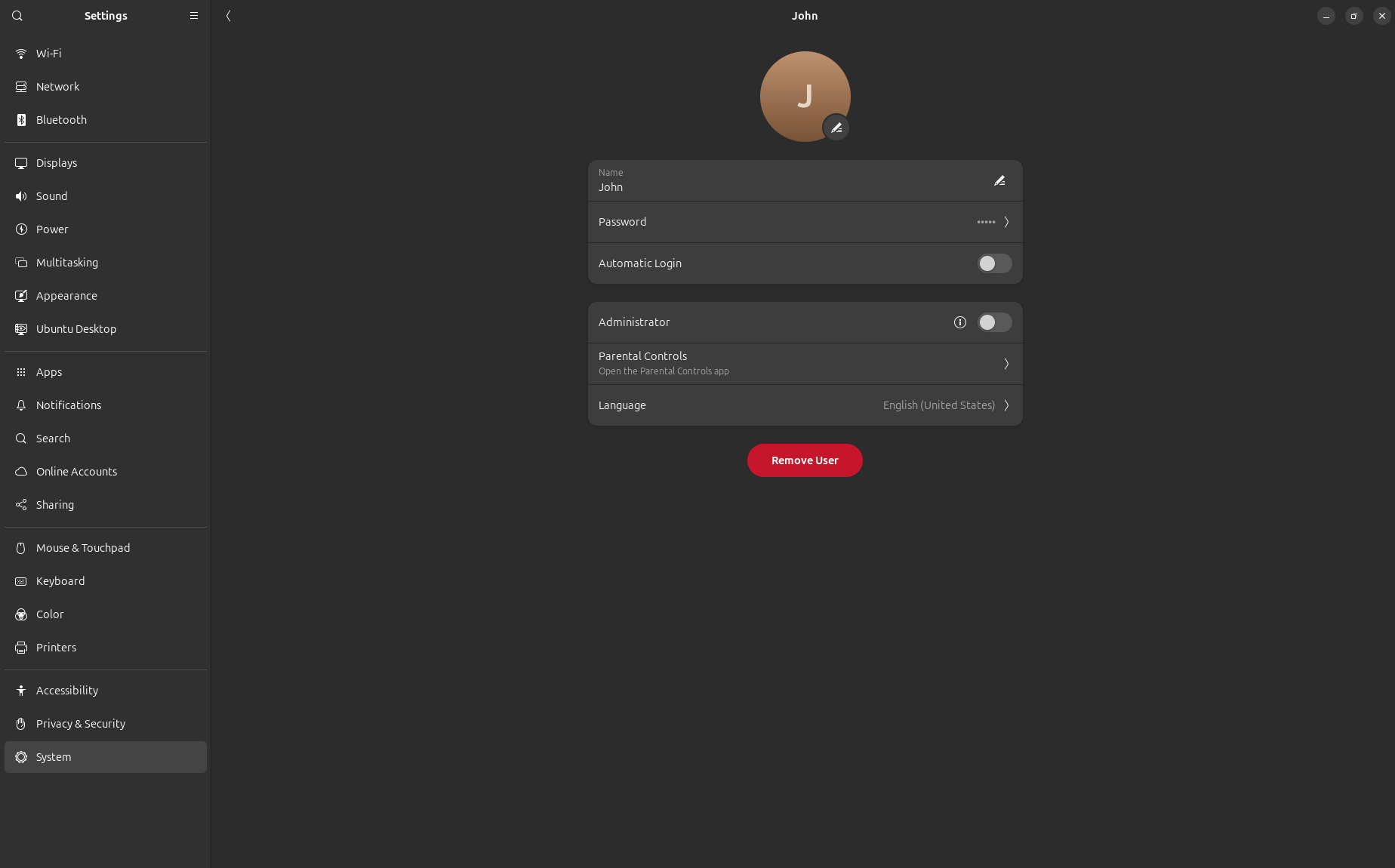
Where can it be checked if the script worked on the device?
Apart from the Action History in the portal, you can check the device locally. For example, if your script created a user, go to Settings > System > Users to see the new account.
Does Hexnode support Python or other languages for Linux?
The primary supported format is Bash (.sh). However, you can often trigger other installed interpreters (like Python) from within a Bash script if they are pre-installed on the device.


