


Category filter
How to configure Media management settings for Windows devices?
Configuring media management settings for managed devices is crucial to ensure controlled access to external media and storage devices. This can help prevent unauthorized data transfer and protect sensitive information. IT administrators can enable or disable device’s permissions to execute, read, and write data from/to various external media, such as removable disks, optical disks, floppy disks, tape drives, etc. This doc helps you configure different settings for Windows media management.
Configure Windows media management settings
To configure media management settings using Hexnode UEM, follow these steps:
- Login to your Hexnode UEM portal.
- Navigate to Policies > New Policy. Assign a suitable name and description (optional) for the policy. You can also choose to continue with an existing policy.
- Go to Windows > Security > Media Management. Click Configure.
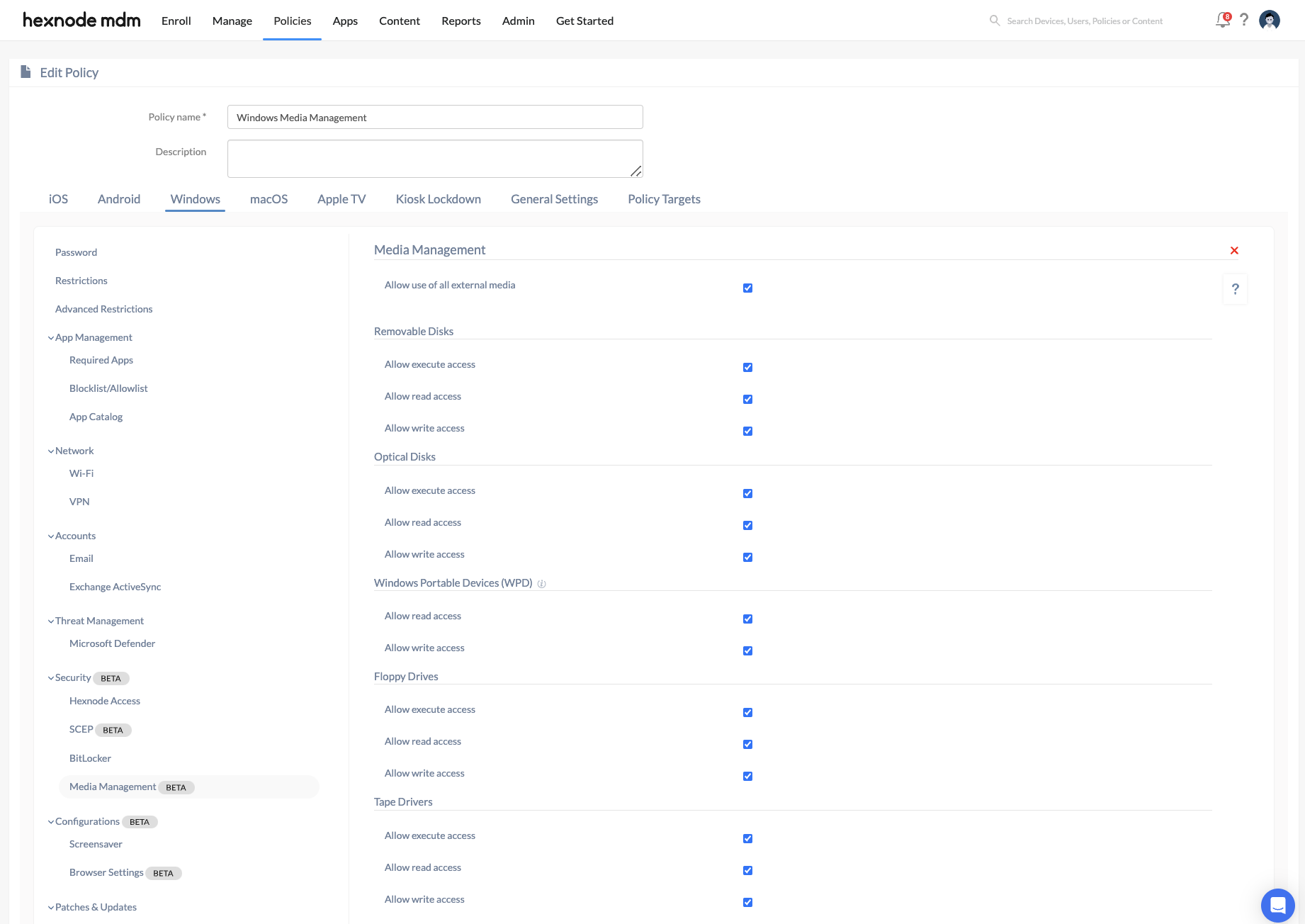
Configure external media access settings
- Allow use of all external media:
- Allow use of specific external media:
- Specify device ID:
Enable this option to permit the use of all external media devices.
Enable this option to restrict usage to specific external media devices. This option will only be visible if “Allow use of all external media” is disabled.
Enter the hardware ID of the external media devices you want to permit. This option will only be visible if “Allow use of specific external media” is enabled.
Removable DisksYou can manage settings to control access to removable storage devices, such as USB drives.
Settings Description Allow execute access Enable this option to allow devices to run executable files (e.g., .exe, .bat, .com) from removable media. Allow read access Enable this option to allow devices to read data from removable disks. When disabled, access to open removable disks will be prohibited. Allow write access Enable this option to allow devices to write data to removable disks. This includes creating, modifying, and deleting files. Optical DisksYou can manage settings to control access to optical storage devices such as CDs, DVDs, and Blu-ray disks.
Settings Description Allow execute access Enable this option to allow devices to run executable files from optical disks. Allow read access Enable this option to allow devices to read data from optical disks. When disabled, access to open optical disks will be prohibited. Allow write access Enable this option to allow devices to write data to optical disks. This includes creating, modifying, and deleting files. Windows Portable Devices (WPD)You can manage settings to control access to Windows Portable Devices such as digital cameras, smartphones, and portable media players.
Settings Description Allow read access Enable this option to allow devices to read data from Windows Portable Devices. When disabled, access to open Windows Portable Devices will be prohibited. Allow write access Enable this option to allow devices to write data to Windows Portable Devices. This includes creating, modifying, and deleting files. Floppy DrivesYou can manage settings to control access to floppy disk drives.
Settings Description Allow execute access Enable this option to allow devices to run executable files from floppy disks. Allow read access Enable this option to allow devices to read data from floppy disks. When disabled, access to open floppy disks will be prohibited. Allow write access Enable this option to allow devices to write data to floppy disks. This includes creating, modifying, and deleting files. Tape DriversYou can manage settings to control access to tape backup drives.
Settings Description Allow execute access Enable this option to allow devices to run executable files from tape drives. Allow read access Enable this option to allow devices to read data from tape drivers. When disabled, access to open tape drives will be prohibited. Allow write access Enable this option to allow devices to write data to tape drives. This includes creating, modifying, and deleting files. - Click Save.
Associating the policy with devices
If the policy has not yet been saved:
- Navigate to Policy Targets.
- Select the target of the policy (Devices, Device Groups, Users, User Groups, Domain).
- Click on +Add Devices.
- Select the devices you want to apply the policy to and click OK.
- Click Save to apply the policies to the selected devices.
If the policy has already been saved:
- Go to the Policies tab.
- Select the policy you want to associate with devices.
- Click on Manage > Associate Targets.
- Select the devices or device groups to which you want to apply the policy.
- Click Associate to apply the policy to the selected devices.
What happens at the device end?
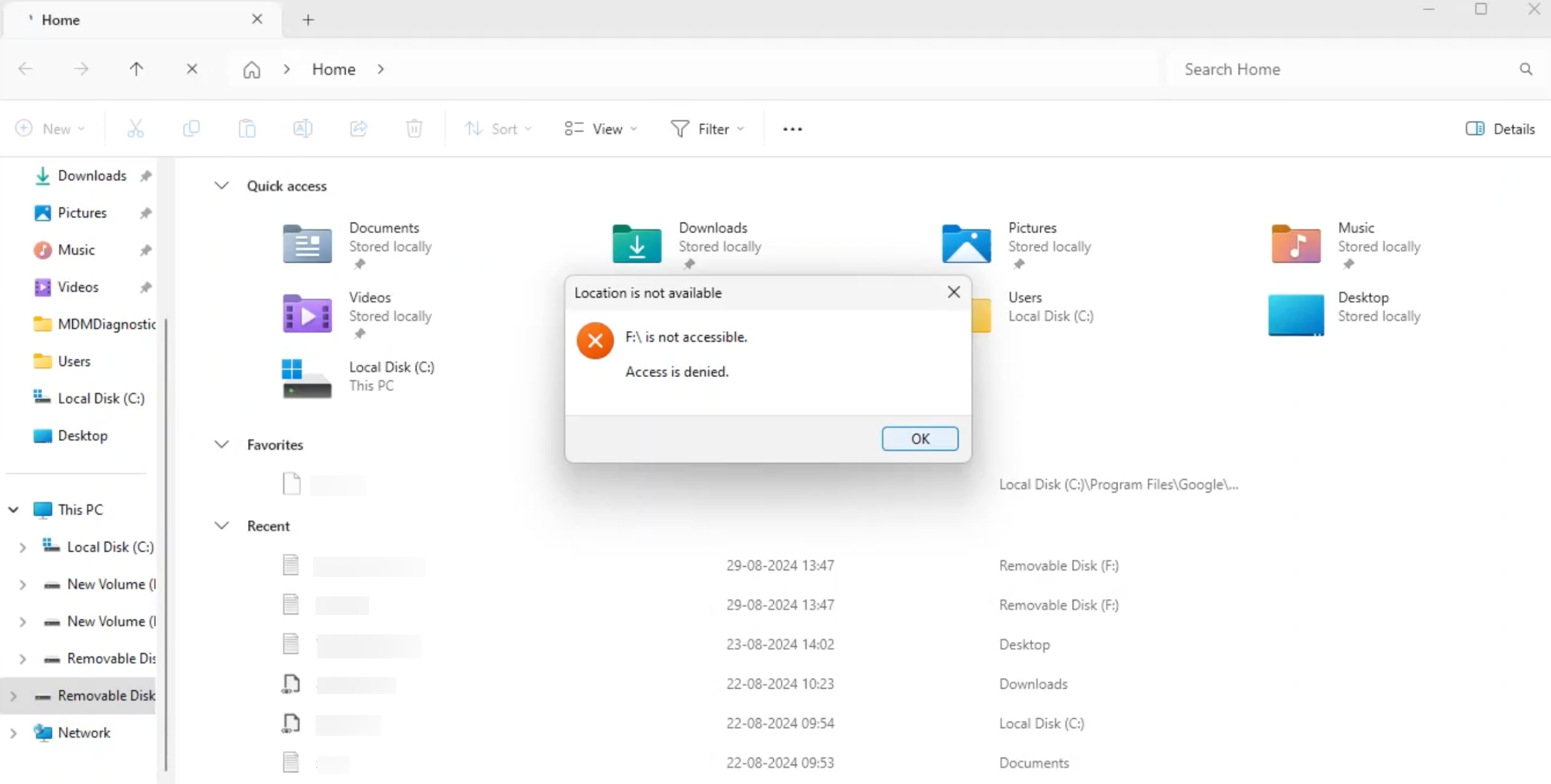
Once the policy is deployed, Windows devices will only be able to access external drives based on the permissions set in the policy—whether for reading, writing, or executing. If a device doesn’t have the necessary permissions, an error will be displayed accordingly.
For example, if read access to removable disks is disabled, attempting to open the disk will result in the following error message:
Frequently Asked Questions
1. What happens if the admin applies multiple media management policies to the same device?
If multiple policies with conflicting media settings are associated with a single device, Hexnode UEM applies the most restrictive setting. For example, if one policy allows write access and another denies it, the admin will find that the device is restricted from writing data.
2. Does blocking “Removable Disks” also block USB mice and keyboards?
No. The Windows Media Management policy specifically targets storage class devices (Mass Storage). Human Interface Devices (HIDs) like keyboards, mice, and scanners are governed by different driver classes and will remain functional even if all external media access is disabled.
3. What is the impact of the Media Management settings on Windows BitLocker?
If the admin disables “Allow write access” for removable disks, users will be unable to encrypt new USB drives using BitLocker, as the encryption process requires writing metadata to the drive. However, reading an already encrypted drive will still work if “Allow read access” is enabled.
4. Does this policy affect Cloud Storage (OneDrive, Google Drive)?
No. This policy manages physical hardware interfaces. To restrict cloud-based data transfer, the admin would need to use Application Management or Content Filtering policies rather than Media Management.
Troubleshooting
1. Policy not reflecting on the device after association.
Probable Cause:
The device has not yet communicated with the Hexnode UEM to fetch the latest policy.
Solution:
On the Windows device, navigate to Settings > Accounts > Access work or school. Select the MDM account, click Info, and then click Sync.
2. User can still write to USB despite “Allow write access” being disabled.
Probable Cause:
The USB was plugged in before the policy was synced, and the file handle is still active.
Solution:
The admin should instruct the user to eject the USB and re-insert it. If that fails, a device restart is required.
Best Practices
- Combine with Windows Defender: Media Management prevents data theft, but it doesn’t always stop malware already on a drive. The admin should always pair these policies with a Windows Defender policy that automatically scans removable drives upon mounting.
- Define Clear Exceptions: If a specific department (like Marketing or Legal) requires large data transfers, the admin should place them in a dedicated Device Group in Hexnode to receive a more lenient policy than the rest of the organization.


