Category filter
AI-powered assistance with Hexnode Genie AI
Hexnode Genie AI is an AI-powered assistant designed to help IT administrators with device management in Hexnode. It offers both chat-based support and assistance with script generation in real time. Available whenever the user requests, Hexnode Genie AI offers comprehensive support for using Hexnode by explaining its features or providing step-by-step guidance. Whether you need help understanding a feature, troubleshooting an issue, or have questions about Hexnode UEM, Hexnode Genie AI offers prompt responses based on your requirements. Conveniently, Hexnode Genie AI can be accessed from anywhere within the Hexnode UEM console, ensuring support is always within reach for device management.
How to start using Hexnode Genie AI?
- Log into Hexnode UEM.
- Click on the Hexnode Genie button located at the bottom-right corner of the console. This will launch Hexnode Genie.
- Upon opening Hexnode Genie, you’ll be presented with two options:
- Chat with Hexnode Genie AI
- Chat with Hexnode Support
Chat with Hexnode Genie AI
Hexnode Genie AI is an AI-powered inventory and troubleshooting analyst available within the Hexnode console.
Select this option to interact with the Hexnode’s AI chat assistant: Hexnode Genie AI. It can help you with:
- Explaining Features: Get detailed insights into the features of Hexnode UEM.
- Step-by-Step Guidance: Learn how to use specific features with clear, guided instructions.
- Answering Questions: Ask any questions about Hexnode UEM, and Genie will provide answers based on the help documentation.
- Troubleshoot Errors: Receive guidance on resolving errors and issues by reviewing action history and error messages.
- Filter Devices: Retrieve device information from your portal. For example, you can ask Hexnode Genie AI to “List all Android devices”, and it will display the corresponding Android devices in the portal.
You can launch the Hexnode Genie AI chat from anywhere in the console using a keyboard shortcut:
- macOS: Command + G
- Windows: Ctrl + G
How to enable Chat with Hexnode Genie AI?
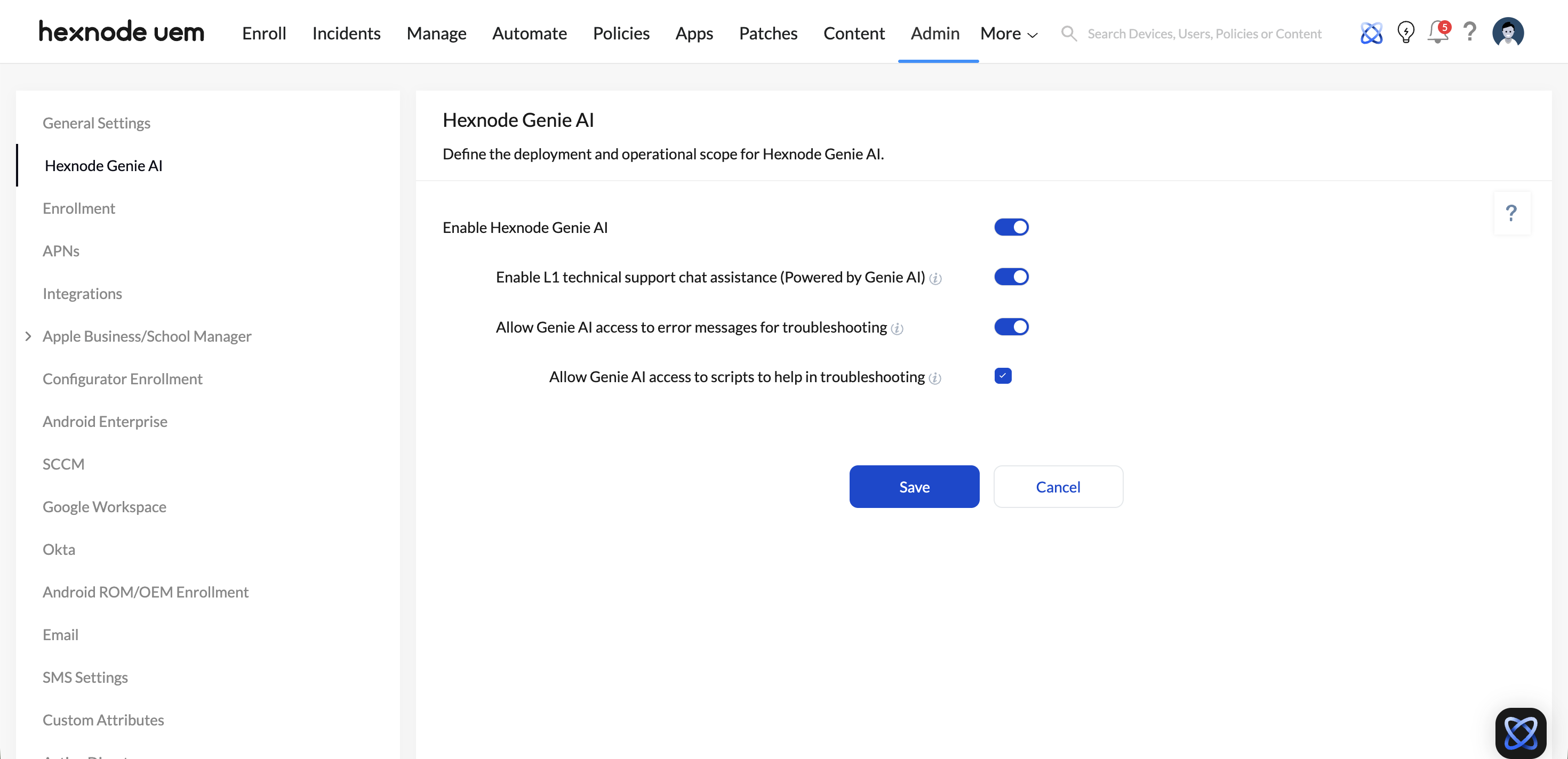
To configure Hexnode Genie AI, navigate to Admin > Hexnode Genie AI in the Hexnode UEM console. From here, you can define the deployment and operational scope of Genie AI by enabling or disabling the available options.
The following options are available to configure:
- Enable Hexnode Genie AI: Enables Hexnode Genie AI across the entire portal. This option must be enabled to use any Genie AI features.
- Enable L1 technical support chat assistance (Powered by Genie AI): Grants Genie AI access to public Hexnode UEM documentation and enables it to answer questions related to Hexnode UEM.
- Allow Genie AI access to device details: Grants Genie AI access to device details (such as device name, serial number, associated user, compliance status) to answer queries.
- Allow Genie AI access to error messages for troubleshooting: Reviews previous action history and error messages to provide contextual insights and help resolve failed actions.
- Allow Genie AI access to scripts to help in troubleshooting: Grants access to scripts executed on the device from action metadata to assist with troubleshooting.
You can also troubleshoot errors from the Action History page, where a “Fix it with Genie” button is shown next to failed actions.
Chat with Hexnode Support
Choosing this option allows you to engage in real-time conversations with Hexnode’s support team. Here’s how it can help:
- Resolve Issues: Get help with troubleshooting problems.
- Personalized Guidance: Get personalized guidance on Hexnode UEM features.
- Quick Answers: Address your queries efficiently with live support.
When you open Chat with Hexnode Support, you’ll see three sections:
- Home: Send messages to the support team and view updates on upcoming features and related announcements.
- Messages: Access all your ongoing and previous conversations with support.
- News: Stay informed about new features, improvements, and other updates from Hexnode.
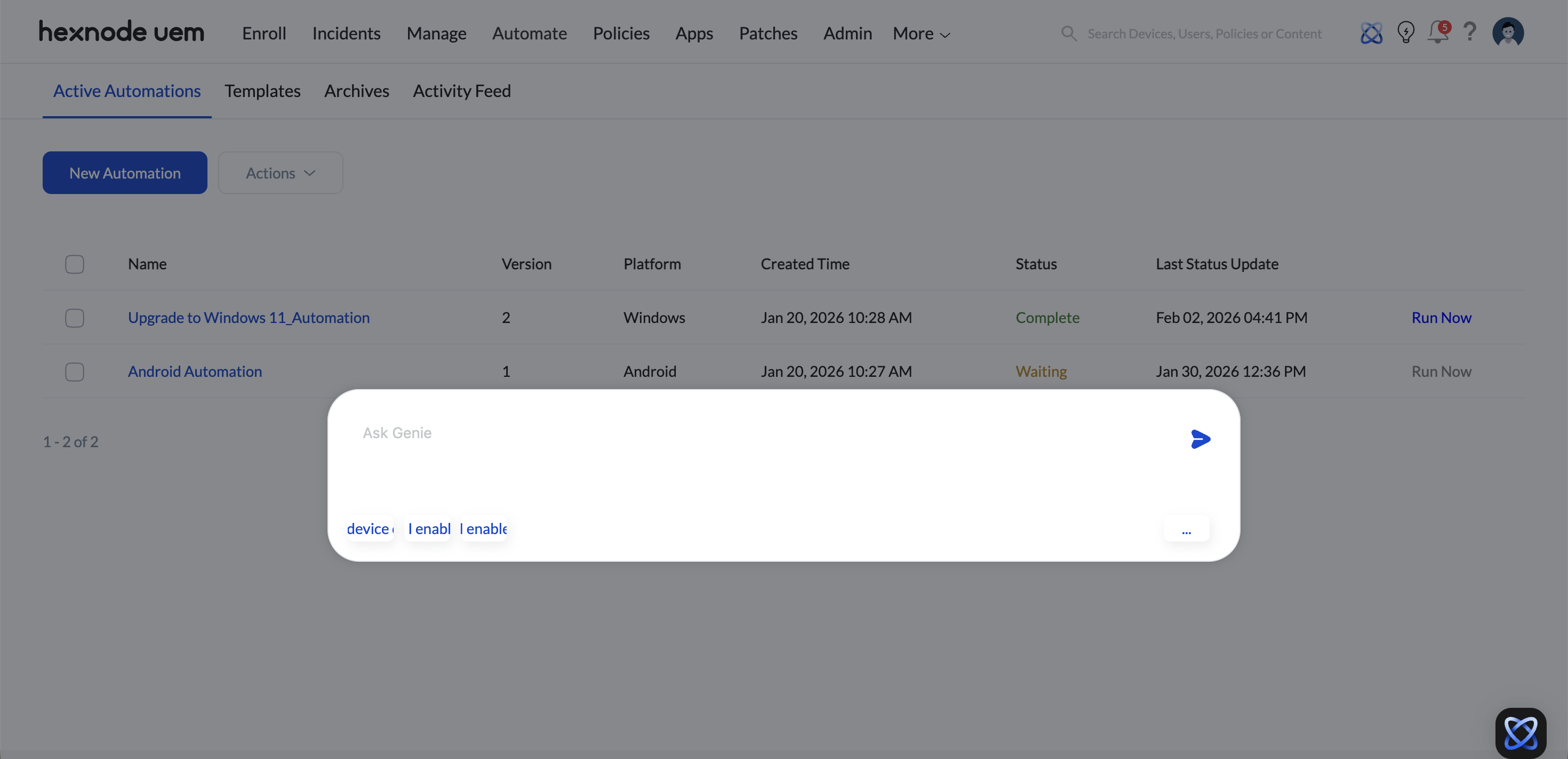
You can also access the Hexnode’s AI Chat Assistant (Hexnode Genie) by clicking the Hexnode Genie icon at the top-right corner of the Hexnode console. From there, select Ask Genie to open the AI-powered chatbot dialog box. Alternatively, choose Script with Genie to create and validate scripts using Hexnode Genie.
How to disable Hexnode Genie chat module?
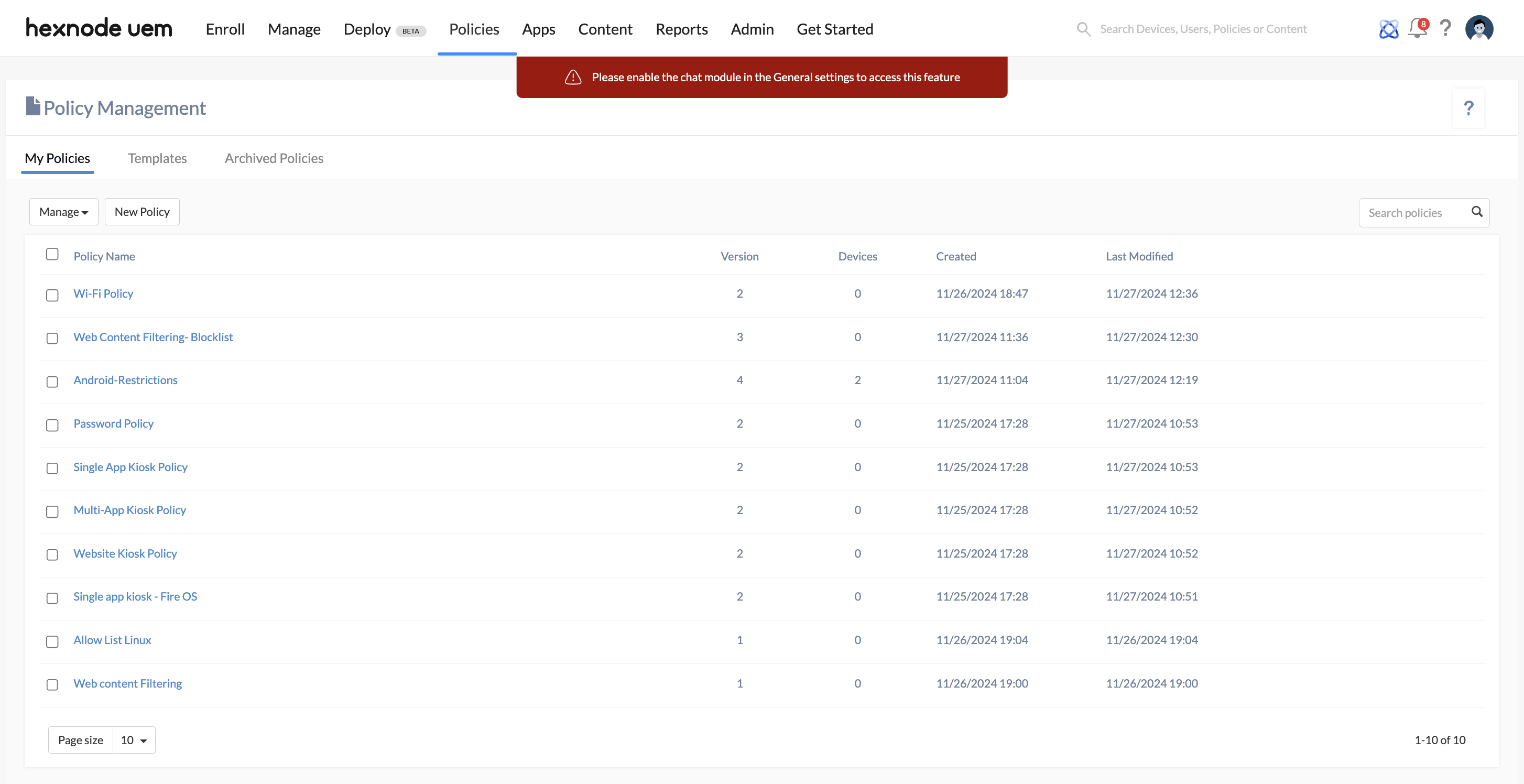
To disable the Hexnode Genie button (AI-powered chatbot) at the bottom right of the Hexnode console, follow these steps:
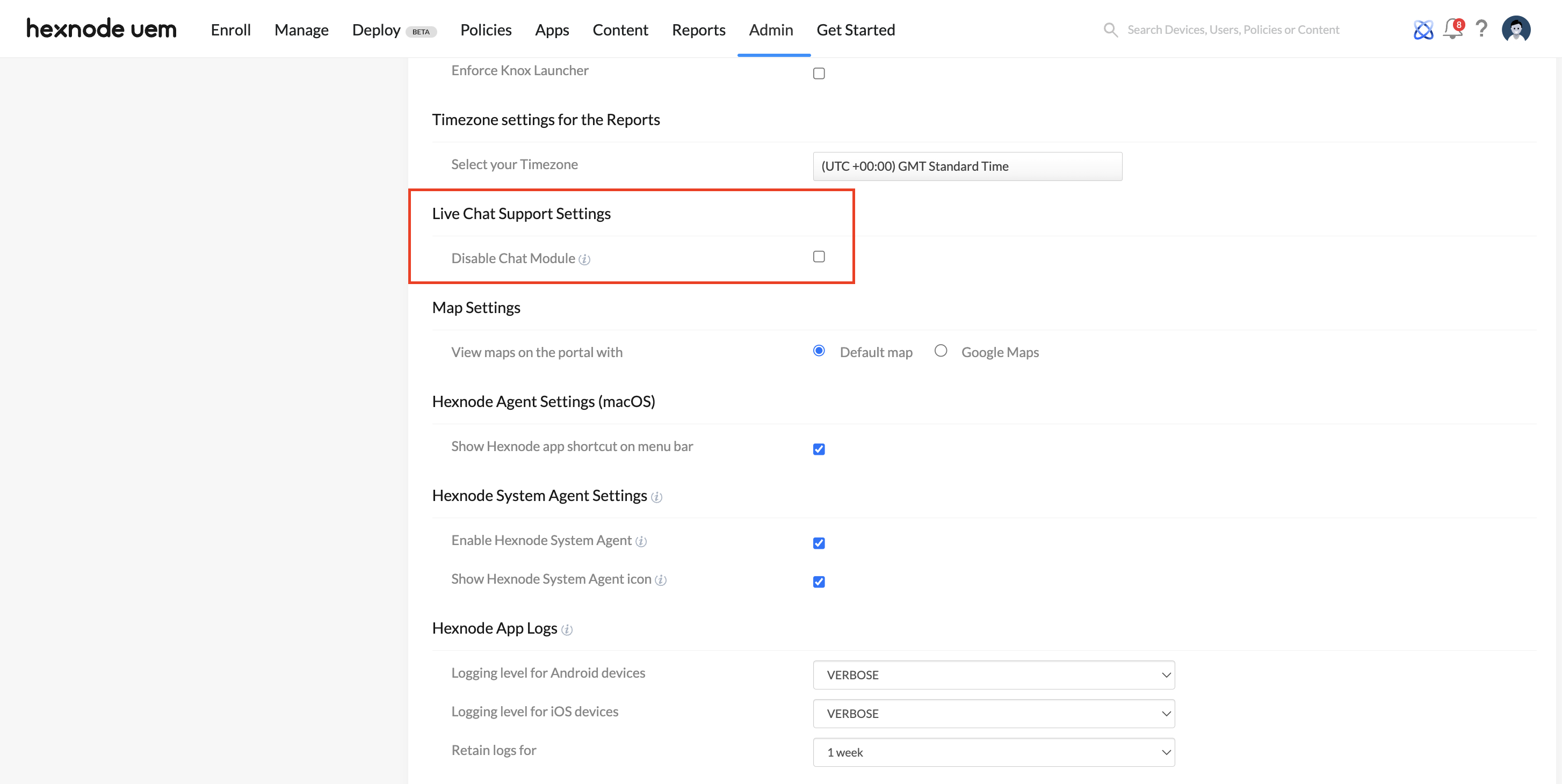
- Navigate to Admin > General Settings.
- Under Live Chat Support Settings, select Disable Chat Module and click Save.
This will turn off the AI chat assistant feature, removing the chatbot from your Hexnode UEM console. Once disabled, the AI-driven chat assistance will no longer be available until it is re-enabled.
To re-enable the chatbot, simply navigate back to this section and uncheck the Disable Chat Module option to enable the AI-powered chatbot again.