


Category filter
How to Create and Manage Custom Reports in Hexnode UEM
Executive Summary: Hexnode UEM allows IT administrators to generate tailored reports by selecting specific device attributes, applying conditional filters, and choosing custom data columns. To create a custom report, navigate to Reports > Custom Reports > Add, select a report type, and configure your data filters.
What are custom reports in Hexnode UEM?
Custom reports are dynamic data exports that allow administrators to filter for specific organizational needs rather than using pre-defined sets. Unlike built-in reports, custom reports support granular “Condition Filters” and “Data Columns” to isolate specific variables like compliance status, application inventory, or user enrollment details.
Custom Report Types and Use Cases
| Report Type | Primary Purpose | Key Data Included |
|---|---|---|
| Device | Comprehensive record of managed hardware. | Serial numbers, OS versions, compliance. |
| User | Consolidated report of all enrolled users. | Usernames, associated devices, departments. |
| Location | Detailed history of device movement. | GPS coordinates, timestamps, breadcrumbs. |
| Application | Inventory of managed and unmanaged apps. | App versions, App Identifier, installation counts. |
| Audit | Security log of all portal events. | Administrative event Performed, Technician Name, Event Module. |
| Action | Log of remote commands executed. | Wipe, lock, scan, and script results. |
| Device and Installed Application | Cross-referenced device and app data. | Per-device app lists, versioning gaps. |
How to create a custom report in Hexnode UEM?
Follow these step-by-step instructions to build a report from scratch or using a template:
- Access the Portal: Log in to your Hexnode UEM portal.
- Navigate to Reports: Go to the Reports tab and select Custom Reports from the left-hand sidebar.
- Add a New Report: Click the Add button.
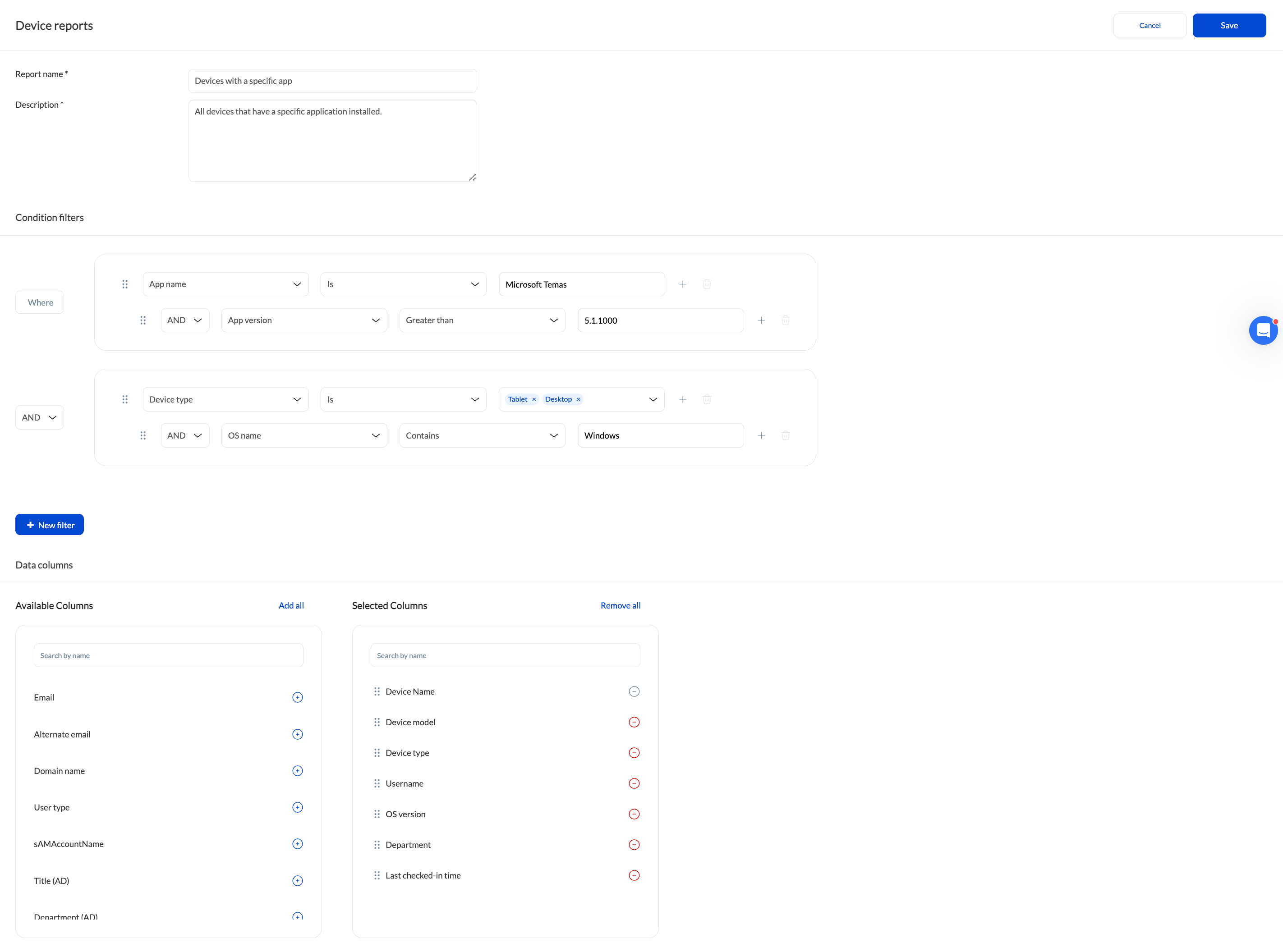
- Configure Basics: – Enter a Report Name and Description.
- Choose a Report Type (e.g., Device, Application).
- Apply Condition Filters: Use logic (e.g., OS name is iOS AND Compliance status is Non-compliant) to narrow down the data.
Select Data Columns: – Choose attributes from the Available Columns section.
- Note: The Device Name column is mandatory and cannot be removed.
- Save and Generate: Click Save.
Frequently Asked Questions
1. Can I automate the delivery of custom reports created?
Yes. Once a custom report is saved, navigate to Reports > Scheduled Reports. You can configure these to be emailed to specific recipients (admins or technicians) in PDF or CSV format at daily, weekly, or monthly intervals.
2. Can I execute actions on devices directly from a report?
Hexnode allows “Report-to-Action” workflows. After generating a custom report, select the devices from the list and click the Actions button to push remote commands like Scan Device or Lock Device without leaving the report page.


