


Category filter
How to configure CalDAV on macOS devices?
CalDAV (Calendaring Extensions to WebDAV) is a service that syncs multiple calendars, reminders, events, and notifications from various CalDAV supported calendar servers to your device. This facilitates remotely setting up organizational calendars on the workforce’s devices yourselves with zero or no assistance from the workforce.
Configure CalDAV account settings via policy
To configure CalDAV via policy,
- Login to your Hexnode UEM portal.
- Navigate to Policies > New Policy. Assign a suitable name and description (optional) for the policy. You can also choose to continue with an existing policy.
- Go to macOS > Accounts > CalDAV. Click Configure.
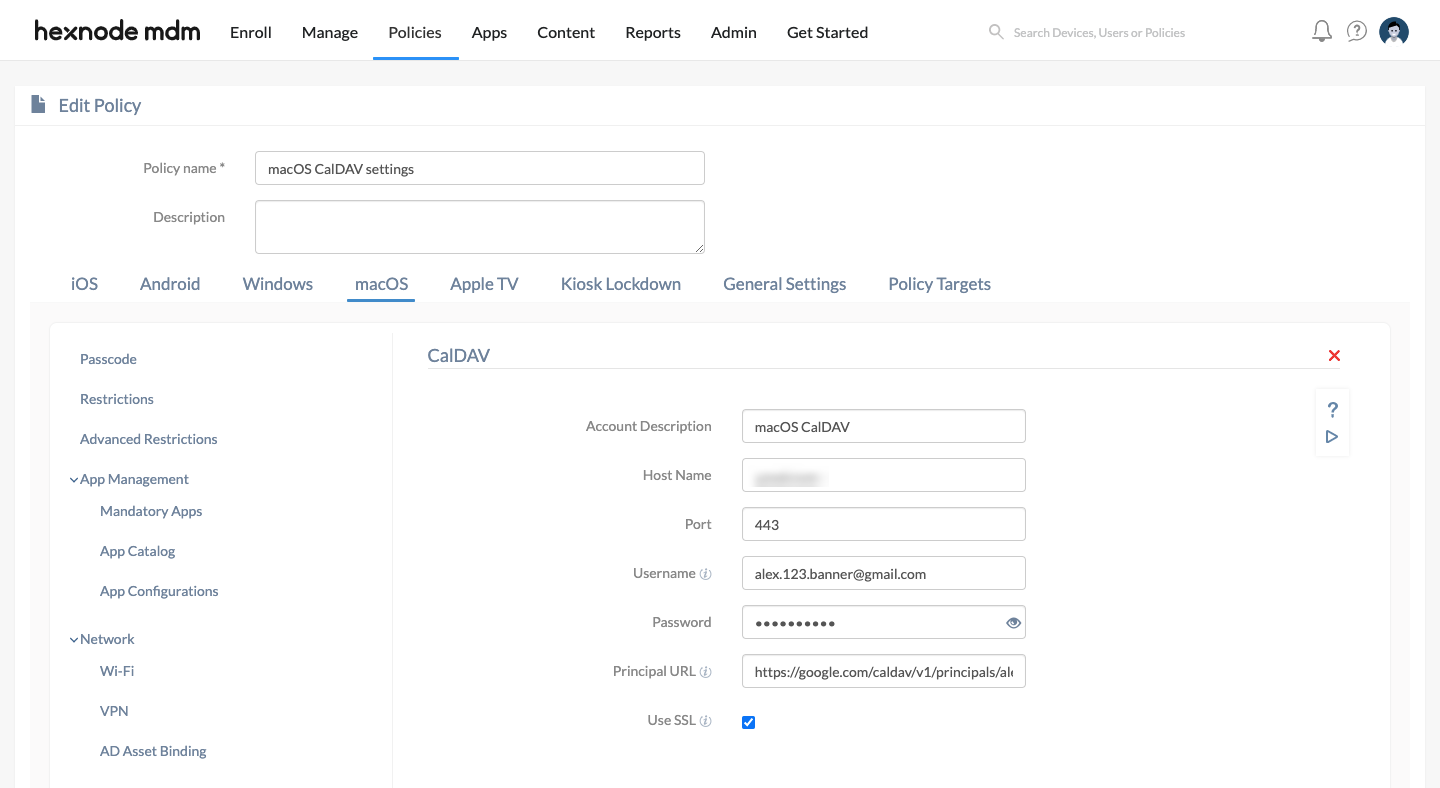
| CalDAV Settings | Description |
|---|---|
| Account Description | When there is more than one configuration, a description would be helpful to distinguish. However, this field is optional. |
| Host Name | The IP address or the Fully Qualified Domain Name (FQDN) of the CalDAV server. |
| Port | The port number assigned for communication with the CalDAV server. The default port number is 8443. |
| Username | Provide the username of the account. This field supports the use of wildcards. The supported wildcards are
|
| Password | Password associated with the username provided above. |
| Principal URL | The principal URL provides information regarding a user’s CalDAV accounts. No separate principal URLs are available for multiple calendars of the same user. The Principal URL is mandatory if the password is not provided by the user, else the auto-recovery of the service will fail, and the account will not be created. |
| Use SSL | SSL makes the connection between you and the CalDAV server more secure by encrypting the data sent to the server. Enabled by default. |
Associate policy with macOS devices or users
To associate the policy with the target entity,
- Navigate to Policy Targets > +Add Devices. Choose the target device and click Ok. Click Save.
- You can also associate the policy with Device Groups, Users, User Groups, or Domains from the left pane of the Policy Targets tab.
- Alternatively, the policy can be associated from the Manage drop-down of the Policies tab. Click Manage > Associate Targets. Choose the target entity and click Associate.
What happens at the device end?
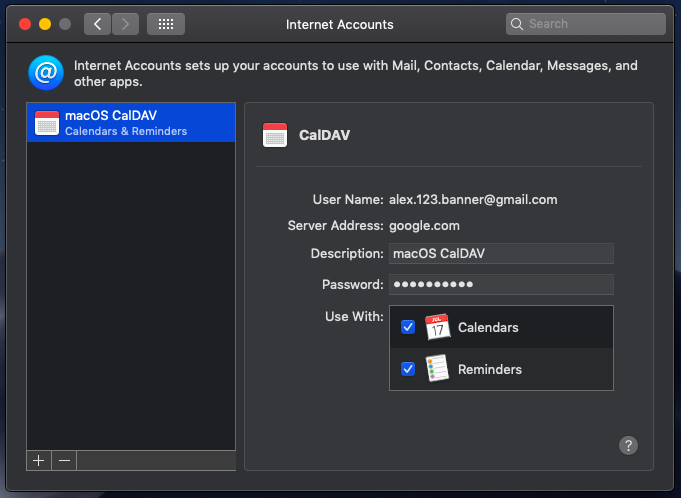
Once the policy is associated successfully, the CalDAV account will be added and gets synced with the device. All the calendars associated with the configured account can be accessed from the Calendar app on your macOS device.
FAQs
Q1. Can multiple CalDAV accounts be configured on the same macOS device?
Yes. Administrators can configure multiple CalDAV accounts via policy. To distinguish between them, use the Account Description field so users can identify which calendar belongs to which account.
Q2. What happens if the CalDAV server credentials change after policy deployment?
If the username or password changes, administrators must update the CalDAV policy in Hexnode UEM and re‑associate it with the target devices. Otherwise, the account will fail to sync until the new credentials are applied.
Troubleshooting Guides
1. CalDAV Account Not Syncing
Symptom: The Calendar app on macOS does not display events from the configured CalDAV account.
Cause: Incorrect Host Name, Port, or Principal URL settings in the policy.
Solution: Verify that the CalDAV server details (FQDN/IP, port number, and principal URL) are correct. Ensure SSL is enabled if required by the server. Update the policy and re‑associate with the device.
2. Authentication Failure During CalDAV Setup
Symptom: macOS prompts for credentials repeatedly, or the account fails to authenticate.
Cause: Invalid username/password or unsupported wildcard usage in the policy.
Solution: Confirm that the credentials provided are correct. If wildcards (e.g., %email%) are used, ensure they match the user’s directory attributes. Update the policy with valid credentials and re‑deploy.
Best Practices
- Use clear account descriptions: Provide meaningful names in the Account Description field to distinguish multiple CalDAV accounts on the same device.
- Verify server details: Double‑check the Host Name, Port, and Principal URL before deploying policies to avoid sync failures.
- Enable SSL: Keep SSL enabled to ensure secure communication between macOS devices and the CalDAV server.
- Use wildcards carefully : When using wildcards like %email%, confirm they match directory attributes to prevent authentication errors.
- Test policies before wide rollout: Apply the CalDAV policy to a small group of test devices first to validate settings before mass deployment.
- Maintain audit records: Document policy configurations and changes for compliance, troubleshooting, and governance.


