


Category filter
Configure app patches for Windows devices using Hexnode UEM
App updates play a crucial role in app management in making sure that the performance and security of applications are at optimal levels. The updates can include new app features, bug fixes or security patches. Regular updates of applications help in maintaining the productivity of users by providing the latest versions of the apps and ensuring that they do not face any compatibility issues with the rest of the system.
The Hexnode UEM portal can be used to streamline app updates by remotely enforcing updates on all apps including store apps and enterprise apps across your Windows devices. With a catalog of over 1,300 applications maintained within the Hexnode Store, Hexnode provides one of the industry’s most comprehensive third-party patching solutions, significantly reducing the manual packaging burden for IT administrators. It also allows you to configure how existing apps on the device are updated to meet the and organization’s needs.
Configure patches and updates for apps
Follow the steps below to configure the app updates on your device.
- Log in to your Hexnode UEM portal.
- Navigate to the Policies tab.
- Click on New Policy to create a new policy and enter the policy name and description (optional) in the provided fields. You can also choose an existing policy and make edits to it.
- Navigate to Windows and select App Updates under Patches & Updates.
- Click on Configure.
App Updates
You will have the following options to configure the app updates settings.
- Maintenance Window
- Auto-update preference
-
Maintenance Window
This option is used to specify the time frame during which the device will undergo updates and maintenance. The updates include application updates.
Setting Description Outside of device’s Active Hours Select this option to update the apps outside of the device’s active hours. Set a maintenance window Select this option to set a time window during which the apps will be updated.
Under Set a maintenance window, you will have the following settings:
- Scheduled Days: You can choose between the following options depending on when you want the updates to take place,
- Everyday: Updates are performed every day.
- Selected days: Updates are carried out on the selected days.
- Weekly: Updates are carried out every week on the specified day.
- Scheduled Time: You can schedule the time window during which the updates will be performed by setting the Start time and End time.
- Scheduled Days: You can choose between the following options depending on when you want the updates to take place,
-
Auto-update preference
The options below will help you configure the auto-update settings of applications.
Setting Description Update all apps On selecting this option, all applications supported by the Hexnode Store will be automatically updated. Update targeted apps only Selecting this option will update only the targeted apps selected in the Targeted Apps section. Scan for updates, do not auto-update apps On selecting this option, the system will be scanned for any app updates but will not undergo auto-updates.
Targeted Apps
Targeted Apps specify the apps that are to be targeted by the app update policy. You can select from Hexnode’s vast library of 1,300+ pre-packaged applications to ensure your most critical third-party tools are of the latest versions. Choose the target apps and set their update preferences by following the steps below,
- Click on Add apps.
- Select the apps you want to configure and click on Add.
- To set the update preferences, click on Edit which will open up the Preferences window.
- Under Preferences, you can select either Basics or Advanced Configurations to choose the update settings.
- Then click on Add.
Under Basics Configurations, you can configure the following settings:
| Setting | Description |
|---|---|
| Target Version | Specifies the maximum approved version of the target application. |
| Version Enforcement | Specifies how to enforce the version updates. Choose any of the options below:
|
Under Advanced Configurations, you can configure the following settings:
| Setting | Description |
|---|---|
| Update Behavior | Specifies the update behavior of the apps. You can choose either Update automatically or Do not auto-update. |
| Uninstall previous versions | Checking this option uninstalls the previous versions of the app on the device during installation.
|
| Enable logging | Checking this option enables the logging of the installation process. |
| Add command line parameters | Checking this option allows you to add command line parameters. It supports the use of wildcards. |
| Installation timeout | Specifies the time period after which the app installation is forcefully terminated. |
Apply the App Updates policy to Windows devices
There are two ways by which you can associate the policy to manage App updates settings on the devices.
If the policy hasn’t been saved,
- Navigate to Policy Targets.
- Click on +Add Devices.
- Search and select the required device(s) to which you need to apply the policy. Click OK.
- Click on Save to apply the policy to the devices.
If you have already saved the policy,
- Navigate to Policies > My Policies and select the required policy.
- Click on Manage and select Associate Targets.
- Select the required Devices, Users, Device Groups, User Groups or Domains.
- Click on Associate.
Verify app updates
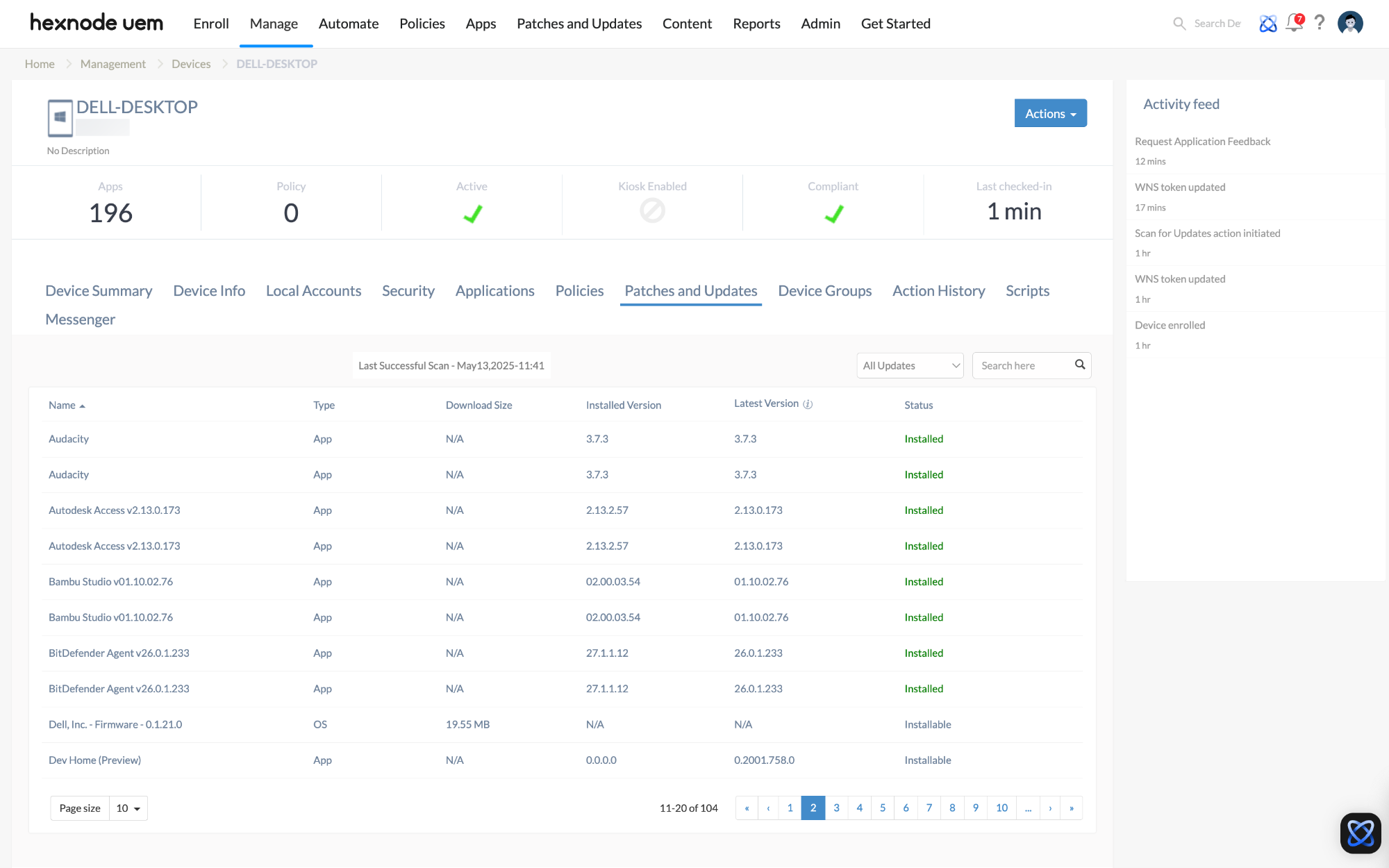
On applying the policy successfully on the device, you can verify from the Hexnode console if the apps have been updated. Navigate to the Patches and Updates sub-tab in the Device details page. Under this tab, you can view the update status and the installed and the latest versions of an application.
You can verify whether a specific application is updated by checking the Status column against the Latest Version column.
- If Status is “Installable”, it means the application is not yet updated to the latest version and is available for installation.
- If Status is “Installed”, it indicates the application has been successfully updated to the latest version.
Frequently Asked Questions
1. What happens if a device is powered off or offline during the entire scheduled Maintenance Window?
If a device misses its scheduled window, the Hexnode Agent will not initiate the update until the next available window begins. Hexnode does not force the update immediately upon power-on if that time falls outside the allowed window defined in the App Updates policy.
2. Does the “Installation Timeout” include the time taken to download the app package?
No. The Installation Timeout clock only begins after the application package has been fully downloaded to the endpoint. It defines the maximum duration permitted for the installer to execute. If the installer does not complete within this window, Hexnode UEM will forcefully terminate the installation process to prevent hung tasks, but it does not govern the initial download phase.
Troubleshooting
1. The application status remains “Installable” in the Patches and Updates sub-tab of the Device Details page, even after the configured Maintenance Window has elapsed.
Probable Causes:
- The device was powered off or disconnected from the network during the scheduled maintenance window, preventing the download from initiating.
- The Installation Timeout expired before the installer could finish its task. Consequently, the Hexnode Agent terminated the installation process mid-way.
Solutions:
- Verify the device’s connectivity and power state during the scheduled window.
- Increase the Installation Timeout value under the Advanced Configurations to accommodate large application packages or complex installations that require extended execution time.
- Execute a Scan for Updates from the Actions menu to refresh the status in the Patches and Updates sub-tab.
2. The “Target Version” is reached on the device, but the app status remains “Installable” in the Patches and Updates sub-tab of the Device Details page.
Probable Causes:
- The device has not reported its updated inventory back to the Hexnode server.
- The app’s internal versioning string (Display Version) in the Windows Registry does not match the version string entered in the Hexnode portal.
Solutions:
- The admin must execute the Scan for Updates action from the device details page to refresh the data.
- Verify that the version number entered in the Basics Configuration exactly matches the installed version.
Best Practices
- Staggered Update Deployment: Rather than targeting the entire organization at once, the admin should first apply the update policy to a “Pilot” device group. This helps identify potential compatibility issues before the patch reaches the wider production environment.
- Combine “Update all apps” with Targeted apps: To maintain a high security posture without risking critical software, administrators should use the Update all apps preference while simultaneously adding mission-critical tools (like ERP or CAD software) to the Targeted apps list. This creates a dual-layer strategy: most applications stay on the latest version for security, while your sensitive business tools remain locked to a pre-verified Target Version, preventing updates from disrupting essential workflows.


