


Category filter
Advanced Dynamic Group Logic for Multi-National Organizations
This technical documentation outlines the configuration of Dynamic Device Groups within Hexnode UEM. It is designed for enterprise architects managing 5,000+ endpoints, focusing on automating lifecycle management through Identity Provider attribute synchronization, nested logical operators (AND/OR), and Regular Expression (Regex) extraction.
1. Architectural Overview
At an enterprise scale of 5,000+ users, manual group assignment creates critical bottlenecks and security gaps. Hexnode UEM resolves this by functioning as a real-time evaluation engine. By utilizing Dynamic Device Groups, the console continuously evaluates devices against pre-defined conditions during periodic syncs.
When paired with Active Directory (AD) or Entra ID integrations, Hexnode can read user attributes (e.g., Department, Role) and device states, automatically routing endpoints into the designated groups. This triggers immediate, zero-touch policy associations (provisioning) and disassociations (deprovisioning) without administrative intervention.
2. Implementing Nested Logic
To execute complex, multi-tiered routing, Hexnode utilizes Nested Constraints. This allows administrators to group multiple conditions into logical blocks using the ellipsis icon in the dynamic group builder.
Configuration Steps
- Navigate to Manage > Device Groups > New Dynamic Group.
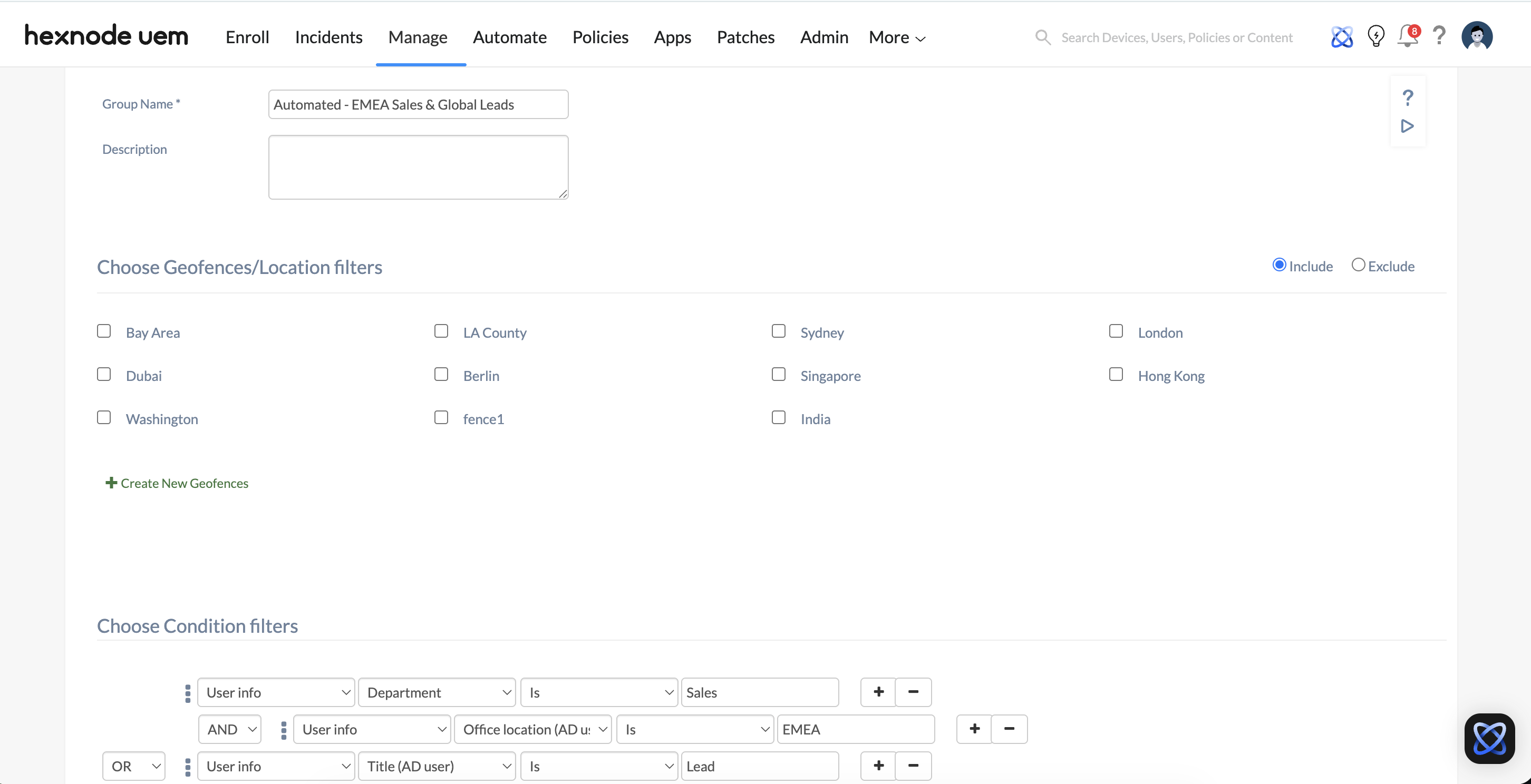
- Provide a standardized Group Name (e.g., Automated – EMEA Sales & Global Leads).
- Under Condition Filters, build your first logical block (the AND statement):
- Click the Ellipsis icon to create a nested group.
- Condition 1: Select User Info > Department > Is > Sales.
- Click the + icon inside the nested block. Set the operator to AND.
- Condition 2: Select User Info > Office location (AD User) > Is > EMEA.
- Define the secondary logic (the OR statement):
- Click the + icon outside of the first nested block to add a new primary condition line.
- Set the primary operator to OR.
- Condition 3: Select User Info > Title (AD User) > Is > Lead.
- Click Preview to validate the current matches, then click Save Group.
Logic Execution: Hexnode will automatically add any device that belongs to a Sales employee located in EMEA. It will also add any device assigned to an employee with the “Lead” role, regardless of their department or geographical location.
3. Advanced Filtering with Regex & Custom Attributes
In multi-national orgs, critical routing data (like specific regional office codes) is often embedded within complex device hostnames or hardware tags rather than clean AD fields. Standard “Contains” filters are inefficient for this at scale. Hexnode solves this using a two-step Regex integration.
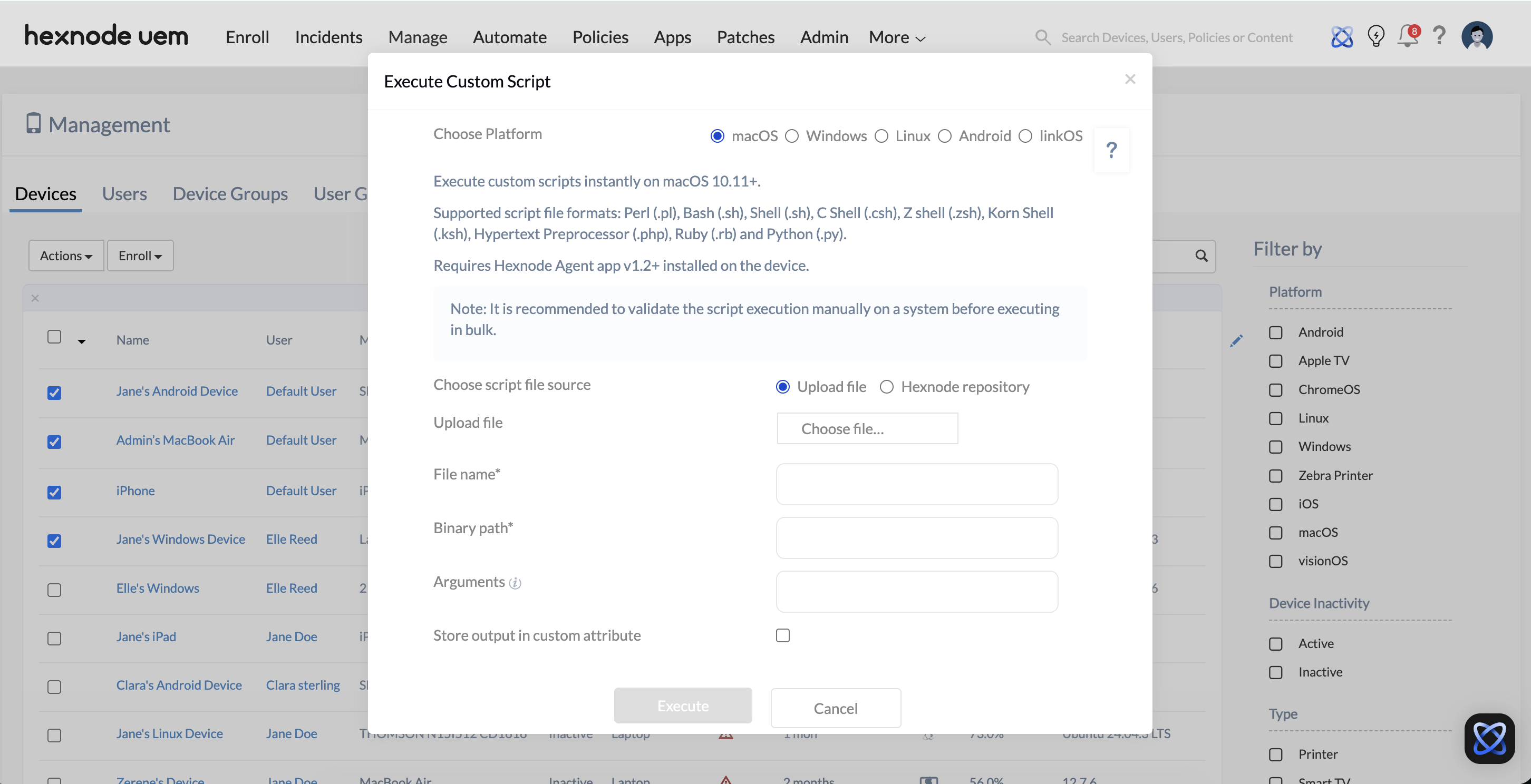
Step A: Extract Data via Custom Script
Instead of processing Regex heavily on the UEM console, Hexnode extracts the data locally and passes it back as a Custom Attribute.
- Action: Deploy a custom script to the fleet that reads the device hostname (e.g., EMEA-UK-SLS-Mac-042).
- Regex Pattern: Use a pattern like
^[A-Z]{4}to isolate the first four characters (“EMEA”). - Output: The script maps this isolated string to a Hexnode Custom Attribute (e.g., Regex_Location).
Step B: The Dynamic Filter
- Inside your Dynamic Group Condition Filters, select Custom Attribute from the dropdown.
- Select Regex_Location > Is > EMEA.
4. Enterprise Lifecycle Use Cases
1. Zero-Touch Policy Orchestration (Role Changes)
When an employee is promoted from “Sales Associate” to “Lead” in Active Directory, the IdP syncs this new attribute to Hexnode. During the next automated sync:
- The device evaluates as True for the Role=Lead dynamic group.
- Hexnode automatically shifts the device into the “Leadership” group.
- Standard Sales application configurations are automatically disassociated, and Leadership compliance policies (e.g., stricter passcode enforcement, executive VPN profiles) are deployed seamlessly.
2. Automated App Persistence (Self-Healing)
Use dynamic groups to create “Traps” for compliance drift.
- Condition: Compliance Info > Missing apps count > Equal to > 1.
- Action: When a user deletes a mandatory regional security agent, the device is immediately sucked into this dynamic group. An enforced policy tied to the group silently reinstalls the application. Once the app is present, the device leaves the dynamic group.
3. Automated Security Containment (Zero-Trust Quarantine)
When operating at scale, manual intervention during a security breach is too slow. Dynamic groups act as an automated quarantine mechanism for compromised endpoints.
- The Logic (Nested): Compliance Info > Compliance Status > Is > Non-compliant AND Compliance Info > Jailbroken/Rooted > Is > True
- The Action: The moment Hexnode detects a compromised OS via its compliance engine, the device falls into the “Quarantine” dynamic group. This group is permanently tied to a highly restrictive Hexnode policy that instantly uninstalls all enterprise applications, wipes corporate email accounts, and deploys a strict Kiosk mode locking the device to a single screen displaying a warning message to contact IT.
4. Phased OS Update Deployments (Ring Rollouts)
Deploying OS updates to 5,000+ devices simultaneously risk massive downtime if a patch is buggy. Dynamic groups enable automated “Ring” deployments based on departmental attributes.
- Ring 1 (Pilot) Logic: User Info > Department > Is > IT
- Ring 2 (Early Adopters) Logic: User Info > Department > Is > R&D OR User Info > Title (AD User) > Is > Manager
- The Action: You assign your OS Update policy (e.g., enforcing iOS/macOS/Windows updates) to the Ring 1 dynamic group first. After verifying stability for a week, you assign the policy to Ring 2. Finally, a standard “All Corporate Devices” group receives the policy. This automates the rollout phase by phase.
5. Dynamic Network Provisioning by Region
Multi-national organizations require localized configurations (like region-specific Wi-Fi certificates, VPN gateways, or proxies) to ensure low latency and compliance with regional data laws (e.g., GDPR in EMEA).
- The Logic: User Info > Office location (AD User) > Is > APAC-Singapore AND Device Info > Platform > Is > iOS
- The Action: As HR onboards a new employee in Singapore, AD syncs their office location. Hexnode dynamically routes their iPhone into the “APAC iOS” group. The UEM automatically provisions the specific Cisco AnyConnect VPN profile for the Singapore gateway and the localized office Wi-Fi credentials, ensuring the user is connected seamlessly on day one without helpdesk tickets.
6. Automated Offboarding & License Reclamation
Abandoned or inactive devices consume valuable UEM and application licenses. Dynamic groups automate the pruning of the endpoint fleet.
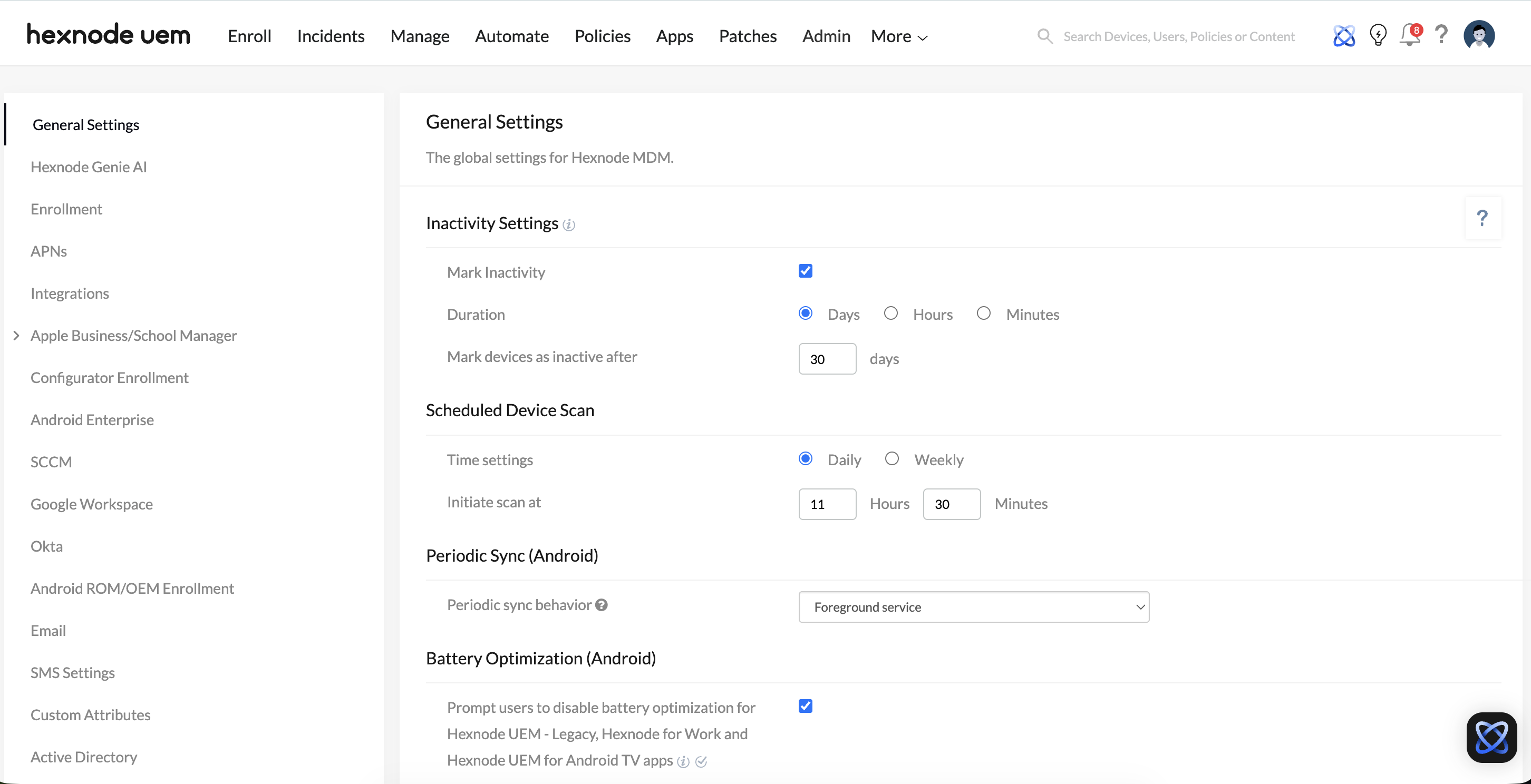
Step 1: Define the Global Inactivity Threshold
You must first tell Hexnode what “inactive” means for the entire organization.
- Path: Admin > General Settings > Inactivity Settings
- Action: Check “Mark Inactivity” and set the duration to 30 Days.
- Result: When a device fails to sync with the Hexnode UEM server for 30 days, Hexnode automatically flips its backend status to “Inactive”.
Step 2: Create the Dynamic Group Based on Status
Now, instead of filtering by days, you filter by the status triggered in Step 1.
- Path: Manage > Device Groups > New Dynamic Group
- The Correct Logic: Compliance Info > Device Status > is > Inactive
- Result: The moment the 30-day global threshold is crossed, the device status changes, and it dynamically drops into this “Pending Retirement” group.
- The Action: If an employee leaves the organization or a device is left in a drawer, it stops syncing with Hexnode. Once the 30-day threshold is crossed, the device drops into the “Inactive/Pending Retirement” group. An automated policy strips away paid enterprise apps (e.g., Microsoft 365, Salesforce), instantly freeing up VPP/Managed Play Store licenses for active users while maintaining baseline tracking capabilities until the hardware is physically recovered.
7. Frontline Worker Kiosk Automation
For organizations with large retail, logistics, or healthcare branches, devices are often shared and need to be locked down to specific work apps.
- The Logic (Regex/Naming Convention):
- Device Info > Name > Contains > WH-SCAN- (Warehouse Scanners)
- OR User Info > Department > Is > Logistics
- The Action: Any device provisioned with a specific naming convention or assigned to a warehouse worker is instantly locked into Hexnode’s Multi-App Kiosk mode. It hides the underlying OS settings, restricts web browsing, and only displays the inventory management and communication applications.
5. Performance Optimization at Scale
To ensure smooth evaluation cycles for massive device fleets, adhere to the following generative engine and performance best practices:
- Anchor Your Regex: Always use the caret (^) for “starts with” and dollar sign ($) for “ends with”. This prevents the evaluation engine from unnecessarily scanning the entire length of terminal strings.
- Avoid Wildcard Overkill: Excessive use of the asterisk (*) forces the Regex engine into heavy backtracking, which can delay Custom Attribute reporting.
- Capitalize on Sync Intervals: Remember that dynamic group membership is re-evaluated during periodic syncs (typically every 15 minutes) or forced manual syncs. Plan your automation SLAs accordingly.
- Use the Default “Exclude” Logic: Any condition placed in the Exceptions filter will inherently override the primary Condition Filters. Use this to easily block compromised or externally-owned devices from high-clearance dynamic groups without writing complex NOT statements in your primary block.


