


Category filter
Configure Web Content Filtering for Windows
Web content filtering controls access to websites enabling organizations to restrict corporate devices from accessing those URLs that do not align with their security policies. Hexnode UEM’s Web content filtering feature allows IT administrators to remotely manage and enforce web filtering policies across all managed Windows devices. Admins can blocklist specific URLs to prevent access or allowlist trusted URLs to ensure specified availability of websites. You can enforce this method of preferred website across browsers like Microsoft Edge, Google Chrome, and Mozilla Firefox.
How to set up Web content filtering for Windows devices?
To configure Web content filtering for Windows,
- Log in to your Hexnode UEM portal. Navigate to the Policies tab. Click on New Policy to create a new one. Enter the Policy Name and Description in the provided fields.
(or)
Click on any policy to edit an existing one. - Navigate to Windows. Select Web Content Filtering under Security.
- Click on Configure.
- Select the Blocklist / Allowlist option.
- Select the browsers on which the web content filters should be applied.The available options are:
- Microsoft Edge
- Google Chrome
- Mozilla Firefox
If you select Microsoft Edge, the blocklisted or allowlisted URLs will apply only to that browser. Google Chrome and Mozilla Firefox will not be affected, and the users can access all websites from them.
Blocklist Website URLs
When a website is blocklisted, users are prevented from accessing it. To blocklist web URLs, specify the URL to be blocklisted in the text field and click Add.
Allowlist Website URLs
When a website is allowlisted, users are only able to access the allowlisted websites and are blocked from accessing others. To allowlist web URLs, enter the URLs to be allowlisted in the text field and click Add.
You can also upload the URLs to be blocklisted / allowlisted in bulk as a CSV file.
Associate the policy with Windows devices
If you have not saved the policy yet,
- Go to Policy Targets > +Add Devices. Alternatively, you can choose to associate the policy to either device groups, users, user groups or domains from the left pane.
- Choose the target device/devices.
- Click Ok. Click Save.
If you need to add more devices, click on +Add Devices again and repeat the above steps. This won’t affect your previous selections.
If you are on a page that lists the policies,
- Select a policy.
- From Manage drop-down, choose Associate Targets.
- Choose the target devices and click Associate.
What happens at the device end?
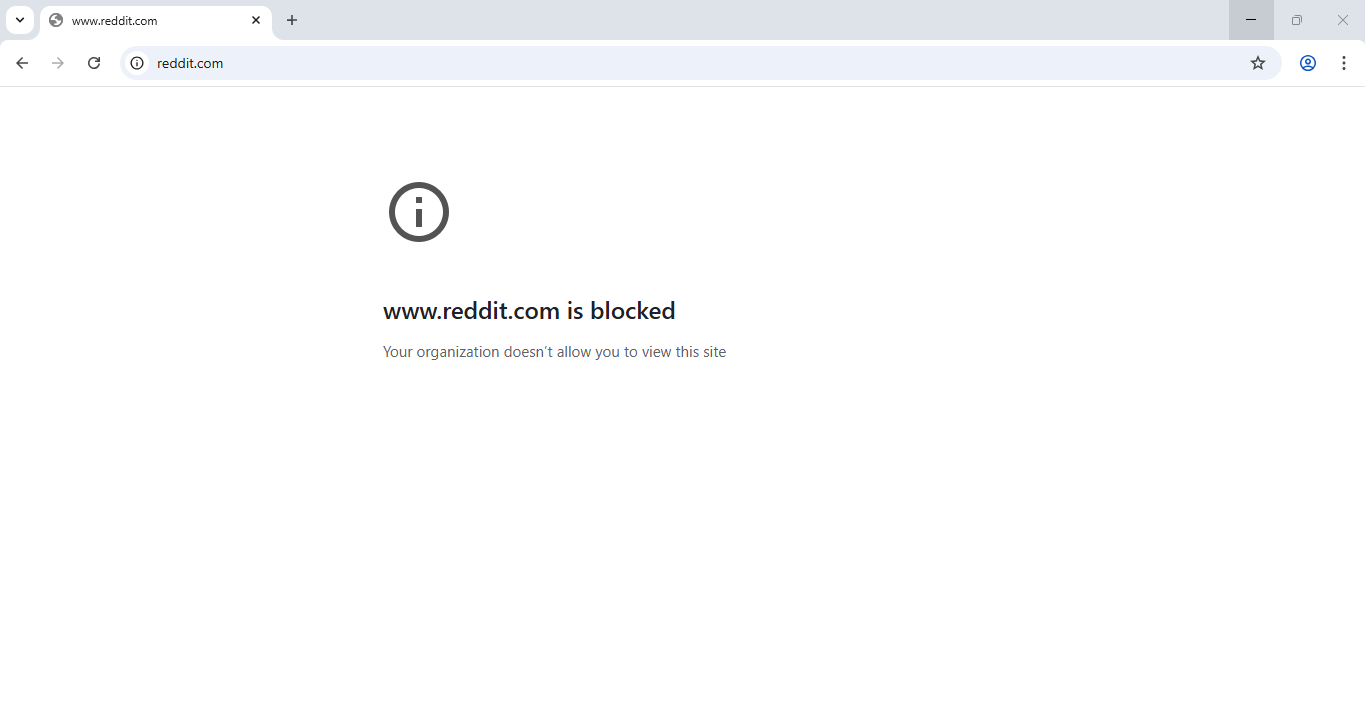
On the device end, when a user tries to access blocklisted URLs through the selected browser, access will be denied. Also, the browser displays a warning message that the site is blocked by the organization.
For allowlisting, only the websites explicitly included in the allowlist can be accessed—any attempt to visit other sites from the selected browser will be blocked.
Frequently Asked Questions (FAQs)
1. Is it possible to block entire categories of websites (e.g., social media, Gambling)?
No. Hexnode’s Windows Web Content Filtering is strictly URL-based and does not utilize a category-based filtering engine. Administrators must enter specific URLs for enforcement.
2. What is the impact if no browser is selected within the Web Content Filtering policy?
The Web Content Filtering policy will not have any effect on the device. Selection of specific browsers (Microsoft Edge, Google Chrome, or Mozilla Firefox) is mandatory for the filters to be applied across those browsers.
3. Is there a limit to the number of URLs that can be added within the Web Content Filtering policy?
While there is no defined hard limit, adding a very large number of URLs may impact browser performance. For large-scale URL management, administrators can upload the URLs to be blocklisted/allowlisted in bulk as a CSV file to import lists efficiently.
4. Can users bypass these filters by installing alternative browsers like Brave or Opera?
Yes. Browsers such as Brave or Opera are not supported by the Web Content Filtering policy. To prevent users from bypassing restrictions using these browsers, administrators can associate an application blocklist policy to restrict the installation or execution of these browsers on the device.
Troubleshooting
1. A blocked website is still accessible in Chrome/Firefox.
Probable Cause:
The browser application was active when the Web Content Filtering policy was associated, or the specific browser was not selected in the policy.
Solution:
Restart the browser to allow the configuration to take effect. Verify that the browser in question is explicitly selected in the Web Content Filtering policy associated with the device.
2. Policy shows “Success”, but nothing is blocked.
Probable Cause:
The device has acknowledged the Web Content Filtering policy association but hasn’t applied the registry changes to the browsers yet.
Solution:
Click Sync in the Hexnode UEM app on the device and restart the browser.
3. The filter works in Edge but fails in Firefox.
Probable Cause:
Firefox sometimes uses a “locked” profile directory that prevents MDM configurations.
Solution:
Ensure that the Firefox installation is the standard version, and the device has been rebooted once the policy is applied.
Best practices
- Include Domain Variations: Because Hexnode performs exact string matching, administrators should add both the ‘www’ and ‘non-www’ versions of a domain (e.g., https://example.com and https://www.example.com) to the blocklist or allowlist to ensure total coverage.
- Distraction Management: Utilize the Blocklist option on standard employee endpoints to restrict access to specific distracting URLs, such as social media domains, to ensure organizational productivity.
- Kiosk Optimization: Use the Allowlist option for dedicated kiosk devices. This ensures that users can only access one or two specific work-related websites while blocking all other internet content.


