


Category filter
How to set up Google Account on iOS devices
Setting up Google Accounts on iOS devices remotely is a boon for organizations using Google Workspace. Hexnode UEM allows administrators to deploy Google account configurations to devices, ensuring that users can access their corporate emails, calendars, and contacts seamlessly upon enrollment.
1. Prerequisites
Before deploying this policy, ensure the following requirements are met:
- Supervision: This feature is supported on Supervised iOS devices running iOS 9.3 and later.
- Enrollment Type: Supported on both Device Enrolled and User Enrolled iOS and iPadOS devices.
2. Configuration Workflow
To set up a Google account:
- Log in to the Hexnode UEM portal.
- Navigate to Policies > New Policy > Create a fully custom policy > iOS > Accounts > Google Accounts and click Configure.
- To configure more than one account within the same policy, click on +Add Account.
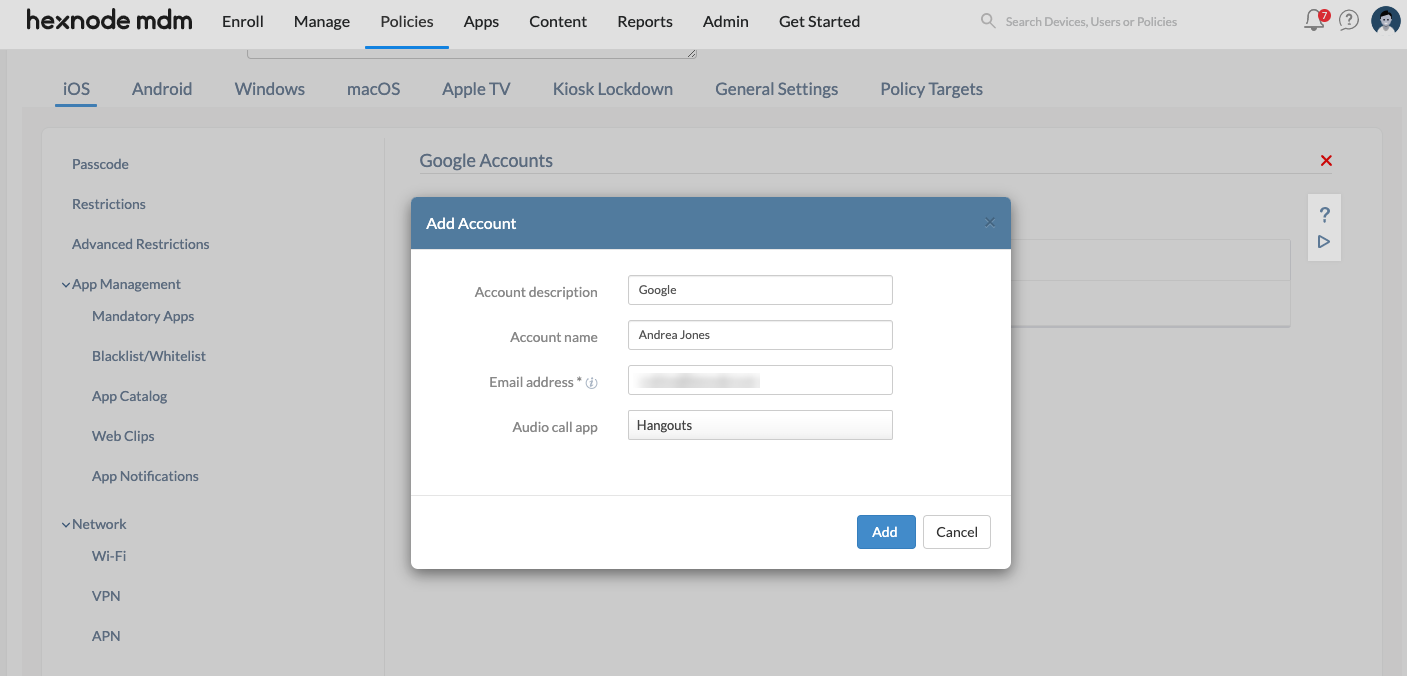
3. Technical Parameter Breakdown
| Setting | Technical Description |
| Account description | (Optional) Provide a description for the Google account. This will be shown in the Mail and Settings app. |
| Account name | (Optional) Provide the user’s full name for the Google account. This appears in the sent messages. |
| Email address | Mandatory. Provide the email address of the Google account. Use the wildcard %email% to dynamically fetch the email address of the user from the UEM. |
| Audio Call App | (Optional) Select the application through which audio calls can be made to the contacts synced from this account. Supported only on iOS 10 and later. |
4. Policy Association
To deploy the configuration to your fleet:
- Navigate to the Policy Targets tab.
- Click +Add Devices (or choose User Groups, Device Groups, or Domains/OUs).
- Select the target entities and click Ok, then Save.
5. What Happens at the Device End?
Once the policy is successfully associated and deployed:
- Account Integration: The Google account is automatically added to the native iOS Mail, Contacts, and Calendar apps.
- Authentication: For security reasons, UEM cannot deploy passwords. The user will receive a prompt to enter their Google Password on the device to complete the sign-in.
- Data Sync: Upon successful authentication, corporate data begins syncing based on the account’s enabled services.
6. Troubleshooting & FAQs
Frequently Asked Questions (FAQs)
- Can multiple Google accounts be pushed to a single device?
Yes. By clicking +Add Account in the policy, multiple configurations can be sent to the device simultaneously.
- What happens if the policy is removed?
When the policy is disassociated or removed from the portal, the Google account and all its synced emails, contacts, and calendars are automatically deleted from the device.
- Does this configuration work for personal Gmail accounts?
While it can technically be used for any Google account, it is primarily designed for corporate Google Workspace accounts to ensure data remains managed.
Troubleshooting
- Sync Failures: Verify that the user has entered the correct password. If the organization uses Multi-Factor Authentication (MFA), the user must complete the verification steps during the initial sign-in.
- Wildcard Errors: Ensure the user’s email is correctly populated in the Hexnode portal under Manage > Users; otherwise, the %email% wildcard will not resolve.
- Call App Compatibility: If the specified Audio Call App is not functioning, confirm the device is running at least iOS 10.


