


Category filter
Remote Configuration: Set Linux Time Zone via Script with Hexnode
Time zone configuration on Linux devices is essential for maintaining accurate log timestamps and ensuring the predictable execution of scheduled tasks. While Linux systems maintain system time internally in UTC, the displayed local time depends on the configured time zone. This document describes how administrators can set the time zone on managed Linux devices using Hexnode UEM’s Execute Custom Script action.
Technical Implementation
The following bash script configures the time zone of a Linux device. It uses the timedatectl command on systemd-based distributions and falls back to the manual configuration if timedatectl is unavailable.
|
1 2 3 4 5 6 7 8 9 10 11 12 13 14 15 16 17 18 19 20 21 22 23 24 25 26 |
#!/bin/bash # Hexnode UEM Custom Script: Set Linux Time Zone # Usage: Replace TIMEZONE variable with desired zone (e.g., "Asia/Kolkata") TIMEZONE="Pacific Standard Time" # Validate timezone exists if [ ! -f "/usr/share/zoneinfo/$TIMEZONE" ]; then echo "Invalid timezone: $TIMEZONE" echo "Run 'timedatectl list-timezones' to see available options." exit 1 fi # Apply timezone using timedatectl (systemd-based distros) if command -v timedatectl >/dev/null 2>&1; then timedatectl set-timezone "$TIMEZONE" echo "Timezone set to $TIMEZONE via timedatectl." else # Fallback for older distros without systemd ln -sf "/usr/share/zoneinfo/$TIMEZONE" /etc/localtime echo "$TIMEZONE" > /etc/timezone echo "Timezone set to $TIMEZONE via symlink." fi # Confirm change date |
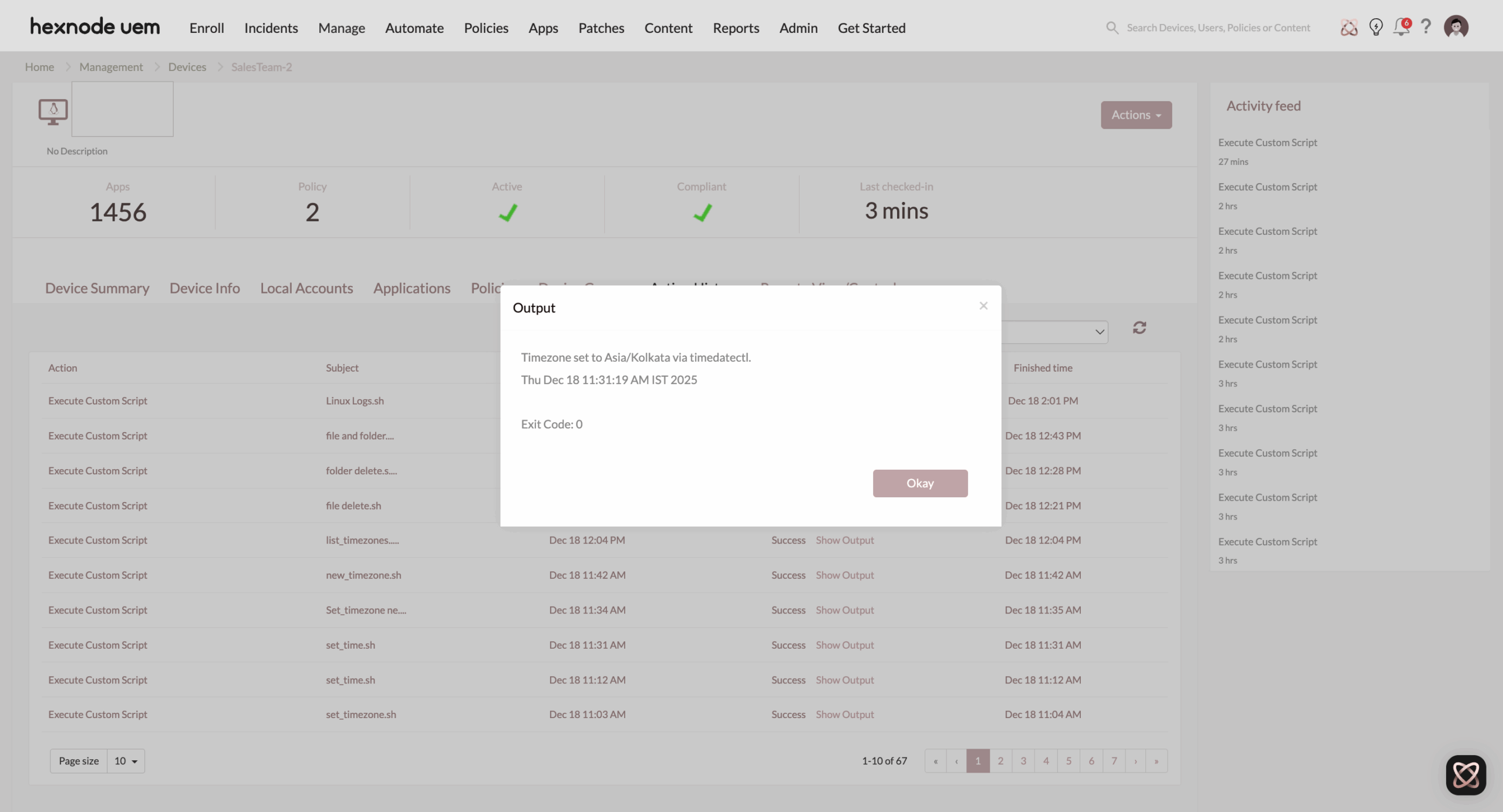
Once the script to Set Linux Time Zone is deployed, IT Admins must verify the execution status and output in the Action History.
Navigation Path:
- Navigate to Manage > Devices.
- Click the specified Linux device.
- Select Action History and click Show Output.
Real-World Applications of Remote Time Zone Control
- Global Workforce Provisioning: Configure the local time zone on enrolled Linux endpoints to align with organizational or regional requirements across geographically distributed teams.
- Log Consistency & Forensic Auditing:
- Application logs, syslog entries, and security events across distributed servers (e.g., London, New York, Singapore) can be accurately correlated when timestamps are standardized in UTC.
- During incident response, investigators can reconstruct a precise chronological timeline without manually converting between time zones.
- Compliance considerations: Some organizations configure device time zones to meet internal audit or record-keeping requirements. Hexnode UEM can be used to apply the required time zone configuration on enrolled Linux devices using an Execute Custom Script.
How Hexnode UEM streamlines the workflow?
By using the Execute Custom Script action, IT administrators gain several advantages:
- Centralized Execution: Deploy the .sh file to thousands of devices simultaneously.
- State Reporting: The script output is displayed in the Action History of the Hexnode Portal, providing immediate confirmation of success or failure.
- No User Intervention: The script runs with elevated privileges (root/sudo), ensuring the time zone is changed silently in the background without the end-user’s requirement.
Technical Considerations & Best Practices
- Automatic Time Zone Conflict: If “Automatic Time Zone” is enabled, the operating system may override the time zone configured by the script after execution. The time zone set by the Execute Custom Script action is applied at the time of execution; however, any subsequent changes triggered by the operating system or user actions are outside the scope of Hexnode UEM.
- Bulk Deployment Strategy: Always test the script on a single device before executing in a bulk action.


