


Category filter
Script to Set Windows Time Zone Remotely via Hexnode UEM
Maintaining a synchronized device fleet across global regions is critical for meeting coordination and accurate system logging. To achieve this, IT administrators can set Windows time zones remotely using custom scripts to enforce standard system times. This guide provides verified Batch and PowerShell scripts to configure time zones via Hexnode UEM’s Execute Custom Script feature.
System Requirements
- Supported OS: Windows 10 (version 1607 and above) & Windows 11.
- Permissions: Target devices must be enrolled in Hexnode UEM.
- Environment: Devices must be online during script execution.
Scripts to configure Windows time zone remotely
To ensure maximum compatibility across your fleet, you can choose from one of the following scripts:
- Batch scripts – Ideal for legacy environments and lightweight execution.
- PowerShell scripts – Offers robust, object-oriented management recommended for modern Windows devices.
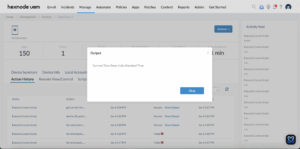
Batch Script to Fetch Current Windows Time Zone Remotely
This script uses the native tzutil.exe (Windows Time Zone Utility) to query the system time zone on target device via the command interpreter.
|
1 2 3 |
@echo off for /f "tokens=*" %%i in ('tzutil /g') do set currentTZ=%%i echo Current Time Zone: %currentTZ% |
Batch Script to Set Windows Time Zone Remotely
This script uses the native tzutil.exe (Windows Time Zone Utility) to programmatically update the system time zone on the device with a specified time zone ID.
|
1 2 3 4 5 6 7 8 9 10 |
@echo off :: Execute the command silently tzutil /s "Pacific Standard Time" :: Verify and report result if %errorlevel% == 0 ( echo [SUCCESS]: Time zone updated to Pacific Standard Time. ) else ( echo [ERROR]: Failed to set time zone. Check the Zone ID. ) |
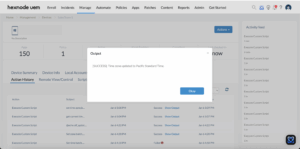
- Replace “Pacific Standard Time” with your target Time Zone ID.
- To view a full list of available time zones on a local machine, run tzutil /l as a separate script via Hexnode UEM.
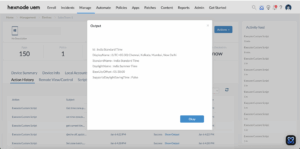
PowerShell Script to Fetch Current Windows Time Zone Remotely
This script uses the Get-TimeZone cmdlet to retrieve a complete TimeZoneInfo object. It provides the active time zone’s ID, Display Name, and current Daylight Saving Time settings.
|
1 |
Get-TimeZone |
PowerShell Script to Set Windows Time Zone Remotely
This script uses the Set-TimeZone cmdlet to programmatically assign a new system time zone to the device using a specified Time Zone ID.
|
1 2 3 4 5 6 |
Set-TimeZone -Id "UTC" if ($?) { Write-Host "SUCCESS: Time zone has been updated to $(Get-TimeZone | Select-Object -ExpandProperty Id)" } else { Write-Error "FAILURE: Time zone update failed." } |
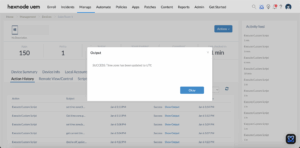
- Replace “UTC” with your required Time Zone ID.
- To generate a list of all supported Windows Time Zone IDs, run Get-TimeZone -ListAvailable as a separate script via Hexnode UEM.
Script Execution steps
Save the above Batch codes as a .bat file and PowerShell codes as a .ps1 file and deploy it using the Execute Custom Script action available within the Hexnode UEM portal.
- Go to Manage > Devices > Select your Windows device.
- Select Actions > Execute Custom Script.
- Upload the saved script file and click Execute.
Verifying the results
Once the script is executed via Hexnode UEM through the Execute Custom Script action, the results are captured and displayed directly within the portal. This allows the administrator to confirm that the time zone has been successfully updated across the fleet without needing to manually verify each device.
To review the execution results, follow these steps within your Hexnode UEM portal:
- Navigate to the Action History tab under the specific device.
- Locate the entry for your script in the Subject column.
- Click the Show Output button located next to the status field.
Notes for Administrators
- If “Set time zone automatically” is enabled, Windows may override your script via IP or GPS location, causing the change to revert despite a “Success” status. To ensure your settings persist, disable the auto-update service first by running the following command – sc config tzautoupdate start= disabled
- Changing the time zone may not automatically toggle the “Adjust for daylight saving time automatically” setting. If the clock remains off by an hour despite a successful change, verify the DST status in the registry. To disable DST for a specific zone, run the following command – tzutil /s “Pacific Standard Time_dstoff”
- Windows requires exact Time Zone IDs to execute these scripts. Using common names like “Eastern Time” instead of the official ID (“Eastern Standard Time”) will cause the script to fail. To find the precise string required by the OS, run the following commands:
- Batch: tzutil /l
- PowerShell: Get-TimeZone –ListAvailable
Operational Benefits of Uniform Time Management
Standardizing time zone configurations across a distributed fleet is essential for maintaining operational consistency and data integrity. The following table highlights key scenarios where remote time zone adjustment adds significant strategic value to an organization.
| Scenario | Strategic Value | Recommended script |
|---|---|---|
| Global Remote Onboarding | Synchronizes calendars and communication tools for new hires across various geographic locations. | Use the PowerShell version to fetch and set zones automatically. |
| Compliance & Auditing | Ensures system logs and timestamps align with corporate standards for legal and security audits. | Use the Batch version for a fast check of current settings. |
| Shared Kiosk Deployment | Prevents unauthorized manual changes to time settings on public-facing or shared terminals. | Use the Batch version to quickly force-set the correct time. |
| Legacy App Compatibility | Resolves database or ERP synchronization errors caused by time-stamp mismatches between clients and servers. | Use the PowerShell version for advanced fixes that include app settings. |
Centralizing time zone configuration via Hexnode UEM’s Execute Custom Script function establishes a high-integrity baseline for endpoint management. By replacing manual intervention with automated Batch and PowerShell scripts, you ensure timestamp consistency for security audits and mitigate authentication failures. This approach guarantees that distributed environments remain synchronized, secure, and operationally compliant.


