


Category filter
Script to set Screensaver on Windows
A screensaver is set to turn on after a period of inactivity of the user. It can be used as a medium to display your brand when the screen is idle. It is also used to prevent others from viewing personal content when the user is away for a short while. You can set a screensaver on your Windows devices remotely using Hexnode’s custom script feature.
Script to set screensaver
|
1 2 3 4 5 6 7 8 9 10 11 12 13 14 15 16 17 18 19 20 21 22 23 24 25 26 27 28 29 30 31 32 33 34 35 36 37 38 39 40 41 |
param( [string]$ScreensaverPath = "C:\Windows\System32\Bubbles.scr", [int]$TimeoutSeconds = 60, [string]$TargetUser = "" ) function Set-Screensaver { param( [string]$Sid, [string]$UserName ) $regPath = "HKEY_USERS\$Sid\Control Panel\Desktop" try { reg add "$regPath" /v ScreenSaveActive /t REG_SZ /d 1 /f | Out-Null reg add "$regPath" /v ScreenSaveTimeOut /t REG_SZ /d $TimeoutSeconds /f | Out-Null reg add "$regPath" /v SCRNSAVE.EXE /t REG_SZ /d $ScreensaverPath /f | Out-Null Write-Output "Screensaver set to $ScreensaverPath with $TimeoutSeconds seconds for user $UserName" } catch { Write-Output "Failed to set screensaver for user $UserName : $_" } } if ([string]::IsNullOrWhiteSpace($TargetUser)) { # No username provided → apply to all loaded user hives Get-ChildItem Registry::HKEY_USERS | ForEach-Object { $sid = $_.PSChildName if ($sid -match "S-1-5-21") { $user = (Get-CimInstance Win32_UserAccount | Where-Object { $_.SID -eq $sid }).Name if (-not $user) { $user = $sid } Set-Screensaver -Sid $sid -UserName $user } } } else { # Username provided → find SID and apply only to that user $account = Get-CimInstance Win32_UserAccount | Where-Object { $_.Name -eq $TargetUser } if ($account) { Set-Screensaver -Sid $account.SID -UserName $TargetUser } else { Write-Output "User $TargetUser not found on this device" } } |
Administrators can provide their own customized screensaver by creating or saving their .scr file (for example, a company logo or branded animation) into a known path such as C:\Windows\System32\. Then they should provide that path in the $ScreensaverPath parameter of the script. In addition, the idle timeout can be set by adjusting the $TimeoutSeconds parameter, which determines how many seconds of inactivity must pass before the screensaver activates.
Optionally, a specific username can be provided through the $TargetUser parameter. If a username is provided, the script applies the screensaver settings only to that user’s registry hive. If no username is given, the script will apply the changes to all users on the device.
How to View Script Output in Hexnode
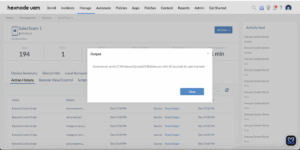
To review the execution results, navigate to the Action History tab of the specific device in your Hexnode UEM portal. Locate the script entry in the Subject column and click the Show Output button next to the status field to view the returned data.


