


Category filter
Script to find a File on Windows devices
Searching for specific files on a device can be tedious and time consuming for users. If searching for and finding files are made easy, managing data becomes easier. Hexnode lets admins find files on devices with specific extensions using scripts .
Find files using Batch script
|
1 2 3 4 5 6 7 8 9 10 11 12 13 14 15 16 17 18 19 20 21 22 23 24 25 26 |
@echo off REM Set the filename (include extension) set "FileName=Enter file name" REM For example: "sample.jpg" REM Set the directory to search set "SearchDir=Enter path to search" REM For example: "C:\" REM Flag to track if file is found set "Found=" REM Search recursively for the file for /r "%SearchDir%" %%f in (*%FileName%) do ( echo File "%FileName%" is located at: %%f set "Found=1" ) REM If not found, show message if not defined Found ( echo File "%FileName%" not found in %SearchDir% exit /b 1 ) exit /b 0 |
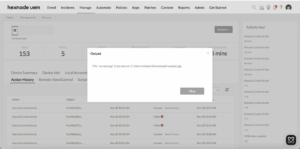
Provide the filename with extension and the directory path where you want to search for the file in the placeholders “set FileName” and “set SearchDir”.
Find files using PowerShell script
|
1 2 3 4 5 6 7 8 9 10 11 12 13 14 15 16 17 |
# Set the filename explicitly (include extension) $FileName = "Enter file name" # For example: "sample.txt" # Directory to search $SearchDir = "Enter path to search" # For example: "C:\" # Find matching files and output full paths $matches = Get-ChildItem -Path $SearchDir -Recurse -File -Filter $FileName -ErrorAction SilentlyContinue if ($matches) { foreach ($match in $matches) { Write-Output "File '$FileName' is located at: $($match.FullName)" } } else { Write-Output "File '$FileName' not found in $SearchDir" exit 1 } |
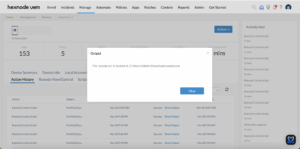
Provide the filename with extension and the directory path where you want to search for the file in the placeholders “$FileName” and “$SearchDir”.
How to View Script Output in Hexnode
To review the execution results, navigate to the Action History tab of the specific device in your Hexnode UEM portal. Locate the script entry in the Subject column and click the Show Output button next to the status field to view the returned data.


