


Category filter
Enable or Disable Microsoft Accounts on Windows Devices via PowerShell
Microsoft Accounts allow users to synchronize personal data, settings, and cloud services across devices. However, in a corporate environment, MSAs can pose security risks, such as unmanaged data synchronization or unauthorized access. This guide provides PowerShell scripts to centrally manage the accessibility of Microsoft Accounts. By utilizing Hexnode UEM’s Execute Custom Script action, administrators can remotely enable or disable MSAs to maintain full control over local authentication methods.
System Requirements
- Operating Systems: Windows 10 and Windows 11 (Pro, Enterprise, and Education editions).
- Permissions: Target devices must be enrolled in Hexnode UEM.
- Environment: Devices must be online during script execution.
Script to Disable Microsoft Accounts on Windows
This script executes a comprehensive scan to identify all active Microsoft Accounts and programmatically restricts them. It includes a safety check to ensure it only targets Microsoft Accounts to prevent a lockout risk. The script initially checks for a local administrator, and only if one is found, it disables all Microsoft Accounts.
|
1 2 3 4 5 6 7 8 9 10 11 12 13 14 15 16 17 18 19 20 21 22 23 24 25 26 27 |
# --- SAFETY CHECK --- # Verify at least one active Local Administrator exists to prevent lockout $localAdmin = Get-LocalUser | Where-Object { $_.PrincipalSource -eq 'Local' -and $_.Enabled -eq $true } if (-not $localAdmin) { Write-Error "CRITICAL: No active Local Admin detected. Script aborted to prevent system lockout." exit } # --- EXECUTION --- $msaUsers = Get-LocalUser | Where-Object { $_.PrincipalSource -eq 'MicrosoftAccount' -and $_.Enabled -eq $true } if ($null -eq $msaUsers) { Write-Output "No active Microsoft Accounts found." } else { foreach ($u in $msaUsers) { Write-Output "Attempting to disable: $($u.Name)" Disable-LocalUser -Name $u.Name # --- VERIFICATION --- $check = Get-LocalUser -Name $u.Name if ($check.Enabled -eq $false) { Write-Output "SUCCESS: $($u.Name) is now disabled." } else { Write-Warning "FAILURE: $($u.Name) could not be disabled." } } } |
Script To Enable Microsoft Accounts on windows
This script identifies and enables all currently “disabled” Microsoft Accounts on your windows device.
|
1 2 3 4 5 6 7 8 9 10 11 12 13 14 15 16 17 18 19 |
# --- EXECUTION --- $disabledMSAs = Get-LocalUser | Where-Object { $_.PrincipalSource -eq 'MicrosoftAccount' -and $_.Enabled -eq $false } if ($null -eq $disabledMSAs) { Write-Output "No disabled Microsoft Accounts found to re-enable." } else { foreach ($u in $disabledMSAs) { Write-Output "Attempting to enable: $($u.Name)" Enable-LocalUser -Name $u.Name # --- VERIFICATION --- $check = Get-LocalUser -Name $u.Name if ($check.Enabled -eq $true) { Write-Output "SUCCESS: $($u.Name) is now active." } else { Write-Warning "FAILURE: $($u.Name) remains disabled." } } } |
Script Execution steps
Save the above codes as a .ps1 file and deploy it using the Execute Custom Script action available within the Hexnode UEM portal.
- Go to Manage > Devices > Select your Windows device.
- Select Actions > Execute Custom Script.
- Upload the saved script file and click Execute.
Verifying the results
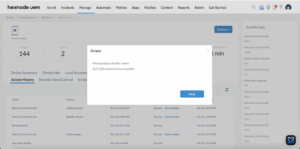
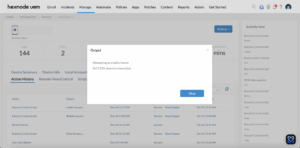
Once the script is executed, the results are captured and displayed directly under device’s Action History tab. Administrators can view the results by clicking on the Show Output button, which returns a definitive audit trail of all Microsoft Accounts that were modified. This non-intrusive verification process ensures that changes are confirmed without interrupting the end-user productivity or requiring physical access to the device.
To review the execution results, follow these steps within your Hexnode UEM portal:
- Navigate to the Action History tab under the specific device.
- Locate the entry for your PowerShell script (e.g., “Disable Microsoft Accounts”) in the Subject column.
- Click the Show Output button located next to the status field.
Result Interpretation
The output can be interpreted using the following table:
| Output | Interpretation |
|---|---|
| Attempting to disable: [Account Name] SUCCESS: [Account Name] is now disabled. |
The script successfully restricted the Microsoft Account, preventing the user from logging in. |
| Attempting to enable: [Account Name] FAILURE: [Account Name] remains disabled. |
The command was sent, but Windows blocked the change. This usually occurs if the account is locked or restricted by a higher-level Group Policy. |
| Attempting to enable: [Account Name] SUCCESS: [Account Name] is now active. |
The script successfully identified the Microsoft Account and restored its login permissions. |
| No disabled Microsoft Accounts found to re-enable. | The script scanned the device but found no Microsoft Accounts in a disabled state to act upon. |
| No active Microsoft Accounts found. | The script scanned the device but found no Microsoft Accounts in an enabled state to disable. |
| CRITICAL: No active Local Admin detected. Script aborted to prevent system lockout | The script aborted from execution because no local account was found. This is a safety trigger incorporated to prevent a complete lockout of the device. |
Strategic Use cases
The following matrix outlines the strategic scenarios where these PowerShell scripts provide maximum business impact and operational security.
| Scenario | Strategic Action | Business Impact |
|---|---|---|
| Data Leakage Prevention (DLP) | Globally disable MSA synchronization on corporate-owned devices. | Risk Mitigation: Prevents users from syncing sensitive corporate files to personal OneDrive or unmanaged cloud storage. |
| Shared Device Governance | Disable MSA functionality on kiosk or multi-user workstations. | Resource Integrity: Ensures that public or shared machines are not “locked” to a single user’s personal credentials or cloud profile. |
| Onboarding & Identity Alignment | Enable MSA specifically for departments requiring Azure/Microsoft 365 cloud features. | Operational Flexibility: Provides granular control, allowing specific teams to utilize cloud features while keeping the rest of the fleet restricted. |
| Offboarding & Asset Recovery | Immediately disable MSA access during the employee exit process. | Access Control: Prevents departing employees from accessing local settings or synced data via personal credentials after termination. |
| Regulatory Compliance Audits | Execute scripts to audit and disable MSAs across the fleet to meet SOC2 or CIS Benchmarks. | Audit Readiness: Generates a clear audit trail of authentication compliance, proving that only corporate identities are active on endpoints. |
Operational Notes for Administrators
- Error Handling: The scripts utilize Try/Catchlogic to manage unexpected system errors (such as a busy database or restricted permissions). Instead of the script crashing, it will capture the error and display it in the Show Output log for easier troubleshooting.
- Active Session Handling: If a user is currently logged into a Microsoft Account, the “Disable” command may fail or require a system restart to fully terminate the session.
- PowerShell Execution Policy: While Hexnode UEM typically bypasses default restrictions, the script may fail to execute if a device is governed by a strictly enforced “Restricted” PowerShell execution policy.
- Scope of Impact: This script exclusively targets Microsoft Accounts that are currently present at the endpoint at the time of execution. It does not proactively prevent the addition of new accounts after the script has been successfully completed.
Integrating these PowerShell scripts with Hexnode UEM enables IT departments to establish a rigorous and uniform identity management framework. By centralizing the control of Microsoft Account (MSA) accessibility, organizations can effectively eliminate unmanaged data synchronization and reinforce device security through enhanced administrative oversight.


