


Category filter
Script to deploy trusted CA certificates on Windows
Deploying trusted CA certificates to the devices in a work environment is crucial since certificates enable streamlined access to various services. They act as credentials, authenticate clients, perform encryption/decryption, and can also be used to sign messages digitally. Though the uses may vary, organizations might be looking for possible ways to install them without involving a hands-on approach. The Execute Custom Script action helps you embed necessary commands and run them on numerous computers altogether. This doc helps you with scripts that can be used for installing certificates on Windows devices.
PowerShell script to deploy certificates
|
1 2 3 4 5 6 7 8 9 10 11 12 13 14 15 16 17 18 19 |
try { Write-Output "starting script execution" # Example: Let's Encrypt ISRG Root X1 $download_url = "https://letsencrypt.org/certs/isrgrootx1.pem" $local_path = "C:\Hexnode\isrgrootx1.pem" $WebClient = New-Object System.Net.WebClient Write-Output "downloading certificate from manifest url" $WebClient.DownloadFile($download_url, $local_path) Write-Output "downloading completed`nInstalling certificate" certutil -addstore Root $local_path Write-Output "script execution completed" } catch [Exception] { Write-Output $_.Exception.Message } |
Replace the URL and file path in the $download url and $local path parameter with the actual certificate URL and file path you want to download and install the certificate.
You can also use the Import-Certificate cmdlet to import certificates to the certificate store.
|
1 |
Import-Certificate -FilePath "C:\Users\Xyz\Desktop\BackupCert.Cer" -CertStoreLocation Cert:\LocalMachine\Root |
Replace the file path in the –FilePath parameter with the actual path of the certificate file on your device
How to View Script Output in Hexnode
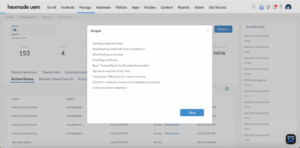
To review the execution results, navigate to the Action History tab of the specific device in your Hexnode UEM portal. Locate the script entry in the Subject column and click the Show Output button next to the status field to view the returned data.


