


Category filter
Script to Clear Browsing History on Windows devices
In institutions such as hotels, hospitals, and schools, the devices may be shared among multiple users. In such instances, other users may gain access to the users’ internet surfing history. Hence, organizations may require to delete the browsing history from the devices to protect the privacy of each user. However, manually clearing browsing history from every device will be a cumbersome process. Hexnode lets you remotely do this on Windows devices by executing custom scripts from the portal.
Batch script
1) Clear browsing history of Google Chrome
|
1 |
del /q /s /f “C:\Users\Username\AppData\Local\Google\Chrome\User Data\Default\History” |
Replace “Username” with actual username.
2) Clear browsing history of Microsoft Edge
|
1 2 3 4 5 6 7 8 9 10 11 12 |
@echo off :: Kill Edge if running taskkill /IM msedge.exe /F >nul 2>&1 set Folder=C:\Users\%USERNAME%\AppData\Local\Microsoft\Edge\User Data\Default if exist "%Folder%\History" ( del /q /s /f "%Folder%\History" echo Edge browsing history cleared successfully ) else ( echo Edge history file not found ) |
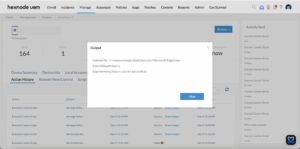
Replace %Username% with actual username.
PowerShell script
1) Clear browsing history of Google Chrome
|
1 2 3 4 5 6 7 8 9 10 11 12 13 14 15 16 17 18 19 |
$Items = @('Archived History', 'History', 'Top Sites', 'Visited Links') $Folder = "C:\Users\Username\AppData\Local\Google\Chrome\User Data\Default" $Items | % { if (Test-Path "$Folder\$_") { Remove-Item "$Folder\$_" } } |
Replace “Username” with your username.
2) Clear browsing history of Microsoft Edge
|
1 2 3 4 5 6 7 8 9 10 11 12 13 14 15 16 17 |
# Kill Edge if running Get-Process msedge -ErrorAction SilentlyContinue | ForEach-Object { Stop-Process $_ -Force } Start-Sleep -Seconds 2 # Define Edge history path for current user $historyPath = "C:\Users\USERNAME\AppData\Local\Microsoft\Edge\User Data\Default\History" if (Test-Path $historyPath) { try { Remove-Item $historyPath -Force Write-Output "Edge browsing history cleared successfully" } catch { Write-Output "Failed to clear Edge browsing history: $_" } } else { Write-Output "Edge history file not found" } |
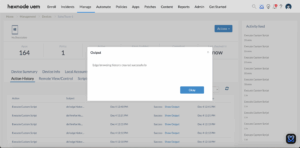
Replace “Username” with actual username.
How to View Script Output in Hexnode
To review the execution results, navigate to the Action History tab of the specific device in your Hexnode UEM portal. Locate the script entry in the Subject column and click the Show Output button next to the status field to view the returned data.


