


Category filter
Clear Browser Cache: Remediation and Sanitization for Windows Endpoints
In high-utilization enterprise environments, accumulated browser data can lead to degraded system performance, significant storage consumption, and issues where updated web content fails to render correctly. Governing this temporary data is essential for maintaining an optimized and secure digital workspace.
Implementing Hexnode UEM’s Execute Custom Script feature transforms the way IT teams handle browser-related maintenance by replacing manual interventions with a unified automation strategy.This guide provides the necessary technical parameters to remotely clear cache for Google Chrome, Mozilla Firefox, and Microsoft Edge across your Windows fleet.
System Requirements
- Operating Systems: Windows 10 and Windows 11 (Pro, Enterprise, and Education editions).
- Permissions: Target devices must be enrolled in Hexnode UEM.
- Environment: Devices must be online during script execution.
Universal Remote Cache Sanitization script (Chrome/Edge/Firefox)
The following script provides a unified solution for remotely sanitizing browser cache. Using this universal cache purging script for all major browsers such as Chrome, Edge, and Firefox, administrators can maintain a standardized security baseline. This script features automated process enforcement and dynamic path discovery to ensure 100% reliability regardless of browser state or randomized profile names.
|
1 2 3 4 5 6 7 8 9 10 11 12 13 14 15 16 17 18 19 20 21 22 23 24 25 26 27 28 29 30 31 32 33 34 35 36 37 38 39 40 41 42 43 44 45 46 47 48 49 50 51 52 53 54 55 56 57 58 59 60 |
<# .SYNOPSIS Deep Scan Browser Sanitization. .DESCRIPTION Uses a recursive search for Firefox Store packages to ensure no cache is missed. #> $UserProfiles = Get-ChildItem "C:\Users" | Where-Object { $_.PSIsContainer -and $_.Name -notmatch "Public|Default|All Users|desktop.ini" } $StatusMap = @{} foreach ($Profile in $UserProfiles) { $UserHome = $Profile.FullName # 1. Standard Browsers $Browsers = @( @{ ID = "Chrome"; Proc = "chrome"; Path = "$UserHome\AppData\Local\Google\Chrome\User Data\*\Cache" }, @{ ID = "Edge"; Proc = "msedge"; Path = "$UserHome\AppData\Local\Microsoft\Edge\User Data\*\Cache" }, @{ ID = "Firefox"; Proc = "firefox"; Path = "$UserHome\AppData\Local\Mozilla\Firefox\Profiles\*\cache2" } ) foreach ($B in $Browsers) { $ResolvedPaths = Resolve-Path $B.Path -ErrorAction SilentlyContinue if ($ResolvedPaths) { Get-Process -Name $B.Proc -ErrorAction SilentlyContinue | Stop-Process -Force -ErrorAction SilentlyContinue foreach ($Path in $ResolvedPaths) { try { Get-ChildItem -Path $Path.Path -Recurse | Remove-Item -Force -Recurse -ErrorAction SilentlyContinue $StatusMap[$B.ID] = "Action Successful: Cache cleared for $($B.ID)" } catch { } } } } # 2. SPECIAL LOGIC: Deep Scan for Firefox Store # We look for ANY folder starting with Mozilla.Firefox in the Packages directory $StoreBase = "$UserHome\AppData\Local\Packages\Mozilla.Firefox*" $ResolvedStore = Resolve-Path $StoreBase -ErrorAction SilentlyContinue if ($ResolvedStore) { # Force close Firefox before deep cleaning Get-Process -Name "firefox" -ErrorAction SilentlyContinue | Stop-Process -Force -ErrorAction SilentlyContinue # Search specifically for 'cache2' folders anywhere inside the Firefox package $StoreCachePaths = Get-ChildItem -Path $ResolvedStore.Path -Filter "cache2" -Recurse -Directory -ErrorAction SilentlyContinue foreach ($CPath in $StoreCachePaths) { try { $CPath | Get-ChildItem -Recurse | Remove-Item -Force -Recurse -ErrorAction SilentlyContinue $StatusMap["FirefoxStore"] = "Action Successful: Cache cleared for Firefox (Store)" } catch { } } } } # Output Write-Output "-------------------------------------------" if ($StatusMap.Count -eq 0) { Write-Output "No browser cache found." } else { $StatusMap.Values | ForEach-Object { Write-Output $_ } } Write-Output "-------------------------------------------" Write-Output "Execution Complete." |
Deployment instruction: Enter the target Windows username in the Arguments field when executing the script via the Hexnode portal to purge the browser cache for that specific user profile. Leave the Arguments field blank to automatically detect and clear the cache for the currently logged-in user, enabling zero-touch deployment for active sessions.
Script Execution steps
Save the above codes as a .ps1 file and deploy it using the Execute Custom Script action available within the Hexnode UEM portal.
- Go to Manage > Devices > Select your Windows device.
- Select Actions > Execute Custom Script.
- Upload the saved script file and click Execute.
Verifying the results
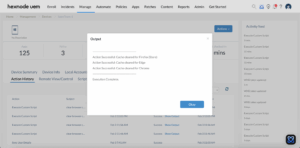
Once the cleanup is initiated, Hexnode UEM captures the real-time terminal feedback in the Action History dashboard. Administrators can view a definitive audit trail of the operation by clicking Show Output, allowing for non-intrusive verification without interrupting end-user productivity.
To review the execution results, follow these steps within your Hexnode UEM portal:
- Navigate to the Action History tab under the specific device.
- Locate the entry for your script in the Subject column.
- Click the Show Output button located next to the status field.
Technical Architecture & Execution Logic
- Zero-Touch Automation: Automatically detects the active desktop user via the explorer.exe process if no argument is provided.
- Universal Browser Support: Consolidates sanitization for Google Chrome, Microsoft Edge, and Mozilla Firefox into a single execution block.
- Hybrid Installation Coverage: Targets both standard Win32 (web-downloaded) installations and Microsoft Store (MSIX/Package) versions.
- Process Enforcement: Programmatically terminates active browser processes to bypass Windows filesystem locks and ensure a successful purge.
- Dynamic Profile Discovery: Uses wildcard path resolution (*) to automatically find randomized Firefox profile folders and multi-profile Chrome/Edge directories.
- User Disruption: This script will forcefully close open browsers. It is best deployed during off-hours or maintenance.
Endpoint Maintenance and Performance Matrices
The following table outlines how administrators can utilize this script to drive tangible business outcomes and maintain high standards of digital hygiene across the infrastructure.
| Scenario | Strategic Action | Business Impact |
|---|---|---|
| Storage Optimization | Target accumulated cache data on shared lab or kiosk devices. | Hardware Longevity: Recovers disk space and prevents performance degradation on low-capacity SSDs. |
| Troubleshooting & Support | Remotely clear stale web data for users experiencing rendering issues. | User Productivity: Resolves web-app errors instantly without requiring remote control sessions. |
| Data Privacy | Purge local web artifacts on decommissioned or high-turnover devices. | Security Compliance: Reduces the local data footprint and mitigates the risk of residual session data. |
Operational Notes for Administrators
- System Impact: While these scripts are lightweight, it is recommended to schedule bulk cache purges during off-peak hours to avoid minor disk I/O spikes on older hardware.
- Targeting Logic: These scripts are designed for local user profiles. To clear caches for multiple users on a single machine, the script must be executed iteratively for each unique username.
Deploying these PowerShell scripts through Hexnode UEM elevates traditional support tasks into a proactive system governance strategy. This centralized approach enables administrators to programmatically resolve browser performance issues and maintain a verified operational state across the Windows fleet.
Automating browser maintenance recovers critical disk space and strengthens security by ensuring sensitive web data does not persist on corporate endpoints. By utilizing detailed audit logs and real-time feedback, organizations achieve granular control over application data, significantly enhancing both endpoint integrity and the end-user experience.


